
GCC (GNU Compiler Collection) is one of the most commonly used C/C++ compilers on Linux, supporting multiple languages and platforms. This article introduces the working principles of GCC, commonly used commands, optimization options, and best practices based on relevant materials.
Differences and Connections Between gcc and g++
- gcc processes source files in C language by default, while g++ processes source files in C++ language by default.
- gcc does not automatically link the C++ standard library when compiling C++ files, whereas g++ does.
- gcc only recognizes C language syntax and header files, while g++ recognizes C++ syntax and header files.
- If using gcc to compile C++ source files, it is recommended to add
<span>-lstdc++</span>, otherwise linking may fail. - g++ supports C++ features such as operator overloading and templates, which gcc does not.
- Both can be used to compile assembly files and link object files.
Since g++ is just a subset of gcc, the usage and parameters of gcc and g++ are basically the same. This article mainly focuses on C++ related content, so today we will primarily introduce g++!
GCC Compilation Process
The GCC compilation of a source file typically goes through the following four stages:
Preprocessing (Preprocessing) -> Compilation (Compilation) -> Assembly (Assembly) -> Linking (Linking)

(A detailed analysis and introduction of the above process will be elaborated in the next article)
Usually, simply using <span>gcc hello.cpp -o hello</span> can automatically complete all the above steps. The final output is a binary executable file (in Windows, executable files have a .exe file extension), in this case, <span>hello</span>.
Note:
If no output file is specified (in this case,
<span>-o hello</span>), running the command<span>$ g++ hello.cpp</span>will generate a binary file named<span>a.out</span>
How to Compile a Single File and Multiple Files
Single File
g++ hello.cpp -o hello
Multiple Files (including user-defined header files, assuming the header files are in the current directory)
Usually, just include the header file in the source file with <span>#include "myheader.h"</span>, and compile the source file.
g++ main.cpp myheader.h -o main
Multiple Files (including user-defined header files, assuming the header files are in the include directory):
g++ -I./include main.cpp -o main
<span>-I</span> option specifies the header file search path, suitable for complex project structures or when header files are not in the current directory.
Compile All Source Files in a Specified Directory
<span>cpp</span> files are in the <span>src</span> directory, and header files are in the <span>include</span> directory.
g++ src/*.cpp -I./include -o app
Of course, modern tools have many powerful build tools to help you manage source files (header files and cpp files) and compilation options and directories, such as cmake, bazel, ninja, and powerful IDEs like Visual Studio and Clion. However, these may not be necessary for you at this stage; the priority is to focus on the language level, <span>talk is cheap, show me your code!</span>
Compiler Optimization Options
GCC provides various optimization levels, commonly used as follows:
<span>-O0</span>: Default, no optimization, suitable for debugging.<span>-Og</span>: Optimization suitable for debugging, more conservative than<span>-O1</span>.<span>-O1</span>: Basic optimization, enabling some optimization options.<span>-O2</span>: Common release optimization, includes more optimizations (such as automatic inlining).<span>-Os</span>: Optimize code size, suitable for embedded scenarios.<span>-O3</span>: Aggressive optimization, further improving performance but may affect debugging and portability.<span>-Ofast</span>: Enables all high-performance optimizations, which may not conform to standards (such as IEEE floating point).

Example:
g++ -O2 hello.cpp -o hello
Common Optimizations in Modern Compilers:
- Automatic Inlining (inline expansion): Expands small functions directly at the call site, reducing function call overhead.
<span>-O2</span>enables automatic inlining by default. - Loop Unrolling: Unrolls the loop body, reducing the number of iterations and improving performance.
<span>-funroll-loops</span> - Dead Code Elimination: Removes code that will never be executed.
<span>-O2</span>and<span>-O3</span>enable this by default. - Constant Propagation: Directly replaces constant values in expressions, reducing calculations.
<span>-O2</span>and<span>-O3</span> - Tail Call Optimization: Optimizes tail calls in recursive functions, reducing stack space consumption.
<span>-O2</span>and<span>-O3</span> - Link Time Optimization (LTO): Global optimization at link time, improving overall performance.
<span>-flto</span> - Instruction Reordering: The compiler rearranges instructions based on dependencies and processor pipeline characteristics to reduce waiting and improve execution efficiency.
<span>-O2</span>and<span>-O3</span>perform instruction reordering optimization by default.
For example, with loop unrolling, the code is as follows:
int sum_array() {
    int sum = 0;
    int arr[] = {1, 2, 3, 4, 5};
    int n = sizeof(arr) / sizeof(arr[0]);
    for (int i = 0; i < n; ++i) {
        sum += arr[i];
    }
    return sum;
}
Compile with different optimization levels:
g++ -O0 -S loop_unroll.cpp -o loop_O0.s
g++ -O3 -S loop_unroll.cpp -o loop_O3.s
(<span>-S</span> is used to instruct the compiler to generate assembly file loop_xx.s)
Comparing the assembly code, it is easy to see:
- Under
<span>-O0</span>, the loop body remains unchanged, accumulating step by step. - Under
<span>-O3 -funroll-loops</span>, the compiler attempts to unroll the loop body, processing multiple elements at a time, reducing loop checks and jump counts, resulting in multiple accumulation instructions in the assembly code and fewer loop iterations.
You can use <span>less loop_O0.s</span> and <span>less loop_O3.s</span> to view the assembly files and observe the changes in instructions and performance improvements brought by loop unrolling. Here, I recommend the powerful tool godbolt.
godbolt (Compiler Explorer) is a powerful online tool that allows you to view the assembly code generated from source code in C/C++ and other languages under different compilers and optimization options in real-time. It supports various compiler versions and parameter settings, making it suitable for learning compiler optimization principles, analyzing code performance, and comparing different compiler behaviors. It is a valuable tool for programmers and learners to explore low-level implementations and performance tuning.
For godbolt code and compilation, please refer to: https://godbolt.org/z/eTYzb4Efj
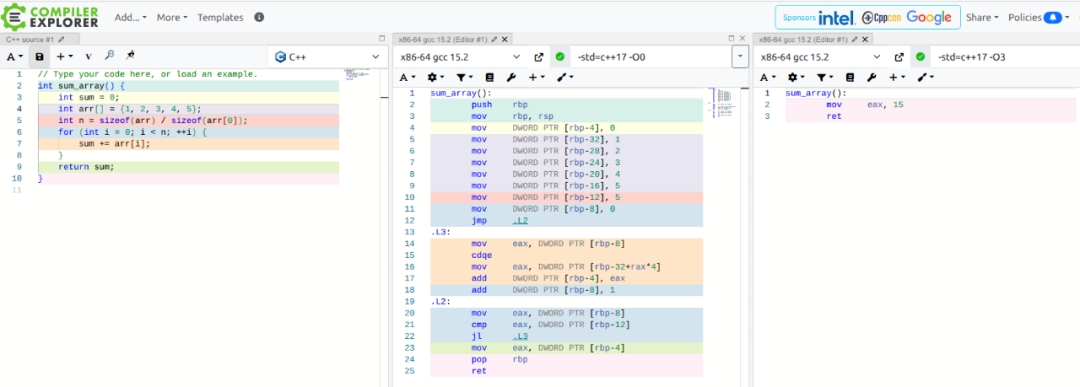
It can be clearly seen that when the <span>-O3</span> optimization is enabled, the assembly code generated from 10 lines of source code is reduced to only 3 lines, while with <span>-O0</span>, the generated assembly code still has 25 lines. This shows that the higher the optimization level, the more the compiler can assist you.
Debugging Information and Optimization
It is recommended to disable optimization during debugging and add the <span>-g</span> option to generate a symbol table:
g++ -g -O0 hello.cpp -o hello
This allows you to see variable names and source line numbers in GDB, making debugging easier.
Best Practices for Compilation Options
- Development Debugging:
<span>-g -O0</span>or<span>-g -Og</span> - Release Version:
<span>-O2</span>or<span>-O3</span>, choose based on performance needs - Embedded/Size Sensitive:
<span>-Os</span> - Special Performance Scenarios:
<span>-Ofast</span>(need to assess standard compliance) - Multi-file Projects: It is recommended to compile in steps, utilizing parallel compilation to speed up
- Header File Management: Only include necessary header files, use forward declarations and precompiled headers (PCH) to improve compilation speed
- Warning Options: It is recommended to always add
<span>-Wall -Wextra</span>, enabling all common and extra warnings, which helps to discover potential bugs and code standard issues.g++ -Wall -Wextra main.cpp -o main - Standard Version Option -std: Used to specify the C/C++ language standard version, ensuring code compatibility and support for new features. For example:
<span>-std=c++11</span>: Enables C++11 standard<span>-std=c++17</span>: Enables C++17 standard<span>-std=c++20</span>: Enables C++20 standard

References
- GCC Official Documentation
- godbolt
- cppreference
At the end, here are some links with a 50% discount
Advanced C++23 Programming
https://u.jd.com/YDbpGGG
C++20 Template Metaprogramming
https://u.jd.com/YGbSvDi