
/ Today’s Tech News /
On the evening of April 10, Beijing time, the ACM announced that the 2023 Turing Award would be awarded to mathematician and top theoretical computer scientist Avi Wigderson of the Institute for Advanced Study in Princeton, recognizing his foundational contributions to computational theory, including shaping the understanding of randomness in computation and his outstanding leadership in the field of theoretical computer science over decades.
/ Author’s Introduction /
Tomorrow is Saturday; after a 6-day work week, everyone should take a good rest!
This article is contributed by Zhujiang, primarily sharing the usage of the Jetpack Bluetooth library, which I believe will be helpful to everyone! Special thanks to the author for contributing this wonderful article.
Original article link:
https://juejin.cn/post/7354389281584119823
/ Introduction /
Bluetooth is a very commonly used operation in Android development, but over the years of iterations, the relevant Bluetooth interfaces have undergone many modifications that need to be adapted, and some interfaces require implementing a bunch of functions… While the whole operation isn’t particularly complex, it can feel somewhat uncomfortable.
I was suddenly excited when looking at the Jetpack library update page and discovered a new library called Bluetooth, so I immediately took a look.
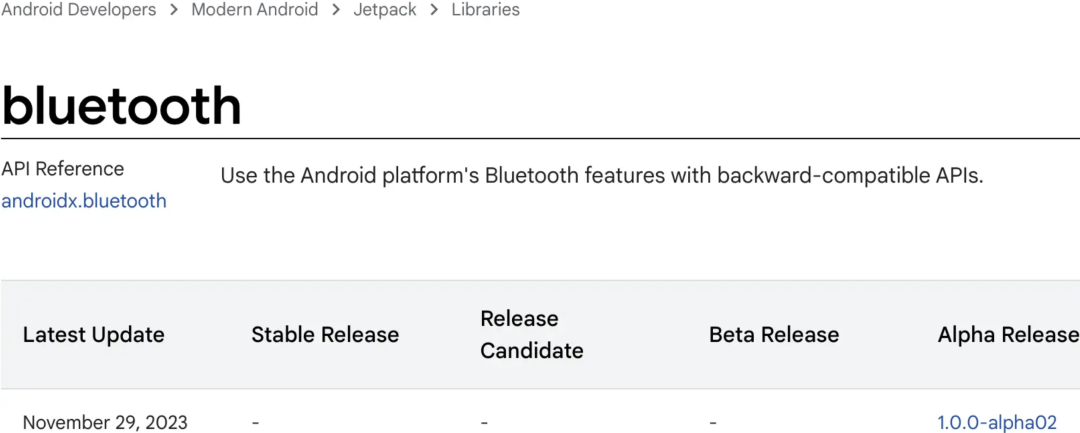
Next, let’s see how the official description goes:
This is the initial release of AndroidX Bluetooth APIs that provides a Kotlin API surface covering Bluetooth LE scanning and advertising, and GATT client and server use cases. It provides a minimal API surface, clear thread model with async and sync operations, and ensures all methods be executed and provides the results.
The official team finally couldn’t stand it anymore and decided to take matters into their own hands. Although it’s just an alpha version, we can still take a look at the source code!
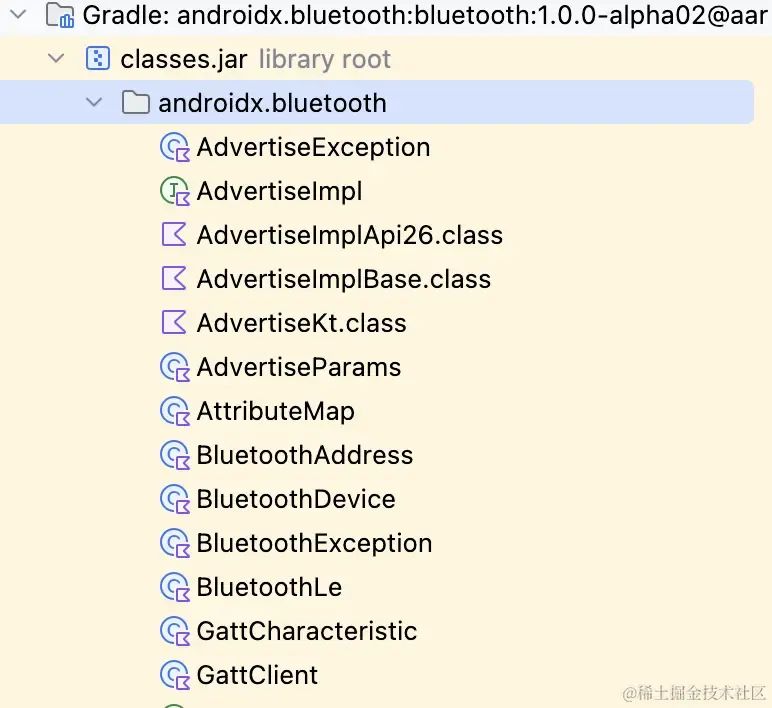
It’s clear that all the code is in Kotlin. Although Google has been strongly promoting Kotlin for a long time, there are still a large number of people who scoff at Kotlin. This is not surprising since the mobile sector has cooled down, and there are not many people left who are still sticking with Android; they are just trying to make a living.
The purpose of launching this library is very clear: to simplify the steps for everyone to use Bluetooth, and all the code is in Kotlin. The APIs inside also use Flow, greatly simplifying the complexity of Bluetooth operations.
Friends who have written Bluetooth-related code are definitely familiar with classes like BluetoothLeScanner, BluetoothManager, and BluetoothAdapter, and have interacted with them many times. However, as I mentioned above, using them is still not very convenient. But with the new Bluetooth library, you won’t even need to use these system classes, or if you do, you won’t even notice it.
/ Scanning Bluetooth Devices /
Previous Implementation Steps
First, let’s take a look at how we would have implemented this before we had this library:
1. Add Bluetooth-related permissions in the AndroidManifest; I will skip the dynamic permission request part.
<uses-permission android:name="android.permission.BLUETOOTH"/>
<uses-permission android:name="android.permission.BLUETOOTH_ADMIN"/>
<uses-feature android:name="android.hardware.bluetooth_le" android:required="true"/>
2. In the class where Bluetooth functionality is needed, obtain the system Bluetooth adapter instance.
private lateinit var bluetoothManager: BluetoothManager
private lateinit var bluetoothAdapter: BluetoothAdapter

override fun onCreate(savedInstanceState: Bundle?) {
    super.onCreate(savedInstanceState)
    setContentView(R.layout.activity_main)

    // Get Bluetooth manager
    bluetoothManager = getSystemService(Context.BLUETOOTH_SERVICE) as BluetoothManager
    // Get Bluetooth adapter
    bluetoothAdapter = bluetoothManager.adapter

    // Check if Bluetooth is available
    if (bluetoothAdapter == null || !bluetoothAdapter.isEnabled) {
        // Prompt user to enable Bluetooth or handle the case where Bluetooth is unavailable
    }
}
3. Create a class that implements the ScanCallback interface to receive scan results:
private val scanCallback = object : ScanCallback() {
    override fun onScanResult(callbackType: Int, result: ScanResult) {
        super.onScanResult(callbackType, result)

        val device = result.device
        val deviceName = device.name ?: "Unknown"
        val deviceAddress = device.address
        val rssi = result.rssi

        Log.d(TAG, "Discovered BLE device: Name - $deviceName, Address - $deviceAddress, Signal Strength - $rssi")

        // Handle scanned device information here, such as adding to a list or updating the UI
    }

    override fun onBatchScanResults(results: MutableList<ScanResult>) {
        super.onBatchScanResults(results)
        // If needed, process batch scan results here
    }

    override fun onScanFailed(errorCode: Int) {
        super.onScanFailed(errorCode)
        Log.w(TAG, "BLE scan failed, error code: $errorCode")
        // Handle scan failure based on the error code
    }
}
4. Use BluetoothLeScanner to start scanning, specifying scan parameters (such as filtering conditions, scan modes, scan intervals, etc.) and the callback created above:
fun startBleScan() {
    if (Build.VERSION.SDK_INT >= Build.VERSION_CODES.LOLLIPOP) {
        val settings = ScanSettings.Builder()
            .setScanMode(ScanSettings.SCAN_MODE_LOW_LATENCY) // Or choose another suitable scan mode
            .build()

        val filters = mutableListOf<ScanFilter>() // You can add filtering conditions, such as specific service UUIDs, etc.

        bluetoothAdapter.bluetoothLeScanner.startScan(filters, settings, scanCallback)
    } else {
        // For devices below Android 5.0, consider using startLeScan, but note that it is deprecated and may have performance and stability issues
        bluetoothAdapter.startLeScan { device, rssi, _ ->
            val deviceName = device.name ?: "Unknown"
            val deviceAddress = device.address
            Log.d(TAG, "Legacy BLE scan: Name - $deviceName, Address - $deviceAddress, Signal Strength - $rssi")
            // Handle scanned device information
        }
    }
}
5. When you no longer need to continue scanning, call the appropriate function to stop scanning.
fun stopBleScan() {
    if (Build.VERSION.SDK_INT >= Build.VERSION_CODES.LOLLIPOP) {
        bluetoothAdapter.bluetoothLeScanner.stopScan(scanCallback)
    } else {
        bluetoothAdapter.stopLeScan(scanCallback as BluetoothAdapter.LeScanCallback) // Note type conversion
    }
}
Bluetooth Implementation Steps
Now, let’s look at how to implement this using Bluetooth:
1. The first step is definitely to add permissions, which I have already mentioned, so I won’t elaborate on this.
2. The second step is to initialize.
val bluetoothLe = BluetoothLe(context)
3. The third step is to scan.
val scanResultFlow = bluetoothLe.scan(
        listOf(
            ScanFilter(
                serviceDataUuid = UUIDS.UUID_FOR_FILTER,
                deviceName = "XXX"
            )
        )
    )
4. Observe the results of the scan.
scanResultFlow.collect {
        Log.i(TAG, "Greeting: 888888:${it.name}")
    }
The difference is not that significant; the API can’t be said to be overly simple. The previous implementation required quite a bit of code, while now it takes less than ten lines; moreover, previously you had to handle messages in callbacks, but now it’s directly encapsulated as a Flow, which is more in line with current programming habits.
Another important point is that previously you had to control the start and stop of scanning yourself, but now developers do not need to worry about that; they only need to focus on processing the data once it is obtained.
/ GATT Connection /
GATT – Generic Attribute Profile. The GATT layer is where the actual data transfer occurs. It includes a data transfer and storage architecture and its basic operations. GATT is used to standardize the data content in attributes and employs the concept of groups to classify and manage attributes.
Previous Implementation Steps
1. Obtain the BluetoothDevice object from the scan results.
val bluetoothDevice = it.device
2. Create a BluetoothGatt client and initiate a connection.
val gattCallback = MyGattCallback() // Implement a custom BluetoothGattCallback
val bluetoothGatt = bluetoothDevice.connectGatt(context, false, gattCallback)
3. Implement the BluetoothGattCallback interface.
class MyGattCallback : BluetoothGattCallback() {
    override fun onConnectionStateChange(gatt: BluetoothGatt, status: Int, newState: Int) {
        when (newState) {
            BluetoothProfile.STATE_CONNECTED -> {
                Log.i(TAG, "Connected to GATT server.")
                gatt.discoverServices() // Trigger service discovery after successful connection
            }
            BluetoothProfile.STATE_DISCONNECTED -> {
                Log.i(TAG, "Disconnected from GATT server.")
                // Handle disconnection logic here
            }
        }
    }

    override fun onServicesDiscovered(gatt: BluetoothGatt, status: Int) {
        if (status == BluetoothGatt.GATT_SUCCESS) {
            // Discover and handle services and characteristics here
            // Use gatt.services to access available services
        } else {
            Log.w(TAG, "onServicesDiscovered received status code: $status")
        }
    }

    // Override other related functions as needed, such as onCharacteristicRead, onCharacteristicWrite, etc.
}
4. Manage the lifecycle of the BluetoothGatt connection: to disconnect from the device, first call bluetoothGatt.disconnect(), then call bluetoothGatt.close() to release resources.
Bluetooth Implementation Steps
Looking at the above, it seems quite cumbersome. Let’s see if Bluetooth makes the whole process a bit more elegant!
val bluetoothDevice = it.device
bluetoothLe.connectGatt(device = it.device) {
    val gattService = getService("GATT_BATTERY_SERVICE_UUID")
    val batteryLevel = gattService?.getCharacteristic("GATT_BATTERY_LEVEL_UUID") ?: return@connectGatt
    val result = readCharacteristic(batteryLevel)
    if (result.isSuccess) {
        val value = result.getOrNull() ?: return@connectGatt
        val battery = value[0].toInt() and 0xff
        Log.i(TAG, "battery:$battery")
    }
}
With less code, the implemented content is even more; I can only say two words: elegant!
This is what code should look like. Of course, this also relies on some Kotlin features, but it indeed looks much more pleasant. More importantly, in the past, when calling, you had to consider the lifecycle to perform disconnect and close to release resources, but now you don’t need to worry at all; the Bluetooth library has taken care of that for us.
/ Exploring the Magic /
The capabilities of Bluetooth were briefly demonstrated above, but how is it implemented? Let’s dive into the source code!
Whether scanning or connecting to GATT, we used BluetoothLe, which is also the entry point of this library:
class BluetoothLe(context: Context) {

    private val bluetoothManager =
        context.getSystemService(Context.BLUETOOTH_SERVICE) as FwkBluetoothManager?
    private val bluetoothAdapter = bluetoothManager?.adapter

    var advertiseImpl: AdvertiseImpl? =
        bluetoothAdapter?.bluetoothLeAdvertiser?.let(::getAdvertiseImpl)

    var scanImpl: ScanImpl? =
        bluetoothAdapter?.bluetoothLeScanner?.let(::getScanImpl)

    val client: GattClient by lazy(LazyThreadSafetyMode.PUBLICATION) {
        GattClient(context.applicationContext)
    }

    val server: GattServer by lazy(LazyThreadSafetyMode.PUBLICATION) {
        GattServer(context.applicationContext)
    }

    // Returns a cold flow to start Bluetooth LE Advertise
    fun advertise(advertiseParams: AdvertiseParams): Flow<@AdvertiseResult Int> {
        return advertiseImpl?.advertise(advertiseParams) ?: callbackFlow {
            close(AdvertiseException(AdvertiseException.UNSUPPORTED))
        }
    }

    // Returns a cold flow to start Bluetooth LE scanning. Scanning is used to discover nearby Advertise devices.
    fun scan(filters: List<ScanFilter> = emptyList()): Flow<ScanResult> {
        return scanImpl?.scan(filters) ?: callbackFlow {
            close(ScanException(ScanException.UNSUPPORTED))
        }
    }

    // Connect to the GATT server on a remote Bluetooth device and call the high-order function after establishing a connection.
    suspend fun <R> connectGatt(
        device: BluetoothDevice,
        block: suspend GattClientScope.() -> R
    ): R {
        return client.connect(device, block)
    }

    // Open the GATT server
    fun openGattServer(services: List<GattService>): GattServerConnectFlow {
        return server.open(services)
    }
}
The code is actually not that much. Of course, this section hides some comments and useless code; even if we include everything, it wouldn’t be much, just a few dozen lines of code, and we can look at it from top to bottom!
There are six global variables and four functions. Let’s first look at the global variables:
-
bluetoothManager: This doesn’t need much explanation; it is constructed directly using the passed context. Although we cannot perceive the existence of bluetoothManager when calling it, it definitely needs to be there. No matter how powerful the library is or how good the encapsulated interface is, it still needs to revert to calling system interfaces, right? There is also something interesting here; you can see that its type is not BluetoothManager but FwkBluetoothManager, which is another use of Kotlin features. When I looked at this part, I was puzzled for a moment, but when I saw the import above, I couldn’t help but smile.
-
bluetoothAdapter: This doesn’t need much explanation either; it’s the necessary interface for calling system Bluetooth.
-
advertiseImpl: The implementation class for advertising, generated by calling a function called getAdvertiseImpl, which we can look at later.
-
scanImpl: The implementation class for scanning, just like advertising, it is also generated by calling a function.
-
client: As the name suggests, this is the GATT client.
-
server: Similarly, this is the GATT server.
Advertise
After discussing the variables, let’s look at the functions! Let’s start with the advertise function! This function uses the advertiseImpl mentioned above, and its type is AdvertiseImpl. Let’s see what AdvertiseImpl is!
interface AdvertiseImpl {
    fun advertise(advertiseParams: AdvertiseParams): Flow<@BluetoothLe.AdvertiseResult Int>
}
This is much clearer; AdvertiseImpl is not an implementation class… but an interface 😂. This is not important; it might just be their specification!
It only has one function, advertise, which returns a Flow; the function only has one parameter: AdvertiseParams. Although we haven’t seen the code for AdvertiseParams yet, we can tell by the name that it is definitely the parameters needed to construct an advertisement. Let’s see if that’s the case!
class AdvertiseParams(
    // Whether the device address should be included in the advertisement message
    @get:JvmName("shouldIncludeDeviceAddress")
    val shouldIncludeDeviceAddress: Boolean = false,
    // Whether to include the device name in the advertisement message
    @get:JvmName("shouldIncludeDeviceName")
    val shouldIncludeDeviceName: Boolean = false,
    // Whether the advertisement is connectable
    val isConnectable: Boolean = false,
    // Duration of the advertisement in milliseconds
    val isDiscoverable: Boolean = false,
    // Mapping of manufacturer identifiers to manufacturer-specific data
    @IntRange(from = 0, to = 180000) val durationMillis: Long = 0,
    val manufacturerData: Map<Int, ByteArray> = emptyMap(),
    // Mapping of 16-bit UUIDs for services to corresponding additional service data
    val serviceData: Map<UUID, ByteArray> = emptyMap(),
    // List of service UUIDs to be advertised
    val serviceUuids: List<UUID> = emptyList(),
    // List of service solicitation UUIDs for connection requests
    val serviceSolicitationUuids: List<UUID> = emptyList()
)
That’s right; it’s a configuration of parameters needed for advertising. Of course, there are other details in the class to adapt to differences in various Bluetooth versions, which I won’t delve into here. If you want to see detailed code, you can check it out directly.
Next, let’s take a look at the function getAdvertiseImpl, which constructs the AdvertiseImpl:
internal fun getAdvertiseImpl(bleAdvertiser: FwkBluetoothLeAdvertiser): AdvertiseImpl {
    return if (Build.VERSION.SDK_INT >= 26) AdvertiseImplApi26(bleAdvertiser)
    else AdvertiseImplBase(bleAdvertiser)
}
Now it’s clear; the BluetoothLe passes the BluetoothLeAdvertiser to call getAdvertiseImpl. The FwkBluetoothLeAdvertiser is also using Kotlin’s as keyword, and then it checks the current SDK version to decide which implementation to use. There’s no choice; this is also to adapt to the modifications of different Bluetooth versions. Let’s take a look at the AdvertiseImplBase!
private open class AdvertiseImplBase(val bleAdvertiser: FwkBluetoothLeAdvertiser) : AdvertiseImpl {

    @RequiresPermission("android.permission.BLUETOOTH_ADVERTISE")
    override fun advertise(advertiseParams: AdvertiseParams) = callbackFlow {
        val callback = object : FwkAdvertiseCallback() {
            override fun onStartSuccess(settingsInEffect: FwkAdvertiseSettings) {
                trySend(BluetoothLe.ADVERTISE_STARTED)
            }

            override fun onStartFailure(errorCode: Int) {
                close(AdvertiseException(errorCode))
            }
        }

        bleAdvertiser.startAdvertising(
            advertiseParams.fwkAdvertiseSettings, advertiseParams.fwkAdvertiseData, callback
        )
        ...
        awaitClose {
            bleAdvertiser.stopAdvertising(callback)
        }
    }
}
Isn’t it clear! It directly constructs a Flow using callbackFlow, then implements the AdvertiseCallback, and on success, it sends a message, and on failure, it closes. Then it passes the relevant parameters to execute startAdvertising, and finally calls awaitClose to handle the closing action, which is why we don’t need to call close ourselves!
Scan
Similarly, the scanImpl’s type is ScanImpl; let’s take a look:
interface ScanImpl {
    val fwkSettings: FwkScanSettings
    fun scan(filters: List<ScanFilter> = emptyList()): Flow<ScanResult>
}
This interface name is no longer a complaint; let’s look at the content. It has one variable and one function; the variable is the familiar ScanSettings, and the function is to execute the scanning operation. Here’s another ScanFilter, which can be seen as a class for scanning filters:
class ScanFilter(
    // Scanning filter for remote device address
    val deviceAddress: BluetoothAddress? = null,

    // Scanning filter for remote device name
    val deviceName: String? = null,

    // Manufacturer ID scanning filter
    val manufacturerId: Int = MANUFACTURER_FILTER_NONE,

    // Manufacturer data scanning filter
    val manufacturerData: ByteArray? = null,

    // Partial filter for manufacturer data
    val manufacturerDataMask: ByteArray? = null,

    // Scanning filter for service data UUID
    val serviceDataUuid: UUID? = null,

    // Business data scanning filter
    val serviceData: ByteArray? = null,

    // Partial filter for business data
    val serviceDataMask: ByteArray? = null,

    // Scanning filter for service UUID
    val serviceUuid: UUID? = null,

    // Partial filter for service UUIDs
    val serviceUuidMask: UUID? = null,

    // Scanning filter for service solicitation UUID
    val serviceSolicitationUuid: UUID? = null,

    // Partial filter for service solicitation UUIDs
    val serviceSolicitationUuidMask: UUID? = null
)
This class also contains many adaptation details for different Android versions, which I won’t elaborate on here. We just need to know that this class is used to configure filtering parameters!
Next, let’s look at getScanImpl, which constructs the ScanImpl:
internal fun getScanImpl(bluetoothLeScanner: FwkBluetoothLeScanner): ScanImpl {
    return if (Build.VERSION.SDK_INT >= 26) ScanImplApi26(bluetoothLeScanner)
    else ScanImplBase(bluetoothLeScanner)
}
Again, different Android versions require different implementations… Let’s look at the Base implementation:
private open class ScanImplBase(val bluetoothLeScanner: FwkBluetoothLeScanner) : ScanImpl {

    override val fwkSettings: FwkScanSettings = FwkScanSettings.Builder()
        .build()

    @RequiresPermission("android.permission.BLUETOOTH_SCAN")
    override fun scan(filters: List<ScanFilter>): Flow<ScanResult> = callbackFlow {
        val callback = object : FwkScanCallback() {
            override fun onScanResult(callbackType: Int, result: FwkScanResult) {
                trySend(ScanResult(result))
            }

            override fun onScanFailed(errorCode: Int) {
                close(ScanException(errorCode))
            }
        }

        val fwkFilters = filters.map { it.fwkScanFilter }

        bluetoothLeScanner.startScan(fwkFilters, fwkSettings, callback)

        awaitClose {
            bluetoothLeScanner.stopScan(callback)
        }
    }
}
It implements the ScanImpl interface and configures the ScanSettings. Then it executes the actual scanning, which is similar to Advertise. It also uses callbackFlow and awaitClose for paired operations, saving us the closing operation! The rest is just calling system interfaces to convert asynchronous operations to Flow!
connectGatt
The GATT connection operation that used to require a lot of code has become so simple thanks to GattClient!
Let’s directly look at the connect function:
suspend fun <R> connect(
    device: BluetoothDevice,
    block: suspend GattClientScope.() -> R
): R = coroutineScope {
    val connectResult = CompletableDeferred<Unit>(parent = coroutineContext.job)
    val callbackResultsFlow =
        MutableSharedFlow<CallbackResult>(extraBufferCapacity = Int.MAX_VALUE)
    val subscribeMap = mutableMapOf<FwkBluetoothGattCharacteristic, SubscribeListener>()
    val subscribeMutex = Mutex()
    val attributeMap = AttributeMap()
    val servicesFlow = MutableStateFlow<List<GattService>>(listOf())

    val fwkCallback = object : FwkBluetoothGattCallback() {
        ....System interface calls
    }

    if (!fwkAdapter.connectGatt(context, device.fwkDevice, fwkCallback)) {
        throw CancellationException("failed to connect")
    }

    withTimeout(CONNECT_TIMEOUT_MS) {
        connectResult.await()
    }

    val gattClientScope = object : GattClientScope {
        ....GattClientScope implementation
    }

    coroutineContext.job.invokeOnCompletion {
        fwkAdapter.closeGatt()
    }

    gattClientScope.block()
}
Looking at it, the content isn’t much. In fact, the system interface calls here hide over three hundred lines of code, which involve many system interfaces, so we can’t show them all; it’s too much!
It calls coroutineScope to start a coroutine in a specific scope to execute the corresponding system interface, and finally executes the high-order function within the GattClientScope scope! Now let’s look at the GattClientScope!
interface GattClientScope {

    // Flow of GATT services discovered from the remote device
    val servicesFlow: StateFlow<List<GattService>>

    // Recently discovered GATT services from the remote device
    val services: List<GattService> get() = servicesFlow.value

    // Get the service from the remote device by UUID
    fun getService(uuid: UUID): GattService?

    // Read characteristic values from the server
    suspend fun readCharacteristic(characteristic: GattCharacteristic): Result<ByteArray>

    // Write characteristic values to the server
    suspend fun writeCharacteristic(
        characteristic: GattCharacteristic,
        value: ByteArray
    ): Result<Unit>

    // Return a cold flow containing the indication values for the given characteristic
    fun subscribeToCharacteristic(characteristic: GattCharacteristic): Flow<ByteArray>
}
What does this mean? It means that when you call the connectGatt function, the high-order function can use the variables and functions in the GattClientScope. The assignment of variables and functions is done in the GattClientScope implementation part of the code above.
In summary, the connectGatt operation has done a lot for us thanks to Bluetooth, allowing us to not even consider lifecycle and version compatibility!
openGattServer
The last function is openGattServer, which uses GattServer. It is similar to GattClient and involves a lot of system implementations and version compatibility. Let’s directly look at the function implementation:
fun open(services: List<GattService>): GattServerConnectFlow {
    return GattServerFlowImpl(services)
}
The function is very short; it takes the corresponding parameter and calls GattServerFlowImpl, then returns a GattServerConnectFlow. What is this returned thing? It looks like a Flow based on its name; let’s take a look!
interface GattServerConnectFlow : Flow<GattServerConnectRequest> {
    @RestrictTo(RestrictTo.Scope.LIBRARY_GROUP)
    fun onOpened(action: suspend () -> Unit): GattServerConnectFlow

    @RestrictTo(RestrictTo.Scope.LIBRARY_GROUP)
    fun onClosed(action: suspend () -> Unit): GattServerConnectFlow
    // Update the services provided by the opened GATT server
    suspend fun updateServices(services: List<GattService>)
}
Indeed, it’s still a Flow, but it has extended the functionality of Flow by adding three functions! We won’t describe the specific implementation of GattServerFlowImpl here. If you are interested, you can check the source code. The operations are basically calling system interfaces, doing some adaptations, and then using the Adapter for compatibility, finally converting asynchronous operations to Flow using callbackFlow and awaitClose to ensure the closure of the corresponding content!
Tricky Operations
This library actually has some tricky operations, such as using the as keyword mentioned earlier. Let’s take a look:
import android.bluetooth.BluetoothDevice as FwkBluetoothDevice
import android.bluetooth.BluetoothGatt as FwkBluetoothGatt
import android.bluetooth.BluetoothGattCharacteristic as FwkBluetoothGattCharacteristic
import android.bluetooth.BluetoothGattDescriptor as FwkBluetoothGattDescriptor
import android.bluetooth.BluetoothGattServer as FwkBluetoothGattServer
import android.bluetooth.BluetoothGattServerCallback as FwkBluetoothGattServerCallback
import android.bluetooth.BluetoothGattService as FwkBluetoothGattService
import android.bluetooth.BluetoothManager as FwkBluetoothManager
This is just the tip of the iceberg; there are many such uses throughout the library. I’ve learned a lot from this, but this is just for learning; it’s generally not something you would use in daily development.
So why do we need to do this in this library? First, it’s for easier management because it’s a dependency library and calls many system interfaces. Additionally, there are many classes in the library that have the same names as system interfaces.
Speaking of this, let’s look at an example. For instance, the Flow returned from the scanning interface is not the ScanResult we are familiar with but a wrapper!
class ScanResult @RestrictTo(RestrictTo.Scope.LIBRARY) constructor(
    private val fwkScanResult: FwkScanResult
) {

    companion object {
        // The periodic advertising interval does not exist in the message
        const val PERIODIC_INTERVAL_NOT_PRESENT: Int = FwkScanResult.PERIODIC_INTERVAL_NOT_PRESENT
    }

    @RequiresApi(29)
    private object ScanResultApi29Impl {
        @JvmStatic
        @DoNotInline
        fun serviceSolicitationUuids(fwkScanResult: FwkScanResult): List<ParcelUuid> =
            fwkScanResult.scanRecord?.serviceSolicitationUuids.orEmpty()
    }

    @RequiresApi(26)
    private object ScanResultApi26Impl {
        @JvmStatic
        @DoNotInline
        fun isConnectable(fwkScanResult: FwkScanResult): Boolean =
            fwkScanResult.isConnectable

        @JvmStatic
        @DoNotInline
        fun periodicAdvertisingInterval(fwkScanResult: FwkScanResult): Long =
            (fwkScanResult.periodicAdvertisingInterval * 1.25).toLong()
    }

    // Found remote Bluetooth device
    val device: BluetoothDevice = BluetoothDevice(fwkScanResult.device)

    // The Bluetooth address of the found remote device.
    val deviceAddress: BluetoothAddress = BluetoothAddress(
        fwkScanResult.device.address,
        BluetoothAddress.ADDRESS_TYPE_UNKNOWN
    )

    // Timestamp of the last time the Advertise was seen.
    val timestampNanos: Long
        get() = fwkScanResult.timestampNanos

    // Returns specific manufacturer data associated with the manufacturer ID
    fun getManufacturerSpecificData(manufacturerId: Int): ByteArray? {
        return fwkScanResult.scanRecord?.getManufacturerSpecificData(manufacturerId)
    }

    // List of service UUIDs used to identify Bluetooth GATT services in the Advertise
    val serviceUuids: List<UUID>
        get() = fwkScanResult.scanRecord?.serviceUuids?.map { it.uuid }.orEmpty()

    // Returns the list of service solicitation UUIDs used to identify Bluetooth GATT services in the Advertise.
    val serviceSolicitationUuids: List<ParcelUuid>
        get() = if (Build.VERSION.SDK_INT >= 29) {
            ScanResultApi29Impl.serviceSolicitationUuids(fwkScanResult)
        } else {
            emptyList()
        }

    // Returns a mapping of service UUIDs and their corresponding service data
    val serviceData: Map<ParcelUuid, ByteArray>
        get() = fwkScanResult.scanRecord?.serviceData.orEmpty()

    // Returns service data associated with the service UUID
    fun getServiceData(serviceUuid: UUID): ByteArray? {
        return fwkScanResult.scanRecord?.getServiceData(ParcelUuid(serviceUuid))
    }

    // Checks if this object represents a connectable scan result
    fun isConnectable(): Boolean {
        return if (Build.VERSION.SDK_INT >= 26) {
            ScanResultApi26Impl.isConnectable(fwkScanResult)
        } else {
            true
        }
    }

    // Returns the received signal strength in dBm. The range is -127 to 126.
    val rssi: Int
        get() = fwkScanResult.rssi

    // Returns the periodic advertising interval in milliseconds, with a range of 7.5ms ~ 81918.75ms
    val periodicAdvertisingInterval: Long
        get() = if (Build.VERSION.SDK_INT >= 26) {
            // Framework returns interval in units of 1.25ms.
            ScanResultApi26Impl.periodicAdvertisingInterval(fwkScanResult)
        } else {
            PERIODIC_INTERVAL_NOT_PRESENT.toLong()
        }
}
}
When I first used this library, I was also confused. I discovered that the system interface was not found, and upon clicking in, I realized that it was not just the ScanResult class; BluetoothDevice, BluetoothGatt, etc. are all wrapped like this.
Why do we need to wrap it? It’s simple; the previous implementation was not user-friendly! After wrapping, it retains the useful interfaces from before and adds the necessary interfaces, achieving the best of both worlds!
Also, as mentioned earlier, GattServerConnectFlow; previously, using Flow was always straightforward. I never thought of inheriting it and writing subclasses to add the necessary functions. If this is a requirement, this approach is quite good.
/ Conclusion /
This article briefly introduced the usage and source code of the Bluetooth library. You can add the dependency for this library and directly view its source code.
dependencies {
    implementation("androidx.bluetooth:bluetooth:1.0.0-alpha02")
}
In 2024, the competition is getting fiercer, and work is piling up. It’s not easy to find time to write an article. Just right, this is somewhat related to my work, so I took the opportunity to learn more about it. I wish everyone well and less competition.
Recommended Reading:
My new book, “The First Line of Code, 3rd Edition,” has been published!
Yes, the Android version of the Edge browser supports Extensions!
How to implement list swipe-to-delete in Compose with Material 3.
Feel free to follow my public account.
Learn technology or contribute articles.


Long press the image above to identify the QR code to follow.