Service Management in Linux Operations You Must Know!
Introduction
In <span>Linux</span>, whenever you install any package with services and daemons, the system will by default add the initialization and <span>systemd</span> scripts for these services, but they are not enabled at this point.
We need to manually start or stop those services.<span>Linux</span> has three well-known and widely used initialization systems.
In Linux/Unix-based operating systems, <span>init</span> (short for initialization) is the first process started during the kernel boot process.
<span>init</span> has a process <span>id (pid)</span> of <span>1</span>, and it will run in the background until the system is shut down.
<span>init</span> first determines the run level of <span>Linux</span> based on the <span>/etc/inittab</span> file, and then starts all other processes and applications in the background according to the run level.
<span>BIOS</span>, <span>MBR</span>, <span>GRUB</span>, and the kernel program start working as part of the <span>Linux</span> boot process before <span>init</span> is executed.
Here are the run levels available in <span>Linux</span> (a total of seven run levels from <span>0 to 6</span>):
- • 0: Shutdown
- • 1: Single-user mode
- • 2: Multi-user mode (without NFS)
- • 3: Full multi-user mode
- • 4: Unused
- • 5: Graphical interface mode
- • 6: Reboot
Initialization Systems
Here are the three most commonly used initialization systems in Linux:
- •
<span>System V (Sys V)</span> - •
<span>Upstart</span> - •
<span>systemd</span>
System V (Sys V)
<span>System V (Sys V)</span> is the first and traditional initialization system for Unix-like systems.<span>init</span> is the first program started during the kernel boot process, and it is the parent process of all programs.
Most <span>Linux</span> distributions initially used the traditional initialization system called <span>System V (Sys V)</span>. In recent years, several initialization systems have been released to address design limitations in the standard version, such as: <span>launchd</span>, <span>Service Management Facility</span>, <span>systemd</span>, and <span>Upstart</span>.
However, <span>systemd</span> has been adopted by several major <span>Linux</span> distributions to replace the traditional <span>SysV</span> initialization system.
Upstart
<span>Upstart</span> is an event-based replacement for the <span>/sbin/init</span> daemon that handles the starting of tasks and services during system boot, monitors them while the system is running, and shuts them down during system shutdown.
It was originally designed for <span>Ubuntu</span>, but it can also be perfectly deployed on all other <span>Linux</span> systems to replace the older <span>System-V</span>.
<span>Upstart</span> was used from <span>Ubuntu 9.10</span> to <span>Ubuntu 14.10</span> and on RHEL 6-based systems, after which it was replaced by <span>systemd</span>.
systemd
<span>systemd</span> is a new initialization system and system manager used in all major <span>Linux</span> distributions to replace the traditional <span>SysV</span> initialization system.
<span>systemd</span> is compatible with <span>SysV</span> and <span>LSB</span> initialization scripts. It can directly replace the <span>SysV</span> initialization system.<span>systemd</span> is the first program started by the kernel, and its <span>PID</span> is <span>1</span>.
<span>systemd</span> is the parent process of all programs, and <span>Fedora 15</span> was the first distribution to replace <span>upstart</span> with <span>systemd</span>.<span>systemctl</span> is used in the command line and is the main tool for managing <span>systemd</span> daemons/services, such as: (start, restart, stop, enable, disable, reload, and status)
<span>systemd</span> uses <span>.service</span> files instead of <span>bash</span> scripts (used by SysVinit).<span>systemd</span> adds all daemons to <span>cgroups</span> for sorting, and you can view the system levels by browsing the <span>/cgroup/systemd</span> file.
service
<span>service</span> command, as the name suggests, is used to manage services in the <span>Linux</span> operating system.
This command is not available in all <span>linux</span> distributions. It is mainly found in <span>redhat</span>, <span>fedora</span>, <span>mandriva</span>, and <span>centos</span>.
Check the current running status of all services
service --status-all

Check the running status of a specific service (vsftpd)
service vsftpd status

Stop a specific service (vsftpd)
service vsftpd stop

Restart the network service
service network restart
chkconfig
<span>chkconfig</span> is a command-line utility that allows you to start selected services at specified run levels and list all available services and their current settings.
Additionally, it allows us to enable or disable services from startup, provided you have superuser privileges (<span>root</span> or <span>sudo</span>) to run this command.
All service scripts are located in the <span>/etc/init.d</span> file.

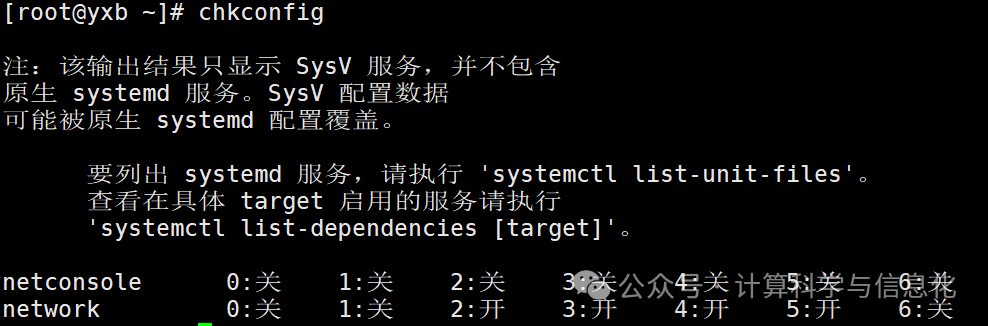
Set mysqld to run at levels 3 and 5, --level 35 means the operation is only executed at levels 3 and 5, on means start, off means stop
chkconfig --level 35 mysqld on

Set mysqld to on at all levels, "all levels" includes levels 2, 3, 4, 5
chkconfig mysqld on

Modify the default startup level of the service
chkconfig --level 35 mysqld on
systemctl
Concept
<span>systemd</span> core concept <span>unit</span> types:<span>unit</span> represents different types of <span>systemd</span> objects, identified and configured through configuration files; the files mainly contain <span>system services</span>, <span>listening sockets</span>, <span>saved system snapshots</span>, and other init-related information.
Here are the unit types:
- •
<span>service</span>: file extension is<span>.service</span>, used to define system services - •
<span>target</span>: file extension is<span>.target</span>, used to simulate run levels - •
<span>device</span>: used to define devices recognized by the kernel - •
<span>mount</span>: defines filesystem mount points - •
<span>socket</span>: used to identify socket files for inter-process communication, and can also delay service startup at system boot, achieving on-demand startup - •
<span>snapshot</span>: manages system snapshots - •
<span>swap</span>: used to identify swap devices - •
<span>automount</span>: filesystem auto-mount points - •
<span>path</span>: used to define a file or directory in the filesystem, commonly used to delay service activation when the filesystem changes
How to view these types?
You can use <span>-t</span> followed by the type to view, for example, <span>service</span>:
ststemctl -t service
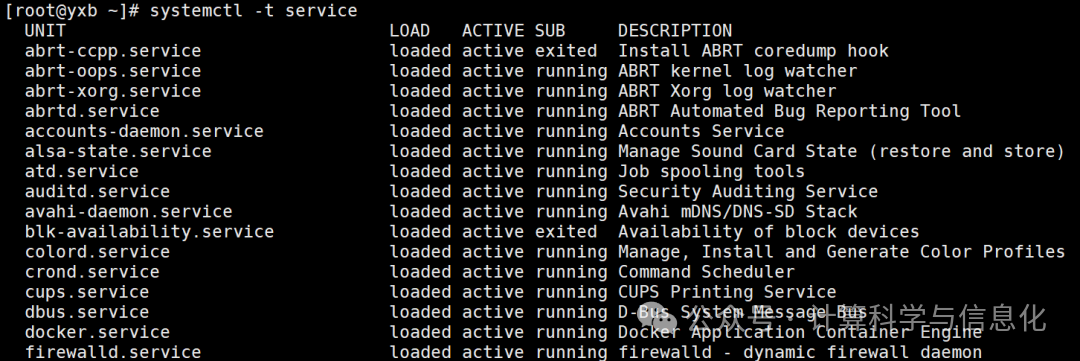
systemd Configuration File Directories
- •
<span>/usr/lib/systemd/system/</span>: the main configuration for each service’s startup script is placed here, similar to the old<span>/etc/init.d</span>;
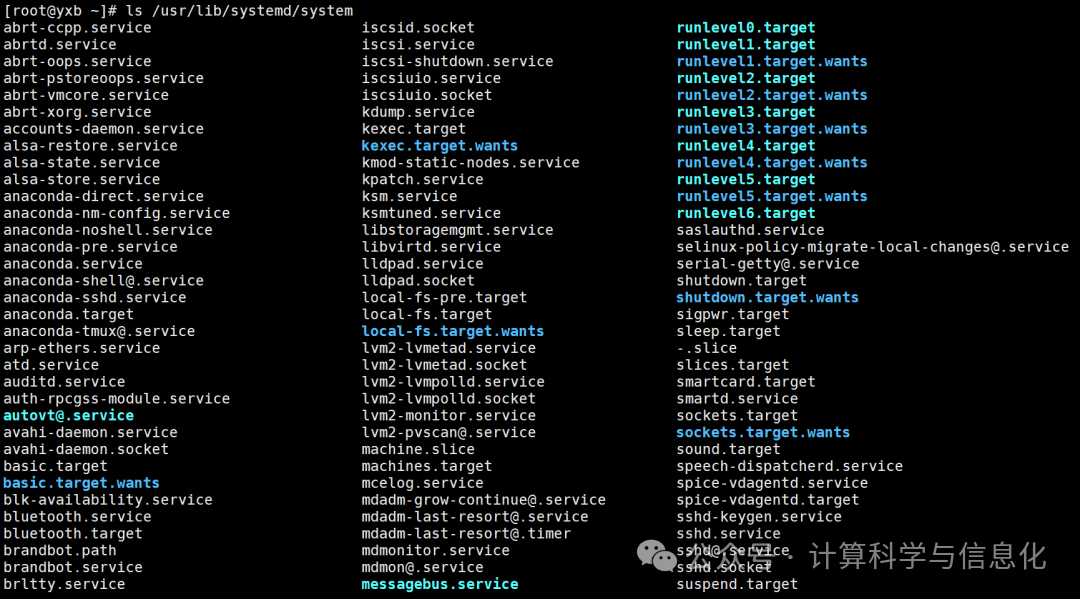
- •
<span>/run/systemd/system/</span>: the directory where service scripts generated during system execution are located, these scripts have a higher priority than<span>/usr/lib/systemd/system/</span>;
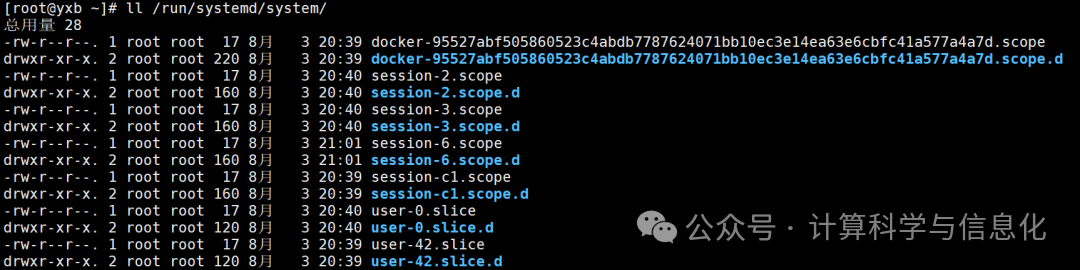
- •
<span>/etc/systemd/system/</span>: the directory where execution scripts created by the administrator based on the host system’s needs are located, with a higher execution priority than<span>/run/systemd/system/</span>;
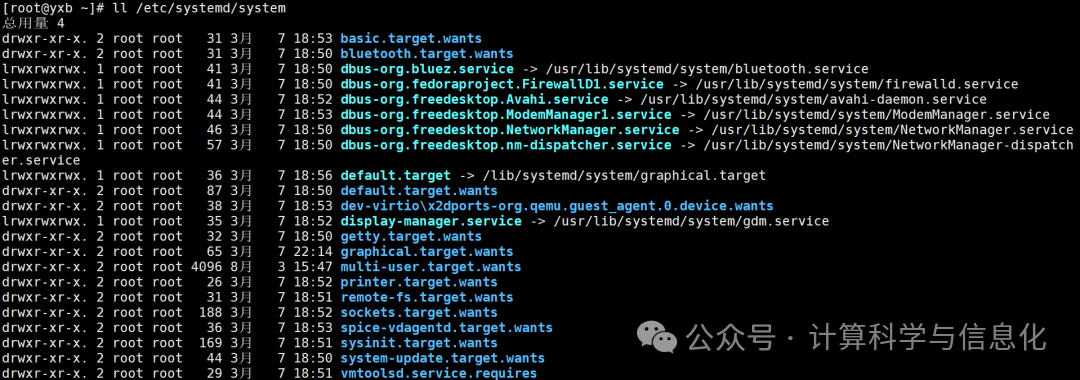
From the above functions and priority order, we can see that the relevant configurations in the <span>/etc/systemd/system/</span> directory determine whether the system will execute certain services, so this directory generally contains a lot of link files. The actual executable <span>systemd</span> startup script configuration files are placed under <span>/usr/lib/systemd/system/</span><code><span>. Therefore, if you want to modify the startup settings of a service, you should go to </span><code><span>/usr/lib/systemd/system/</span><code><span> to make changes. The </span><code><span>/etc/systemd/system/</span><span> only links to the correct executable script configuration file.</span>
Common Commands
| Task | Old Command | New Command |
| Enable a service to start automatically | chkconfig –level 3 httpd on | systemctl enable httpd.service |
| Disable a service from starting automatically | chkconfig –level 3 httpd off | systemctl disable httpd.service |
| Check service status | service httpd status | systemctl status httpd.service (detailed service information) systemctl is-active httpd.service (only shows if Active) |
| Show all started services | chkconfig –list | systemctl list-units –type=service |
| Start a service | service httpd start | systemctl start httpd.service |
| Stop a service | service httpd stop | systemctl stop httpd.service |
| Restart a service | service httpd restart | systemctl restart httpd.service |
Check service status
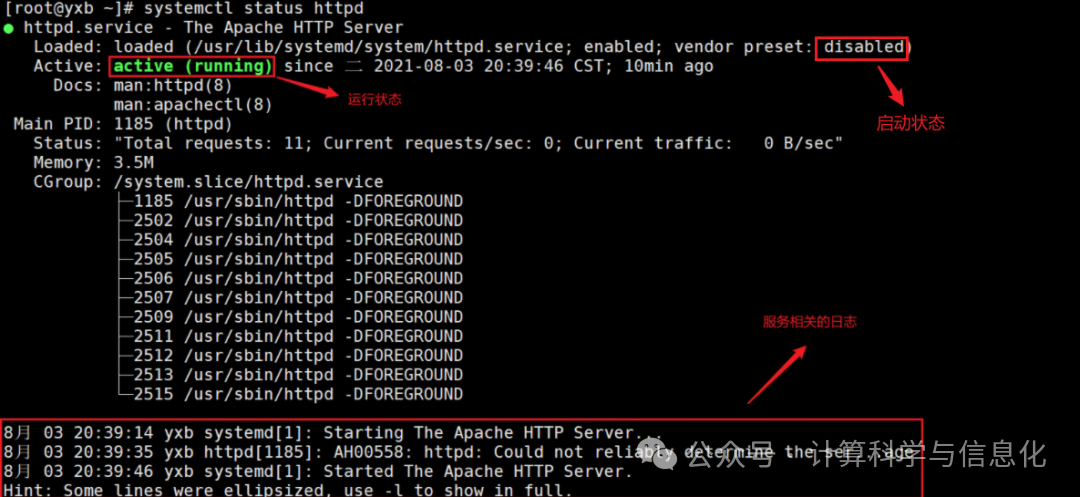
systemctl status httpd
Running Status:
- •
<span>active (running)</span>: means one or more programs are currently executing in the system; - •
<span>active (exited)</span>: a service that has executed once and ended normally, currently no programs are executing in the system; - •
<span>active (waiting)</span>: currently executing, but needs to wait for other events to continue processing; - •
<span>inactive</span>: this service is currently not running; - •
<span>dead</span>: the program has been cleared;
Startup Status:
- •
<span>enabled</span>: this<span>daemon</span>will be executed at boot; - •
<span>disabled</span>: this<span>daemon</span>will not be executed at boot; - •
<span>static</span>: this<span>daemon</span>cannot start by itself (<span>enable</span>is not possible), but may be awakened by other<span>enabled</span>services (associated properties services); - •
<span>mask</span>: this<span>daemon</span>cannot be started under any circumstances, as it has been forcibly disabled (not deleted), and can be restored to its original state using<span>systemctl unmask</span>;
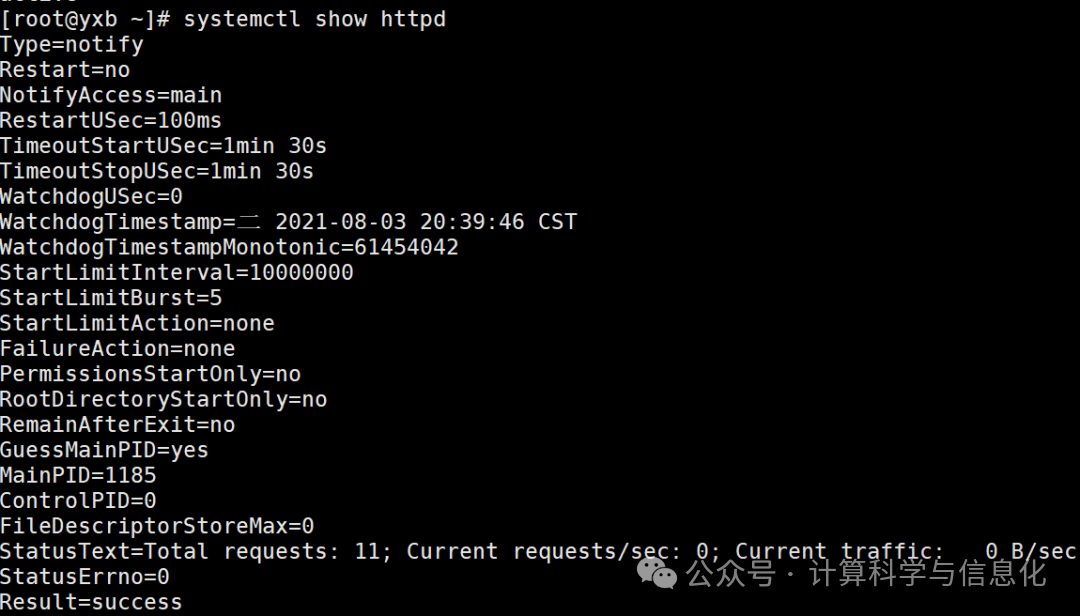
Check all configuration details of the service
systemctl show httpd
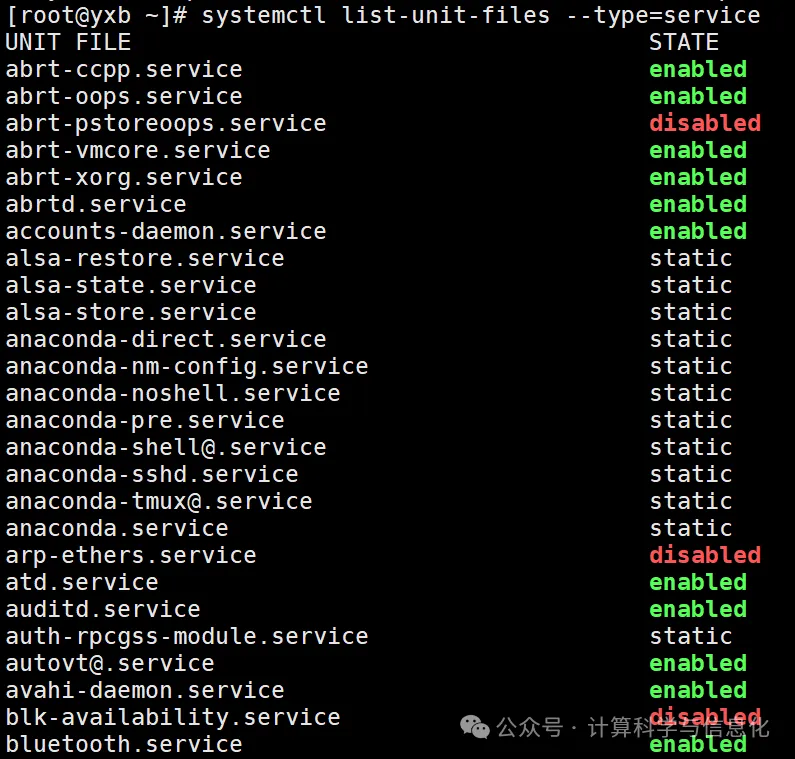
Check the auto-start status of each service
systemctl list-unit-files --type=service
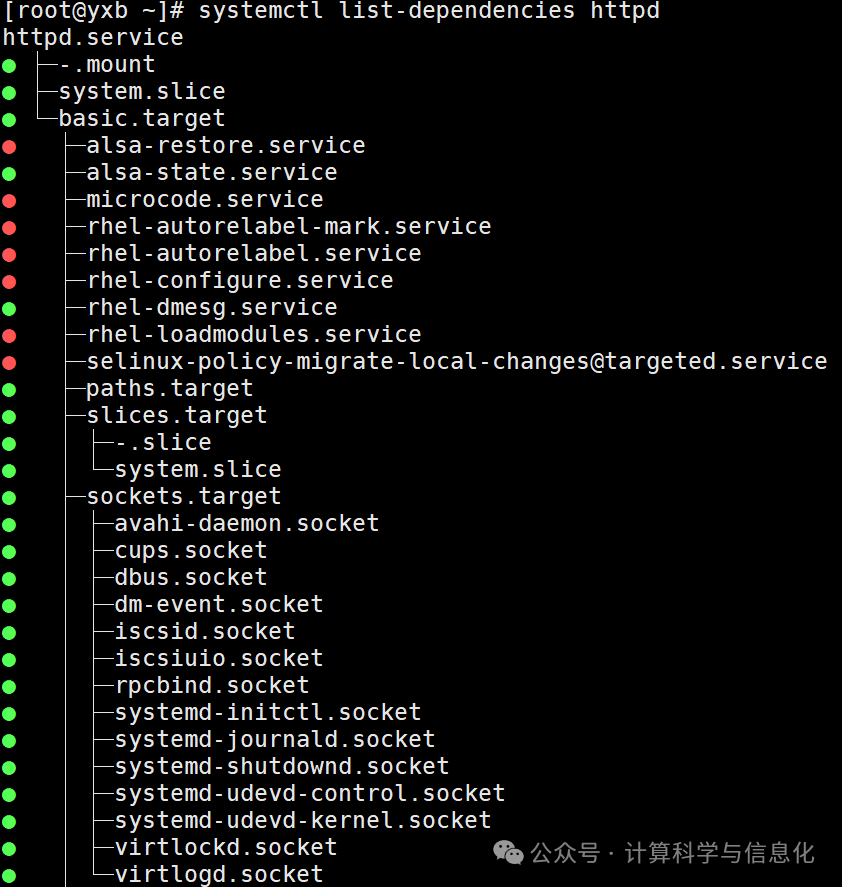
Get the list of dependencies for a service
systemctl list-dependencies httpd.service
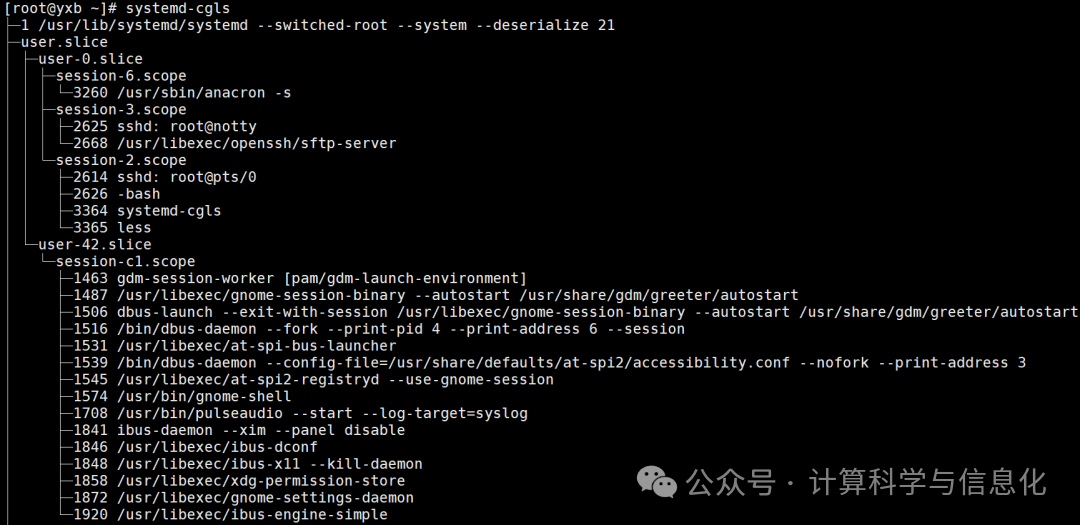
List control groups hierarchically
systemd-cgls
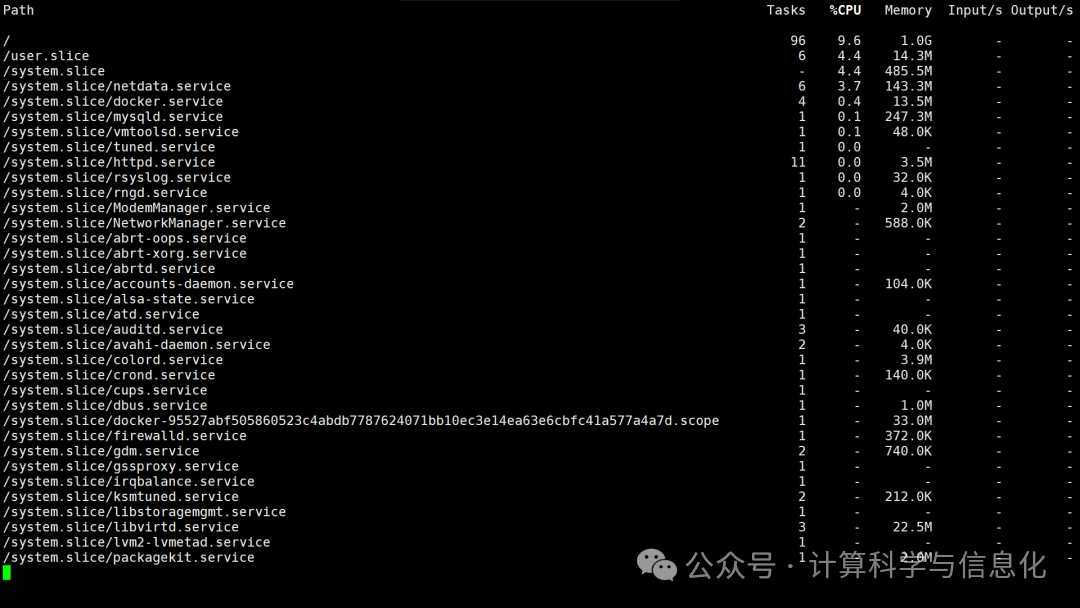
List control groups by CPU, memory, input, and output
systemd-cgtop
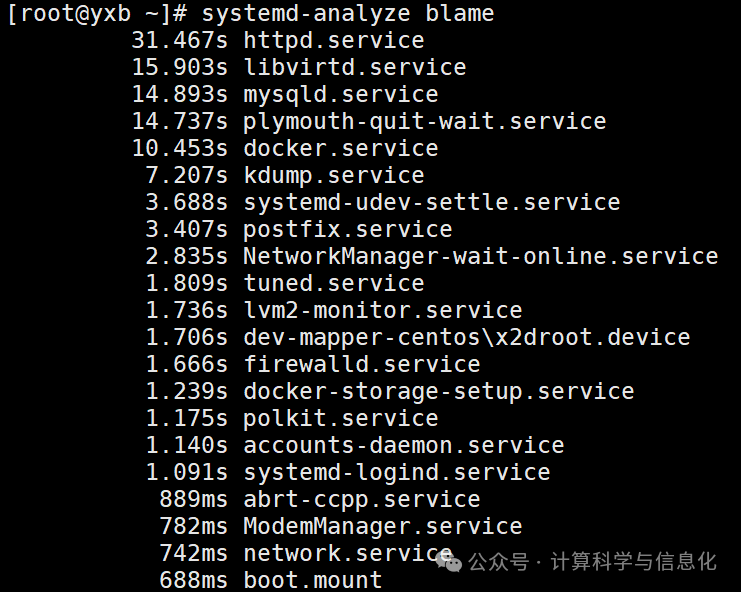
Analyze the time each process takes during boot
systemd-analyze blame
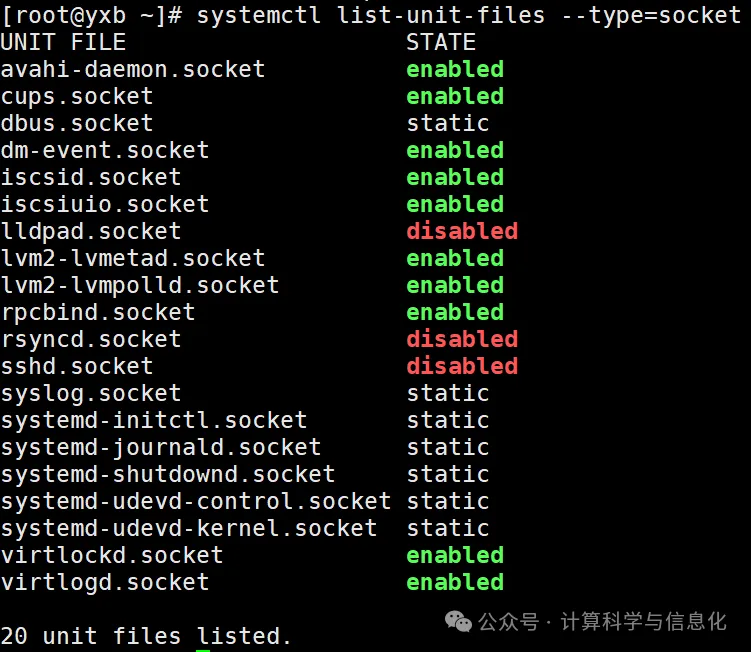
List all available system sockets
systemctl list-unit-files --type=socket
Socket operations
systemctl start cups.socket # Start the socket
systemctl restart cups.socket # Restart the socket
systemctl stop cups.socket # Stop the socket
systemctl reload cups.socket # Reload the socket
systemctl status cups.socket # Check the socket status

systemctl is-active cups.socket
systemctl enable cups.socket
systemctl disable cups.socket
Other commands
systemctl mask httpd.service   # Disable a service
systemctl unmask httpd.service   # Unmask a service

systemctl isolate multi-user.target  # Change the current operating environment to text mode, turn off the graphical interface
systemctl isolate graphical.target  # Change the current operating environment to graphical interface

systemctl poweroff # Shutdown the system
systemctl reboot  # Reboot the system
systemctl suspend  # Enter suspend mode
systemctl hibernate # Enter hibernate mode
systemctl rescue  # Force enter rescue mode
systemctl emergency # Force enter emergency mode
-END-

One-stop Solution Provider for Industrial Internet
Weak Current Intelligentization/ Smart Security / Data Center / Intelligent Manufacturing Software / Industrial Internet Platform/ Smart Factory
Pragmatic Innovative Striving Enterprising
Free Consultation Hotline: 400-8327-811 ext. 804
Website: www.0512rh.com
Address: 9th Floor, Industrial Capital Center, No. 160 Longxi Road, Wuzhong High-tech Zone, Suzhou
— Jiangsu Ronghui Technology —