1. System Information
Operating System: Ubuntu 20.04.6 LTSKernel: Linux 5.19.0-051900-genericArchitecture: x86-64
2. Installation Method
1. Install Flatpak
Flatpak is a technology for packaging and deploying Linux applications, allowing applications to run in isolated containers across various Linux distributions without relying on specific libraries or versions. Flatpak provides a secure, simple, and reliable way for developers and users to share applications across different Linux distributions. Flatpak applications are referred to as “Flatpak packages” or “Flatpak apps.”
Installation command:
sudo add-apt-repository ppa:flatpak/stablesudo apt updatesudo apt install flatpaksudo apt install gnome-software-plugin-flatpakAdd installation source: flatpak remote-add --if-not-exists flathub https://dl.flathub.org/repo/flathub.flatpakrepoView detailed information about flatpak mirrors: flatpak remotes --show-detailsChange to Shanghai mirror source: flatpak remote-modify flathub --url=https://mirror.sjtu.edu.cn/flathub
 2. Graphical Interface Installation:Click the software icon, which is actually gnome-software, then click the search magnifying glass on the left, and search for WeChat in the search box, as shown in the figure below: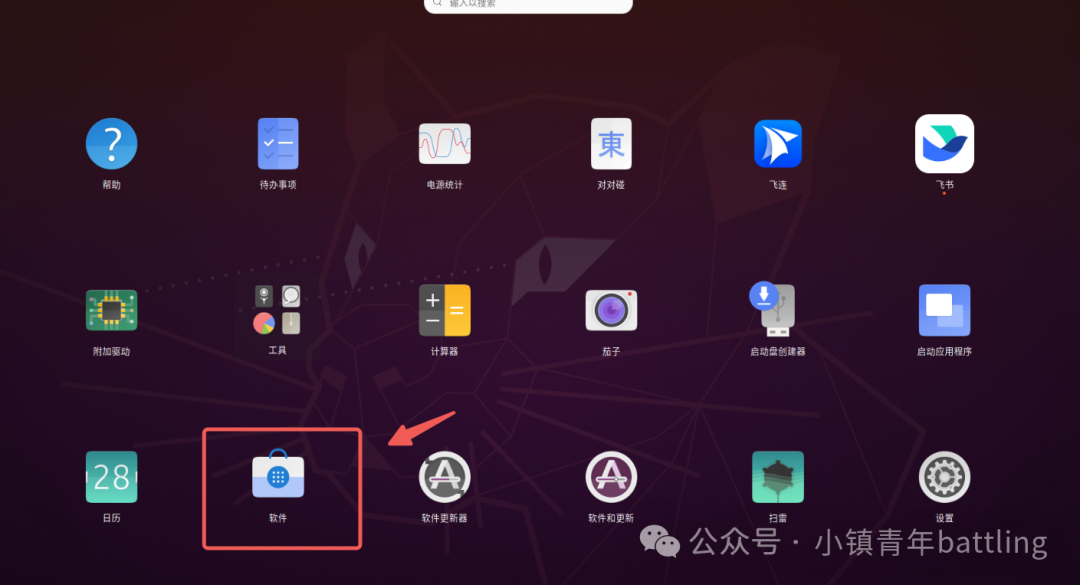
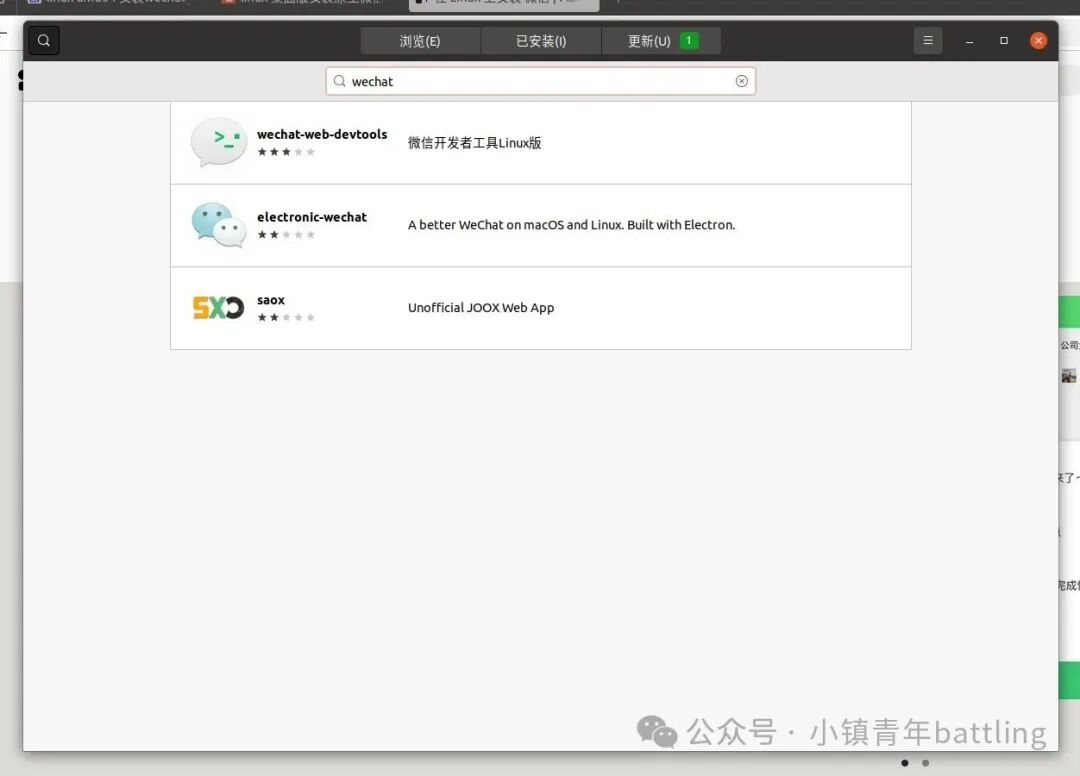 It turns out that the WeChat we use for chatting is not available for installation here.Don’t worry! Keep reading, and continue with the command line method:Jump to the official Flatpak installation tutorial page, link:https://flathub.org/zh-Hans/setup/Ubuntu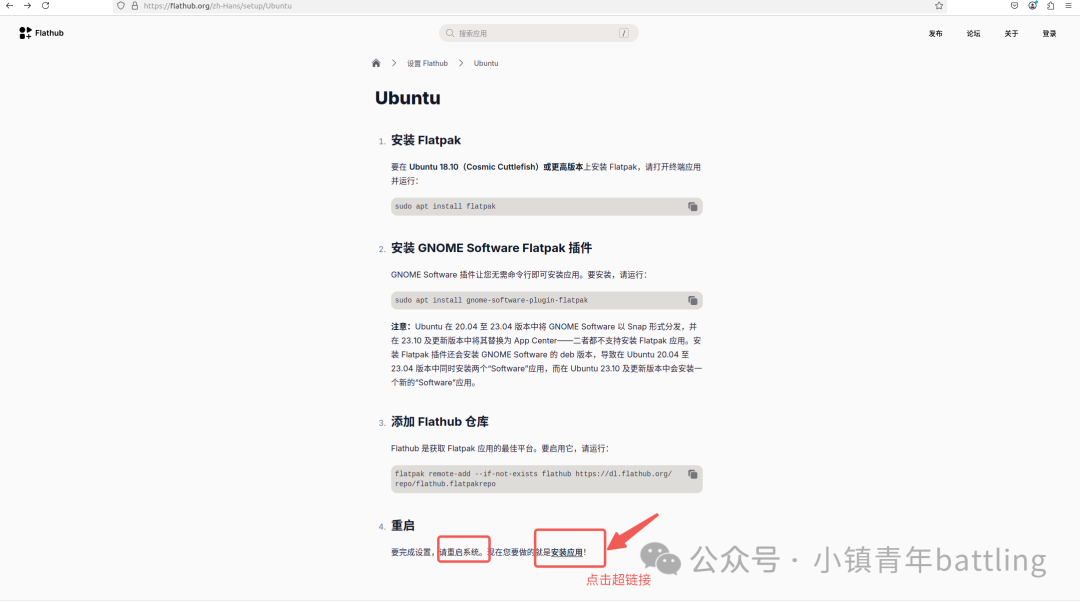
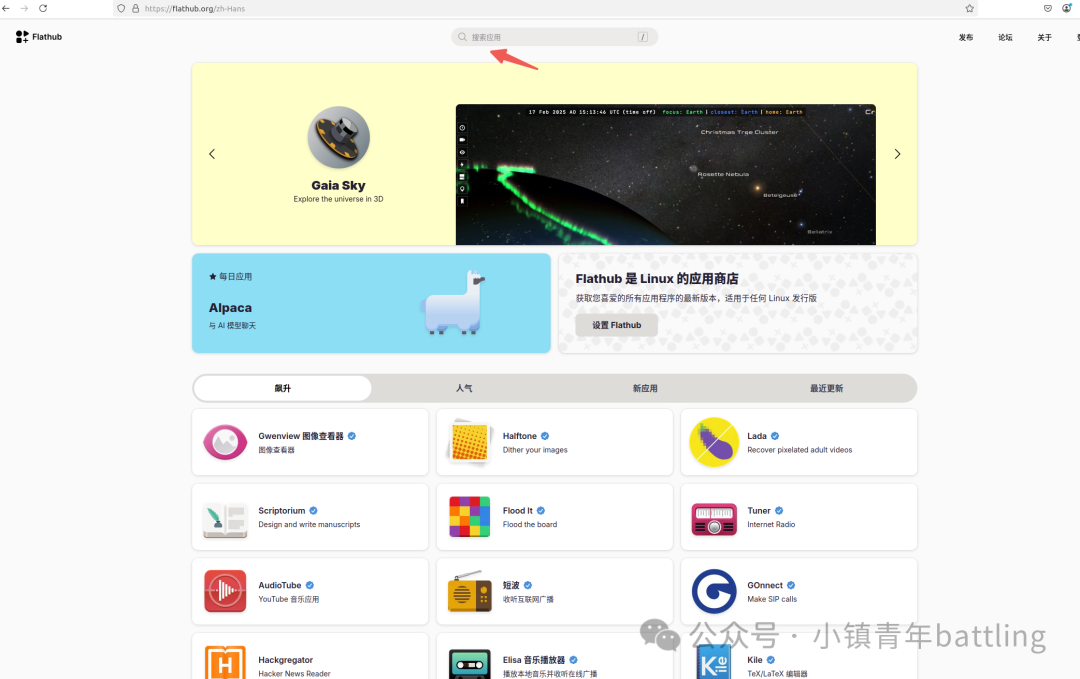 When opened in the browser, searching for WeChat shows that this application can be installed.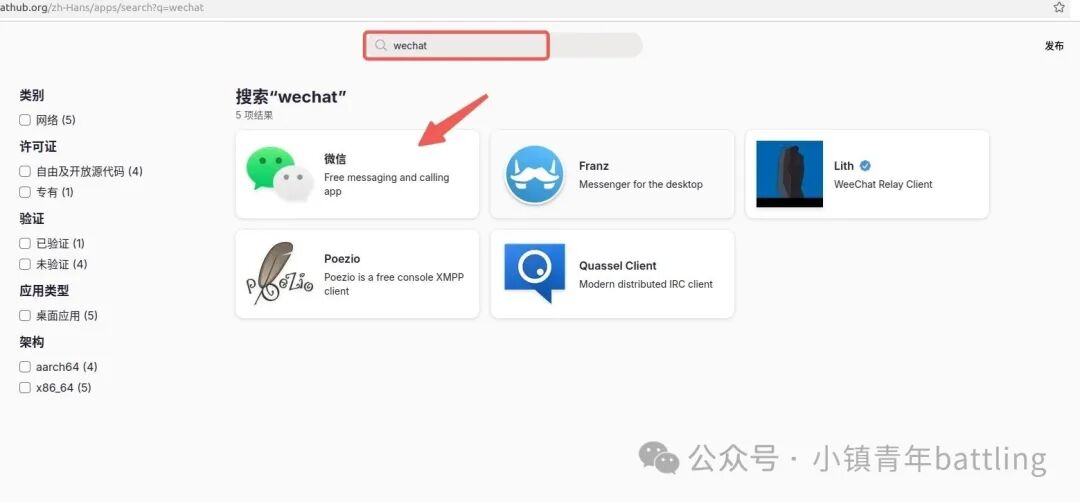
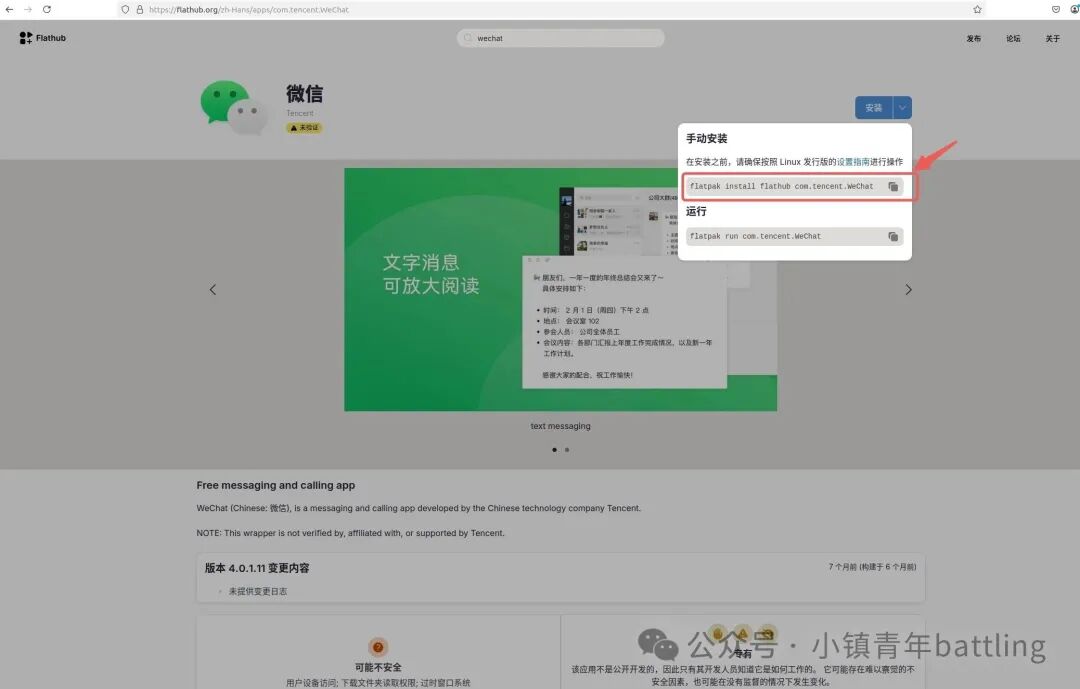 So,open the terminal for manual installation:
flatpak install flathub com.tencent.WeChatA prompt will pop up: click y and wait for the installation to complete. During the installation, characters will continuously pop up in the installation window as shown in the figure; you can ignore them and continue waiting for a while. The command will terminate automatically, indicating that the installation is complete. Restart your computer.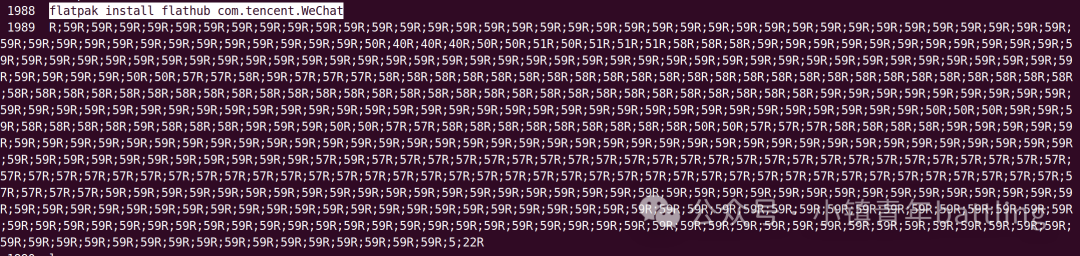 After restarting the computer, you will see the WeChat icon has appeared in the software bar.
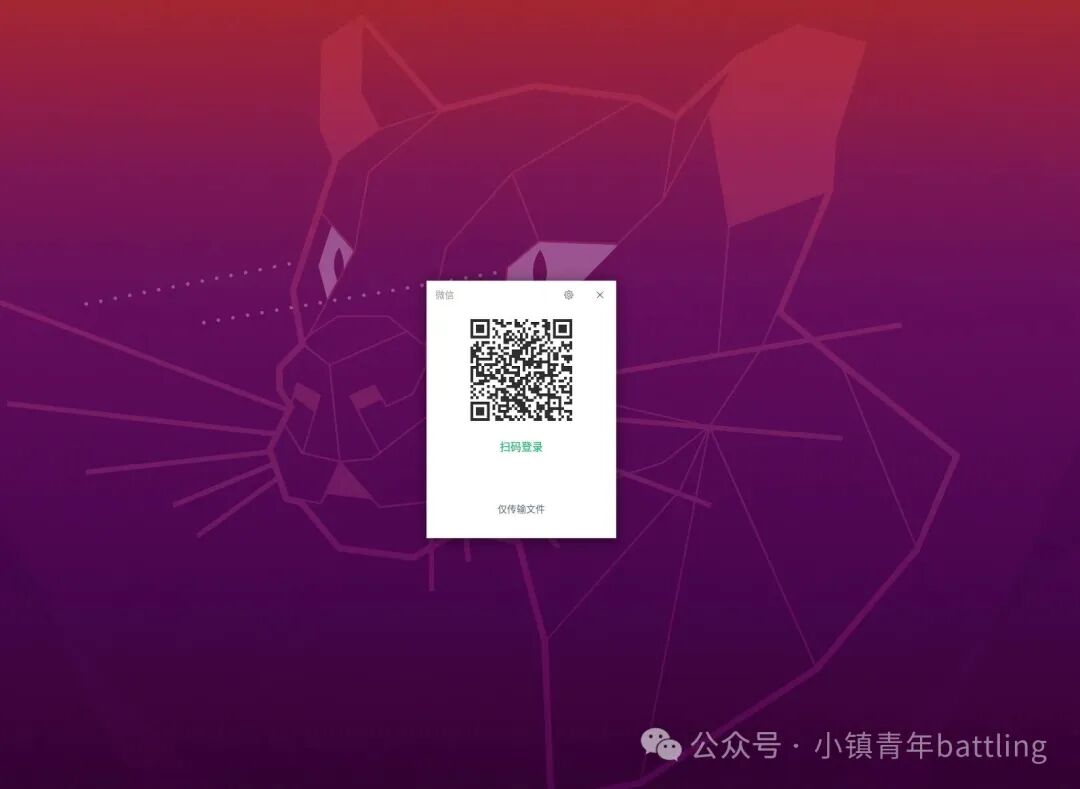 The experience of using it is no different from the latest version on Windows systems.Installation tutorial reference document:https://blog.csdn.net/gianttj/article/details/140736813End.