
Download Link for Installation Package
 [Software Name]:Keil uVision4 MDK[Download Link]
https://pan.baidu.com/s/17ULOF_UcCyovFir7V7BQoQ
[Extraction Code]: ih99(It is recommended to copy and paste the link and extraction code)[Remote Installation]: Contact QQ:2323962885
If you encounter issues during installation, you can consult WeChat: XYSHY2
Note: If the link is invalid, please obtain the latest link from the group.[Friendly Reminder]: All content provided for user download comes from the internet. It is for technical exchange only and may not be used for commercial purposes.
Software Introduction
Keil MDK-ARM is an IDE (Integrated Development Environment) supporting ARM microcontrollers produced by the American company Keil. MDK-ARM includes industrial-standard Keil C compiler, macro assembler, debugger, real-time kernel, and other components. It features an industry-leading ARM C/C++ compiler toolchain, perfectly supporting Cortex-M, Cortex-R4, ARM7, and ARM9 series devices, including chips from world-renowned brands. For example: ST, Atmel, Freescale, NXP, TI, and many other large companies’ microcontroller chips. If you are programming in C language, then Keil is almost your best choice. Even if you are not using C language and only programming in assembly language, its user-friendly integrated environment and powerful software simulation debugging tools will make your work much easier.Software Features1. Supports Cortex-M series, Cortex-R4, ARM7, ARM9 devices.2. Industry-leading ARM C/C++ compiler toolchain.3. μVision4 IDE, debugger, and simulation environment.4. KEIL RTX’s determinism, small footprint, real-time operating system (source code).5. TCP/IP network suite provides various protocols and applications.6. USB device and USB host stack provide standard driver classes.7. ULINKpro allows real-time analysis of every executed Cortex-M instruction of running applications and recorded data.8. Completes execution code coverage information for relevant programs.9. Execution event probe and performance analyzer enable optimization of solutions.10. Numerous example projects help you quickly become familiar with the powerful features and built-in capabilities of MDK-ARM.11. Compatible with the CMSIS Cortex Microcontroller Software Interface Standard.
Installation Steps
1. After downloading the software, unzip the installation package.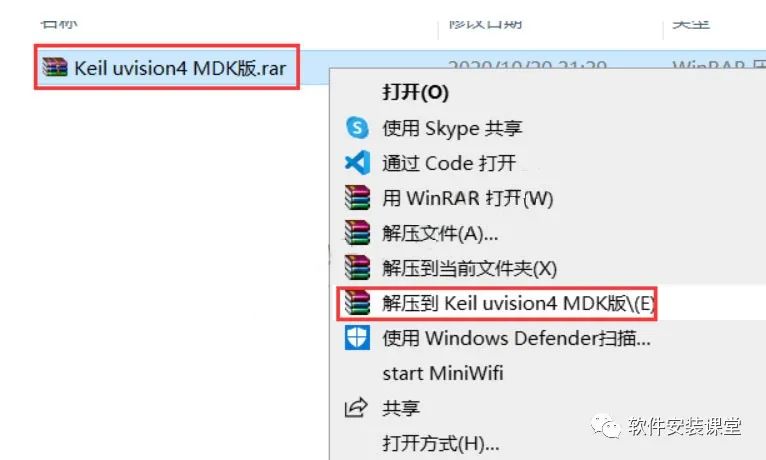 2. Double-click to open the unzipped folder.
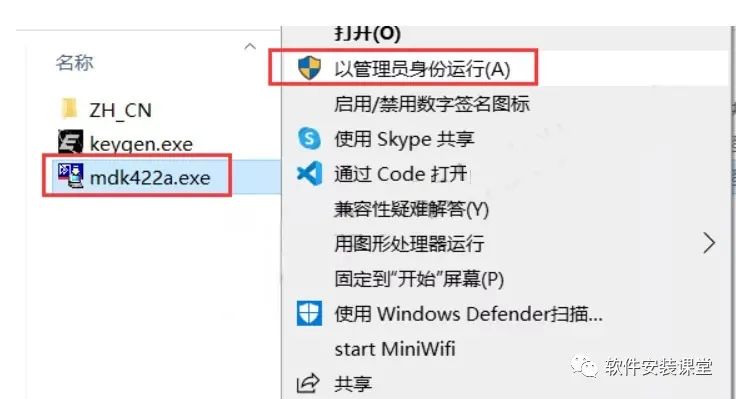
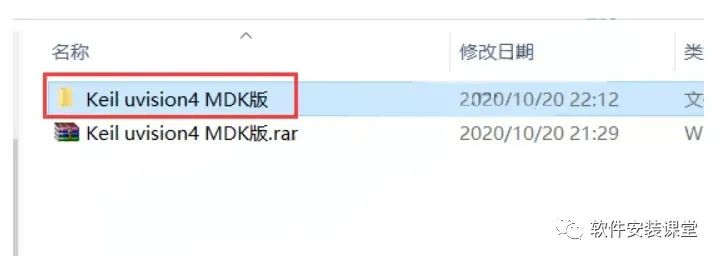 3. Click on mdk422a, right-click and select ‘Run as administrator’.
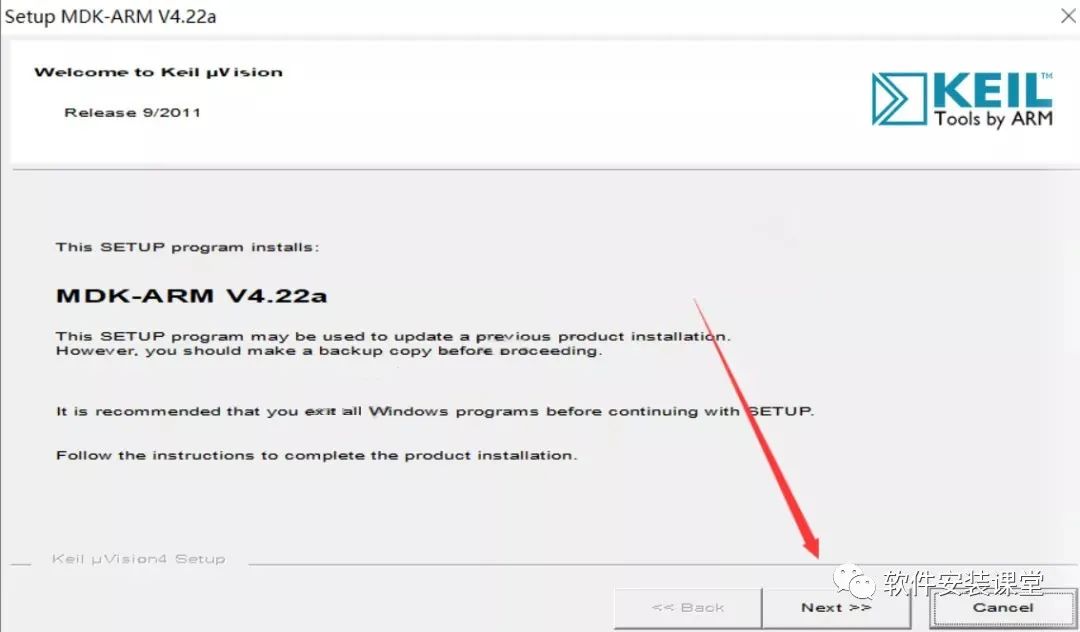
 4. Click Next.
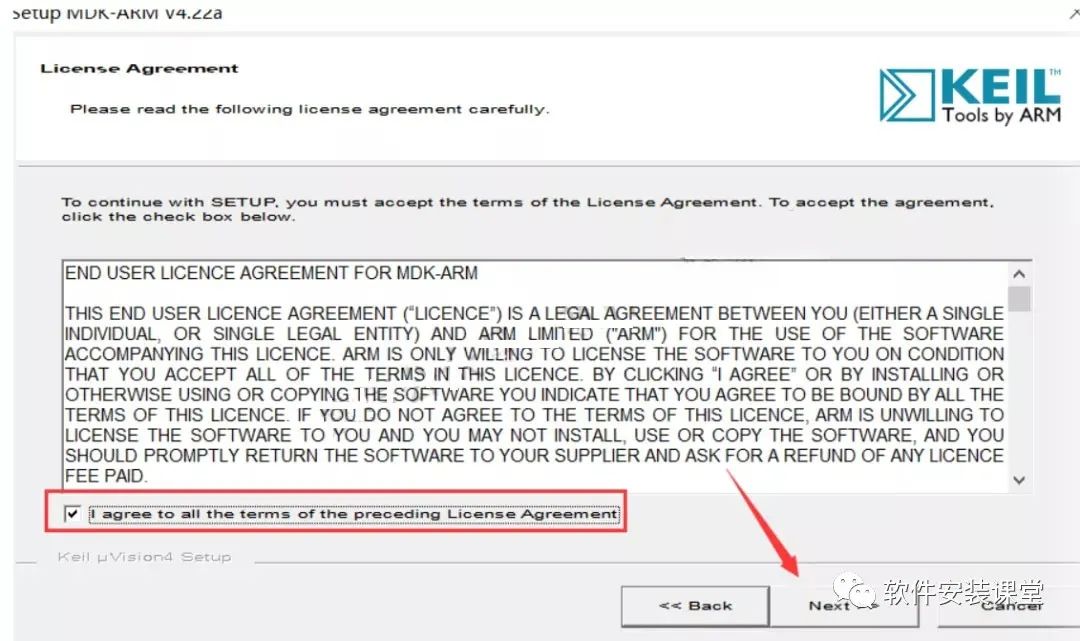
 5. Check ‘Agree to the terms of the agreement’, then click Next.
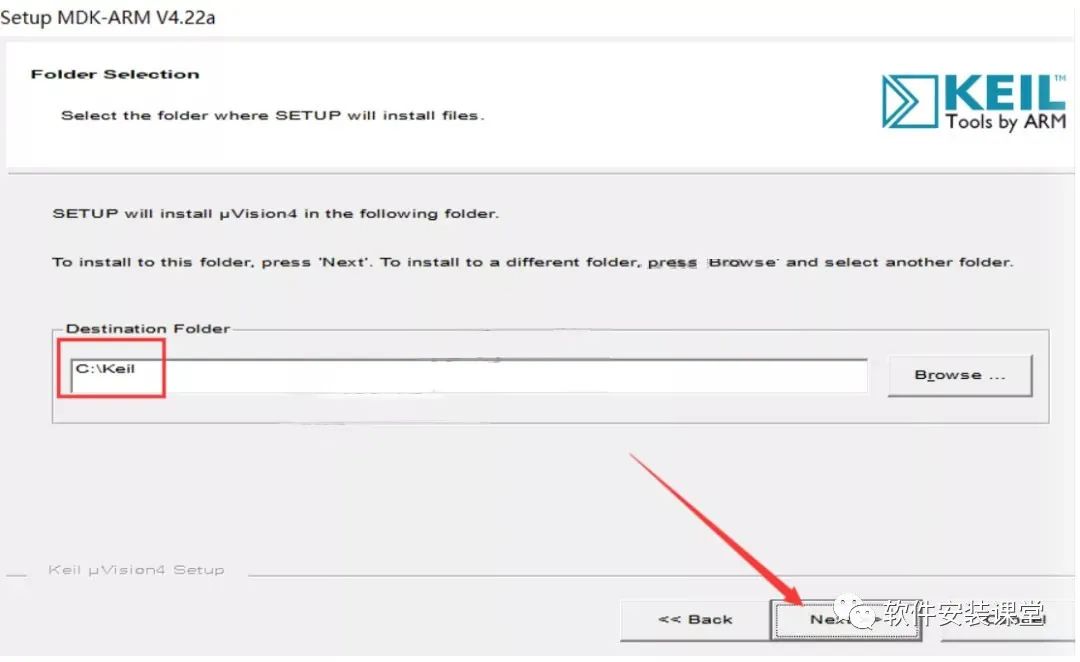
 6. Use the default installation path, then click Next.
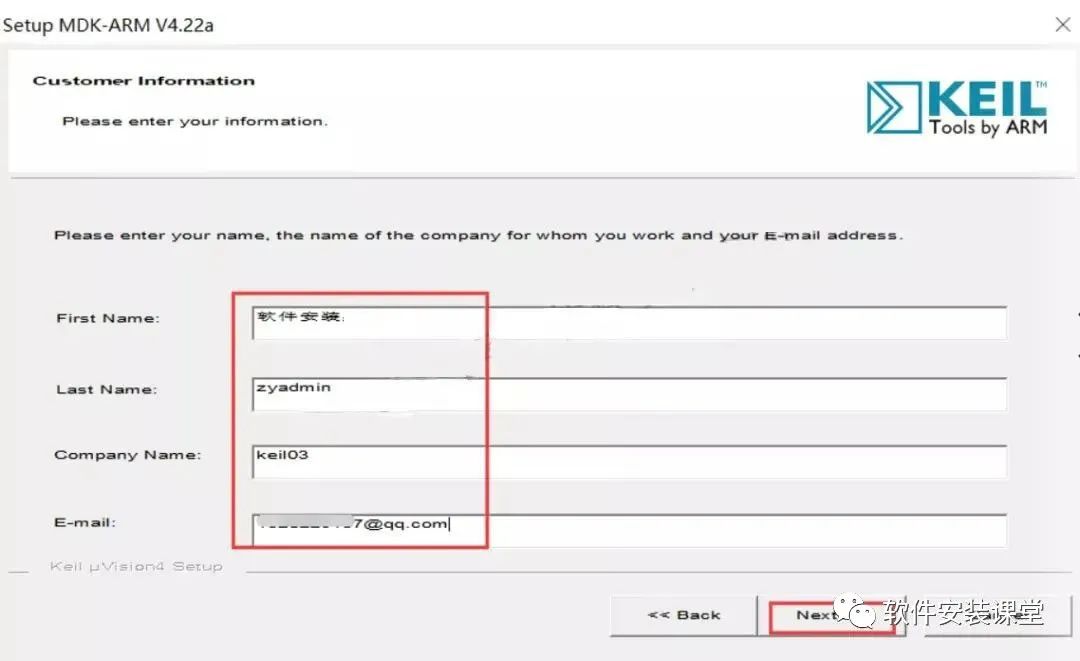
 7. Enter your nickname and other information, then click Next.
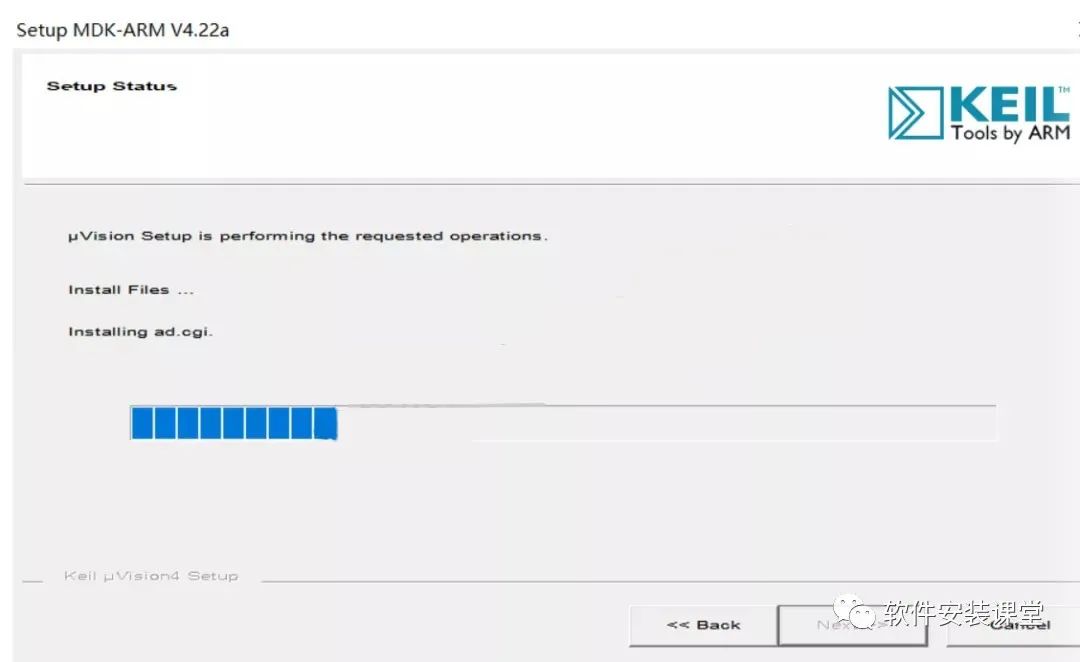
 8. Wait patiently for the installation process to complete.
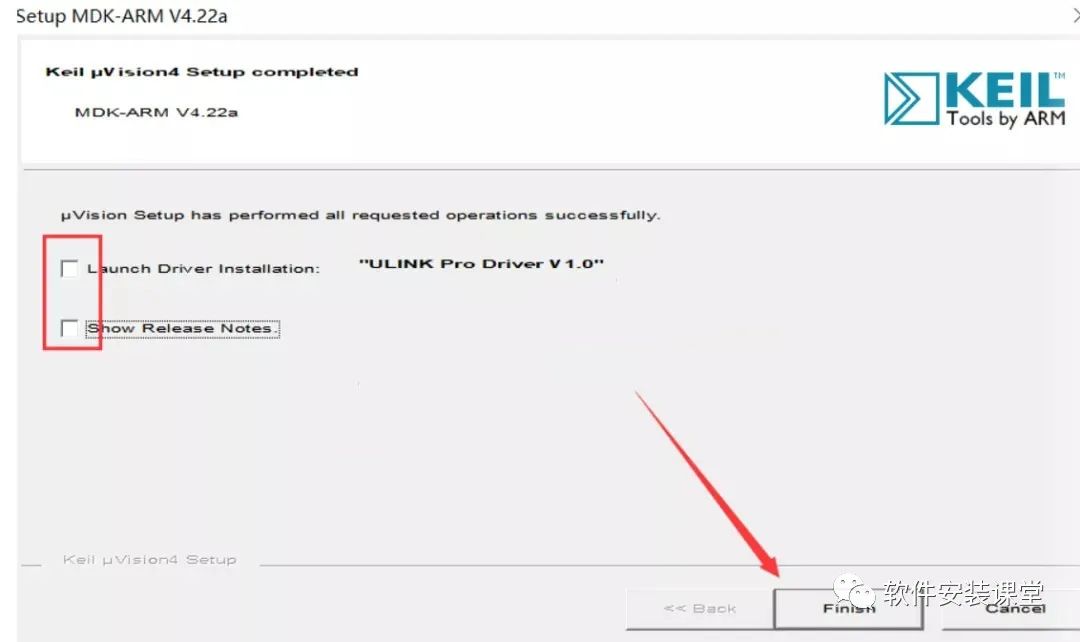
 9. Uncheck and click finish.
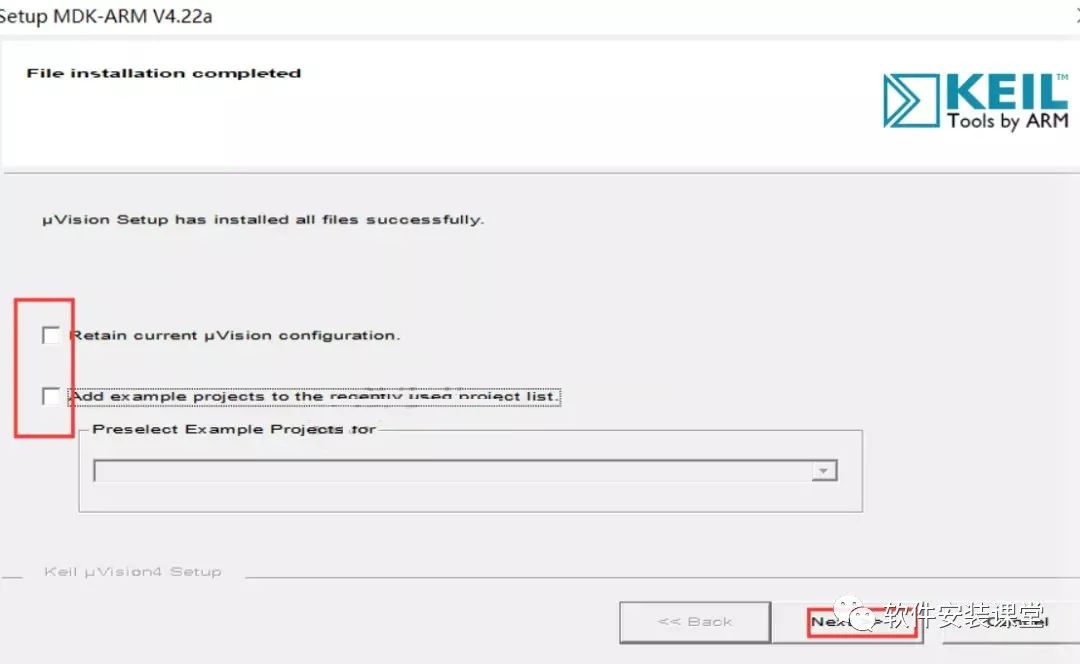 10. Uncheck and click finish
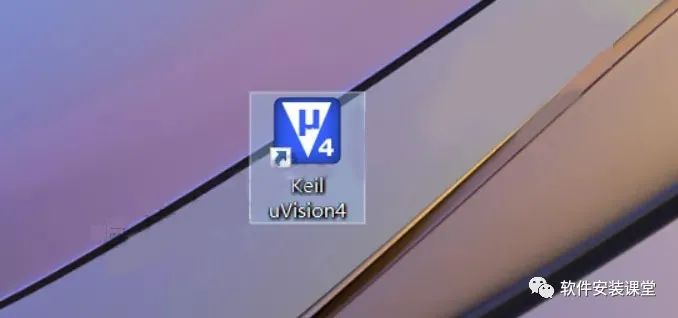
 11. Find the installed program on your desktop and double-click to open Keil uVision4.
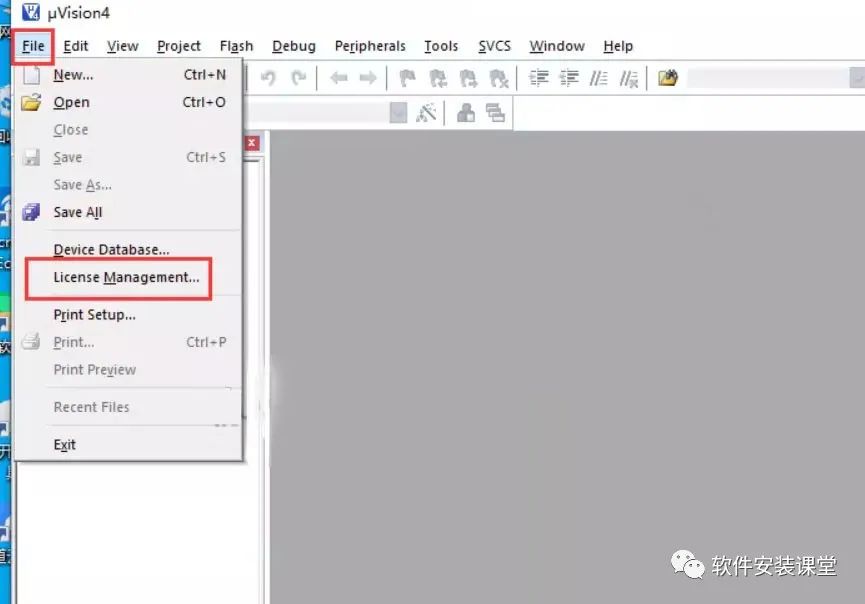
 12. Click on the ‘File’ menu and select ‘License Management’.
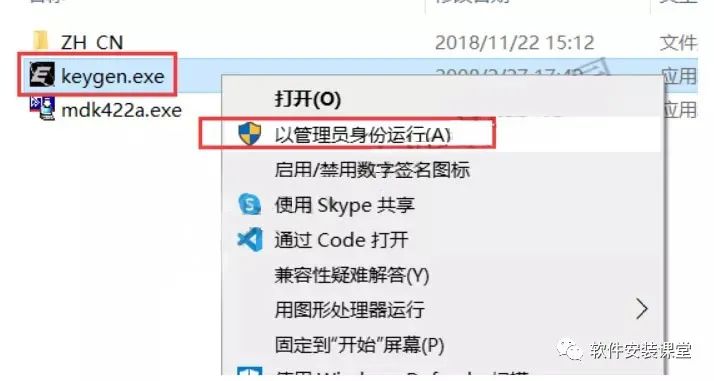
 14. In the previously unzipped software installation package, click on keygen, right-click and select ‘Run as administrator’.
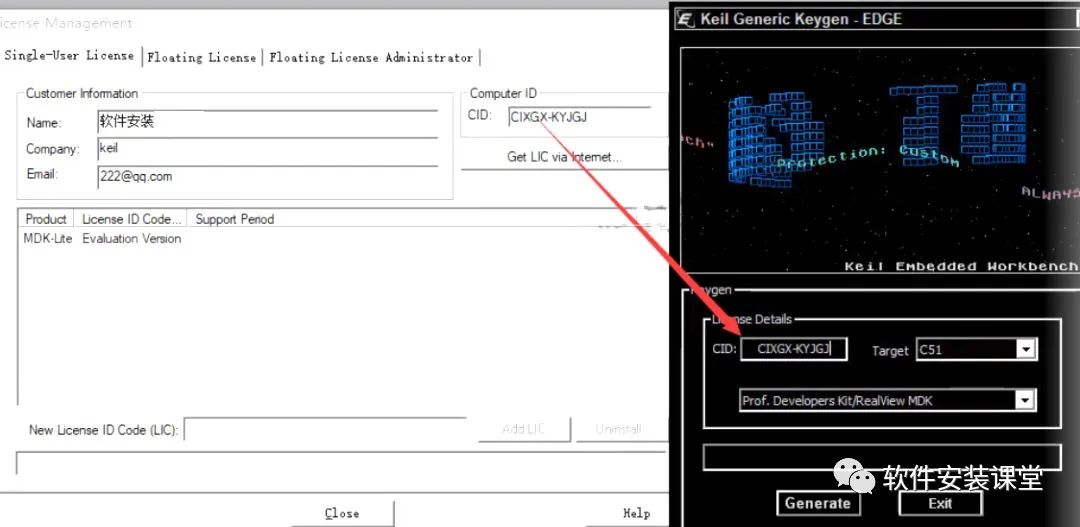
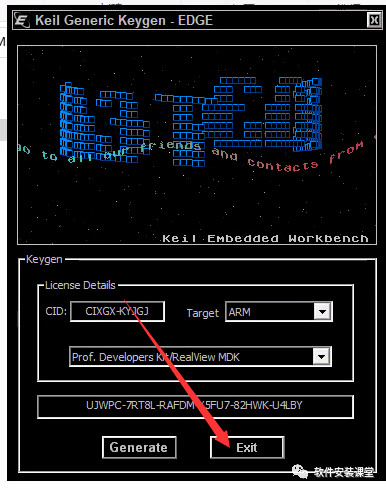
 15. Copy the ‘CID’ from the software license manager and paste it into the ‘CID’ box in the keygen.
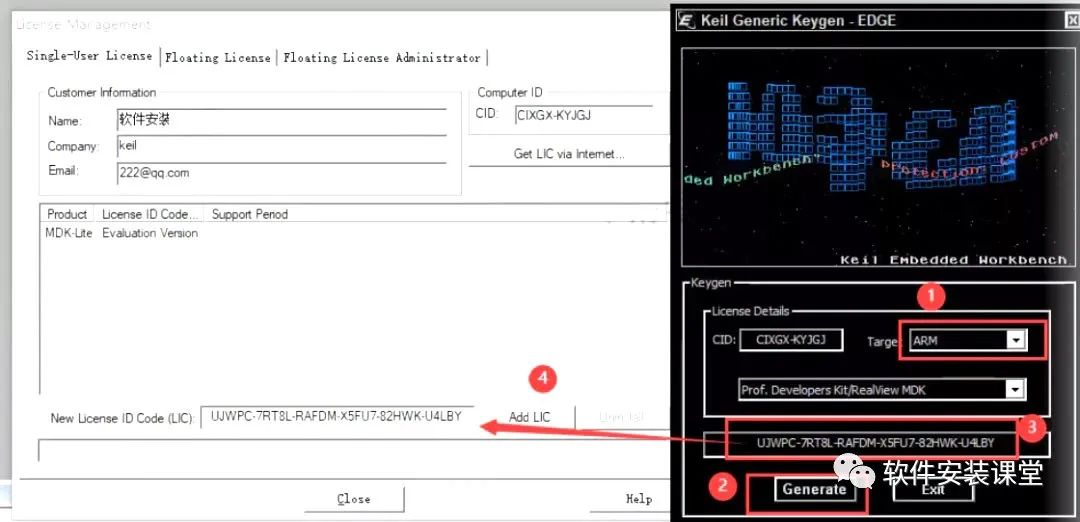
 16. Select ARM in Target, click Generate and copy the activation code generated in the display box.
 17. Paste the registration code into the ‘LIC’ box, then click ‘Add LIC’.
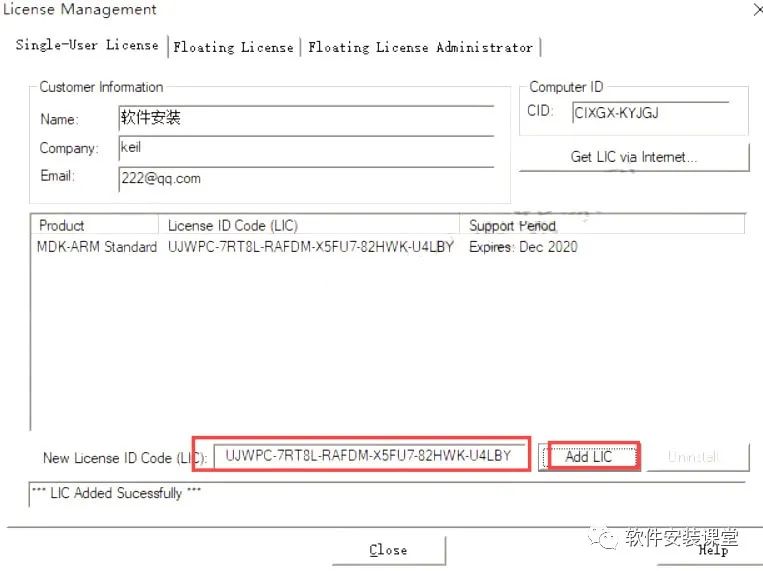 18. After successful activation, if the activation takes too long, you can reselect the activation code, then click close.
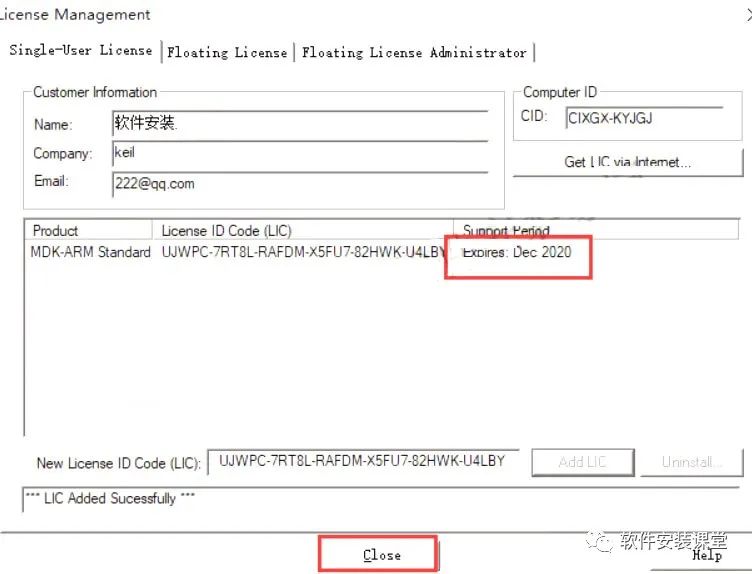 19. Close the software and exit the activation tool.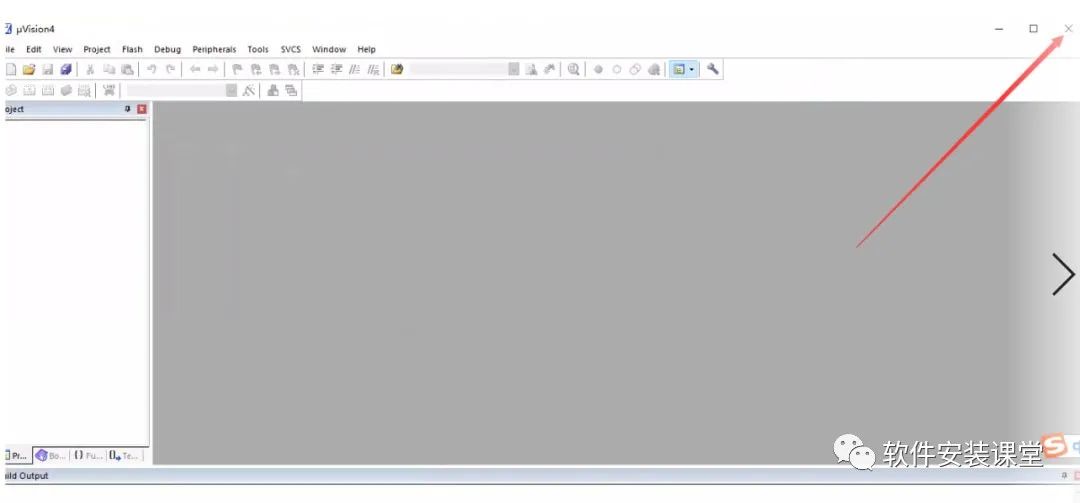
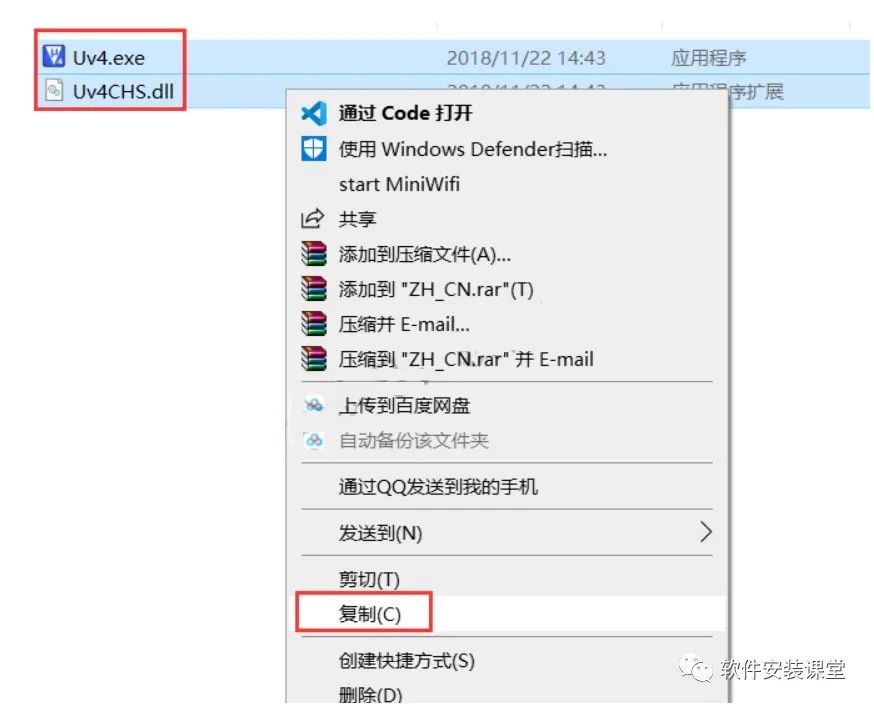
 20. In the previously unzipped software installation package, double-click to open the ZH_CN folder, and copy the UV4 and Uv4CHS files.
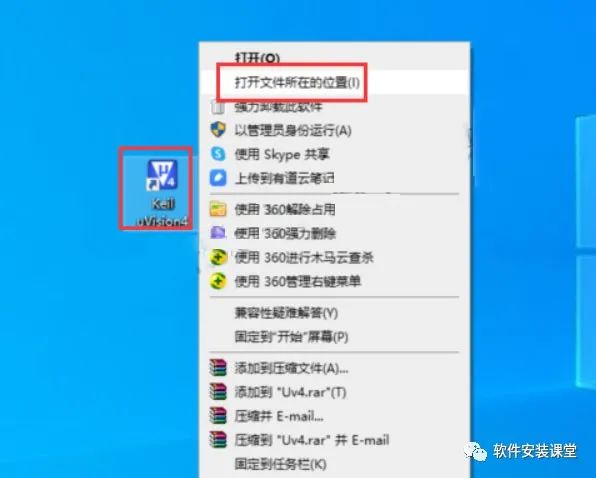
 21. Find the installed program on your desktop, click on ‘Keil uVision4’, right-click and select ‘Open file location’.
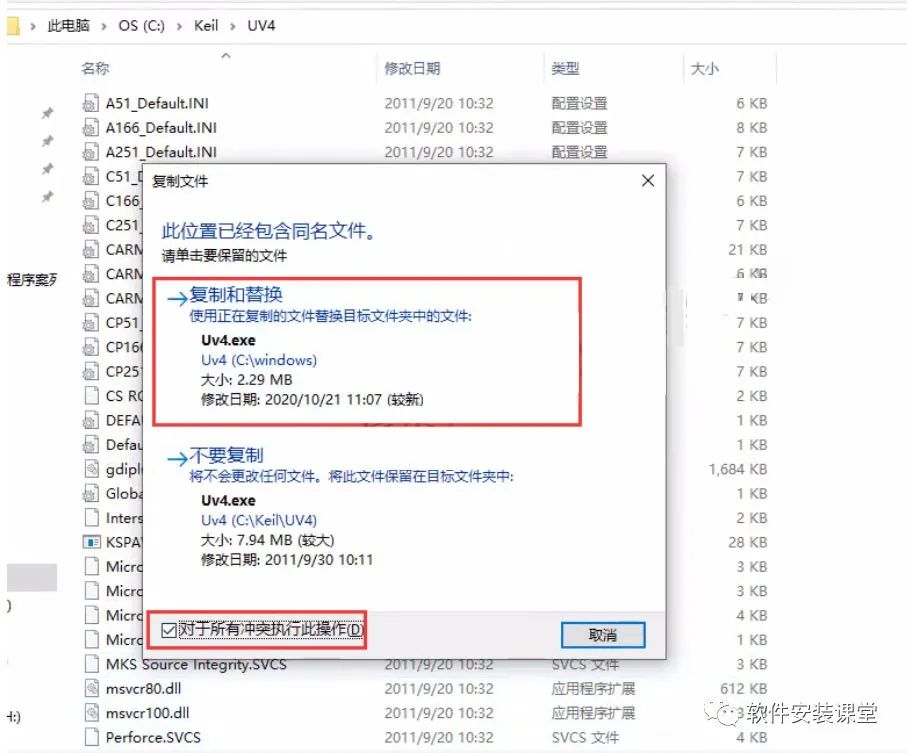
 22. Right-click in the blank space and paste the copied UV4 and Uv4CHS files, check ‘Do this for all conflicts’, and click to replace the files in the target.
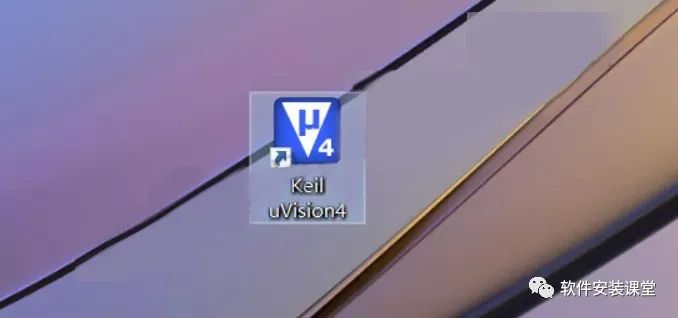
 23. Find the installed program on your desktop, double-click to open the software.
 24. Software installation completed.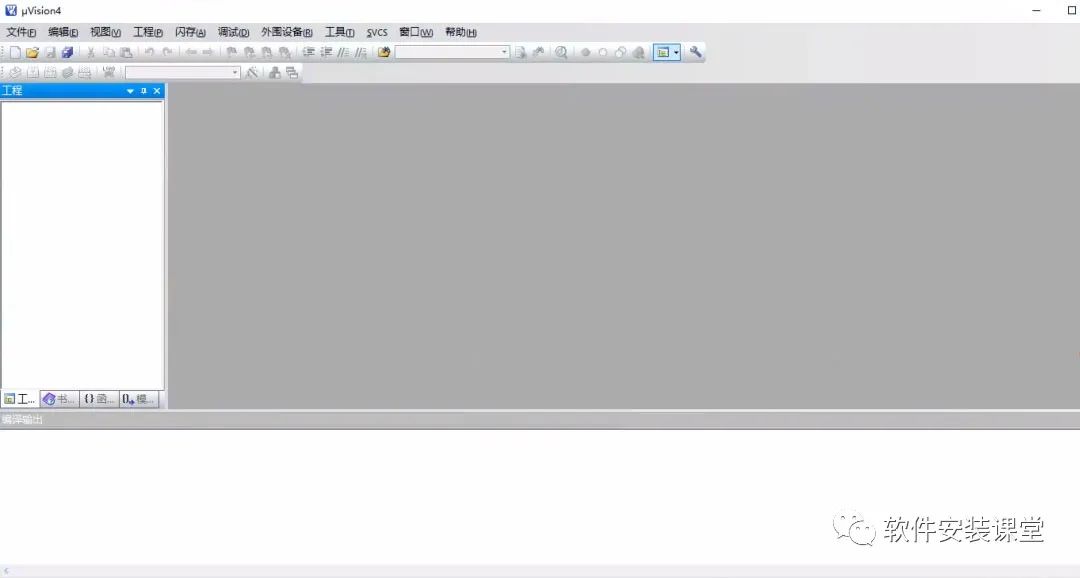
Follow the Software Installation Classroom WeChat Official Account
Free provision of various software installation packages and installation tutorials

Long press the QR code to follow the Software Installation Classroom