SoftwareIntroduction
Keil uVision 5 MDK is an integrated development environment (IDE) developed by KEIL. Keil MDK, also known as MDK-ARM, Realview MDK, I-MDK, KEIL MDK-ARM, KEIL ARM, uVision5 (older versions are uVision4 and uVision3), is a microcontroller software development platform developed by the well-known German software company Keil (which has now been acquired by ARM). It is currently supported by three domestic agents who provide technical support and related services.
InstallationNotes[Software Name]: Keil uVision 5 MDK[Software Size]: 405MB[Software Language]: Simplified Chinese[Installation Environment]: Windows 7 and above[Download Link]: Reply in the public account: KeilMDK version[Unlimited Speed Download]: Get a free Baidu Cloud unlimited speed download tool.Reply in the public account: Unlimited speed[Precautions]: Please close the network, antivirus software, and firewall before installation; otherwise, installation may fail.Reply in the public account: 1[Decompression Software]: The decompression software used is Bandizip; get the Bandizip installation package.Reply in the public account: 2InstallationTutorial
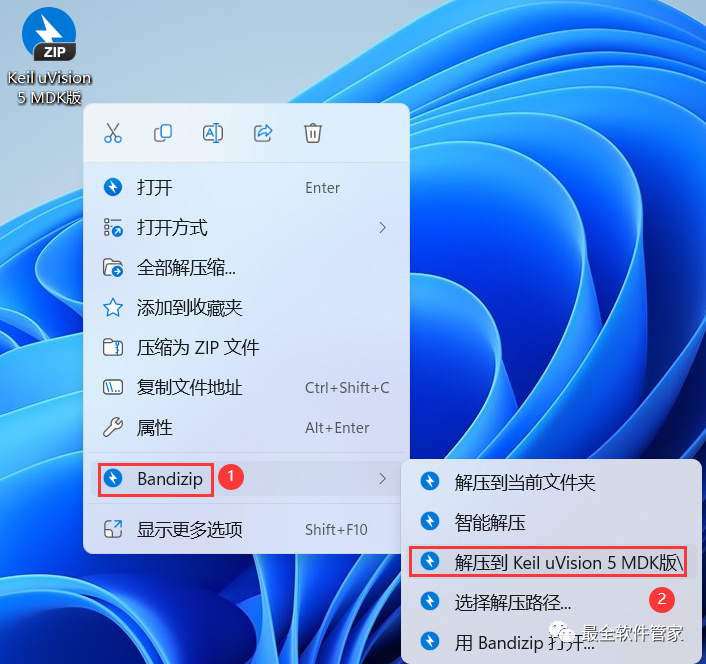
1. Download the Keil uVision 5 MDK installation package to your computer, right-click and select 【Extract to Keil uVision 5 MDK】.
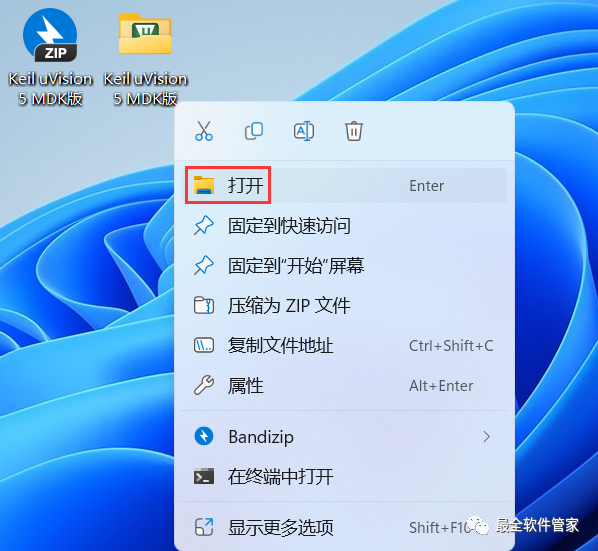
2. Right-click 【Open】 the extracted folder.
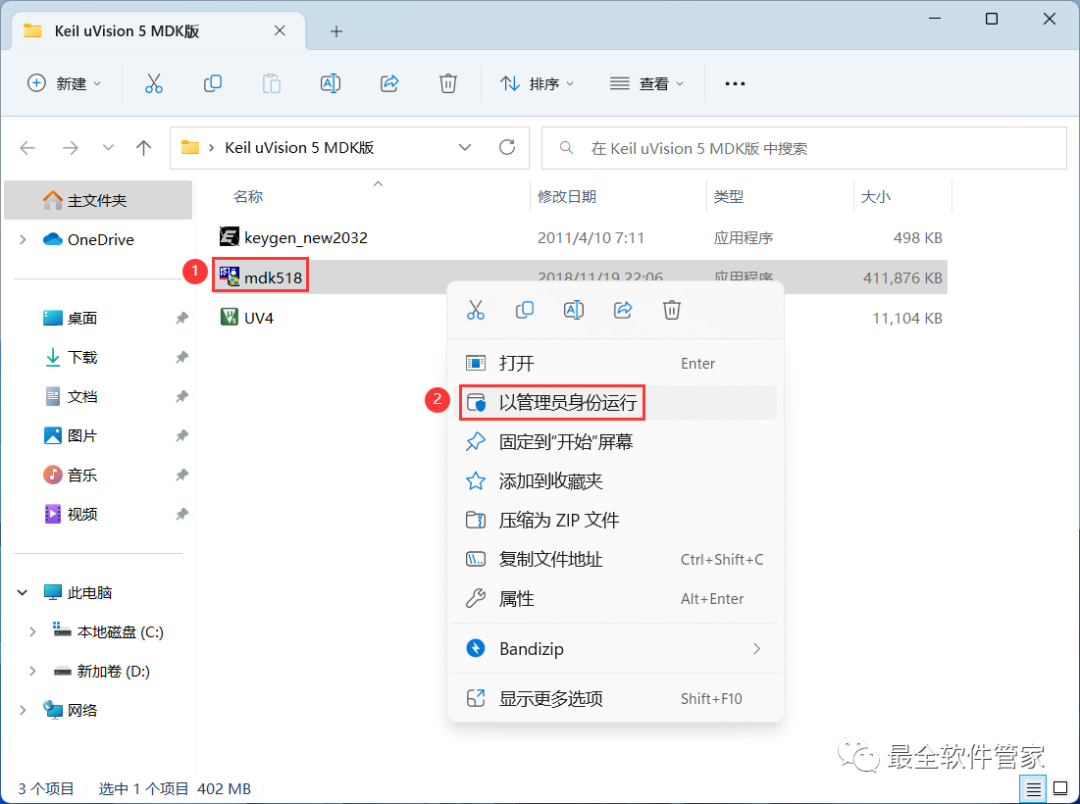
3. Find the 【mdk518】 application, right-click and select 【Run as administrator】.
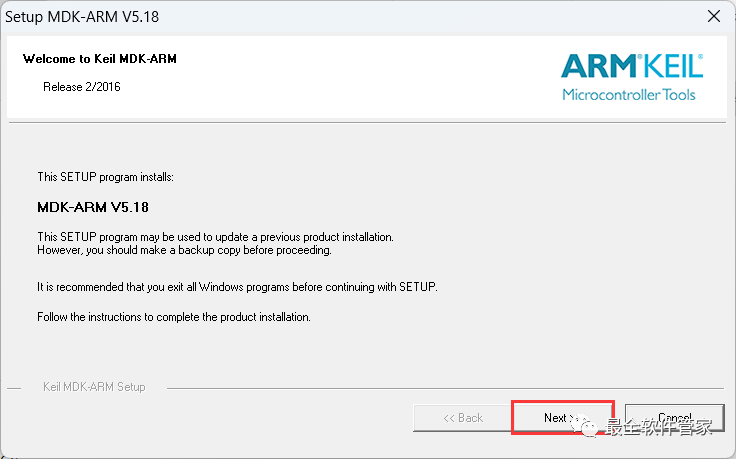
4. Click 【Next】.
5. Check 【I accept】, then click 【Next】.
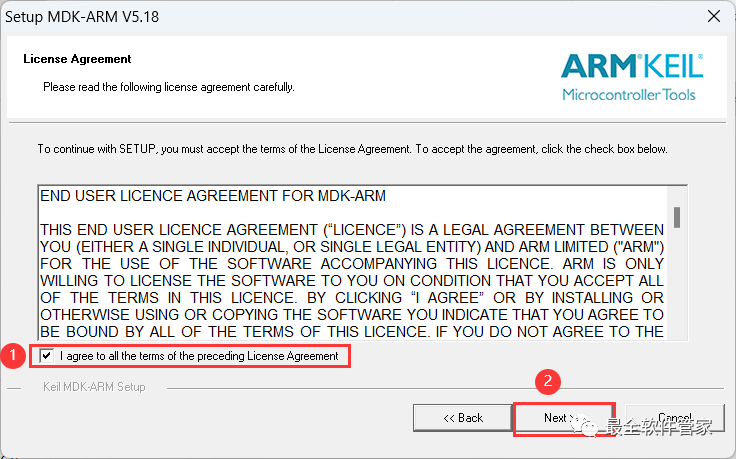
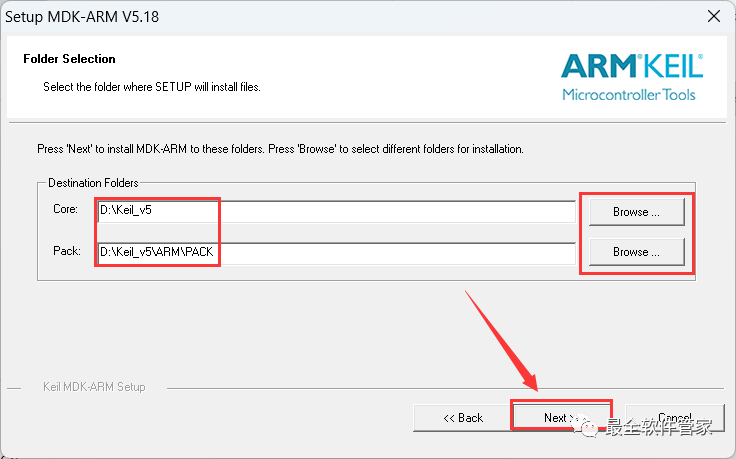
6. The software is installed by default on the C drive; you can customize the installation location. Here, I choose to install on the D drive; click 【Next】.
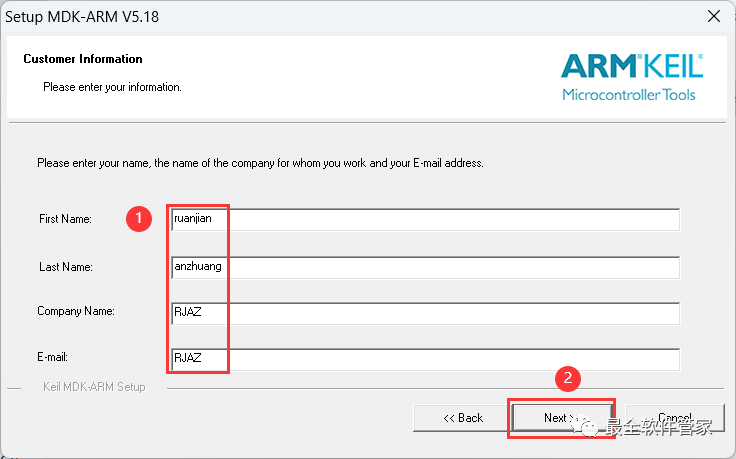
7. Enter any English text, then click 【Next】.
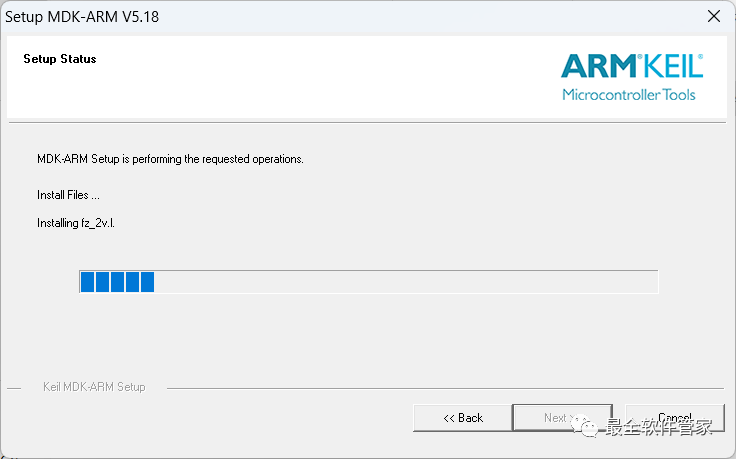
8. The software is installing, please wait a moment.
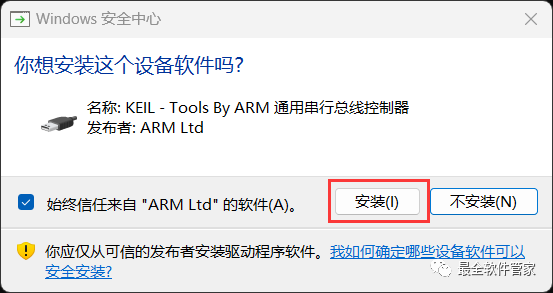
9. Click 【Install】.
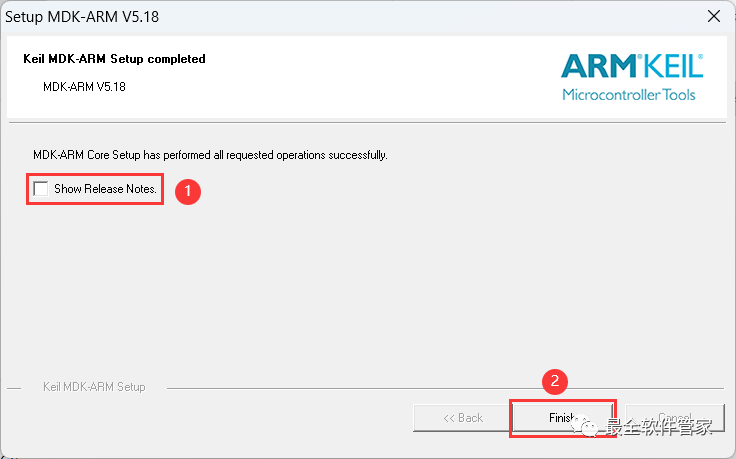
10. Do not check 【Show Release Notes】, then click 【Finish】.
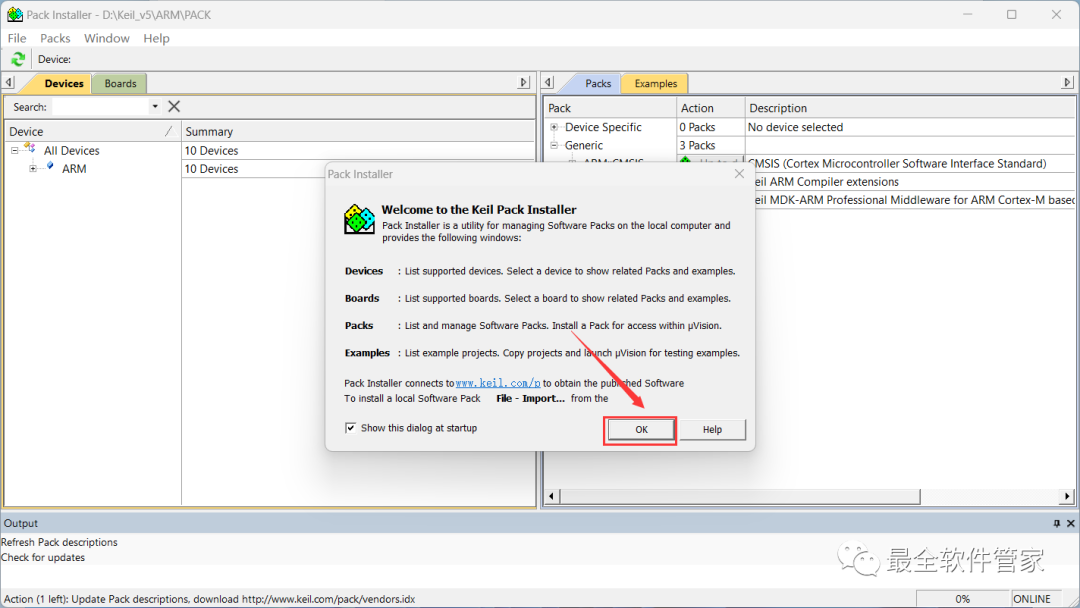
11. Click 【OK】.
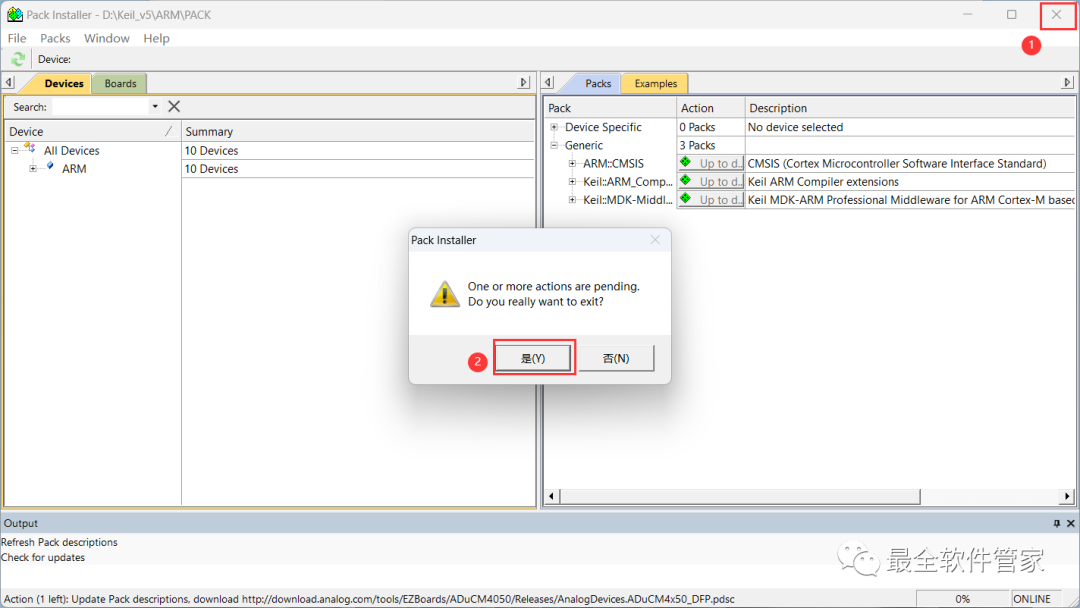
12. Click the 【Close button】 in the upper right corner of the software, then click 【Yes】.
13. Go back to the desktop, right-click the 【Keil uVision5 software icon】, and click 【Run as administrator】.
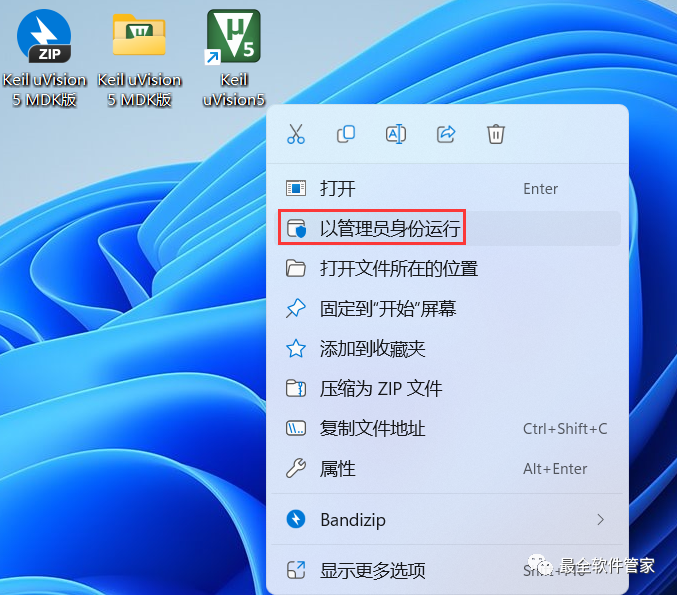
14. The software is opening, and the startup interface is as follows:

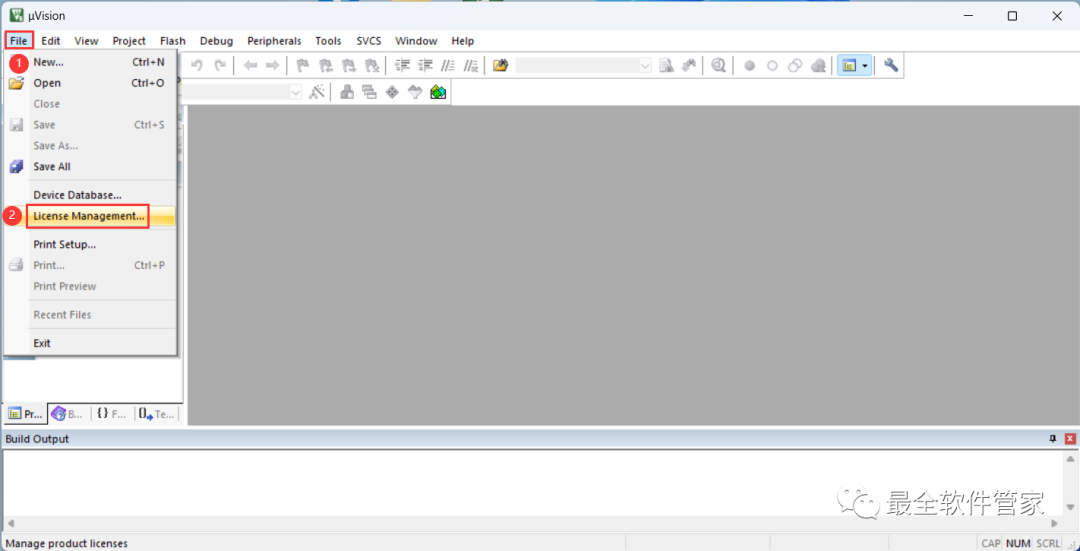
15. Sequentially click 【File】 and 【License Management】 in the upper left corner of the software.
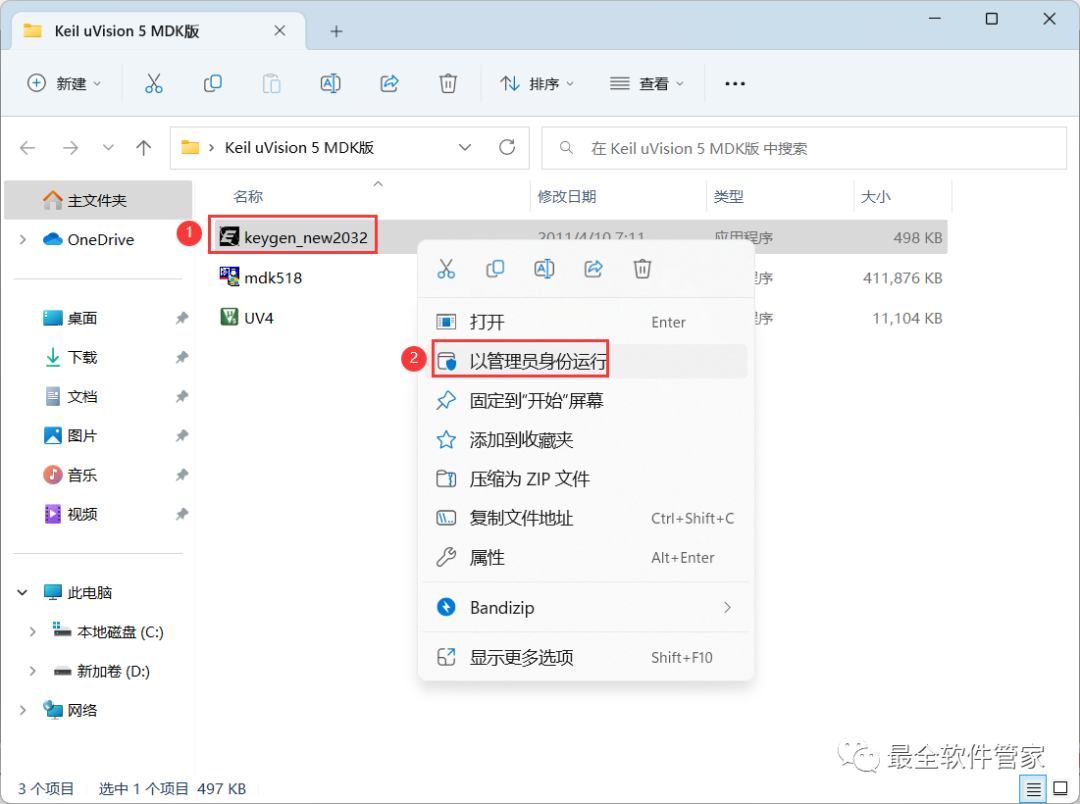
16. Go back to the Keil uVision 5 MDK folder, find the 【keygen_new_2032】 application, and right-click to select 【Run as administrator】.
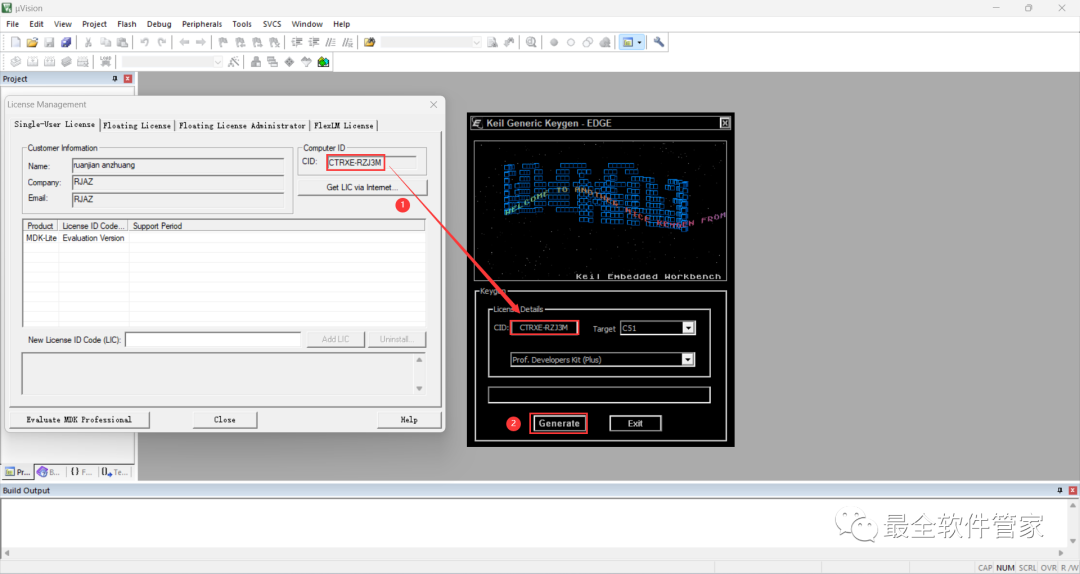
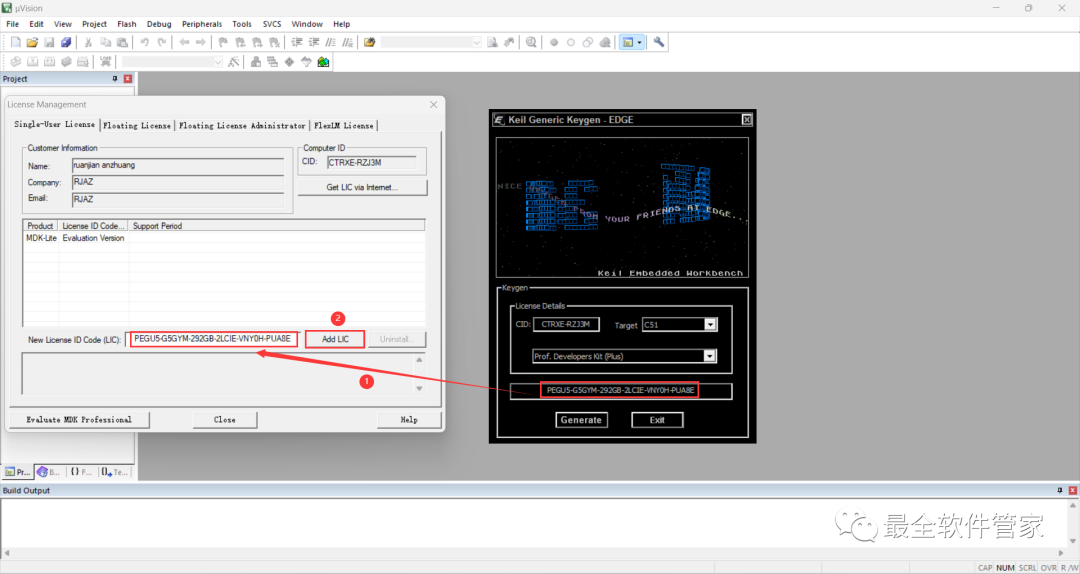
17. Back in the Keil uVision 5 MDK software interface, enter the software’s CID code into the keygen program’s CID field, then click 【Generate】.
18. Enter the activation code obtained from the keygen program into the software’s New License ID Code field, then click 【Add LIC】.
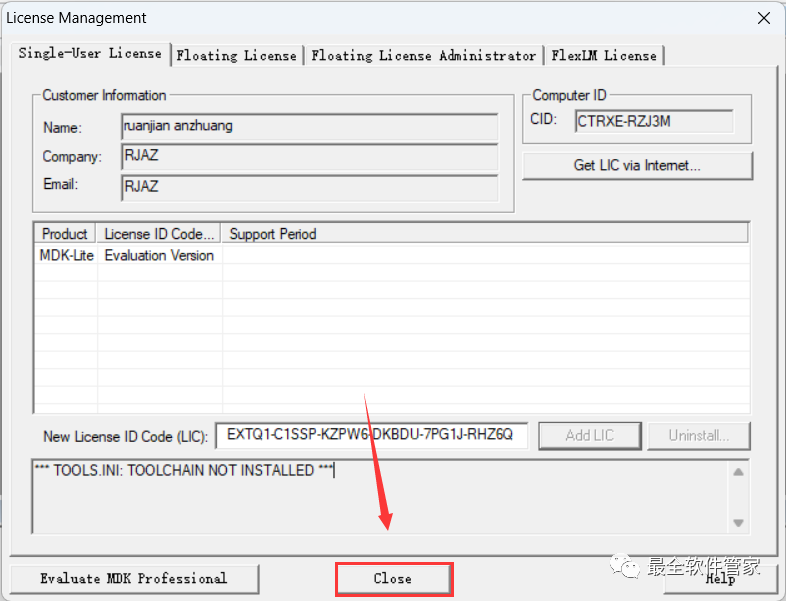
19. Click 【Close】.
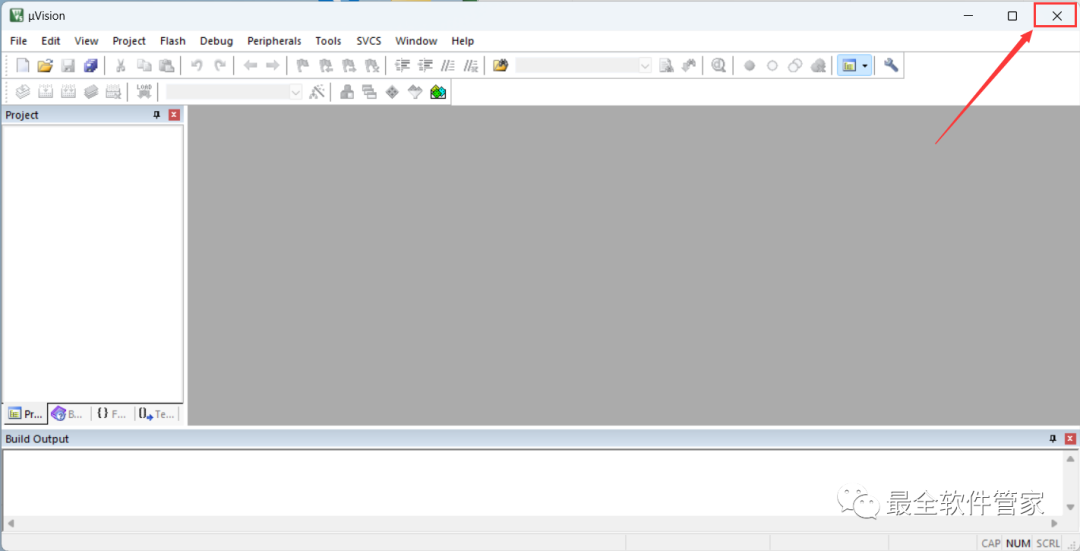
20. Click the 【Close button】 in the upper right corner of the software.
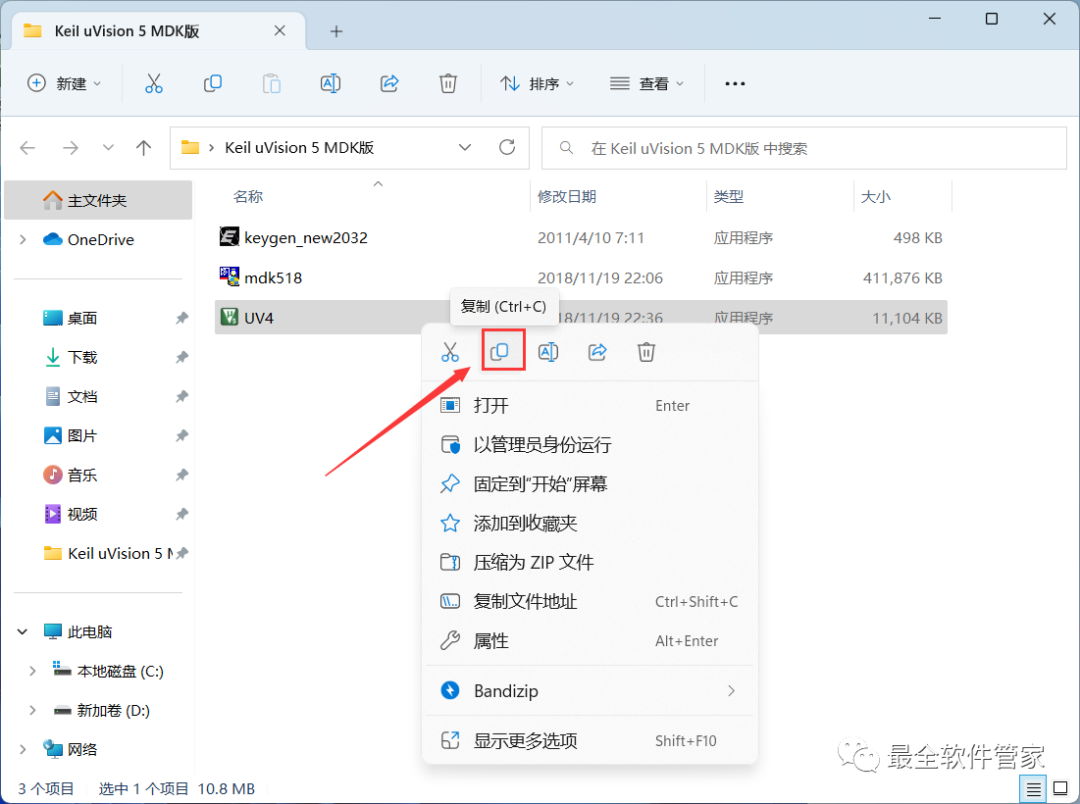
21. Back in the Keil uVision 5 MDK folder, find the 【UV4】 application, and right-click to click 【Copy】.
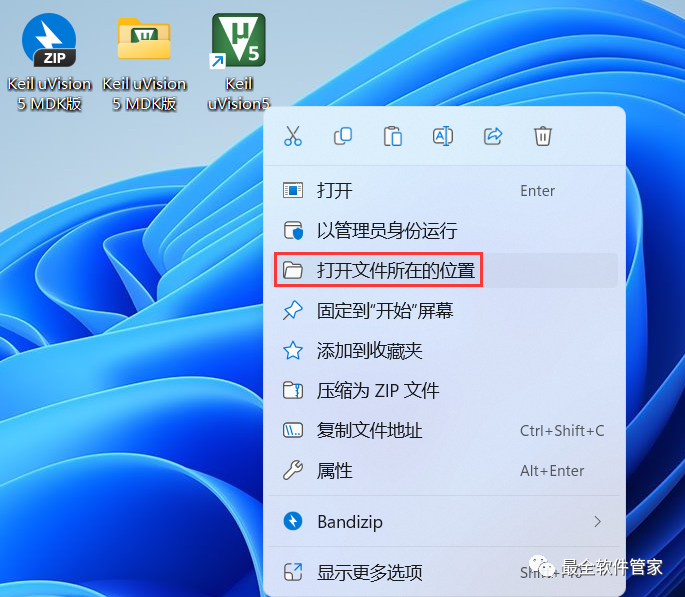
22. Back to the desktop, right-click the 【Keil uVision5 software icon】 on the desktop, and click 【Open file location】.
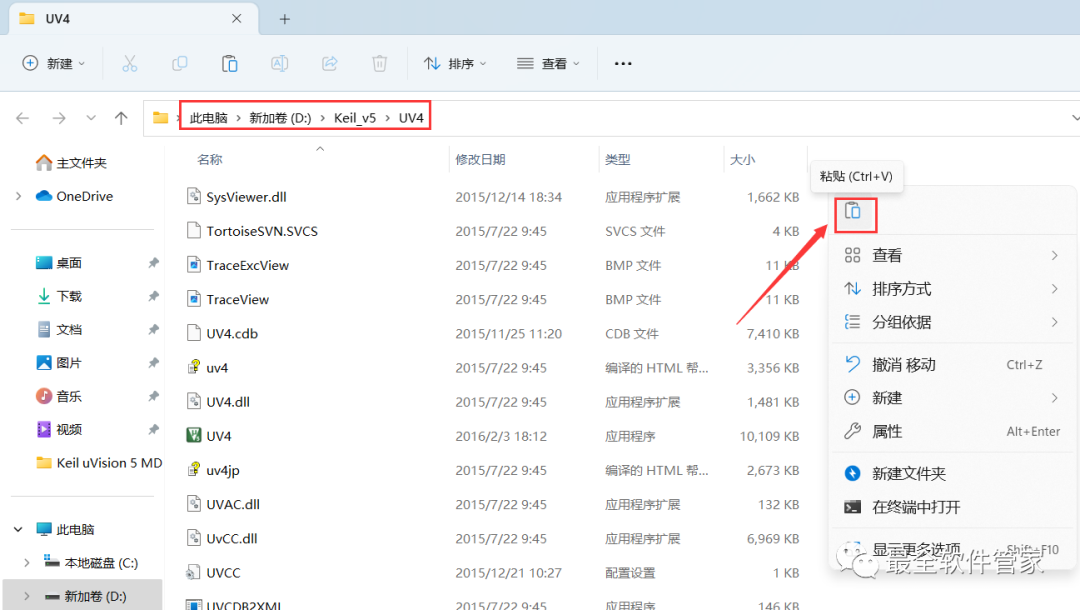
23. Right-click in the blank area of the folder and click 【Paste】.
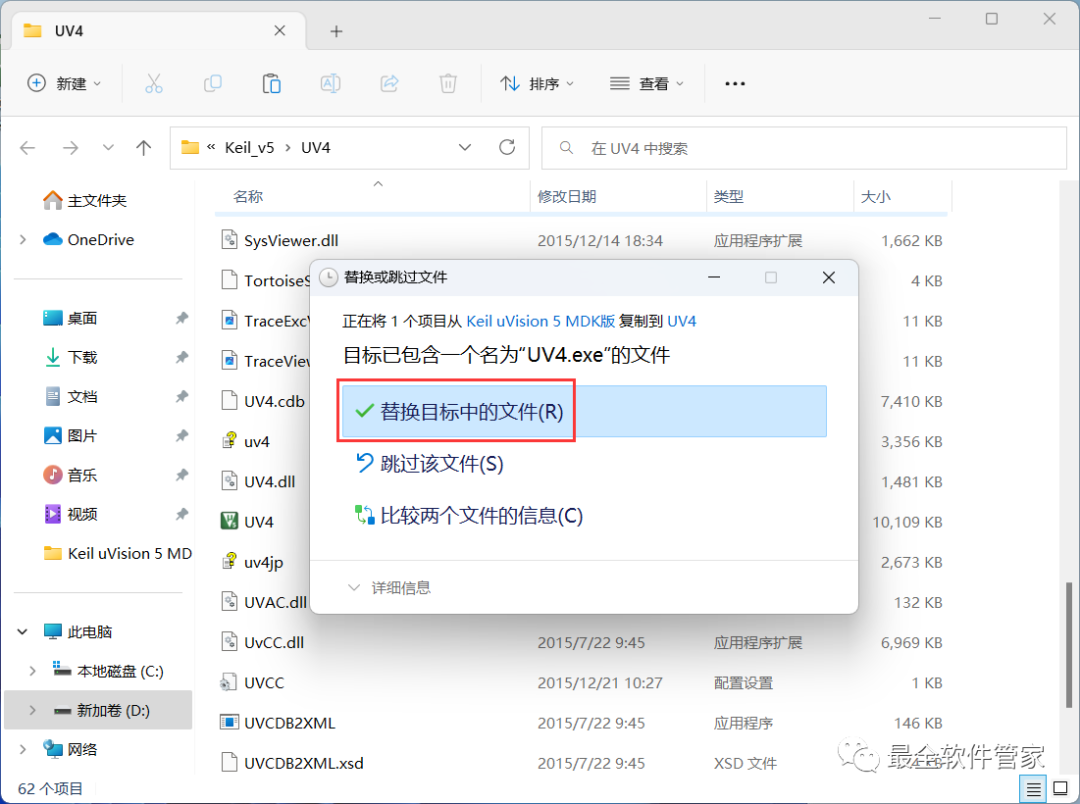
24. Click 【Replace the files in the destination】.
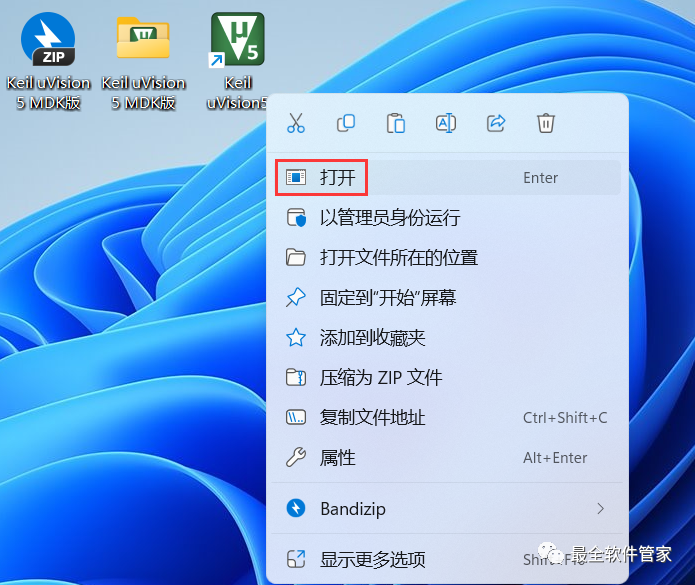
25. Back to the desktop, right-click the 【Keil uVision5 software icon】 on the desktop, and click 【Open】.
26. The software is opening, and the startup interface is as follows:

27. The software opened successfully, and the running interface is as follows:
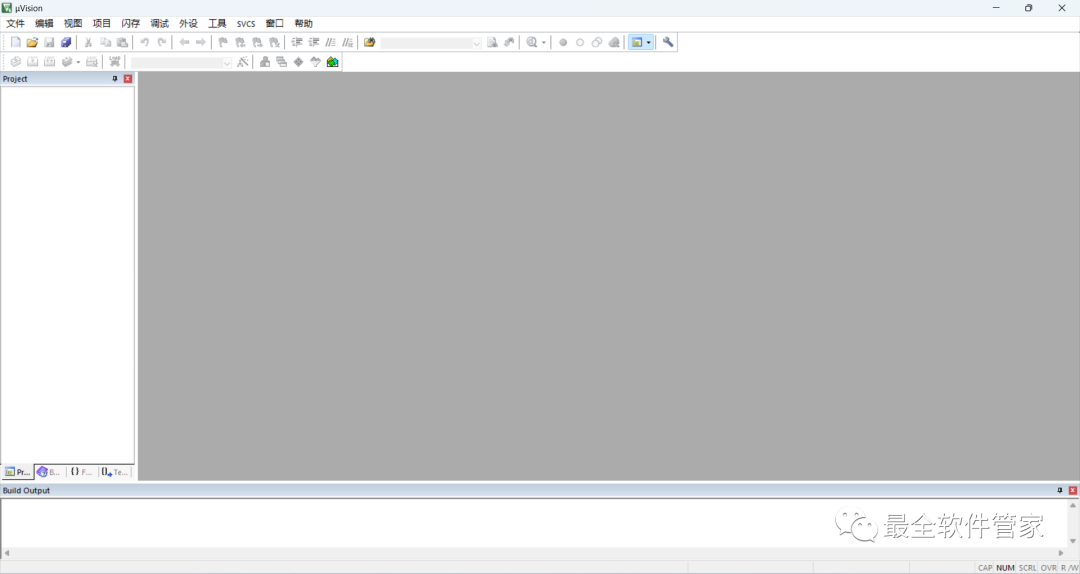
This is the entire process of installing the Keil uVision 5 MDK software. If it has helped you, please give a thumbs up!
Disclaimer: The software resources are sourced from the internet and are intended for user exchange, learning, and research purposes only. The copyright belongs to the original copyright holder. Any copyright disputes are not related to this public account. Users downloading the software cannot use it for commercial or illegal purposes; otherwise, the consequences will be borne by the user. If you access and download this file, it means you agree to use this software for reference and learning only, and not for other purposes. Otherwise, you will bear all consequences. Please delete it within 24 hours after downloading, and it is not allowed for commercial use; otherwise, you will bear the legal consequences. If you like this software, please support the original software, purchase a license, and receive better official services.