1. Confirm System Version and Architecture
Check the system version, which is Tongxin V20 1070e
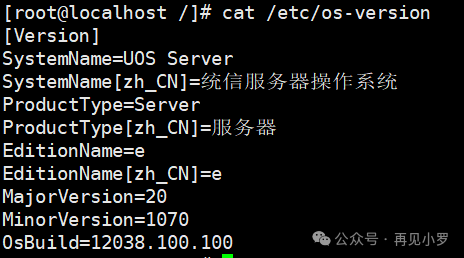
Check the system architecture; currently, Google Chrome only supports x86 architecture.

2. Download the Installation Package
Select the corresponding installation package based on the operating system version and architecture. Use the rpm command for systems that manage software packages with rpm, and download the .rpm file; use the apt command for systems that manage software packages with apt, and download the .deb file.
Redhat/CentOS/openEuler/UOS V20 Server/KyLin v10 Server, etc., use rpm management
Debian/Ubuntu/Kylin Desktop/UOS Desktop/Deepin, etc., use apt management
https://dl.google.com/linux/direct/google-chrome-stable_current_x86_64.rpm
https://dl.google.com/linux/direct/google-chrome-stable_current_amd64.deb
This article takes UOS V20 1070e as an example, which uses rpm command management, so download the .rpm file.
3. Install the Software Package
Upload the software installation package and install it using the command line or open the RPM package installer on the UOS desktop.
ØCommand Line Installation

ØDesktop Installation
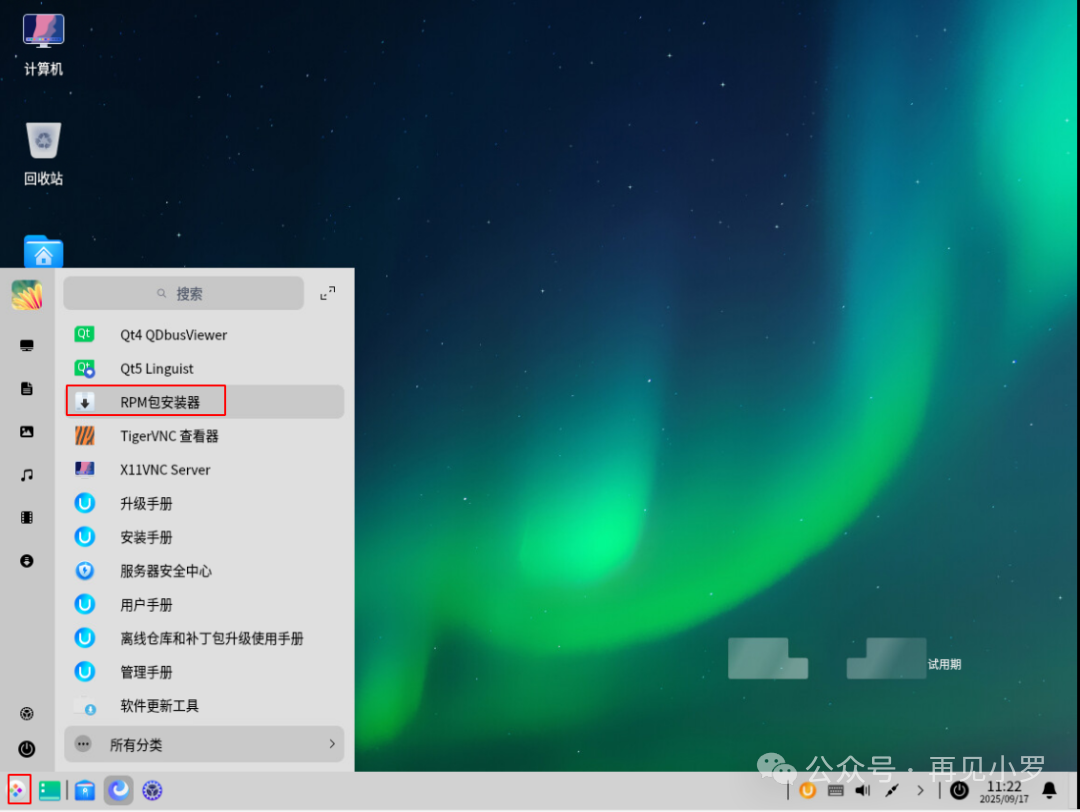
Click the icon in the lower left corner and select the RPM package installer
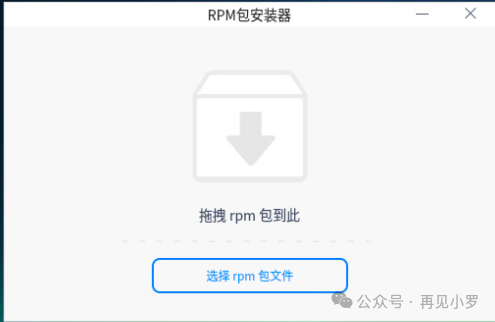
Click “Select rpm package file”
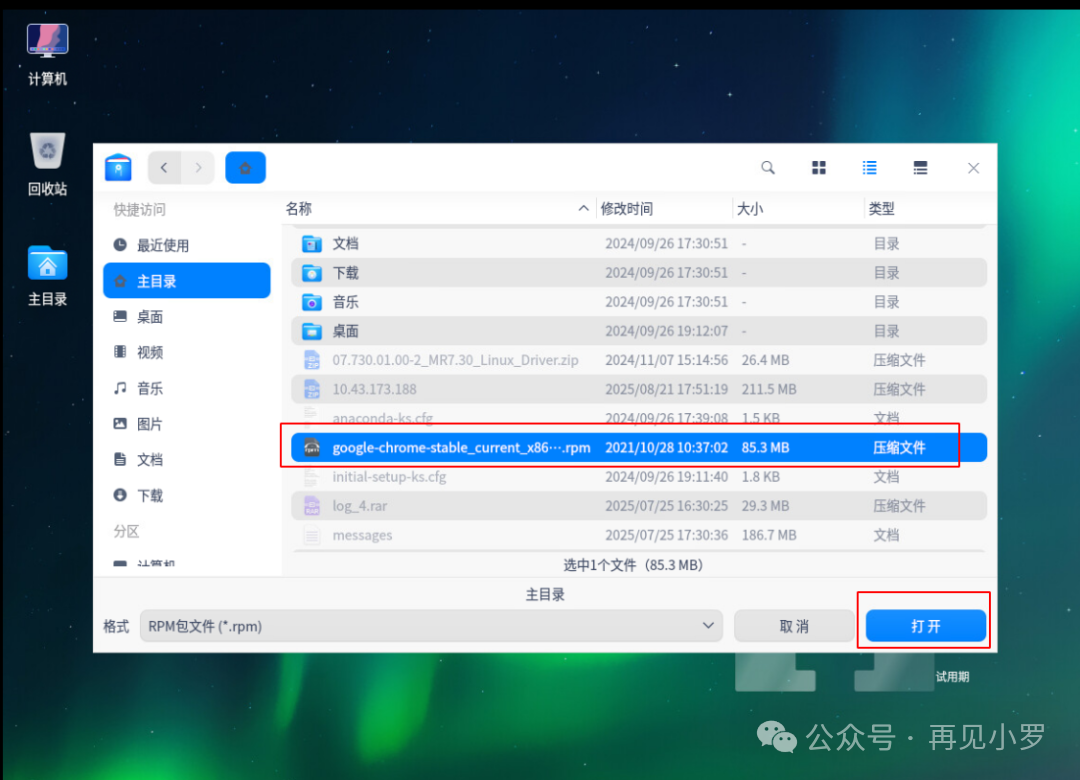
Select the rpm package file and click “Open”
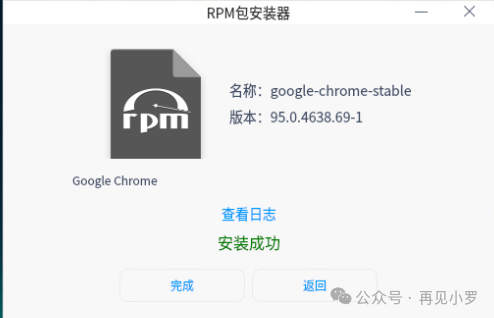
Installation completed display
4. Run the Browser
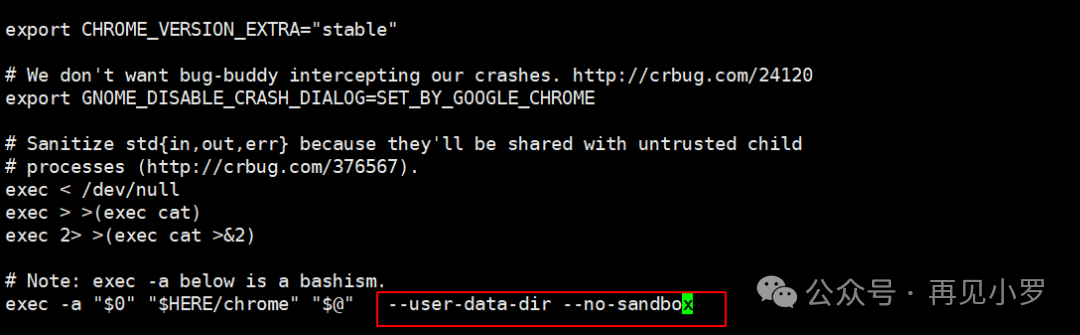
Sandbox Mode: Some systems need to add the –no-sandbox parameter to start, but this may reduce security.
Add parameters –user-data-dir –no-sandbox by executing vi /opt/google/chrome/google-chrome; without this parameter, the root user cannot run it, only ordinary users can run it.
exec -a “$0” “$HERE/chrome” “$@” –user-data-dir –no-sandbox
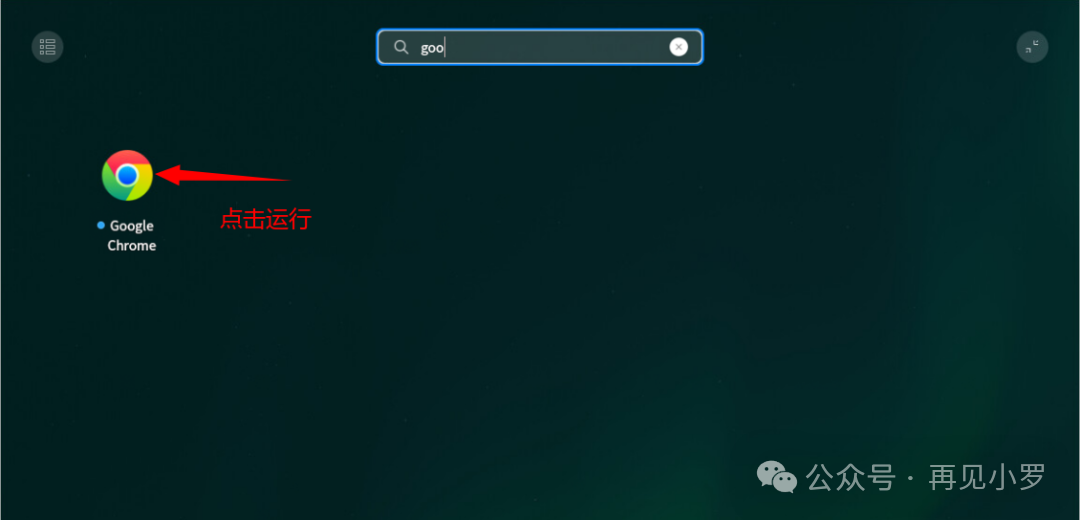
Open the search box, type google, and click the Google icon to run the browser.
Click to start using
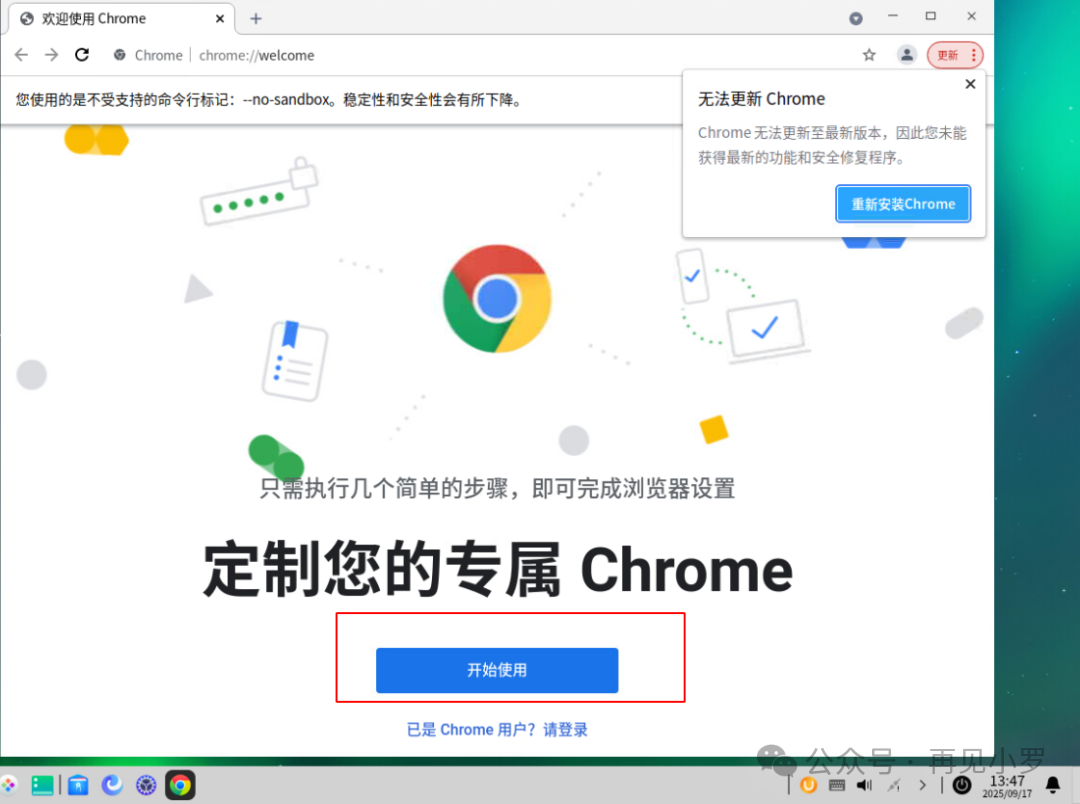
Choose to click OK as needed
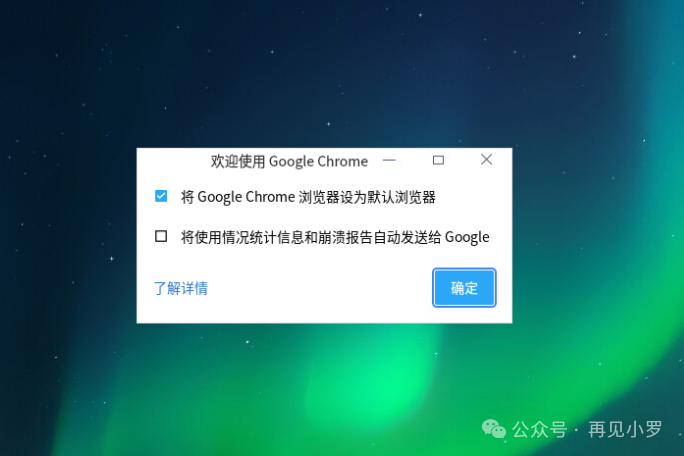
The installation of Google Chrome is complete.