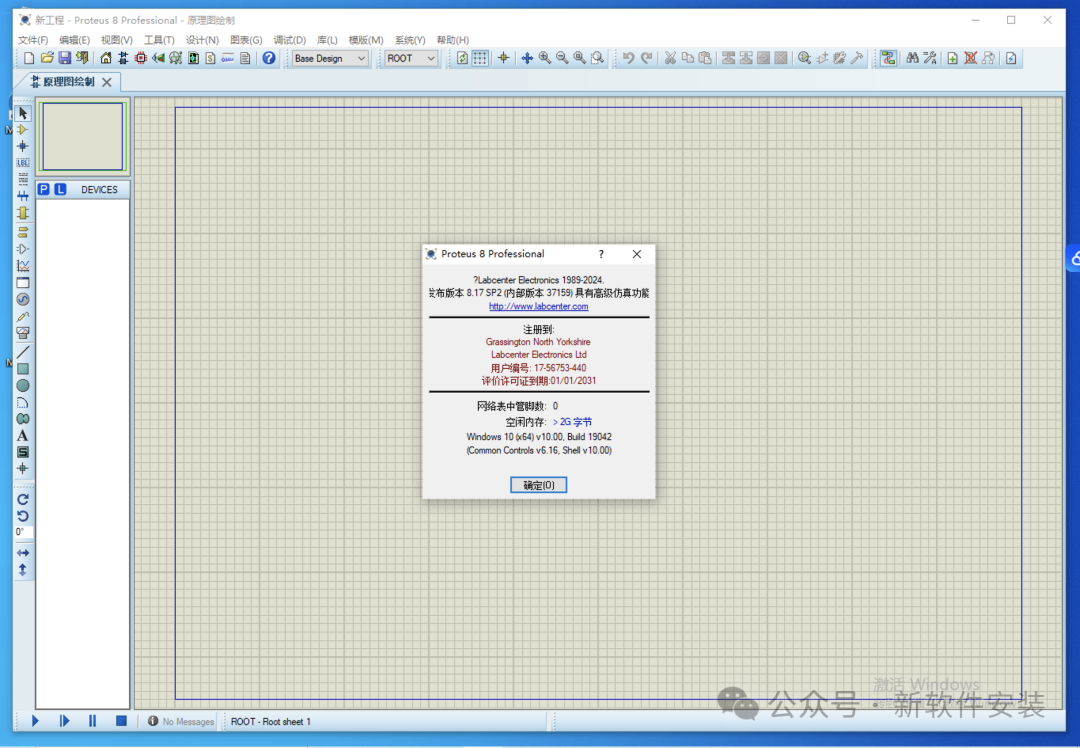
 SoftwareDescription
[Name]: Proteus 8.17
[Language]: Simplified Chinese
[Installation Environment]: Windows 7 and above (64-bit) operating system
[Download Link]:
https://pan.baidu.com/s/1W7wN4fk8znBrklk-4ZFeJQ?pwd=21kr
SoftwareIntroduction
Proteus is a well-known EDA tool (simulation software) that provides a complete design from schematic layout, code debugging to microcontroller and peripheral circuit co-simulation, with a one-click switch to PCB design, truly achieving a complete design from concept to product. It is the world’s only design platform that integrates circuit simulation software, PCB design software, and virtual model simulation software into one. Its processor models support 8051, HC11, PIC10/12/16/18/24/30/DSPIC33, AVR, ARM, 8086, and MSP430, and continues to add models for other series of processors. In terms of compilation, it also supports various compilers such as IAR, Keil, and MATLAB.
InstallationSteps
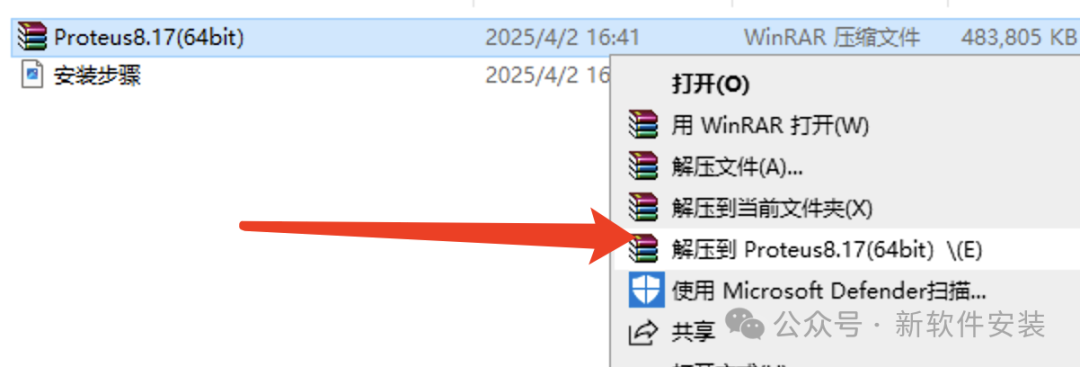
1. Right-click the 【Proteus8.17】 compressed package and select 【Extract to Proteus8.17】.
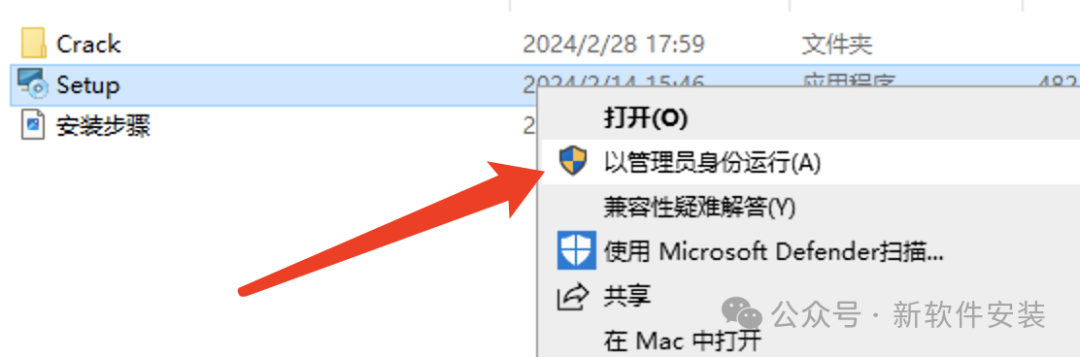
2. Open the extracted folder, right-click 【Setup】 and select 【Run as administrator】.
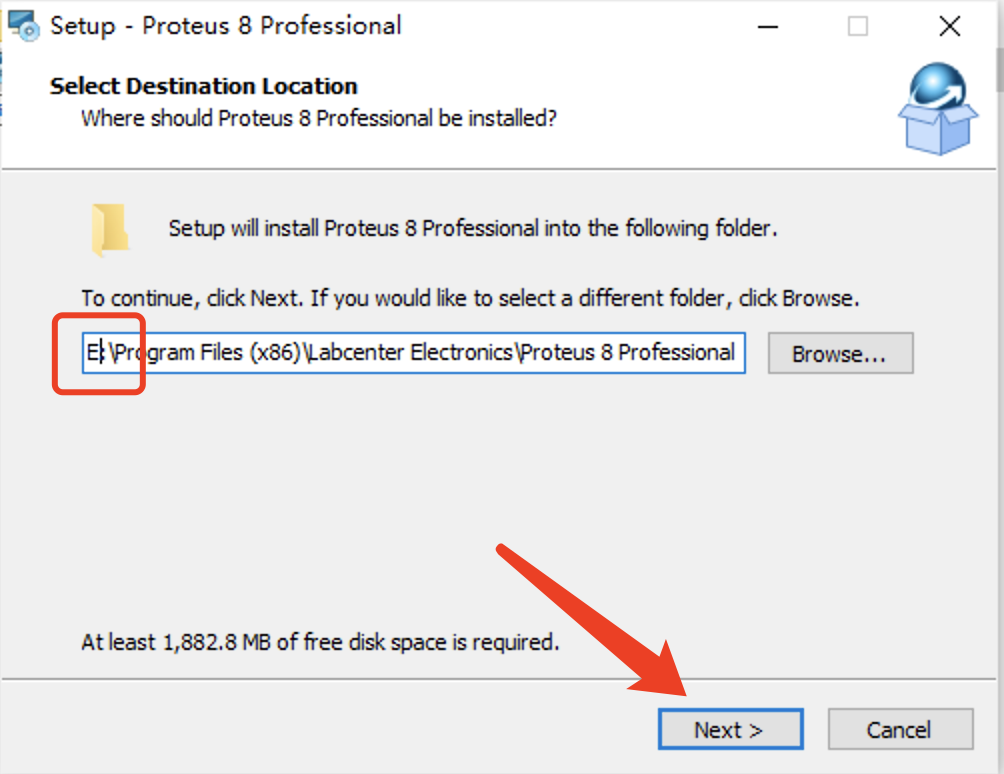
3. Modify the first character of the path address from C to change the installation location and data storage location (e.g., change C to E to install the software on drive E), then click 【Next】.
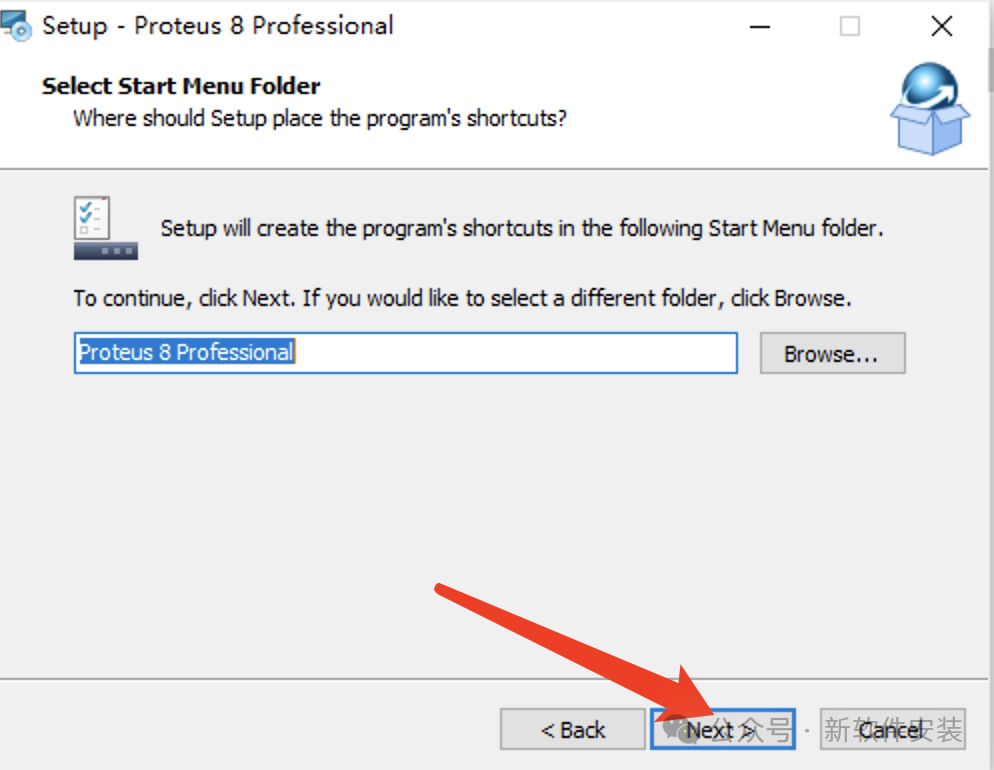
4. Click 【Next】.
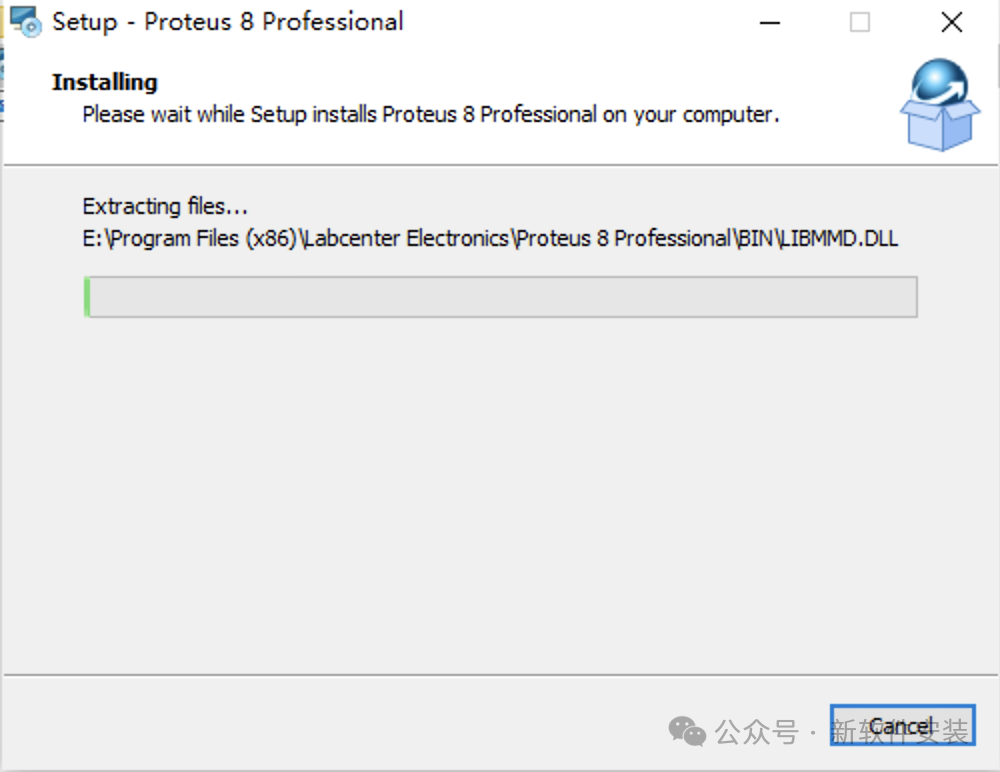
5. Installing……
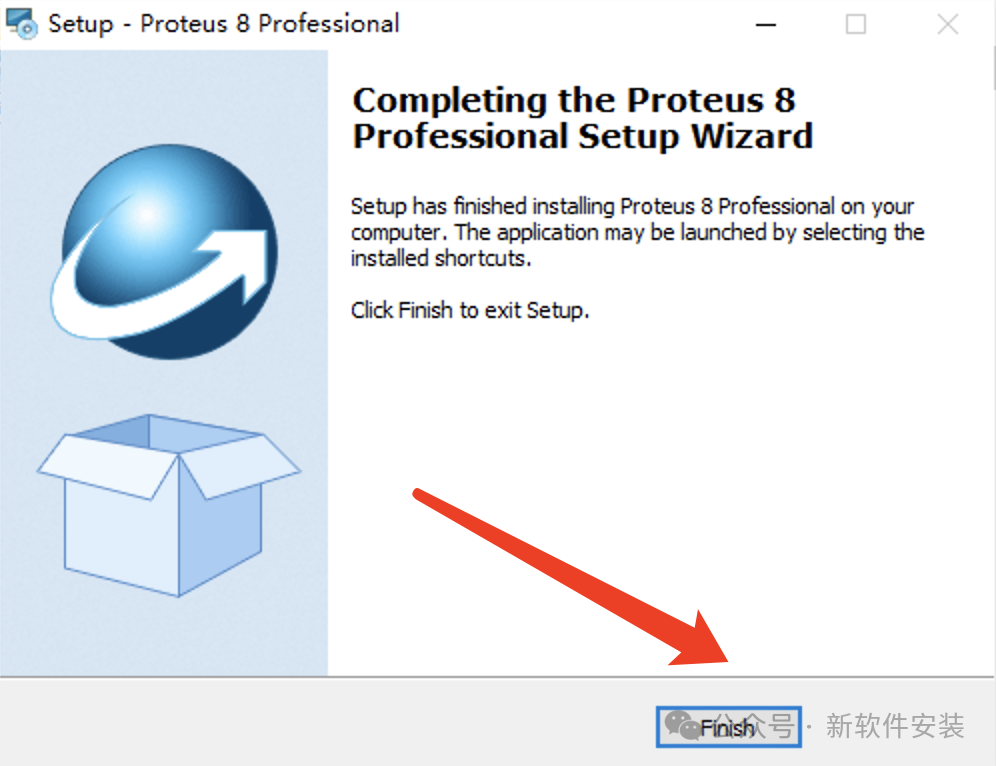
6. Click 【Finish】.
7. Open the extracted 【Proteus8.17】 folder, double-click to open the 【Crack】 folder.
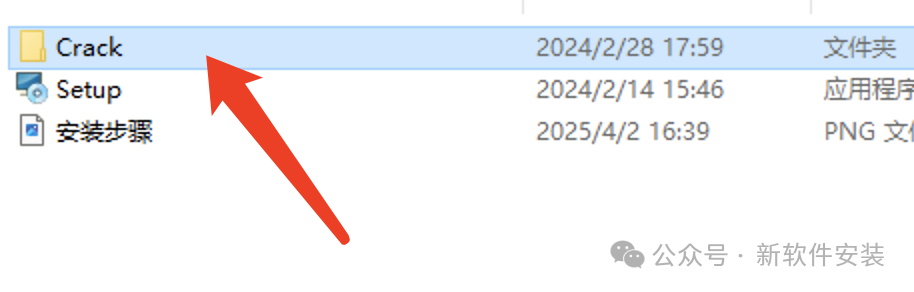
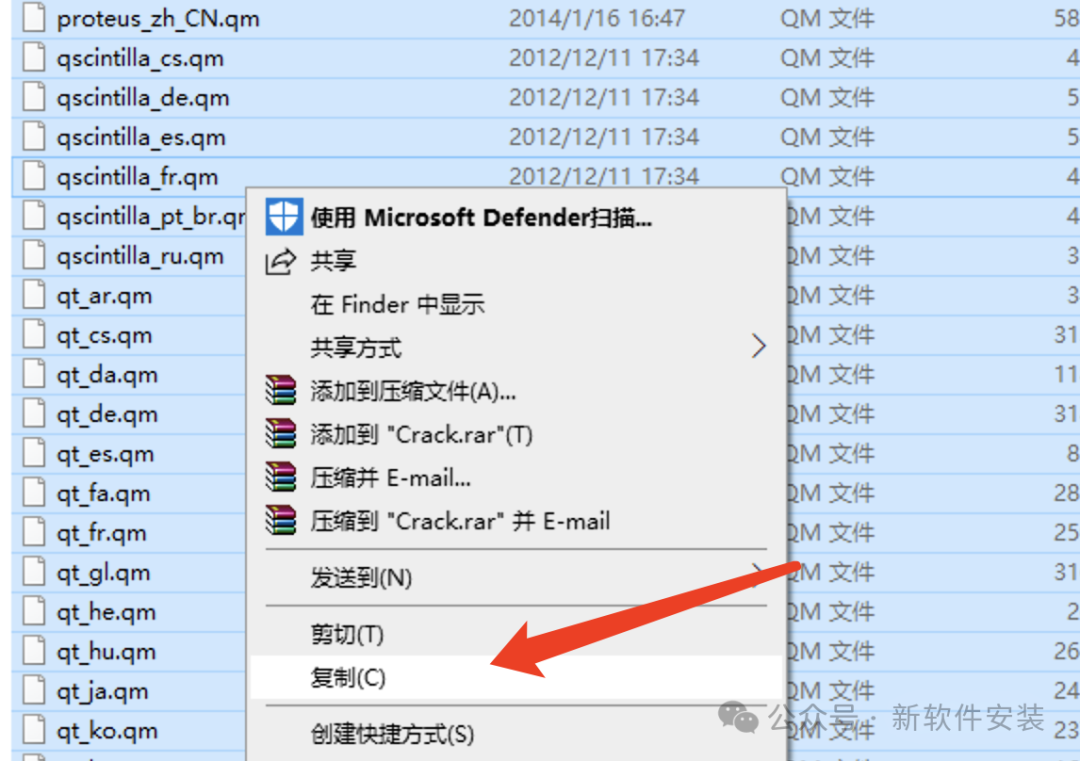
8. Select all files in this folder, right-click and select 【Copy】.
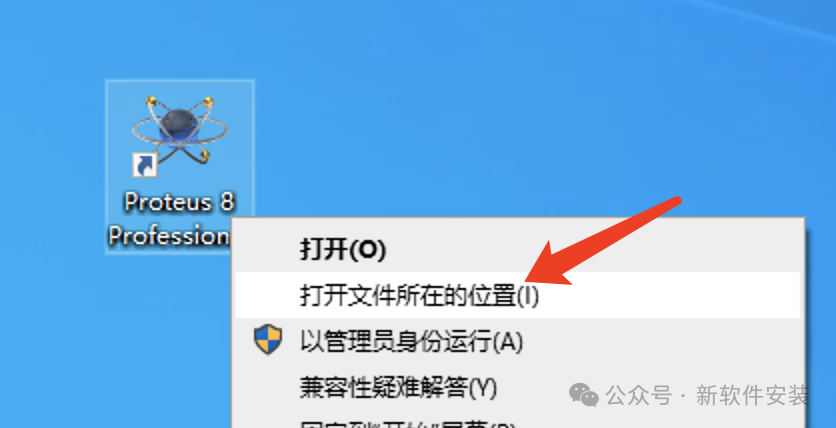
9. Right-click the 【Proteus 8 Professional】 icon on the desktop and select 【Open file location】.
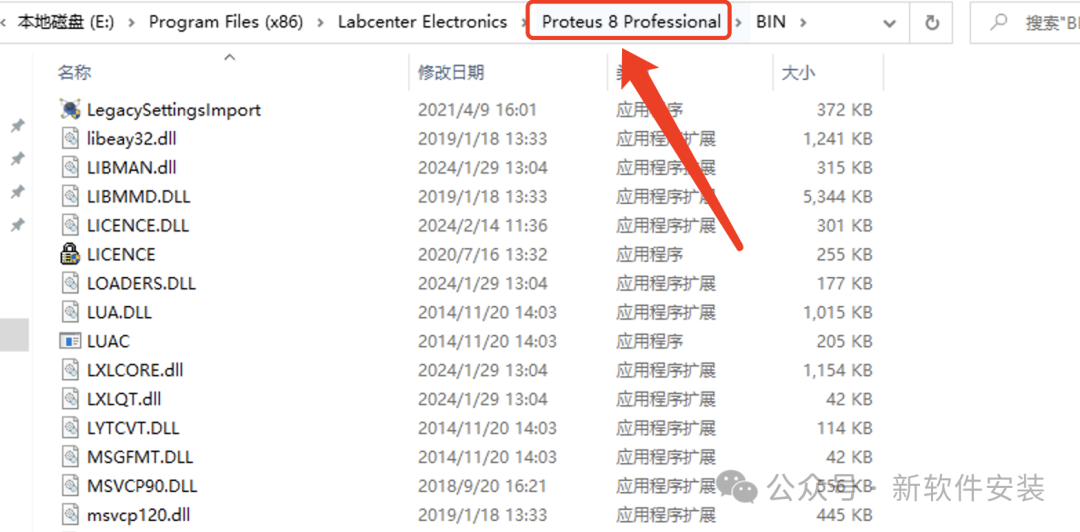
10. Click on the 【Proteus 8 Professional】 in the path address.
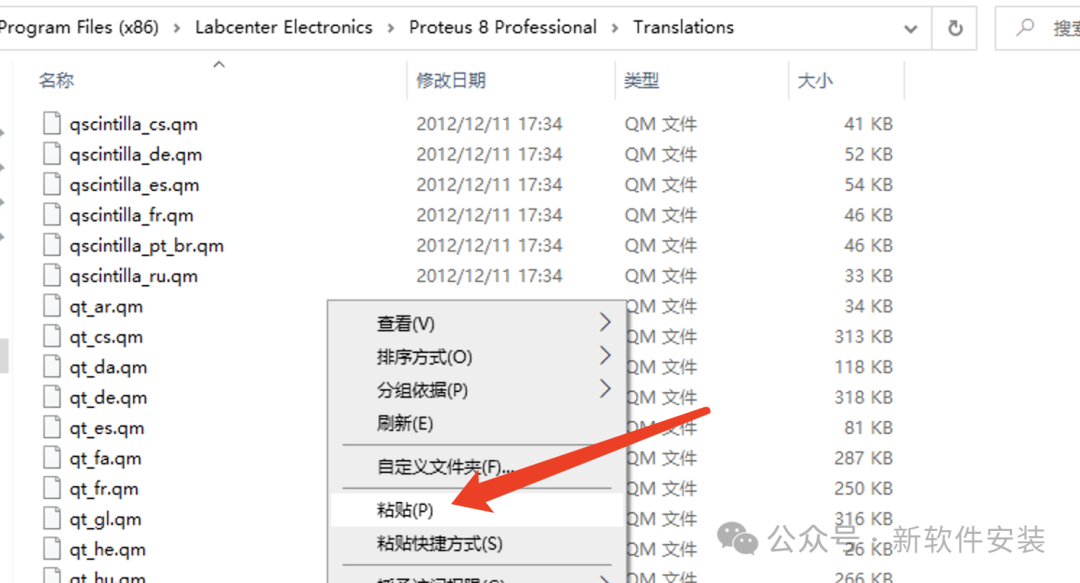
11. Double-click to open the 【Translations】 folder.
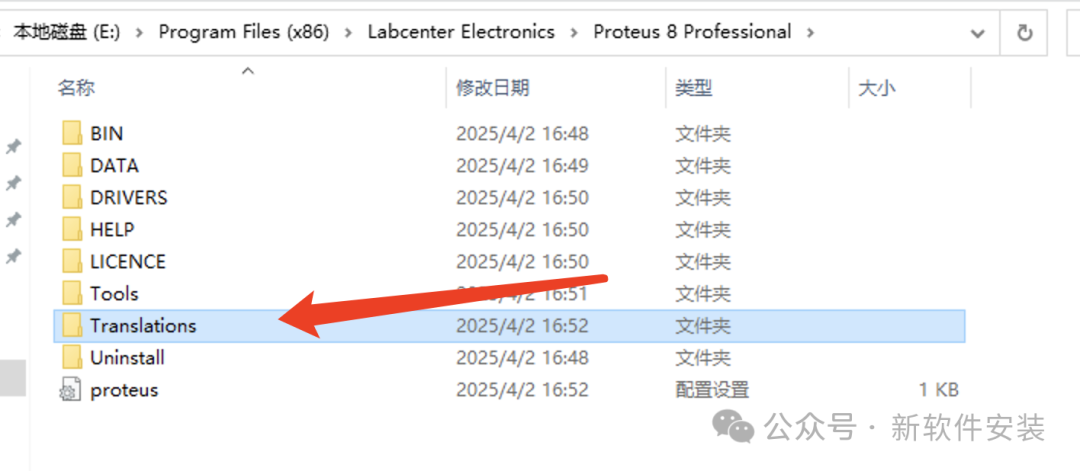
12. Right-click in the blank area and select 【Paste】.
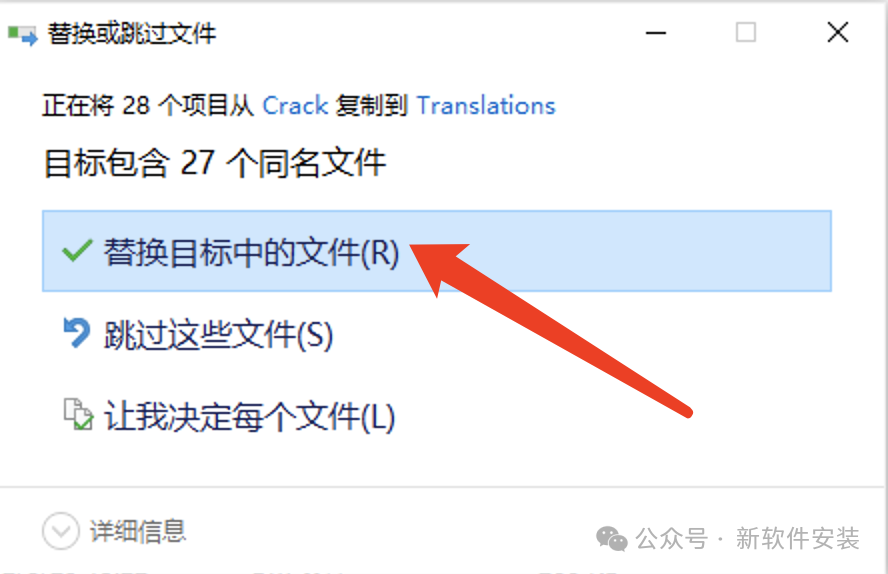
13. Click 【Replace the files in the destination】.
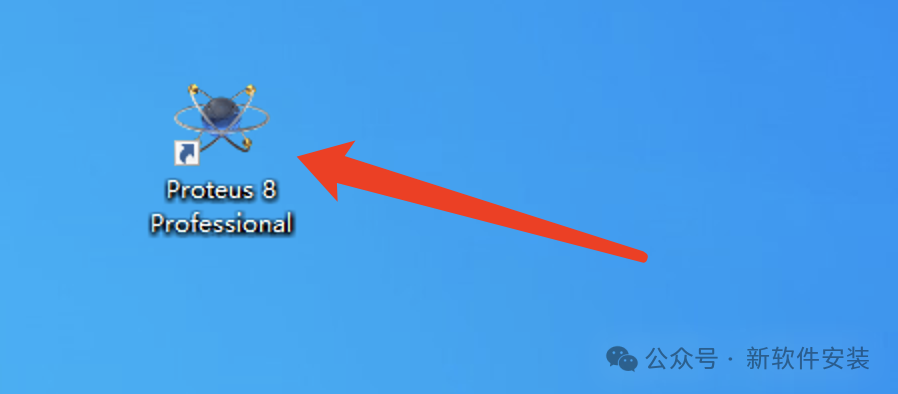
14. Double-click the 【Proteus 8 Professional】 icon on the desktop to start the software.
15. Installation successful!