Note: In the fall of 2024, the School of Automation and Intelligent Manufacturing at Southern University of Science and Technology will offer the course “Fundamentals of Electronic Technology” for the first time, without specifying a particular circuit simulation software. After one semester of practice, the teaching engineer, Teacher Wei, found that compared to the free LTspice software, Multisim is very user-friendly for beginners, with virtual instruments almost corresponding one-to-one with real instruments, and the simulation accuracy fully meets the requirements. Therefore, in 2025, the college purchased 30 licenses for Multisim 14.3, planning to use Multisim software as the circuit simulation tool in the fall 2025 course.
01
—
Introduction to Multisim
Multisim is a Windows-based simulation tool launched by National Instruments (NI) for the design of board-level analog/digital circuits. It includes graphical input for circuit schematics and hardware description language input methods, with rich simulation analysis capabilities.
The predecessor of Multisim is EWB, which was originally launched by Interactive Image Technologies (IIT) in the late 1980s as a software specifically for electronic circuit simulation, called Electronics Workbench (EWB), used for simulating digital circuits, analog circuits, and mixed-signal circuits. It is also based on the Spice model, which has been mentioned in the development history of Spice.
Later, after releasing EWB 5.0, IIT renamed the software to Multisim. In 2005, NI acquired IIT, and Multisim became part of NI. Another well-known software from NI is LabView. After the acquisition, NI integrated the virtual instruments from LabView into Multisim and opened the LabView interface, allowing Multisim to easily interact with LabView for data exchange. The virtual instruments and interaction capabilities with LabView have also become advantageous features of Multisim.
Engineers can use Multisim to interactively build circuit schematics and simulate circuits. Multisim simplifies the complex content of SPICE simulation, allowing engineers to quickly capture, simulate, and analyze new designs without needing to understand in-depth SPICE technology, making it more suitable for electronics education. Through Multisim and virtual instrument technology, PCB design engineers and electronics educators can complete a comprehensive design process from theory to schematic capture, simulation, and then to prototype design and testing.
Multisim has developed early and is easy to get started, which has led to its widespread use in university education in China. Many university teachers utilize Multisim in their teaching to visually demonstrate circuit principles to students. However, the model precision of Multisim is not as high as that of Pspice, and its software functions are not as powerful as those of Pspice. Moreover, Multisim is an isolated simulation software without schematic tools and PCB tools to match it, nor does it have partnerships with component manufacturers (fortunately, it can directly use standard SPICE models of components). Therefore, in the engineering field, few people use Multisim. Those who prefer precise results and powerful functions choose Pspice, while those who prefer quick simulation and lightweight functions choose the free LTspice. Compared to these two, Multisim has no advantages, so its use is basically limited to university education and electronics enthusiasts.
Multisim integrates industry-standard SPICE simulation and an interactive circuit diagram environment, allowing for instant visualization and analysis of electronic circuit behavior. Its intuitive interface helps educators reinforce students’ understanding of circuit theory, aiding students in efficiently memorizing engineering course theories. Researchers and designers can use Multisim to reduce PCB prototype iterations and add powerful circuit simulation and analysis to the design process, saving development costs. Additionally, the joint simulation with Labview expands the application range of Multisim.
02
—
Installing Multisim Software
2.1 Downloading the Installation Package
The complete installation package (Multisim 14.3 installation package .iso, 3.84GB) can be downloaded here:
Baidu Cloud:
https://pan.baidu.com/s/1YnZjk6RvkvNdE7Xo4v_uVw?pwd=qbtc
Weiyun:
https://share.weiyun.com/yTNud9DN
The online installation package (ni-cds-educational_14.3_online.exe, 6.46MB) can be downloaded here:
Baidu Cloud:
https://pan.baidu.com/s/15YFeaTPaudg-G7hpQbAZ4Q?pwd=522f
Official download link (be sure to select the educational version):
https://www.ni.com/zh-cn/support/downloads/software-products/download.multisim.html#452133
2.2 Installing the Software
2.2.1 Installation of the Complete Installation Package
The installation is consistent with normal software installation; double-clicking the iso installation package will automatically enter the installation folder:
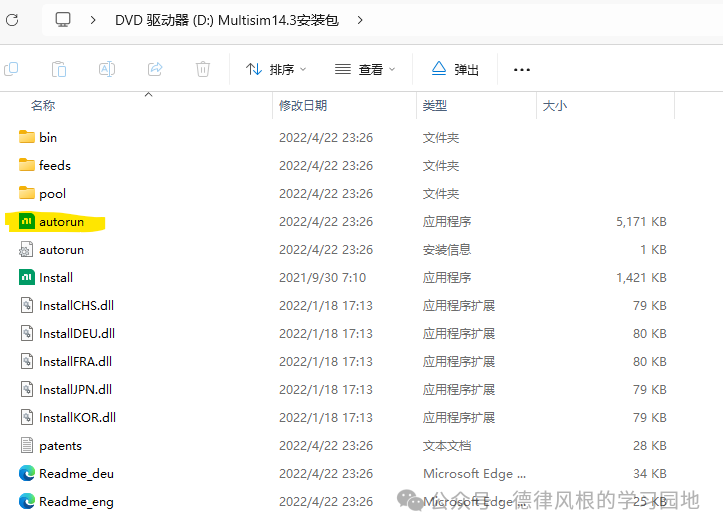
Double-clicking the autorun executable file will enter the installation interface:
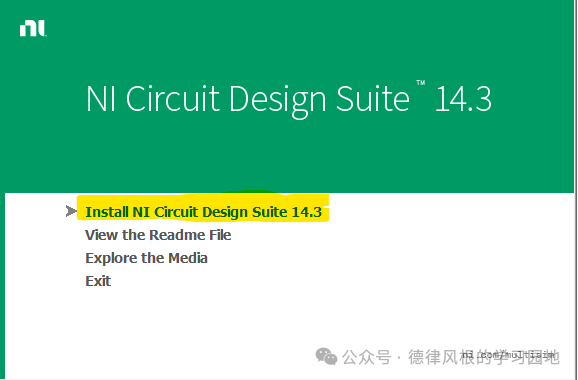
Clicking the first option may prompt “Do you want to allow this app to make changes to your device?” Select “Yes” to enter the license acknowledgment interface:
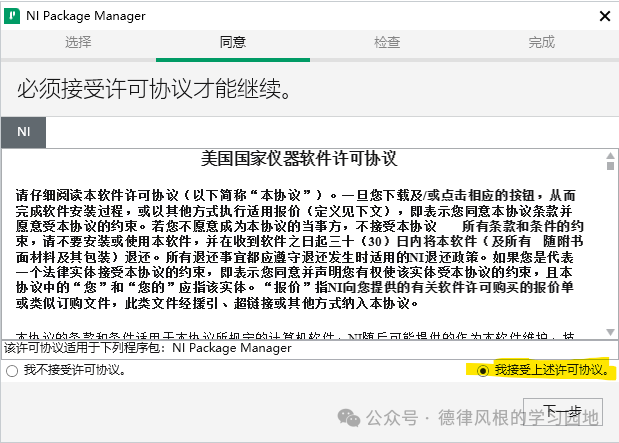
Be sure to select “I accept the above license agreement” and then click “Next”:
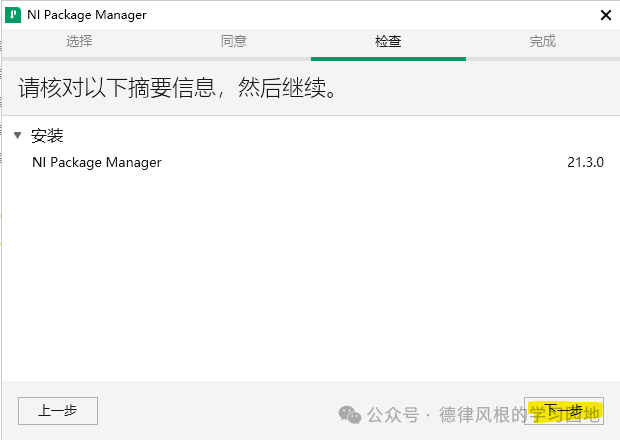
After clicking “Next”, the installation of NI Package Manager begins, and a few minutes later, the following interface appears (if the following interface does not appear, double-click the autorun file again):
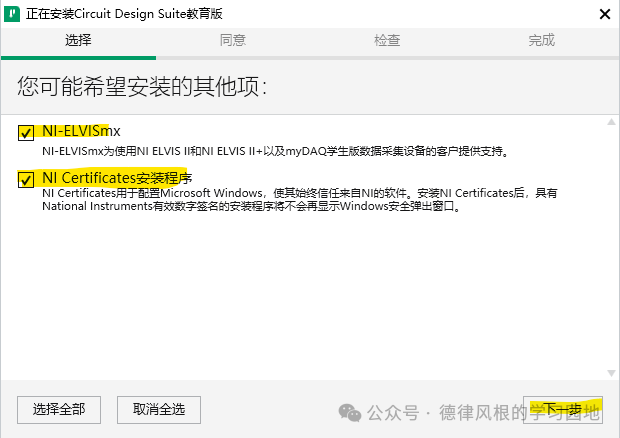
Select both options and click “Next”:
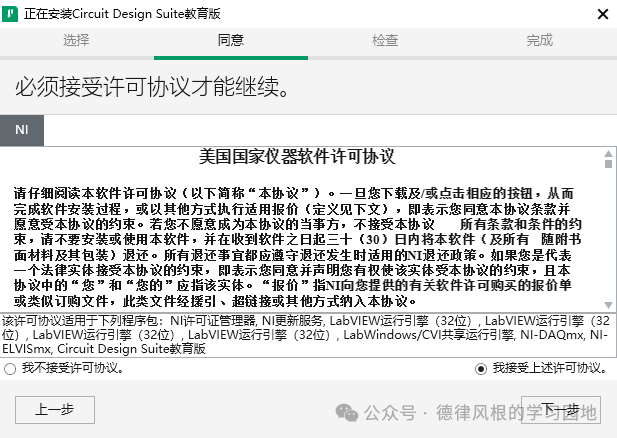
After accepting the above license agreement again, click “Next”:
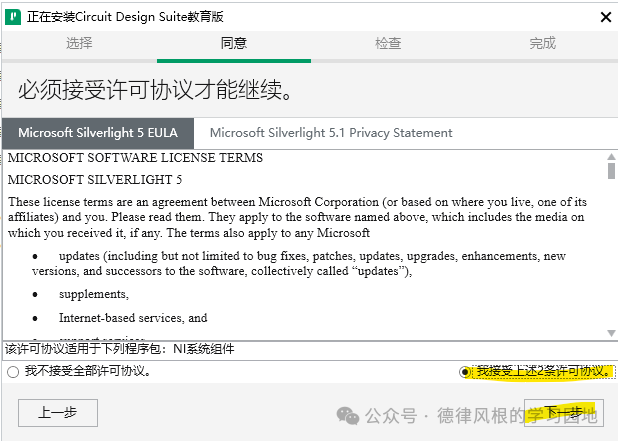
After accepting two license agreements again, click “Next”:
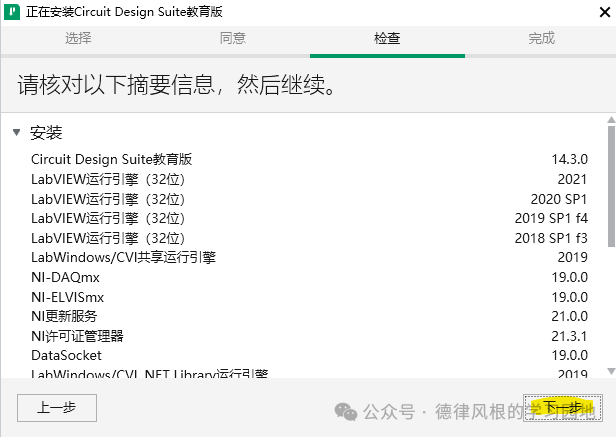
The software and related plugins to be installed are shown above; install all and click “Next”:
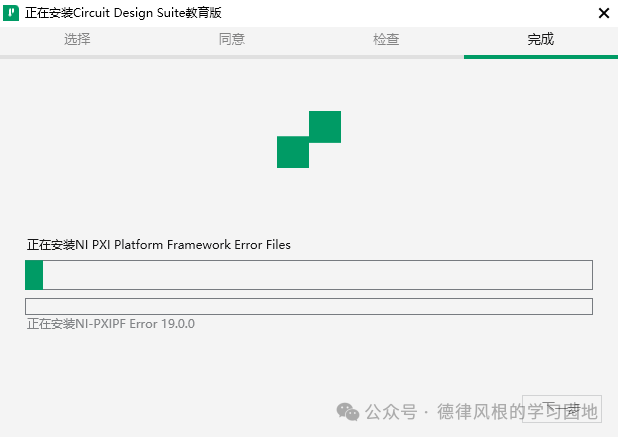
During installation (approximately 15 minutes, duration depends on computer configuration):
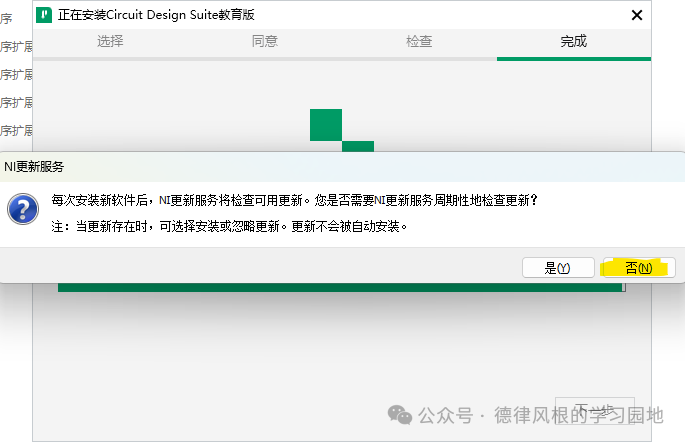
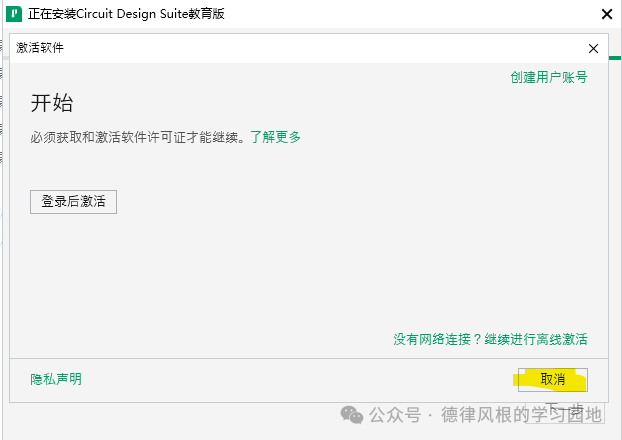
If prompted for “Activate Software”, select “Cancel”:
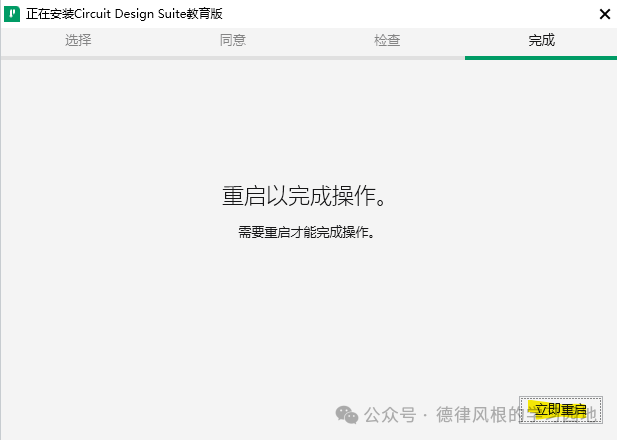
Installation complete; click “Restart Now” and wait for the computer to restart to finish the software installation : ).
03
—
Activating Multisim Software
After restarting the computer, NI may prompt for an upgrade; do not upgrade for now.
Launch NI Multisim 14.3 software to enter the activation interface:
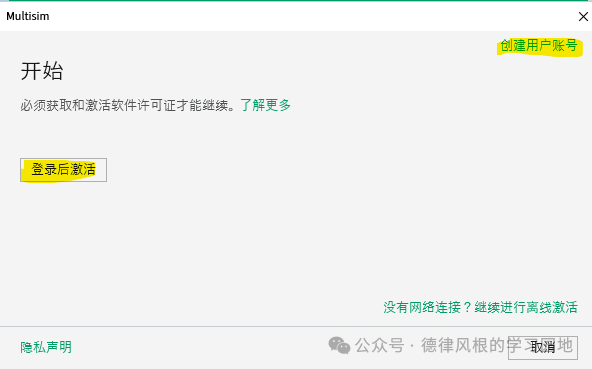
Students who do not have an NI account need to create a user account (register using the school email for easy identification). Clicking “Create User Account” will take you to the registration webpage:
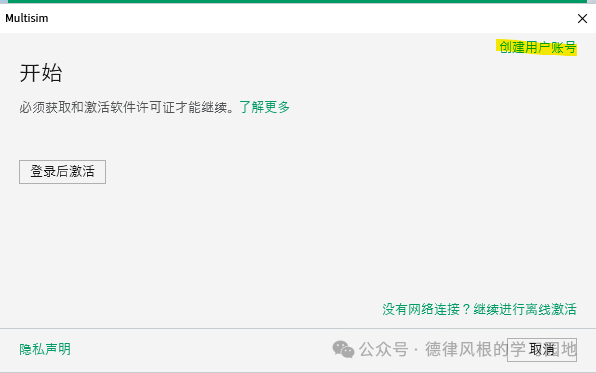
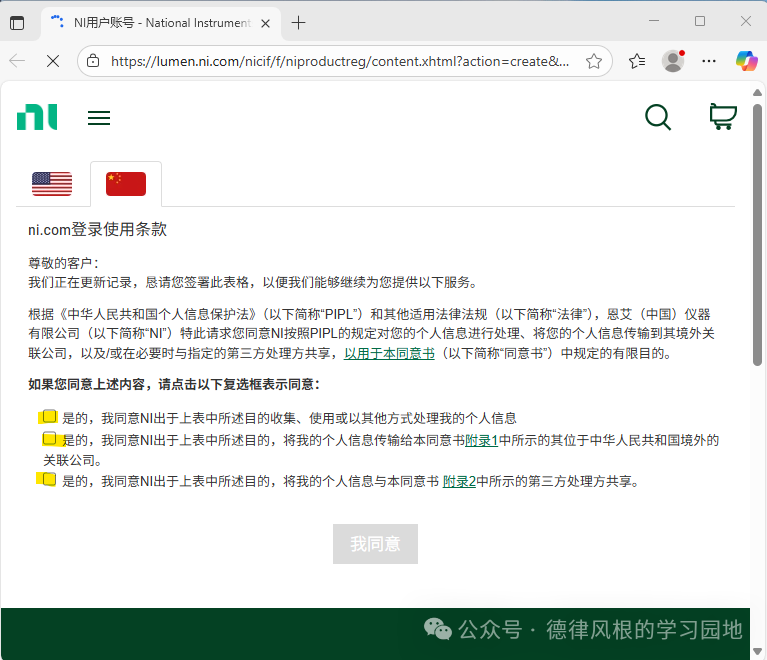
After completing the registration, return to the software activation interface and click the “Activate After Logging In” button:
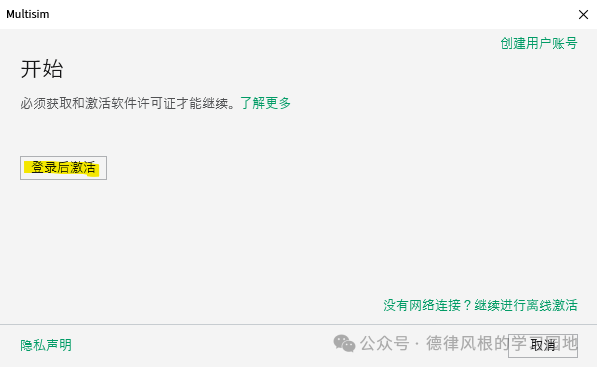 After entering your account password, click the “Login” button: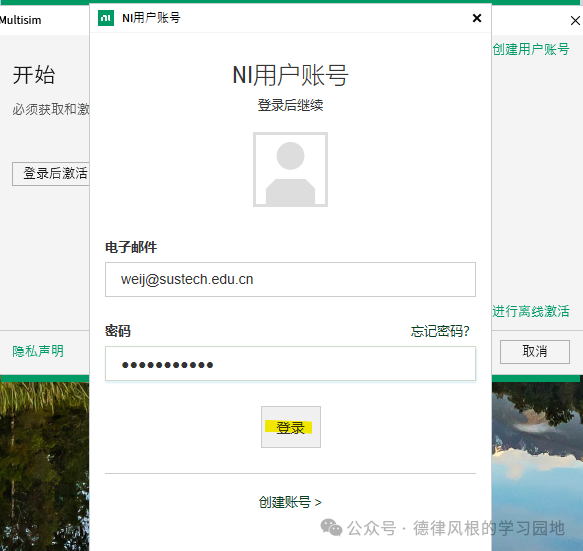
After entering the activation interface, select “Enter Serial Number” and fill in the serial number provided by Teacher Wei (it will be provided in class; in 2025, each person can be guaranteed one, and after 2026, the serial number will change, with one per group), then click the “Activate” button:
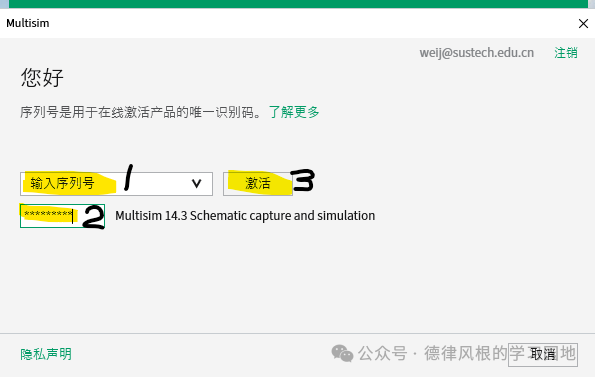
After clicking the “Activate” button, wait for one minute (keep the network smooth) and when you see the “Congratulations” interface, click “Finish” to complete the activation.
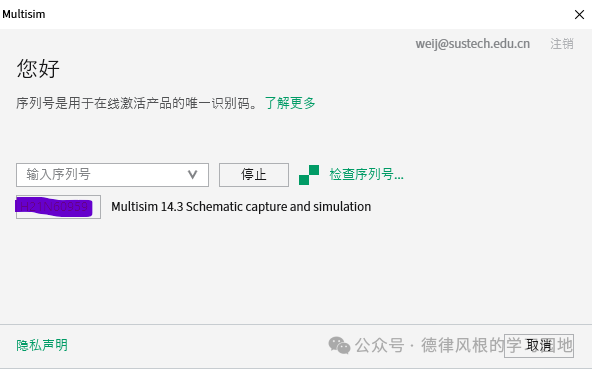
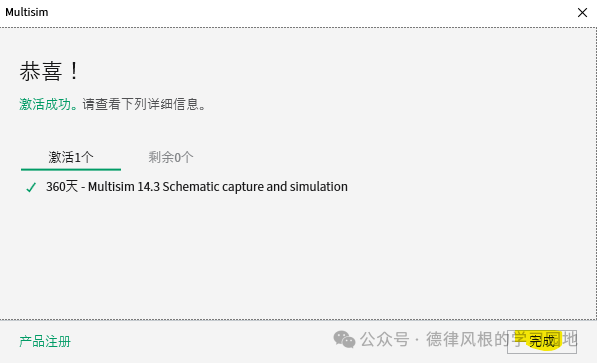
After completing the activation, the software working interface will open automatically. Enjoy!
04
—
Localizing Multisim
The basic idea of localization is to add a Simplified Chinese language pack. Since it is not provided officially, there are translation errors in the language pack, so localization is not highly recommended. Before localization, you need to download the Chinese language pack:
Baidu Cloud:
https://pan.baidu.com/s/1VNsZUIX6BUmHJu-JJpq4Ag?pwd=6eyd
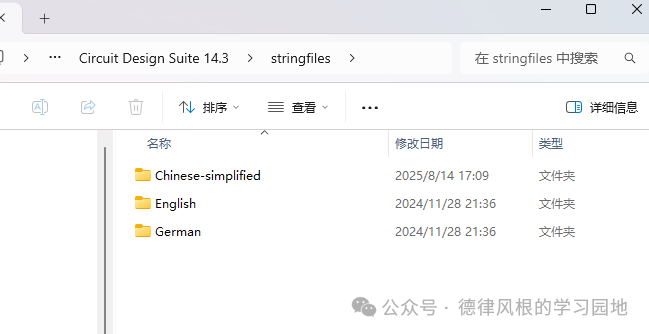
Installation method: After downloading the language pack, find the language pack folder for Multisim (if the path was not selected during installation, the default location for Windows 11 isC:\Program Files (x86)\National Instruments\Circuit Design Suite 14.3\stringfiles) and extract the language pack to this folder.
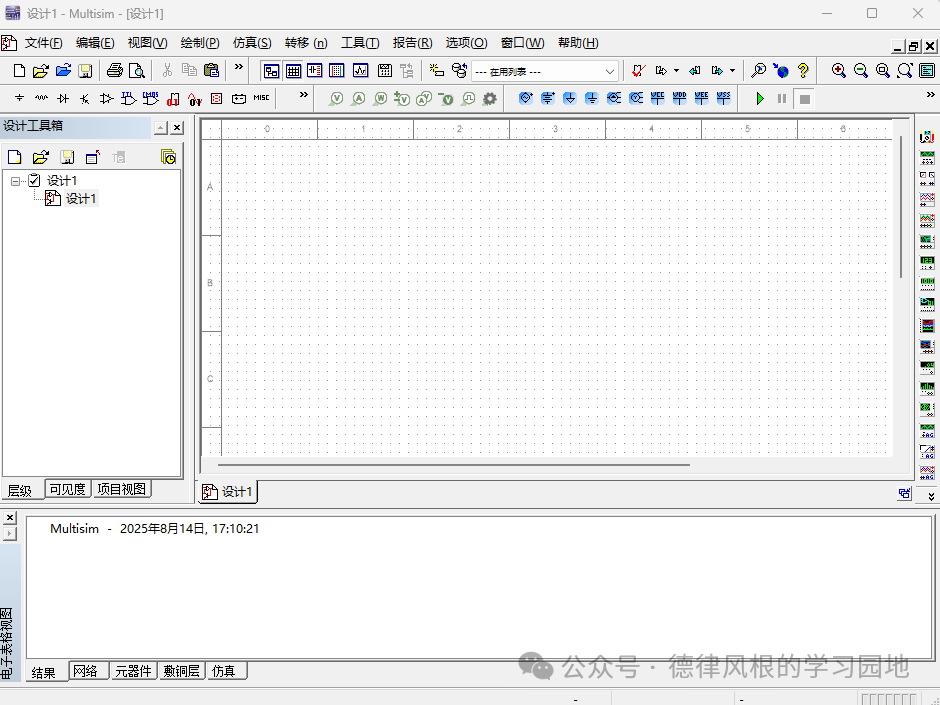
After restarting the software, the software interface will automatically switch to the Chinese menu:
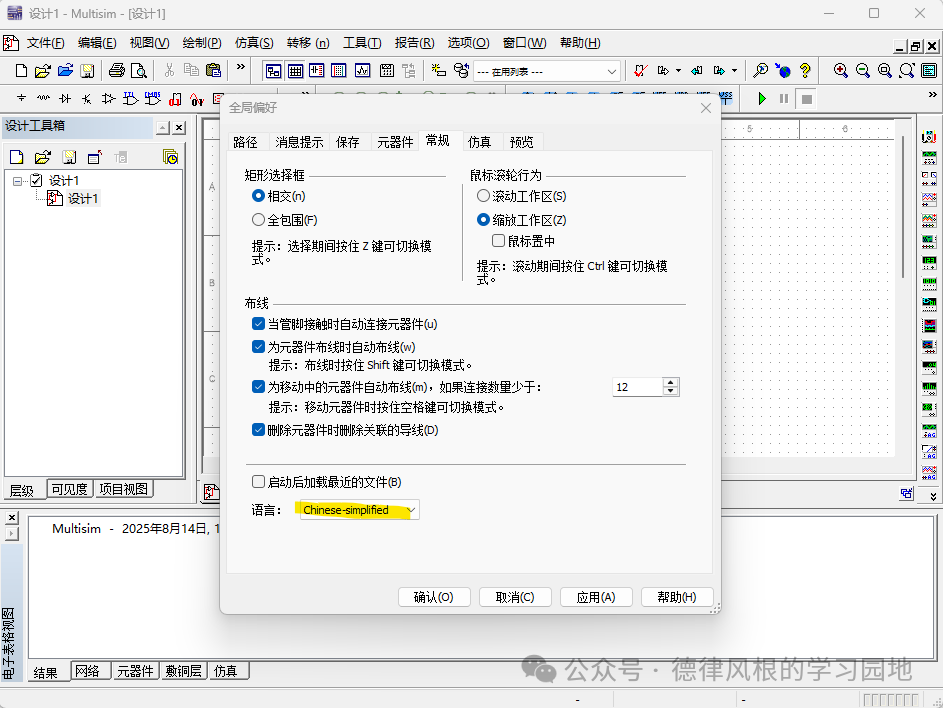
Subsequently, in the toolbar Options–Global Preferences–General interface, you can reselect the English interface.
05
—
Installing the Mouser Component Library
The default component library supported by Multisim is limited. Although standard Spice models can be imported, for efficiency, this section provides the installation method for the Mouser component library for Multisim.
The database comes from Mouser Electronics and is developed in collaboration with NI for MultiSIM BLUE, which provides a rich set of commonly used component models on the market. The original Multisim database has fewer than 50,000 components, and common components like 8050, 3904, etc., cannot be found, while MultiSIM BLUE has 100,000 commonly used component models sold by Mouser, making it possible to find most commonly available components on the market.
Download link for MultiSIM BLUE:
Baidu Cloud:
https://pan.baidu.com/s/1PUSrv3ICa3SMMcf-u4Hkzg?pwd=iiiy
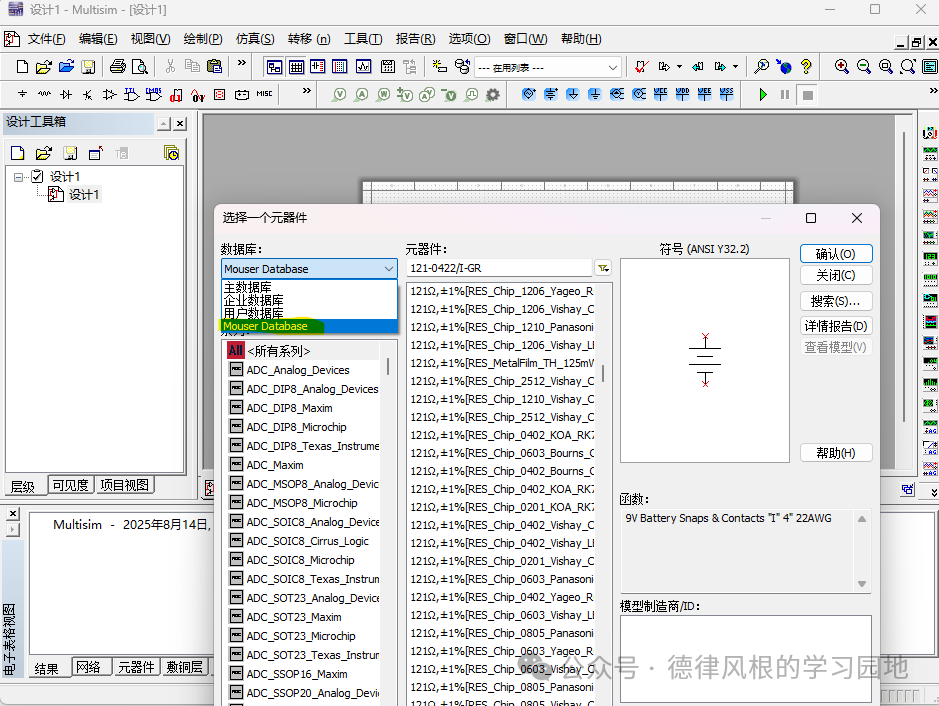
Installation method: After completing the installation of Multisim 14.3, install MultiSIM_BLUE_14.0.1 separately (the method is similar to that of Multisim; do not activate after installation). Open Multisim 14.3, and if you see the following interface, the Mouser component library installation is complete. Then uninstall MultiSIM_BLUE to keep the Mouser component library intact.
06
—
Simulation Case Sharing
The help documentation of Multisim and videos on Bilibili can assist students in self-learning. Below are some simulation cases provided by manufacturers for reference.
Baidu Cloud link:
https://pan.baidu.com/s/1gtgH4mbF_iBkjDa0tdxIJQ?pwd=kx3t
If you have any other questions, please leave a message directly. ENJOY!