
The first step in implementing embedded software is to enable specific peripherals, features, and subsystems. Some MCU vendors, such as STM32, Microchip, and TI, provide tools within their integrated development environments that allow developers to enable peripherals in their projects and add subsystems to the codebase. However, these tools are tightly coupled with the MCUs provided by the vendors, making it difficult (if not impossible) to apply the same functionality offered by these tools to other MCUs.
However, the Zephyr Project real-time operating system offers a vendor-neutral mechanism that allows us to enable specific MCU subsystems or features. This mechanism can be used through a graphical user interface, and for those who prefer not to use a graphical interface, it can also be utilized via the command line.The tool is called Kconfig. In this article, I will introduce what Kconfig is, how it works, and the different methods to add specific features and subsystems to Zephyr-based projects using Kconfig.
What is Kconfig?
Kconfig was originally developed as part of the Linux kernel and is still used as part of the kernel compilation process today. Kconfig has a specific syntax. The implementation details of Kconfig within the Linux kernel are fascinating, but they are beyond the scope of this article. If you are interested, you can read an article introducing the Kconfig source code: Kconfig Deep Dive.
However, after looking at an example, we can easily grasp the format of “Kconfig” (the colloquial term for specific configuration options). The Kconfig system has three main elements.
The first is a collection of Kconfig files scattered across different operating system codebase directories. For example, in the “drivers/led” directory of the Zephyr codebase, we can see a file named Kconfig with the following content:
menuconfig LED bool "Light-Emitting Diode (LED) drivers" help Include LED drivers in the system configurationif LED...config LED_SHELL bool "LED shell" depends on SHELL help Enable LED shell for testing.source "drivers/led/Kconfig.gpio"...endif # LEDThe line starting with “menuconfig” indicates to the Kconfig system that “LED” includes a series of functional options that are only visible if the “LED” feature is enabled. Subsequently, if the “LED” feature is enabled, the user can enable the “LED_SHELL” option. The following line indicates that the result of this configuration option is a boolean value that determines whether the feature is enabled or disabled. Besides boolean values, the result of configuration options can also be integers if the option involves specific configuration parameters. The line starting with “depends” specifies that the “SHELL” feature must be enabled for the “LED_SHELL” feature to be displayed. Therefore, only after enabling both the “LED” and “SHELL” features will the “LED_SHELL” feature be visible. The last line before “endif” allows us to reference other Kconfig files, which helps categorize components into different categories. The path given by “source” comes from the root directory of the Zephyr codebase.
How to Use Kconfig?
The second element of the Kconfig infrastructure is a set of applications that allow users to turn on or off all the features specified in the Kconfig files. Zephyr provides an extension in Visual Studio Code that allows users to accomplish this task using a graphical user interface, as shown in the image below.
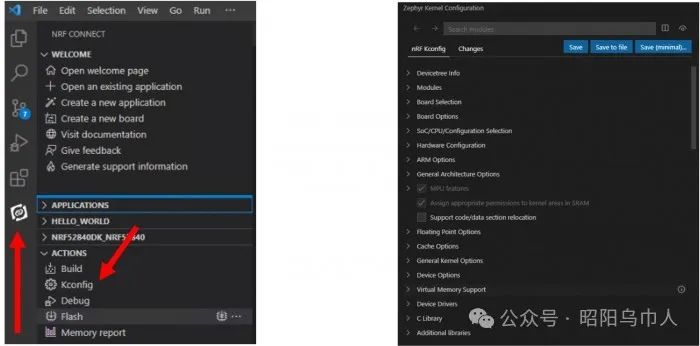
The VS Code extension provides command line enthusiasts (like myself) with an alternative to using a graphical user interface. This extension can take a file (the last element of the Kconfig infrastructure) that contains a set of configuration options that can be enabled or disabled and configure Zephyr accordingly. The following code snippet is an example.
CONFIG_BT=yCONFIG_BT_PERIPHERAL=yCONFIG_BT_GATT_CLIENT=yCONFIG_BT_MAX_CONN=1CONFIG_BT_L2CAP_TX_MTU=250CONFIG_BT_BUF_ACL_RX_SIZE=254The file format is straightforward. Each line starts with “CONFIG_” followed by the name of the configuration option. Then the line contains an “=” sign, followed by a “y” indicating the feature is enabled or an “n” indicating the feature is disabled. In the example above, we have enabled the Bluetooth stack and certain stack features in Zephyr and configured the stack parameters. In most Zephyr-based applications, “prj.conf” is the default file containing user-defined features.
The Zephyr kernel and subsystems can be configured at build time through Kconfig to meet specific application and platform requirements. Configuration options are defined in Kconfig files, where dependencies can also be specified. They can be divided into menus and submenus to maintain the organization of the interactive configuration interface.
The output of Kconfig is a macro header file<span><span>autoconfig.h</span></span>, which can be used at build time. Kconfig serves the purpose of saving space by not compiling unused feature code.
The Interactive System of Kconfig
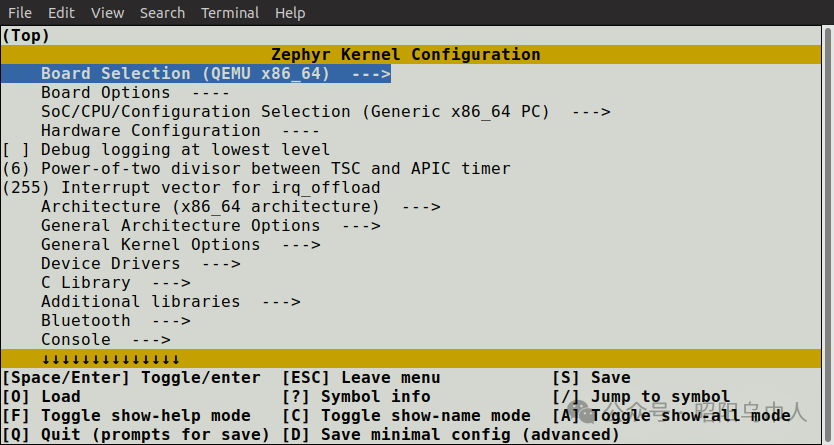
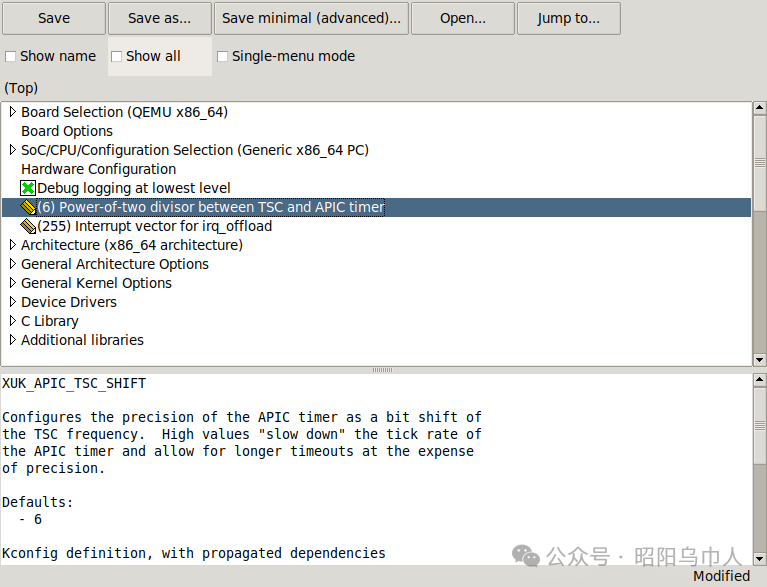
There are two interactive configuration interfaces available to explore the available Kconfig options and make<span>temporary changes</span>:
- menuconfig
- guiconfig
To make the configured values permanent, you should set them in
<span>*.conf</span>files.
Running an interactive Kconfig interface requires the following:
-
Navigate to the application directory and first build the application
west build -b <board> -
Open the interactive configuration page via the command
west build -t menuconfigor
west build -t guiconfig
-
The menuconfig interface
- The guiconfig interface
Setting Kconfig Values
All Kconfig symbols reference
Interactive setting of Kconfig values is intended only for testing configurations and does not permanently store configuration values.
Visible and Invisible Kconfig Symbol Configuration
-
Visible symbols are used to prompt defined symbols. Visible symbols can be displayed in the interactive configuration interface and can be set in
<span>*.config</span>configuration files.
config FPU bool "Support floating point operations" depends on HAS_FPUIn the interactive interface, it is displayed as follows:
[ ] Support floating point operationsInvisible symbols are symbols with no prompt definitions. Invisible symbols cannot be displayed in the interactive configuration interface, and users cannot directly control their values. They can only be enabled through other symbols.
config CPU_HAS_FPU bool help This symbol is y if the CPU has a hardware floating point unit.Setting Kconfig Configuration Symbols in Configuration Files
Visible symbols can be configured by setting them in the configuration files. The initial configuration is generated by merging the board’s<span>*_defconfig</span> file with the application’s<span>prj.conf</span> file. The syntax for setting configurations in the configuration file is as follows:
CONFIG_<symbol name>=<value>There should be no spaces around the equals sign.
<span>bool</span> configurations can be enabled or disabled by setting<span>y</span> or disabling<span>n</span> them respectively.
CONFIG_FPU=yOther configuration types can be set as follows:
CONFIG_SOME_STRING="cool value"CONFIG_SOME_INT=123Configurations in the configuration file will only be applied if the dependencies of the configuration are satisfied. Otherwise, a warning will be printed.
Initial Configuration
The initial configuration of the application comes from the merged configuration settings of three sources:
- Configurations stored in the specific board configuration file, with a path similar to:
<span>boards/<architecture>/<BOARD>/<BOARD>_defconfig</span>. - Any CMake cache entries with
<span>CONFIG_*</span>configurations. - Application configurations.
<span>CONF_FILE</span> property settings are as follows:
- Before calling
<span>find_package(Zephyr)</span>in<span>CMakeLists.txt</span>. - By defining
<span>-DCONF_FILE=<conf file(s)></span>when executing<span>west</span>. - From the CMake variable cache.
The application’s configuration comes from the following sources:
- If the
<span>CONF_FILE</span>property is set to a list of files, the values of the list of files in<span>CONF_FILE</span>will be merged as the application configuration file. - Otherwise, if
<span>CONF_FILE</span>is set to a single configuration file, and the configuration file name format is<span>prj_<build>.conf</span>, the set<span>prj_<build>.conf</span>and the configuration file<span>boards/<BOARD>_<build>.conf</span>in the same directory will be merged as the application configuration file. - Otherwise, if there exists a
<span>prj_<BOARD>.conf</span>file in the application directory, it will be used as the configuration file. - Otherwise, if there exist
<span>boards/<BOARD>.conf</span>and<span>prj.conf</span>files in the application directory, the two files will be merged as the configuration file. - Otherwise, if there exist
<span>boards/<BOARD>.conf</span>,<span>boards/<BOARD>_<revision>.conf</span>, and<span>prj.conf</span>files in the application directory, the three files will be merged as the configuration file. - Otherwise, if there exists a
<span>prj.conf</span>file in the application directory, it will be used as the configuration file.
If a configuration exists both in<span>boards/<architecture>/<BOARD>/<BOARD>_defconfig</span> and in the application configuration file, the setting from the application configuration file takes precedence.
The merged configuration is saved in the directory
<span>zephyr/.config</span>.
Configuring Invisible Configuration Symbols
When changing the default configuration of a board, you need to configure invisible configuration symbols in the<span>boards/<architecture>/<BOARD>/Kconfig.defconfig</span> file. For example, if we want to set the default value of the invisible configuration symbol<span>FOO_WIDTH</span> to 32, it can be defined in<span>Kconfig.defconfig</span> as follows:
if BOARD_MY_BOARDconfig FOO_WIDTH default 32endifSince the type of the symbol has already been specified in the first definition, there is no need to repeat it here.
<span>Kconfig.defconfig</span> defines the<span>default</span> value that will override the value specified when the symbol was first defined. When defining symbols in multiple locations, the dependency is an OR relationship, for example:
config FOO ... depends on DEP1config FOO ... depends on DEP2<span>FOO</span> configuration symbol’s direct dependencies are:<span>DEP1 || DEP2</span>
Kconfig Best Practices
If using visible Kconfig configurations, users can change configurations through the interactive interface and setting files. Invisible Kconfig configurations cannot be directly changed by users. Visible Kconfig configurations should only be placed when it makes sense for users to change configurations. Generally, using Kconfig configurations to correspond to fixed machine-specific settings is not meaningful. Such settings should typically be configured through the device tree.
Custom Kconfig Preprocessor Functions
<span>Kconfiglib</span> supports writing custom Kconfig preprocessor functions in<span>Python</span>. These functions are defined in<span>scripts/kconfig/kconfigfunctions.py</span>. Most custom preprocessor functions are used to insert device tree information into Kconfig. For example, default values in Kconfig can be obtained from device tree properties.
Kconfig Gets Values from Device Tree
The functions listed below are used to insert device tree information into Kconfig. For detailed documentation, please refer to the<span>scripts/kconfig/kconfigfunctions.py</span> Python file. Functions ending with<span>*_int</span> return decimal values, while those ending with<span>*_hex</span> return hexadecimal values.
$(dt_chosen_reg_addr_int,<property in /chosen>[,<index>,<unit>])$(dt_chosen_reg_addr_hex,<property in /chosen>[,<index>,<unit>])$(dt_chosen_reg_size_int,<property in /chosen>[,<index>,<unit>])$(dt_chosen_reg_size_hex,<property in /chosen>[,<index>,<unit>])$(dt_node_reg_addr_int,<node path>[,<index>,<unit>])$(dt_node_reg_addr_hex,<node path>[,<index>,<unit>])$(dt_node_reg_size_int,<node path>[,<index>,<unit>])$(dt_node_reg_size_hex,<node path>[,<index>,<unit>])$(dt_compat_enabled,<compatible string>)$(dt_chosen_enabled,<property in /chosen>)$(dt_node_has_bool_prop,<node path>,<prop>)$(dt_node_has_prop,<node path>,<prop>)Example:Assuming the device tree for some boards looks like this:
{ soc { #address-cells = <1>; #size-cells = <1>; spi0: spi@10014000 { compatible = "sifive,spi0"; reg = <0x10014000 0x1000 0x20010000 0x3c0900>; reg-names = "control", "mem"; ... };};To apply the second address of the SPI’s<span>reg</span> property in the Kconfig file:
config FLASH_BASE_ADDRESS default $(dt_node_reg_addr_hex,/soc/spi@1001400,1)The preprocessed result will be:
config FLASH_BASE_ADDRESS default 0x20010000Extensions to Traditional Kconfig
Getting Values of Environment Variables
The recommended syntax for referencing environment variables is. The extended syntax for environment variables only supports backward compatibility.
$(FOO) or $FOO or $FOOUsing Wildcards When Adding Subfiles
Example
source "foo/bar/*/Kconfig"If the pattern matches files, the above statement is equivalent to the following two statements:
source "foo/bar/baz/Kconfig"source "foo/bar/qaz/Kconfig"If no files match the pattern, an error will be generated. The accepted wildcards are the same as those in Python.
Newly Added Property Keywords
The following property keywords have been added:
- def_int
- def_hex
- def_string
- def_bool
Wildcard Search Files
The following declaration will include files that match the wildcard in the current directory
<span>If exists</span>. No error will be reported if the file does not exist.
orsource "Kconfig[12]"Conclusion
The Kconfig infrastructure is a powerful, vendor-independent mechanism provided by the Zephyr Project real-time operating system for comprehensively configuring our entire application. It can not only enable or disable individual stacks in the RTOS and set configuration parameters but also control specific subsystems and peripherals in the MCU.