Beginners in Python may find developing an executable software quite complex, but it is not. The process of converting <span>.py</span> to <span>.exe</span> files is straightforward.
You can even develop a fully functional executable software in a single day using Python, thanks to the dedicated executable packaging library PyInstaller, which can package Python scripts into executable files that run without a Python environment.
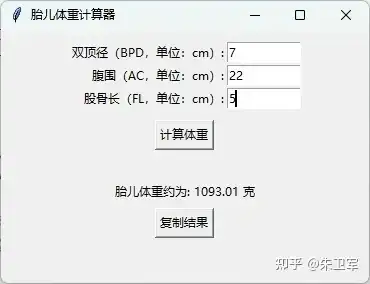
For example, I wrote a simple GUI script using tkinter, which functions as a fetal weight calculator. By inputting the biparietal diameter, abdominal circumference, femur length, and other information, you can roughly calculate the fetal weight.
Part of the code is as follows, saved in the <span>cal_weight.py</span> file.
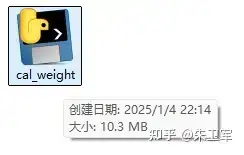
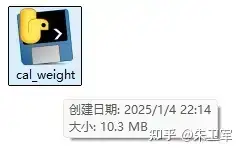
Then, using PyInstaller, you can directly convert the <span>cal_weight.py</span> file into an executable file.
When you open the generated executable file on your computer, a simple application interface will appear, outputting the values from the prenatal check, allowing you to obtain the calculated fetal weight result.
How does PyInstaller specifically achieve the conversion from .py files to .exe files?
There are three steps involved.
1. Install the PyInstaller Library
You can install the PyInstaller library directly in Python using pip by entering the following command in the command line:
pip install pyinstaller
If there are no errors, it means the installation was successful.
2. Write the Python Script
You can write any Python script to achieve the desired functionality, such as a simple GUI application, game, etc., using libraries like tkinter, pygame, or pyqt. The fetal weight calculator GUI I demonstrated earlier was written using tkinter.
Once completed, save the script as <span>example.py</span> file.
3. Use PyInstaller for Packaging
The packaging process with PyInstaller is also quite straightforward. Navigate to the directory where the <span>example.py</span> file is located in the command line and enter the following command:
pyinstaller example.py
This command will analyze the script code, identify the dependent libraries, and package them into an executable file.
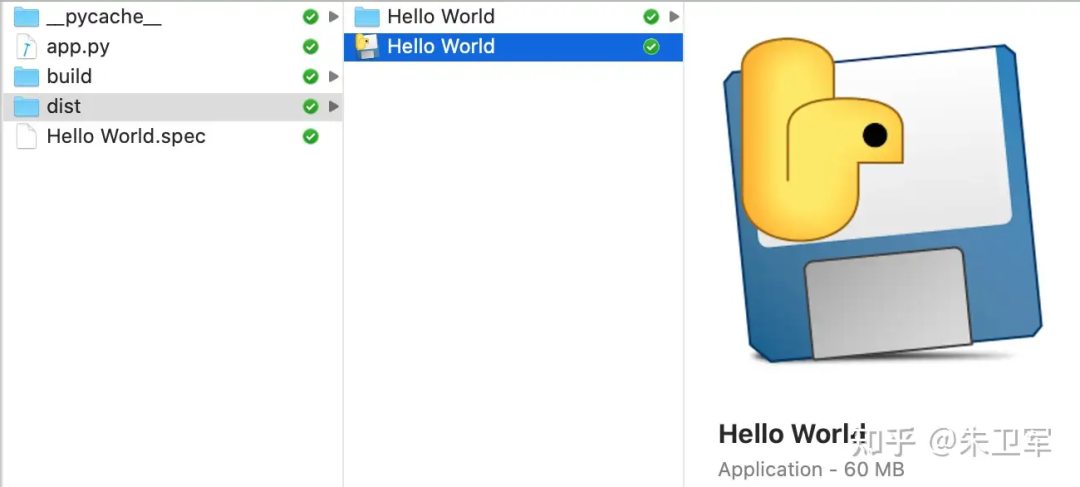
After packaging is complete, several folders will appear in the project directory, which are files generated during the exe packaging process.
Among them, <span>__pycache__</span> is the cache file generated during packaging, and <span>build</span> contains temporary files, which are not very important.
The most important folder is <span>dist</span>, which contains the <span>.exe</span> executable file. Opening it will reveal the desktop application you desire.
PyInstaller also has several parameters that can be set, such as <span>-n <name></span> to specify a name for the .exe file, <span>-i <icon_path></span> to specify an icon for the .exe file, and <span>--add-data <SRC;DEST></span> to include additional data files required by the software.
Conclusion
As you can see, using PyInstaller to package an executable file is not complicated. You can even have AI write the Python script for you, and then directly package it into an executable file, which may take only ten minutes.
Besides PyInstaller, Nuitka can also be used to package executable files, and it is faster, generating smaller executable files, so it is worth trying.
· Recommended Reading ·
A powerful free web scraping software I often use, highly recommended.
Learn these 7 web scraping tools to complete data collection in three minutes.
AI data scraping tool! Effortlessly collect massive data from TikTok shop, with a practical tutorial included.
A new generation of web scraping and web automation tools, very practical!
How to get started with web scraper no-code scraping tools?