1. Terminal Related Operations
-
1.
Open the terminal on Ubuntu
1. Click the Terminal icon
2. Use the shortcut
<span>ctrl+alt+t</span> -
2.
Adjusting Font Size
Increase:
<span>ctrl shift +</span>Decrease:
<span>ctrl -</span> -
3.
Meaning of Command Line Prompt
<span>linux@ubuntu:~$</span>linux: username (
<span>whoami</span>command to get the username)ubuntu: hostname (
<span>hostname</span>command to get the hostname)~: path (
<span>/home/linux/</span>)Regular user #root user
-
4.
User Switching
<span>su username</span>eg:
<span>su root</span>: Switch to root user<span>su linux</span>: Switch to linux user
1.2 ls Command
1.2.1 Function of ls Command
ls [OPTION]... [FILE]...Function: Display files in the current directory on the terminal
1.2.2 Usage of ls Command
Everything in the Linux system is a file
<span>ls</span>: Display the contents of the current directory on the terminal
<span>ls -l</span>: Display file attributes along with the files
<span>ls -l README</span>: Display only the attribute information of the README file
<span>ls -lh</span>: Display file attributes with sizes converted to appropriate units
<span>ls -i</span>: Display inode numbers along with files (the unique identifier for files in the file system)
<span>ls -a</span>: Display all files including hidden files on the terminal (hidden files: files starting with a dot)
<span>ls -la .README</span>: Display the .README hidden file and its attribute information on the terminal
1.2.3 Detailed Explanation of Attributes Displayed by ls -l
drwxrwxr-x 2 linux linux 4096 8月 28 15:01 ARM_aaa-
1.
File Types (7 types)
bsp-lcd
-: Regular file (white)
d: Directory file (blue)
c: Character device file (mouse /dev/input/mouse0, keyboard /dev/input/event0)
b: Block device file (hard disk /dev/sda)
l: Symbolic link file (similar to shortcuts in Windows)
p: Pipe file (file for inter-process communication)
s: Socket (file for data transmission over the network)
-
2.
File Permissions
<span>rwx rwx r-x</span>User Group Other Users
<span>r:</span>Readable permission 4<span>w:</span>Writable permission 2<span>x:</span>Executable permission 1<span>-:</span>No permission 0File permissions represented in octal: (octal prefix is 0)
0775 rwxrwxr-x
0664 rw-rw-r–
0421 r—w—x
-
3.
Number of hard links or number of subdirectories
2: Directory: represents the number of subdirectories
2: File: represents the number of aliases (hard links)
-
4.
Username and Group Name
<span>linux username linux group</span> -
5.
File Size
4096
-
6.
Timestamp
August 28 15:01
-
7.
File Name
ARM_aaa
1.3 cd Command
1.3.2 Function of cd Command
cd [directory]Function: Change directory
cd relative_path
cd absolute_path
1.3.3 Usage of cd Command
<span>cd hello</span>: Enter the hello directory under the current directory
<span>cd ./hello</span>: Enter the hello directory under the current directory
<span>cd /home/linux/hello</span>: Use absolute path to enter the hello directory in the home directory
<span>cd /</span>: Enter the root directory
<span>cd ~ or cd /home/linux or cd</span>: Enter the /home/linux directory
<span>cd ..</span>: Enter the parent directory
<span>cd ../..</span>: Enter the grandparent directory
<span>cd -</span>: Enter the last directory you were in
Practice:
1. How to enter the etc directory under /home/linux?
Relative path:
<span>cd ../../etc/</span>Absolute path:
<span>cd /etc</span>2. Find the path of the mouse device file and check its attribute information?
cd /dev/input/
ls -l mouse0
3. Find the path of stdio.h and check its attribute information?
cd /usr/include/
ls -l stdio.h
4. Find the passwd file and check its attribute information?
cd /etc/
ls -l passwd
5. Find the path of the ls command and check its attribute information?
cd /bin/
ls -l ls
1.4 pwd Command
<span>pwd</span>: Command to display the current path
1.5 clear Command
<span>clear</span>: Command to clear the screen
Shortcut to clear the screen:
<span>ctrl + l</span>
1.6 touch Command
1.6.1 Function of touch Command
touch FILE...Function: Create a regular file or update the file’s timestamp
1.6.2 Usage of touch Command
<span>touch 1.c</span>: If 1.c does not exist, create it; if it exists, update its timestamp
<span>touch 2.c 3.txt 4.doc</span>: Create files 2.c, 3.txt, and 4.doc if they do not exist
1.7 mkdir Command
1.7.1 Function of mkdir Command
mkdir [OPTION]... DIRECTORY...Function: Create a directory
1.7.2 Usage of mkdir Command
<span>mkdir hello</span>: Create hello directory in the current directory
<span>mkdir duang heihei</span>: Create both duang and heihei directories at the same time
<span>mkdir -p 1/2/3</span>: Create directories with hierarchical relationships 1/2/3
<span>mkdir -m 0777 list</span>: Create list directory with permissions set to 0777
1.8 rm Command
1.8.1 Function of rm Command
rm [OPTION]... [FILE]...Function: Delete files
1.8.2 Usage of rm Command
<span>rm 1.c</span>: Delete 1.c file
<span>rm 2.c 5.c</span>: Delete files 2.c and 5.c
<span>rm *.c</span>: Delete all files ending with .c
<span>rm -r hello/</span>: Delete directory
<span>rm -rf *</span>: Delete all files in the current directory ( -r: recursive, -f: force)
1.9 cp Command
1.9.1 Function of cp Command
cp [OPTION]... SOURCE... DIRECTORYFunction: Copy files
1.9.2 Usage of cp Command
<span>cp README ./list/</span>: Copy README file to the list directory in the current directory
<span>cp /usr/include/stdio.h .</span>: Copy stdio.h header file to the current directory
<span>cp -r ./list ./aaa</span>: Copy list directory to aaa directory
<span>cp README list/aa.c</span>: Copy README file to list directory and rename it to aa.c
Practice:
1. How to copy /etc/passwd and /etc/groff to /home/linux/hello?
cd ~
mkdir hello
cp /etc/passwd ~/hello
cp -r /etc/groff ~/hello
1.10 mv Command
1.10.1 Function of mv Command
mv SOURCE... DIRECTORYFunction: Move or rename files
1.10.2 Usage of mv Command
<span>mv stdio.h ./list</span>: Move stdio.h file to ./list directory
<span>mv hello/ ./list</span>: Move hello directory to ./list directory (list exists)
<span>mv stdio.h www.h</span>: Rename stdio.h to www.h
<span>mv hello/ list/</span>: Rename hello directory to list directory (list does not exist)
1.11 cat Command
<span>cat FILE</span>: Display the contents of a file on the terminal
1.12 echo Command
<span>echo STRING</span>: Display a string on the terminal
<span>></span>: Redirect <span>echo helloworld > 1.c</span> Redirect the string helloworld to 1.c
<span>>></span>Append <span>echo helloworld >> 1.c</span> Append the string helloworld to 1.c
2. VIM Editor
2.1 Function of vim Editor
In the Linux system, you can use the vim tool to open a file and write your code in it.
2.2 Opening a File with vim Editor
vi filenameor
vim filename2.3 Three Modes of vim
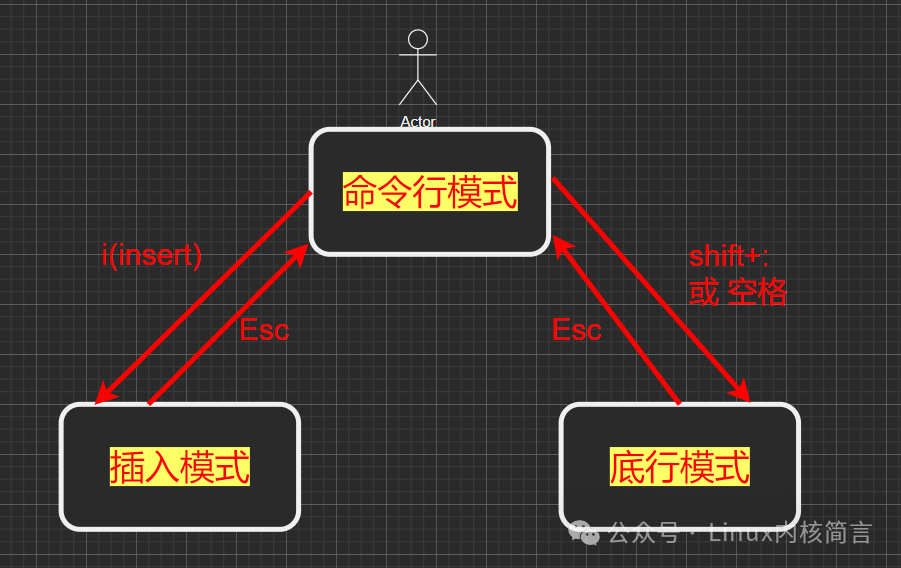
Command mode: Operations like copy, cut, paste, undo, etc.
Insert mode: Writing code
Bottom line mode: Operations like save, exit, etc.
2.4 Common Operations in the Three Modes of vim
Command mode
When opening a file, it defaults to command mode, or you can press the Esc key to return to command mode
<span>yy</span>: Copy 1 line
<span>4yy</span>: Copy 4 lines
<span>Copy any line</span>: Select the line you want to copy with the mouse, press the y key
<span>Copy from Ubuntu to Windows</span>: Hold down the shift key, select the line you want to copy with the mouse, right-click to copy, and paste in Windows.
<span>dd</span>: Cut 1 line
<span>4dd</span>: Cut 4 lines
<span>Cut any line</span>: Select the line you want to cut with the mouse, press the d key
<span>p</span>: Paste
<span>u</span>: Undo
<span>ctrl+r</span>: Cancel undo
<span>gg</span>: Jump to the first line of the file
<span>G</span>: Jump to the last line of the file
<span>gg=G</span>: Format and align code (align the entire text)
<span>Partial alignment</span>: Select the lines you want to align with the mouse, press the = key
<span>/STRING</span>: Search for a string (jump between found strings with n (next) or N (previous))
Insert mode
To enter insert mode from command mode:
<span>i</span>: Enter insert mode before the cursor
<span>I</span>: Enter insert mode at the beginning of the line where the cursor is
<span>a</span>: Enter insert mode after the cursor
<span>A</span>: Enter insert mode at the end of the line where the cursor is
<span>o</span>: Start a new line below the current line and enter insert mode
<span>O</span>: Start a new line above the current line and enter insert mode
Bottom line mode
To enter bottom line mode from command mode, press shift + :
<span>:q</span>: Exit
<span>:q!</span>: Exit without saving
<span>:w</span>: Save
<span>:wa</span>: Save all files
<span>:w filename</span>: Save as
<span>:wq or :x</span>: Save and exit
<span>:wqa</span>: Save and exit all files
<span>wq!</span>: Force save and exit
<span>:n</span>: Jump to line n (where n is a number)
<span>:sp filename</span>: Open multiple windows horizontally
<span>:vsp filename</span>: Open multiple windows vertically
<span>:set nonu</span>: Disable line numbers
<span>:set nu</span>: Enable line numbers
<span>:nohl</span>: Cancel highlight