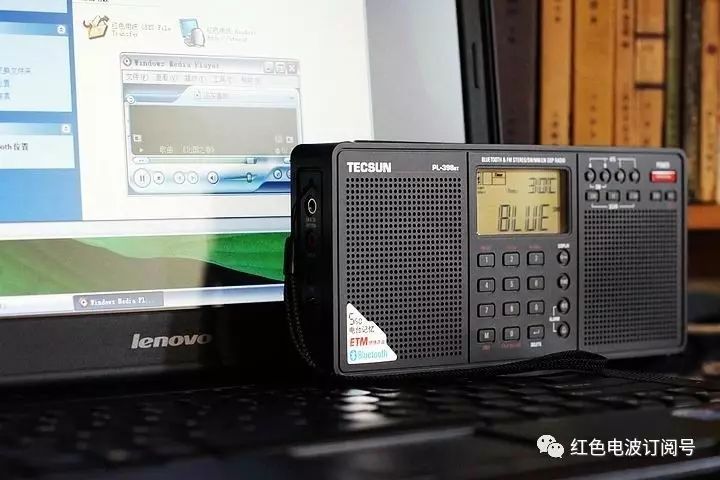
This Lenovo E42 laptop has been used for many years since it was released by the company. My E42 might be a budget version, as there are indications on the device that it should have Bluetooth, 3G, and a fingerprint security system among its features.
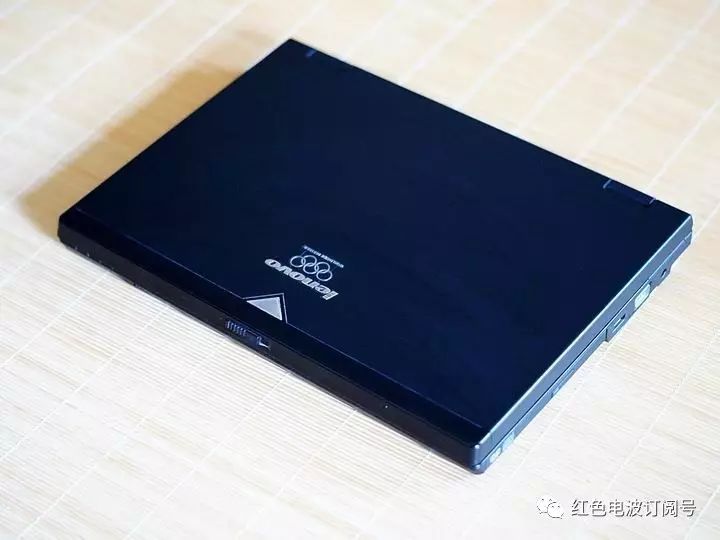
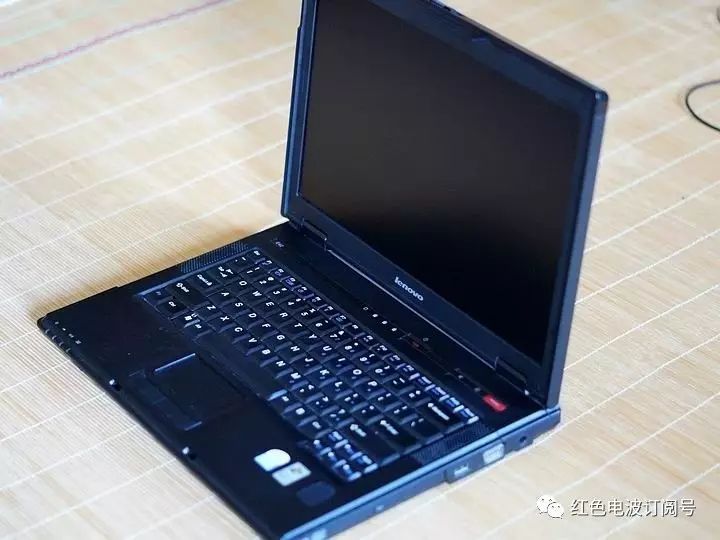
Recently, I bought a Bluetooth module that is claimed to be original for the Lenovo E42 from Taobao. The size of the module was unclear from the pictures, but upon receiving it, I found that the module is quite small.
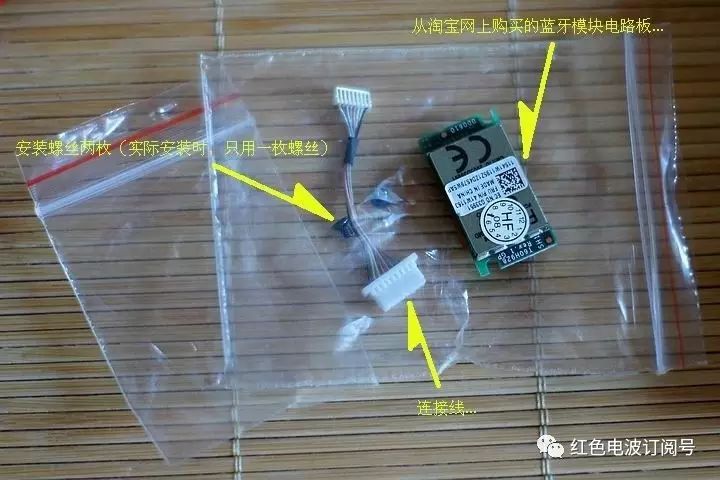
When I searched for it, I found many sellers offering such modules, with prices ranging from about 19 yuan to nearly 60 yuan (not including shipping). Based on my experience this time, choosing the one priced around 19 yuan is sufficient; I cannot comment on the performance of the others. After receiving the module, I began the installation process. I first searched online for articles and images related to adding Bluetooth to Lenovo laptops. There are many examples available, but most of the processes are quite simple. Therefore, after completing the installation, I decided to write this post for reference.
According to the information I found online, the installation location for the Bluetooth module is shown in the image below…
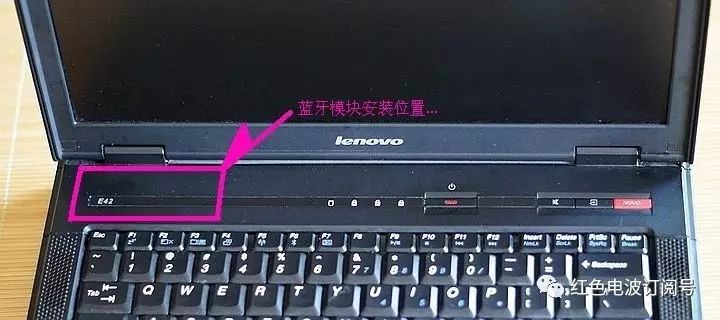
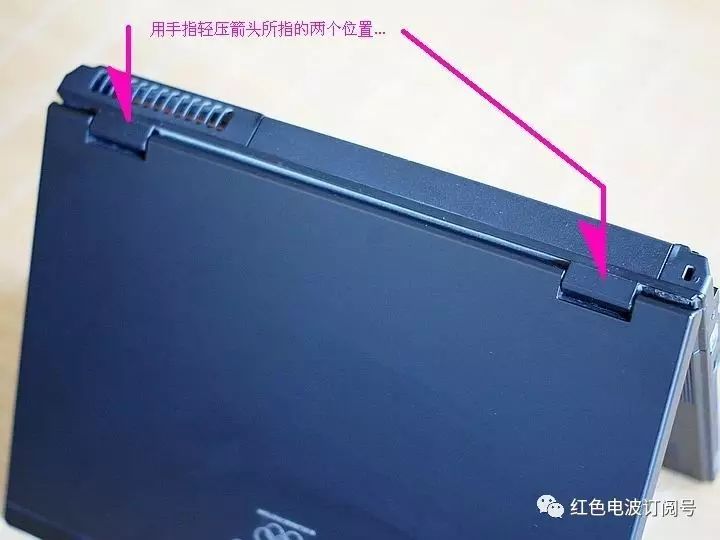
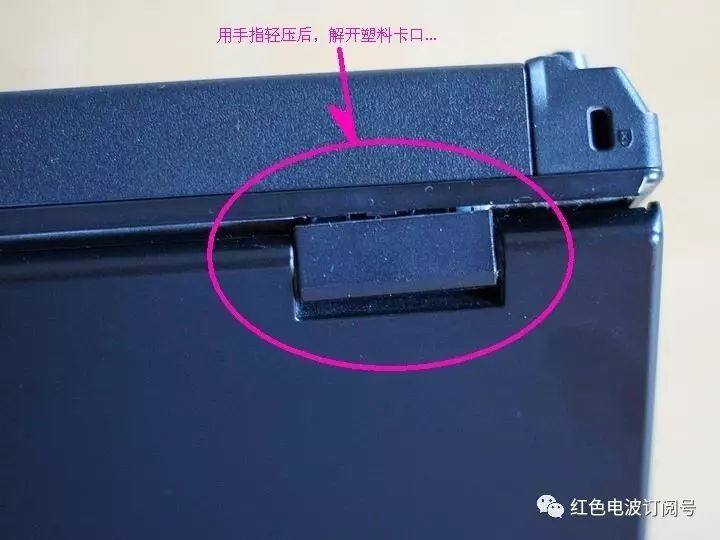
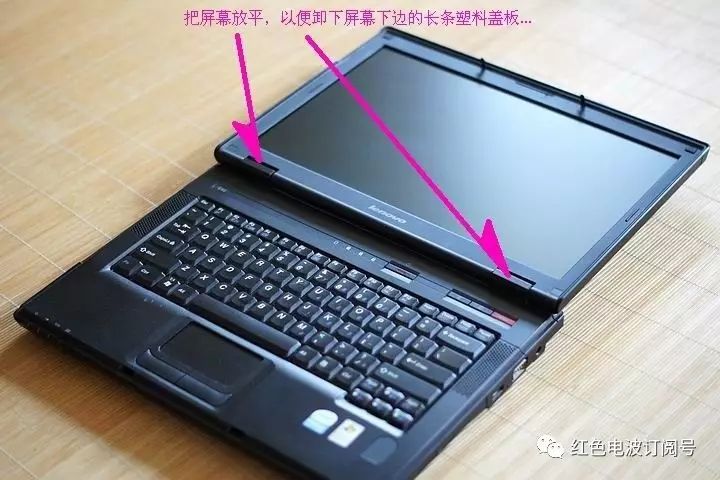
To install it, you need to remove the long plastic cover above the keyboard and below the screen. Since I couldn’t find specific images or texts on how to remove the cover, I had to explore and try to disassemble it myself, and I took some pictures along the way. It’s important to be careful during the disassembly process; don’t be too forceful. The detailed disassembly process can be seen in the six images below, with annotations provided for reference, and I hope experts can provide corrections.
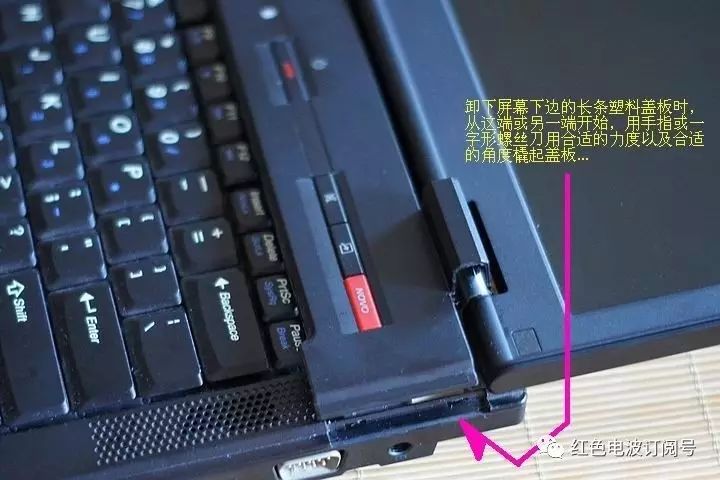
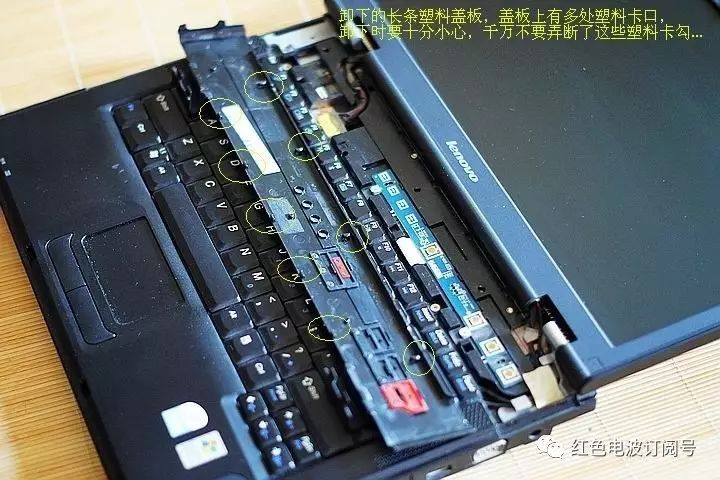
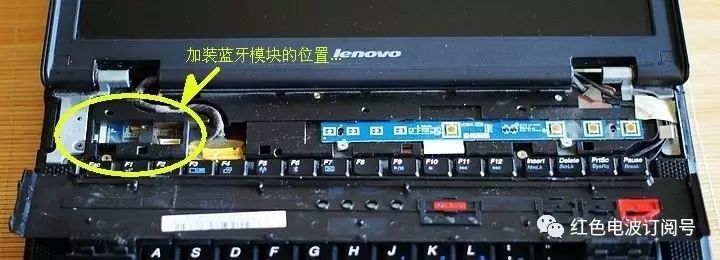
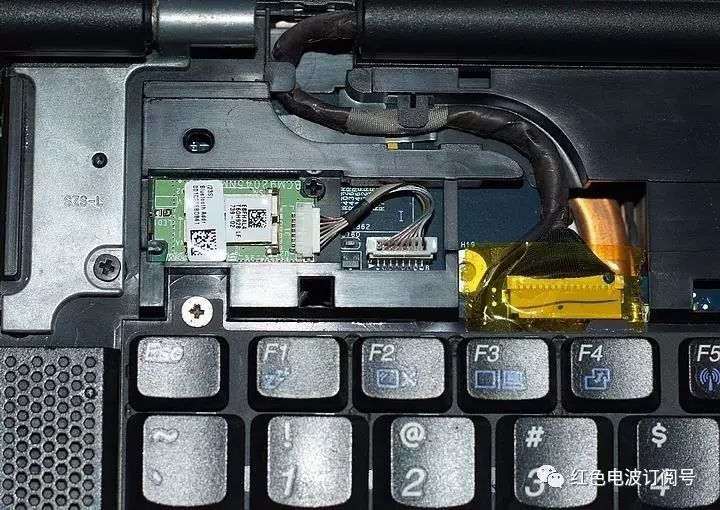
After removing the cover, I saw the installation location for the Bluetooth module…
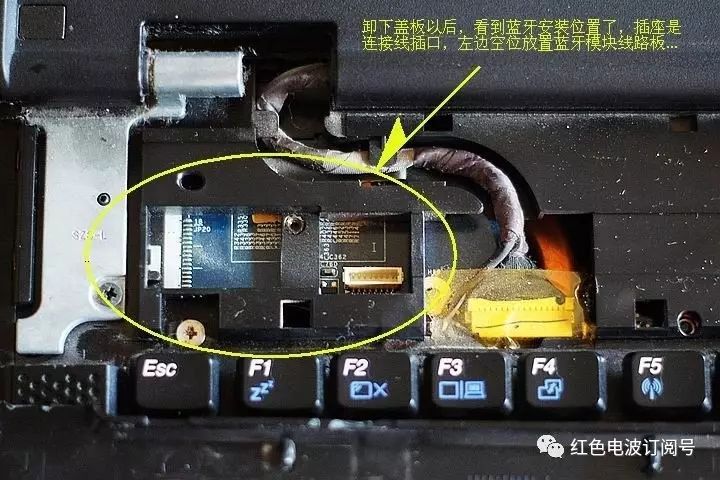
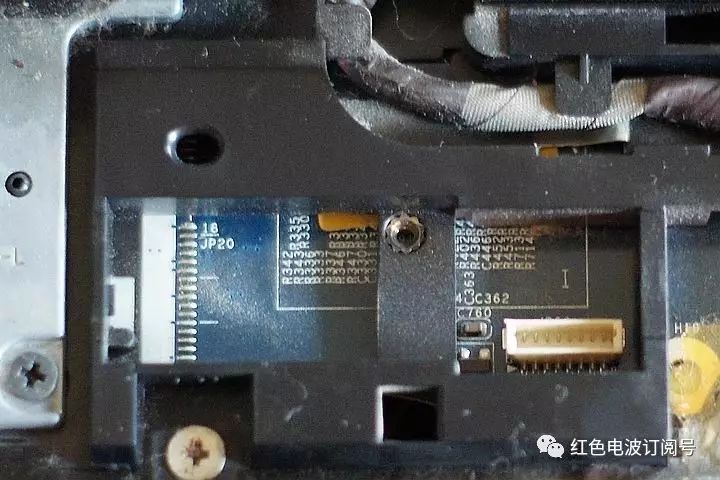
The installation location is near the CPU fan’s heat dissipation outlet, so there was a lot of dust. I found some cleaning tools and cleaned up the dust…
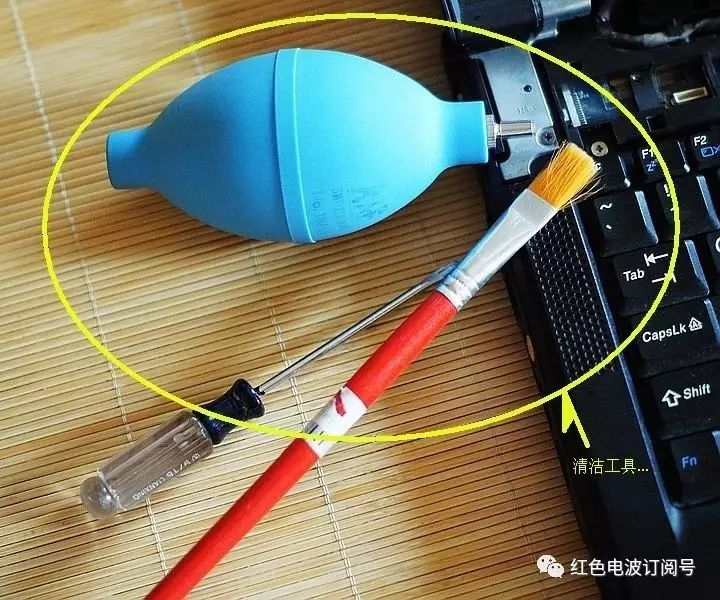
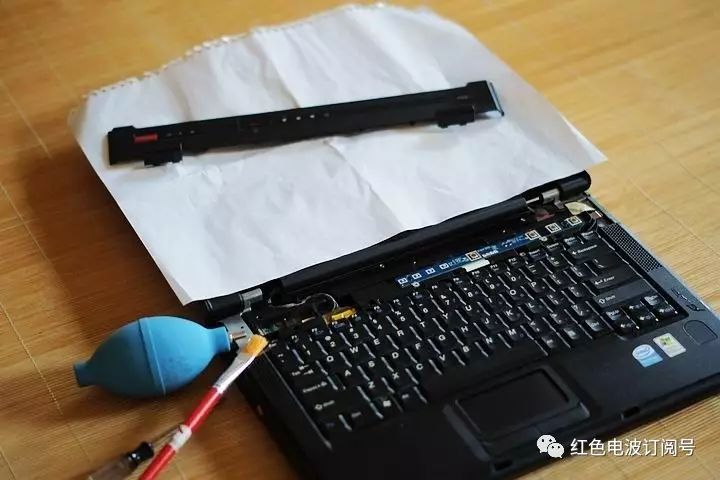
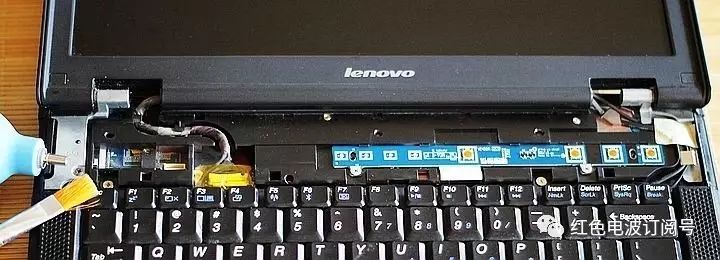
After cleaning, I prepared to install the module. First, I connected the wires of the module. Since the module is small and the sockets and pins are also very tiny, if you are not familiar with the technique, it is best to use a magnifying glass to observe while completing the connection…
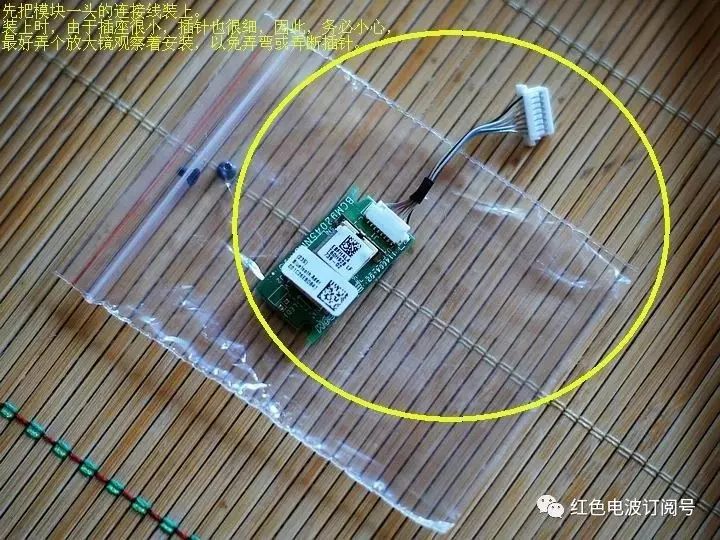
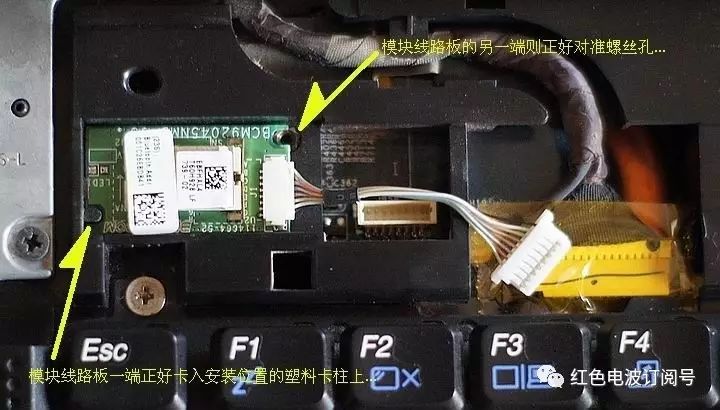
After connecting the wires, I inserted one end of the module into the plastic positioning pillar at the installation location, while the other end aligned with a screw hole…
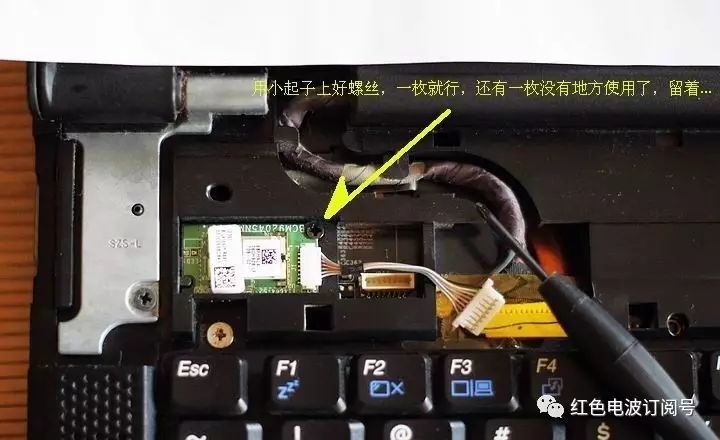
I secured the module with screws; the purchase came with two screws, but actually only one is needed, so the other one has no place to go…
Finally, I connected the wires to the motherboard…
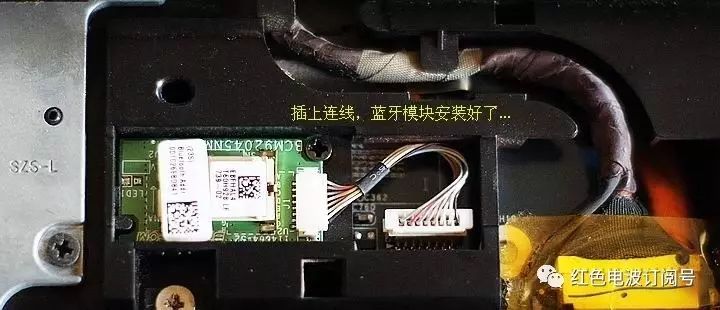
At this point, the hardware installation of the Bluetooth module is basically complete…
After installing the hardware, do not rush to cover the panel; first, turn on the computer and install the Bluetooth driver…
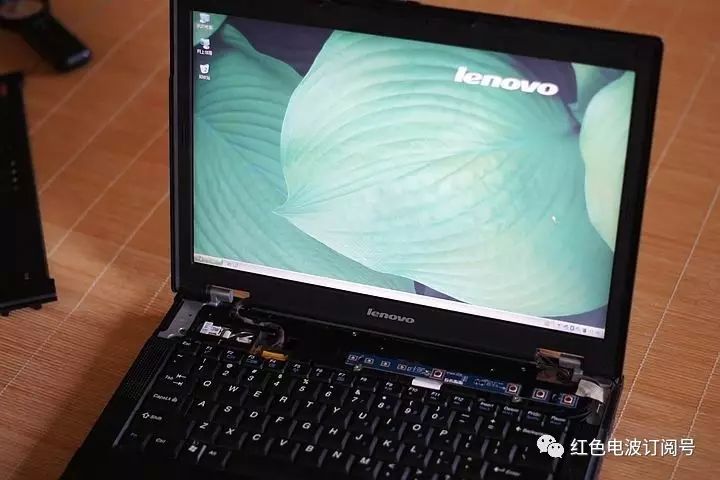
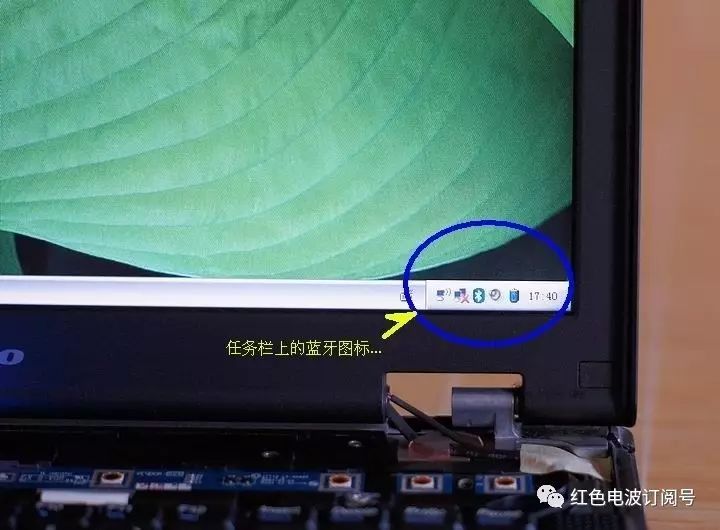
The driver can be downloaded directly from the Lenovo official website at: http://driverdl.lenovo.com.cn/lenovo/DriverFilesUploadFloder/notebook//200922418251611586/K42_E42_Bluetooth.exe. The installation process for the driver is simple; just run the downloaded installation program. I won’t elaborate on that here, but I must mention that if the module you purchased has a different chip version, the driver downloaded from the Lenovo official website may not ensure normal operation. I bought a Broadcom Bluetooth chip module, and the driver from Lenovo’s website might be too old. Therefore, initially, everything seemed normal, and the Bluetooth icon appeared in the taskbar. However, after restarting the computer, I noticed that the Bluetooth icon had disappeared. When I tried to use Bluetooth, the computer could connect to the phone and establish various Bluetooth services normally, but when the phone tried to connect to the computer, the computer did not respond properly to the connection request, resulting in a failure to connect! It seems that the absence of the Bluetooth icon in the taskbar is not a good sign. At first, I did not notice the version issue with the Broadcom Bluetooth driver and kept wondering if the module was compatible with the Lenovo model. I spent quite a bit of time searching for Bluetooth drivers on Lenovo’s official website and downloaded many Broadcom Bluetooth drivers for various Lenovo models, but the results were the same. The driver versions downloaded from Lenovo’s official website were generally: 5.1.0.2500. Later, I downloaded a Bluetooth driver provided by a Taobao seller who sold ‘Lenovo-specific Bluetooth modules.’ After extracting it, I found that the version of the Broadcom Bluetooth driver I downloaded this time was: 5.5.0.8200. So, I installed it, restarted the computer, and tested it…. At this point, the Bluetooth icon in the taskbar remained visible, and whether the phone connected to the computer or the computer connected to the phone, everything worked perfectly! To date, I have been using it for about two days without any issues. The download link for the Broadcom Bluetooth driver provided by that Taobao seller is as follows: http://u.115.com/file/f177fe6c53. Thus, the installation of the Bluetooth module can be considered successful!
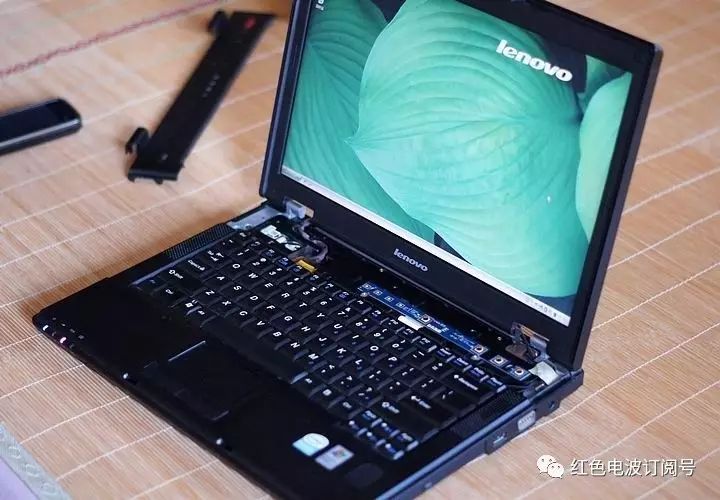
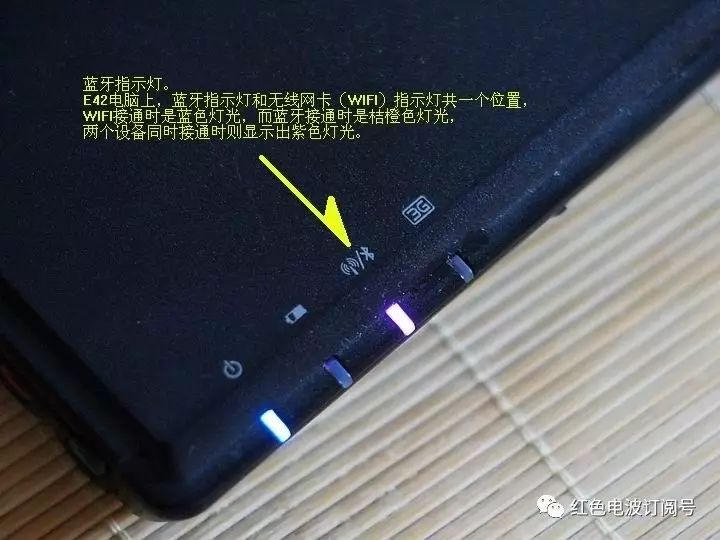
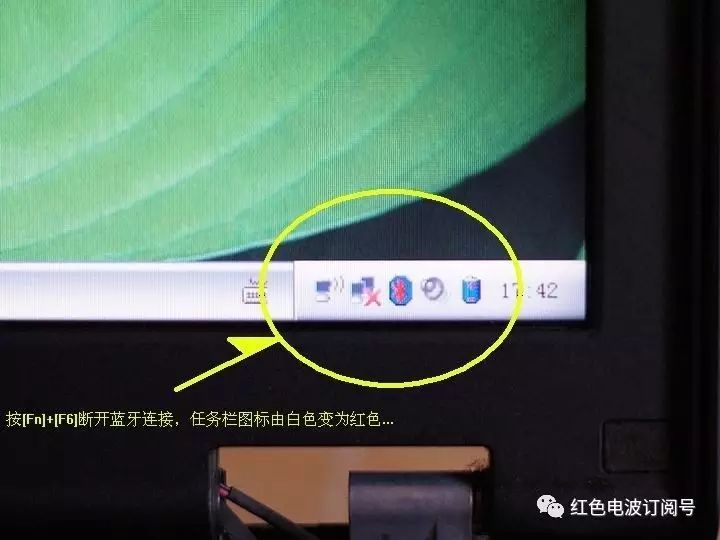
After completing the installation, I started using Bluetooth to connect with my phone and the Degen PL-398BT radio. During the process, I took several pictures and selected a portion to share here. The phone detected the computer…
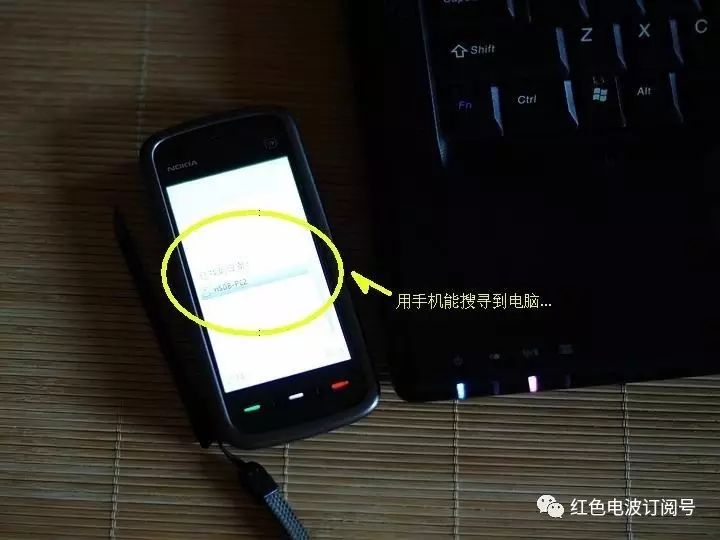
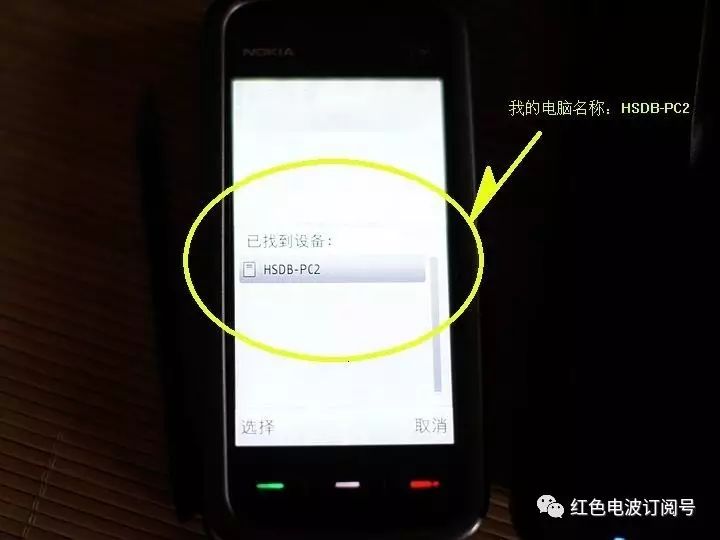
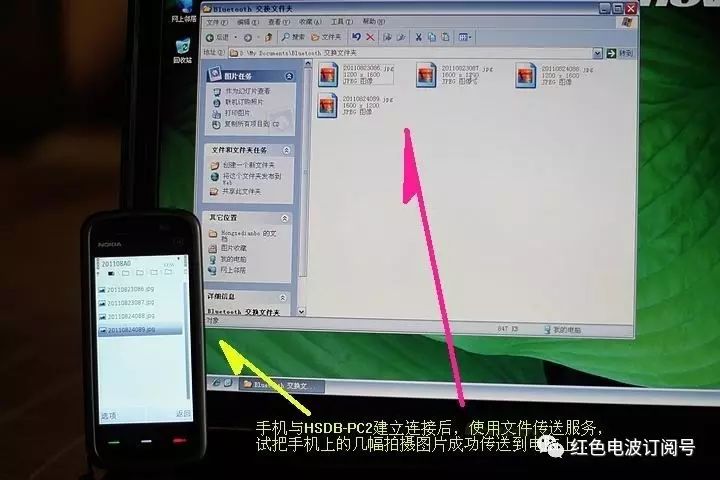
The phone is transferring files to the computer…
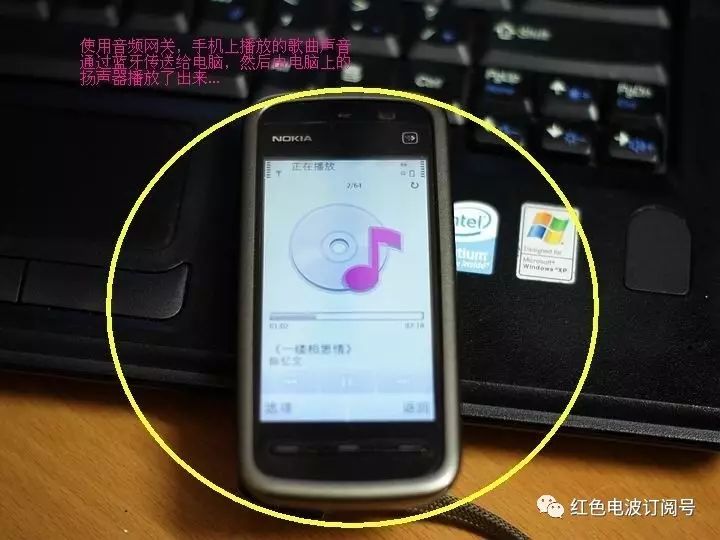
Audio from the phone’s media player is transmitted to the computer via Bluetooth and then played through the connected speakers…
The Degen “Bluetooth Receiver + All-Band Digital Demodulation Stereo Radio” is quite impressive; as a radio enthusiast, I couldn’t help but show off my new radio…
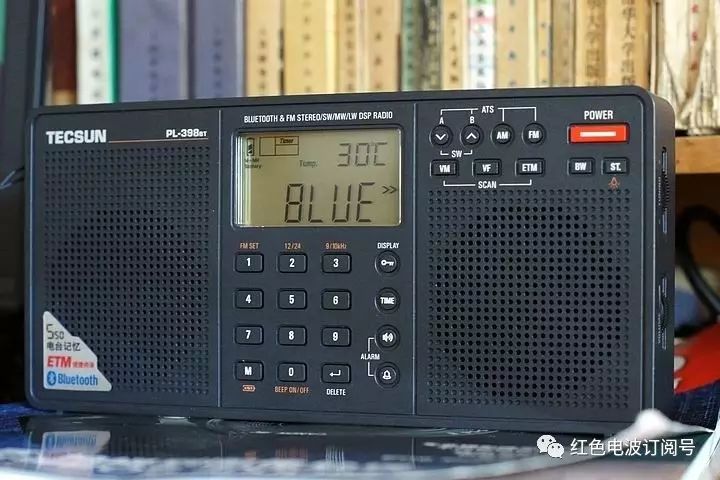
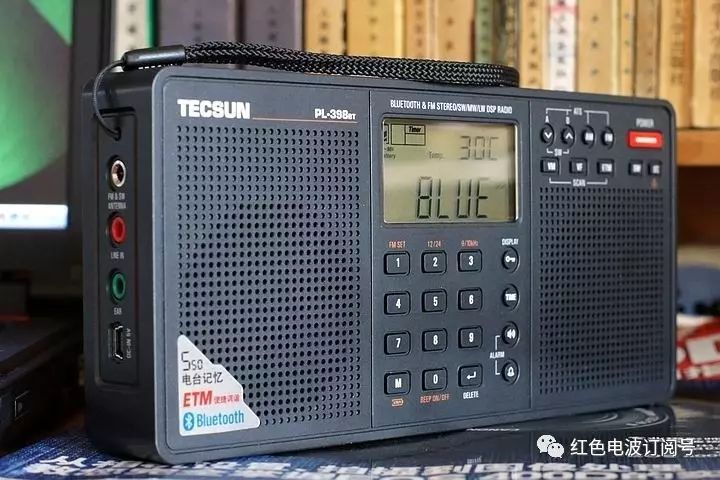
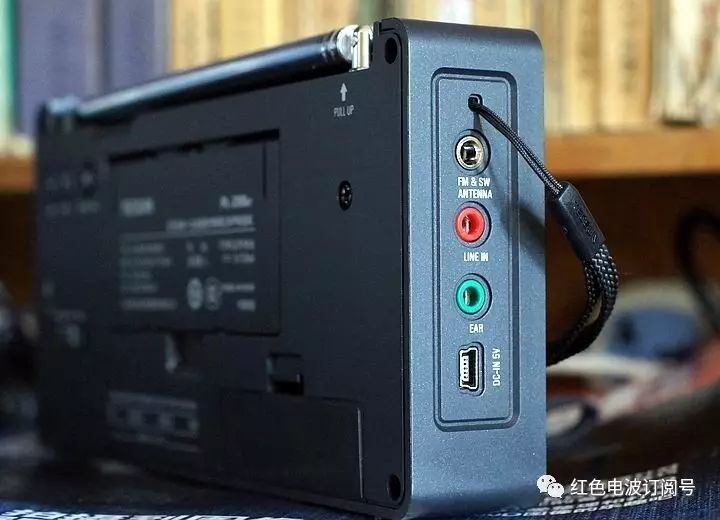
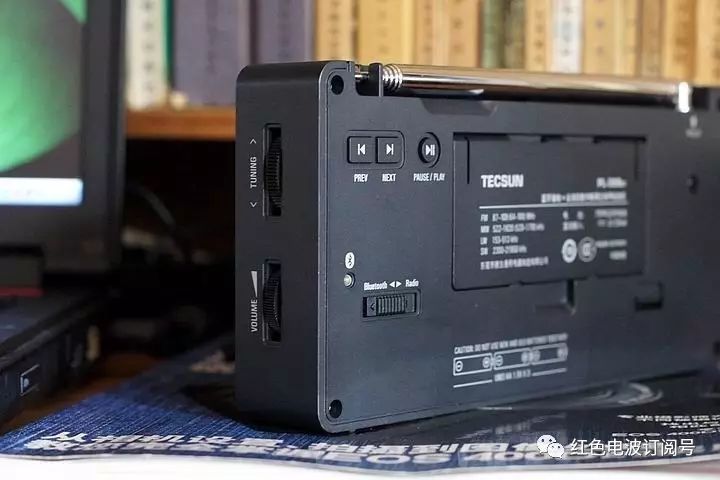
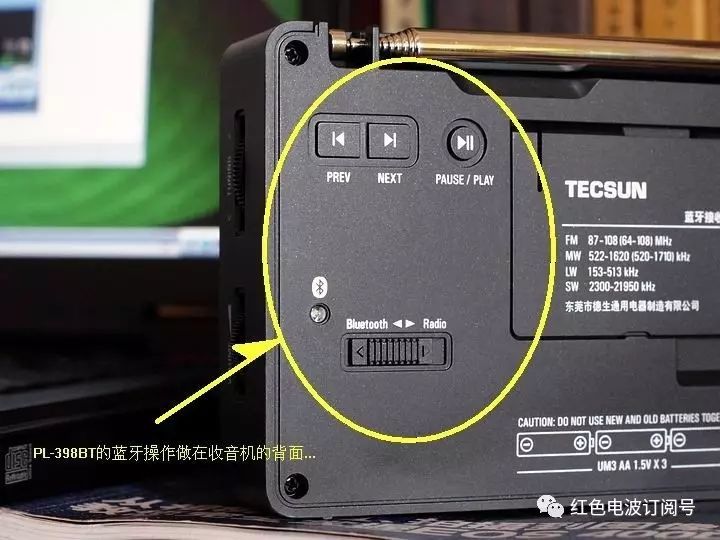
The Bluetooth operation button for the PL-398BT is located on the back of the radio. Is the manufacturer treating this Bluetooth reception as merely an additional feature?
However, the “additional” function of the PL-398BT is very practical; it conveniently works with portable devices like laptops and phones that have Bluetooth capabilities, allowing for wireless connections to play music and audio…
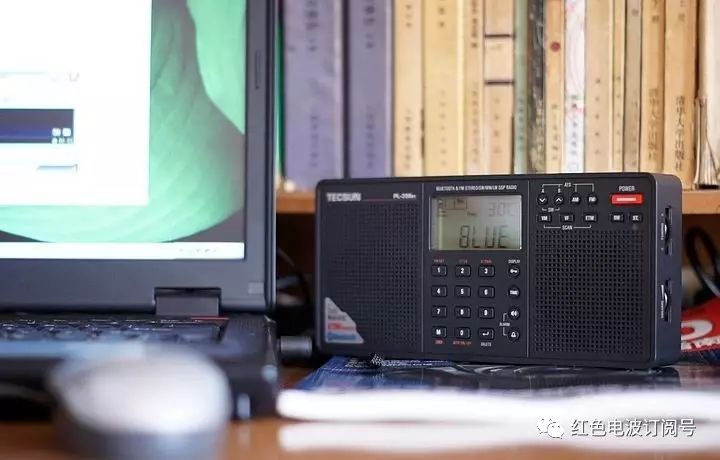
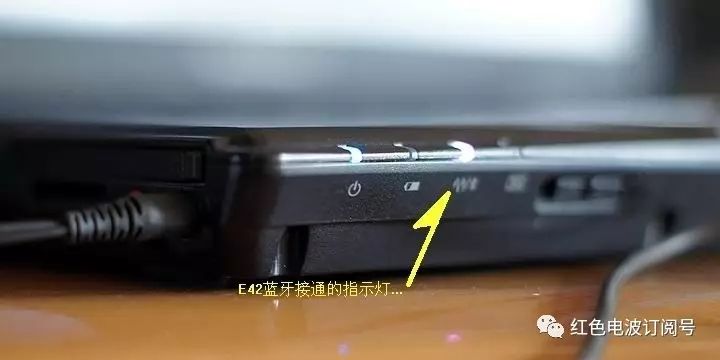
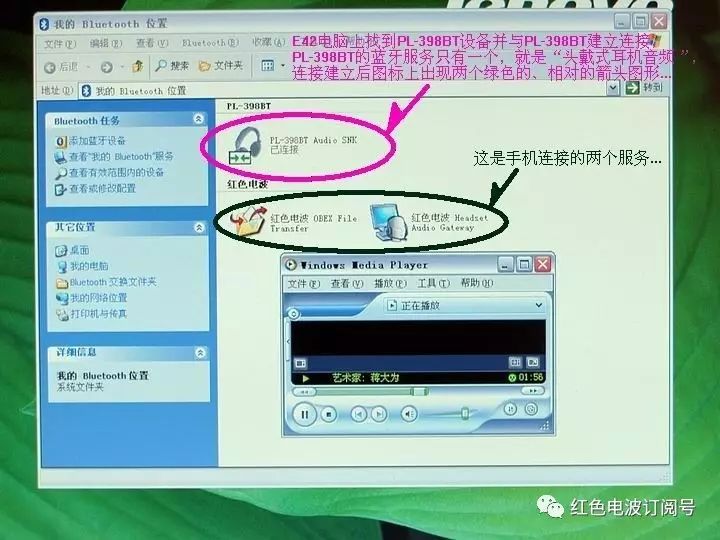
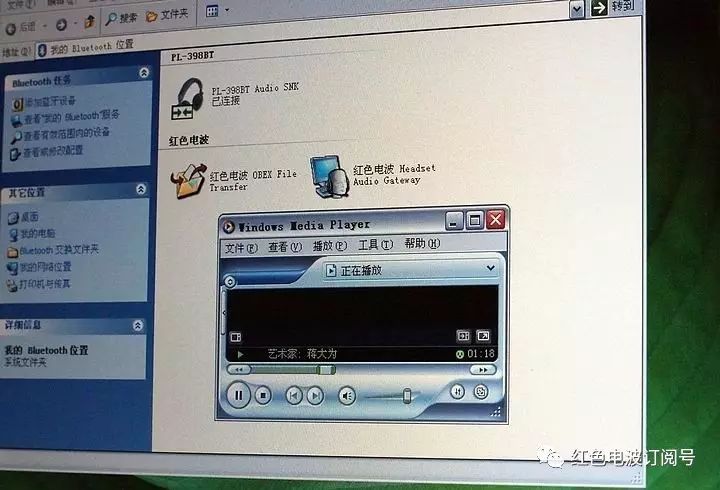
The PL-398BT plays songs streamed from the computer beautifully; the sound is wonderful!