Mission Center is a system monitor specifically designed for Linux systems, acting like a “personal assistant” for Linux, constantly monitoring every move of the system. Written in the memory-safe Rust programming language, it is not only efficient and stable but also provides a comprehensive understanding of system resource usage. Whether it’s CPU, memory, disk, network, or GPU, real-time monitoring is available, giving you a clear grasp of the system’s status. With it, issues like system lag and abnormal resource usage can be detected and resolved promptly, greatly enhancing control over the system.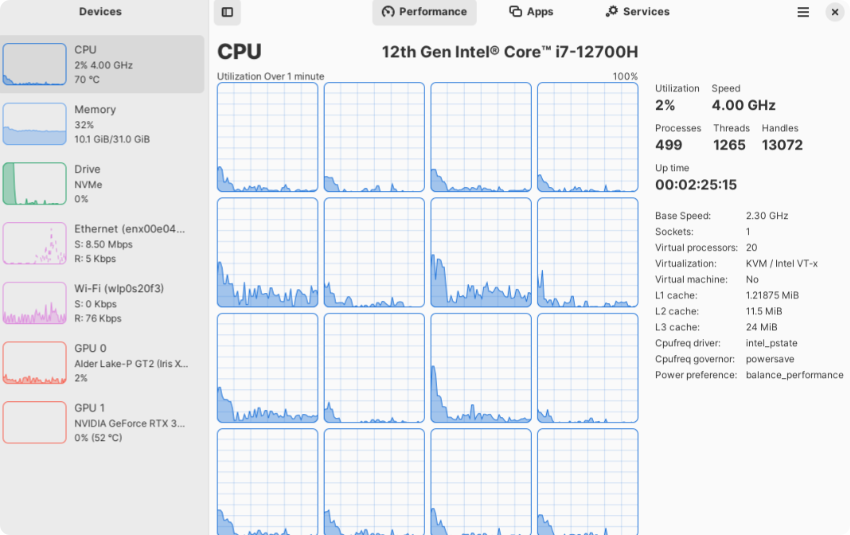 Comprehensive Hardware Monitoring
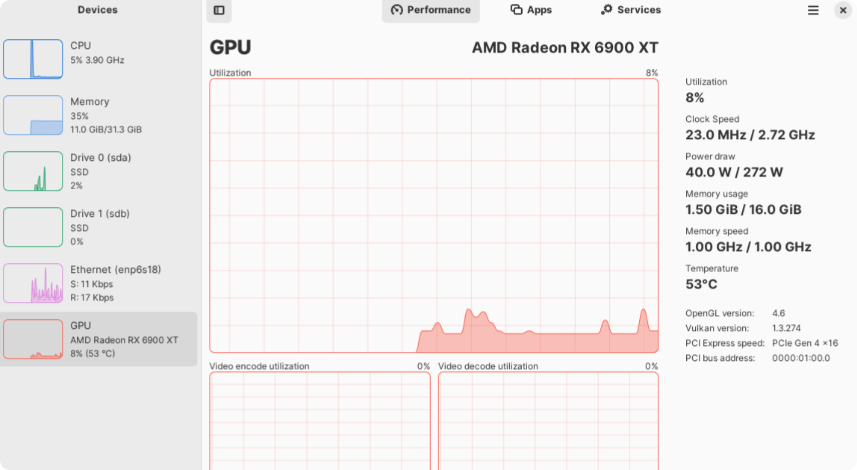
The hardware monitoring capabilities of Mission Center are exceptional. It can monitor CPU, memory, disk, network, and GPU in real-time, akin to a comprehensive health check for the system.

 CPU Monitoring
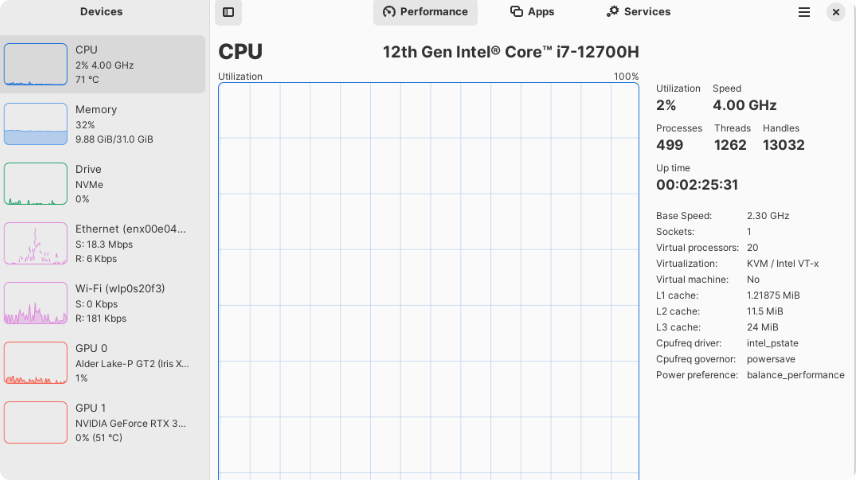
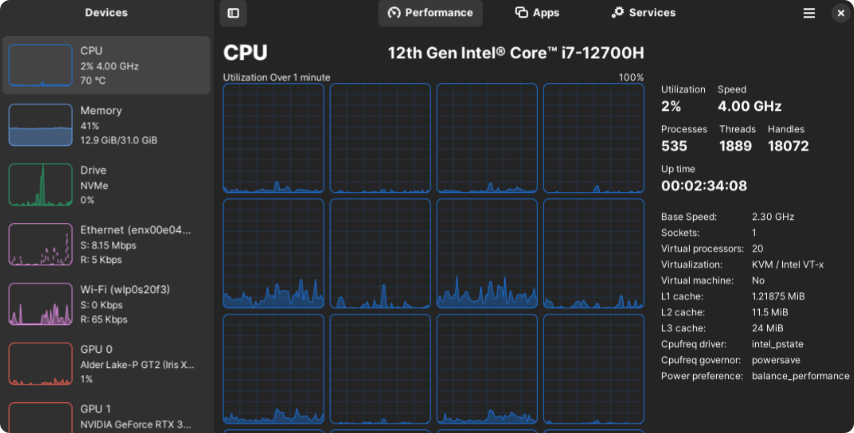
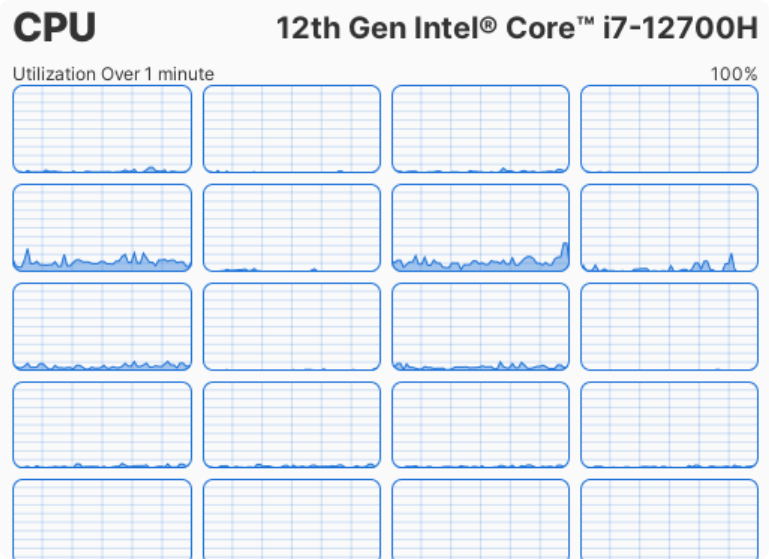
It not only displays the overall CPU usage but also provides insights into the CPU usage of each thread. For instance, when multiple programs are running simultaneously, Mission Center allows you to clearly see which program’s thread is consuming a large amount of CPU resources, whether it’s multiple tabs in a browser or software performing video rendering.
 Outstanding Memory Monitoring
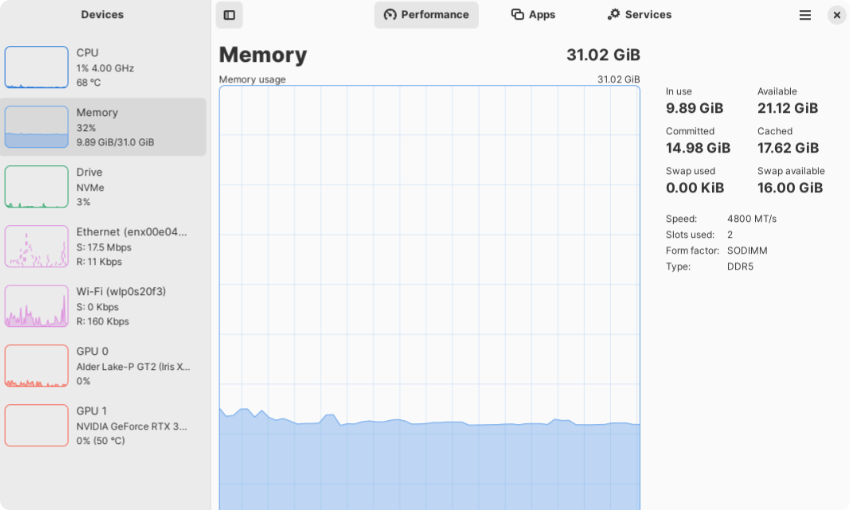
It presents real-time memory usage in an intuitive chart, including total memory, used memory, and remaining memory, making the memory usage status clear at a glance. Additionally, it displays the memory usage of each application, allowing you to promptly close those that consume excessive memory.
 Disk Monitoring
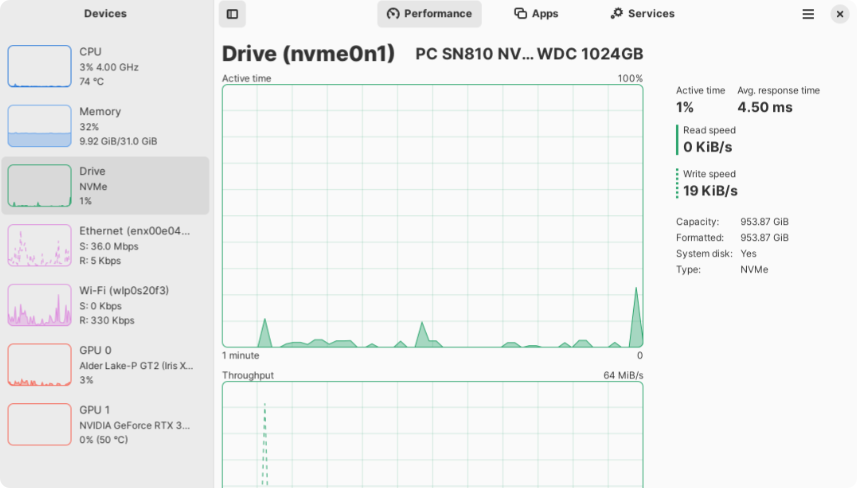
It provides real-time information on disk read/write speeds, used space, and remaining space. When performing file copying, system updates, and other operations, you can monitor the disk’s working status through it to ensure normal disk performance.
 Network Monitoring
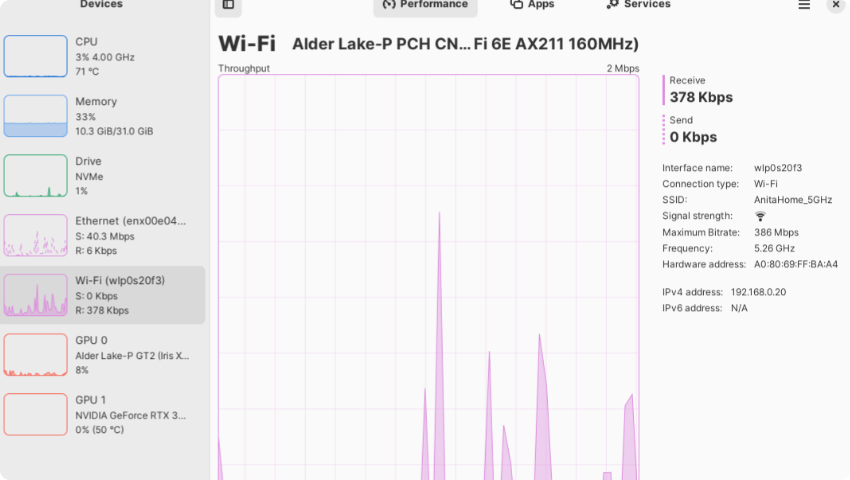
It provides real-time data on network traffic, including upload and download speeds, and the amount of data transferred. If you notice a sudden slowdown in network speed, Mission Center can quickly help you identify which application is consuming a large amount of network resources.
 Application Process Management
In addition to its powerful hardware monitoring capabilities, Mission Center allows you to have a thorough understanding of applications and processes. It lists all running applications and processes in detail, providing information such as process ID (PID), CPU usage, memory usage, and disk usage.


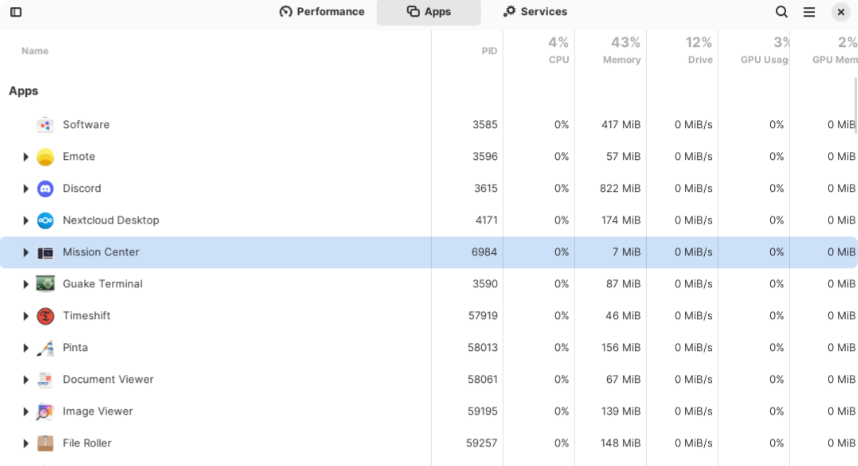
When an application becomes unresponsive or consumes a large amount of resources, you can directly stop or force stop it in Mission Center, just as conveniently as using the task manager in Windows.
This feature is particularly useful when dealing with background processes. For example, if you find that a background program is secretly consuming network resources or using a lot of memory, you can quickly close it to free up system resources and restore smooth operation.
 Interface and Usability
Upon opening Mission Center, you will find its interface layout very familiar, resembling the Windows Task Manager, with various monitoring metrics clearly displayed. This familiar interface style allows even Linux beginners to quickly get started and easily find the information they need.
The operation is also very simple, with all monitoring data presented in intuitive chart forms, making it easy to see the usage of system resources at a glance. If you want to delve into the details of a specific hardware component or application process, just click on the corresponding tab. For example, in the CPU tab, you can right-click on the chart to switch to the “Logical Processors” view to see the CPU usage of each thread.
In terms of settings, Mission Center is also very user-friendly. You can adjust the update frequency of all real-time charts according to your needs. For instance, when performing large file transfers, you might want to increase the update frequency of the disk monitoring chart to keep track of the copy progress and disk read/write speeds. You can also set to merge process statistics and remember the sorting order used in the “Applications” section, making the user experience more personalized.
 How to Install and Use
If you also want to have this powerful system monitor, obtaining it is very simple. You can easily find it on flathub.org or gitlab.com. If you are confident in your technical skills and prefer to build from source, that’s perfectly fine too.
Here, I want to highlight the method of installation via Flatpak. Flatpak is a universal software package format that allows applications to run stably across different Linux distributions, like giving applications a “universal adapter”. If your system does not have Flatpak installed yet, you can follow these steps to install it:
For Debian/Ubuntu distributions, open the terminal and enter the command
sudo apt install flatpak
For Fedora distributions, enter in the terminal
sudo dnf install flatpak
For OpenSUSE distributions, enter
sudo zypper install flatpak
After installing Flatpak, you also need to add the Flathub official repository, enter the command:
flatpak remote-add –if-not-exists
flathub https://flathub.org/repo/flathub.flatpakrepo
Now you can install various applications via Flatpak.
Finally, to install Mission Center, enter in the terminal flatpak install flathub io.missioncenter.MissionCenter, wait for the installation to complete, and you can enjoy the convenience it brings!
Mission Center Tool (Source from the Internet, for learning purposes only)
https://pan.quark.cn/s/fe93c1a9f919