In the late hours of operations, the worst fear is a disk alert. The culprit is often the underestimated /var partition.
Many Linux beginners, and even some veterans, make the same mistake during system installation: underestimating the importance of the <span>/var</span> partition and only allocating a few GB of space by default. The result is a series of strange issues arising after the system has been running in a production environment for a while.
/var Partition: The “Dynamic Data Heart” of the Linux System
<span>/var</span>, short for variable, is specifically used to store data that frequently changes during system operation. It can be aptly compared to the system’s “diary and workshop”.
Why are the default few GB simply not enough? Because it stores the “big spenders”:
1. Log Files (/var/log) — The Biggest “Space Killer”
- System logs (syslog, journald)
- Web server logs (Nginx, Apache)
- Database logs (MySQL, PostgreSQL)
- Application service logs
2. Package Cache (/var/cache) — The Easily Overlooked “Hoarder”
- Download caches from package managers like apt/yum/dnf
- If not cleaned regularly, it can easily occupy several GB
3. Database Data (/var/lib) — The Potential “Giant”
- MySQL default data directory: /var/lib/mysql
- PostgreSQL default data directory: /var/lib/pgsql
- As business data grows, even hundreds of GB may not be enough
4. Docker Storage (/var/lib/docker) — The “New Threat” of the Container Era
- Docker images, containers, and volumes are all stored here by default
- The layered storage mechanism of images occupies space that cannot be underestimated
Scientific Planning: /var Partition Size Guidelines for Different Scenarios
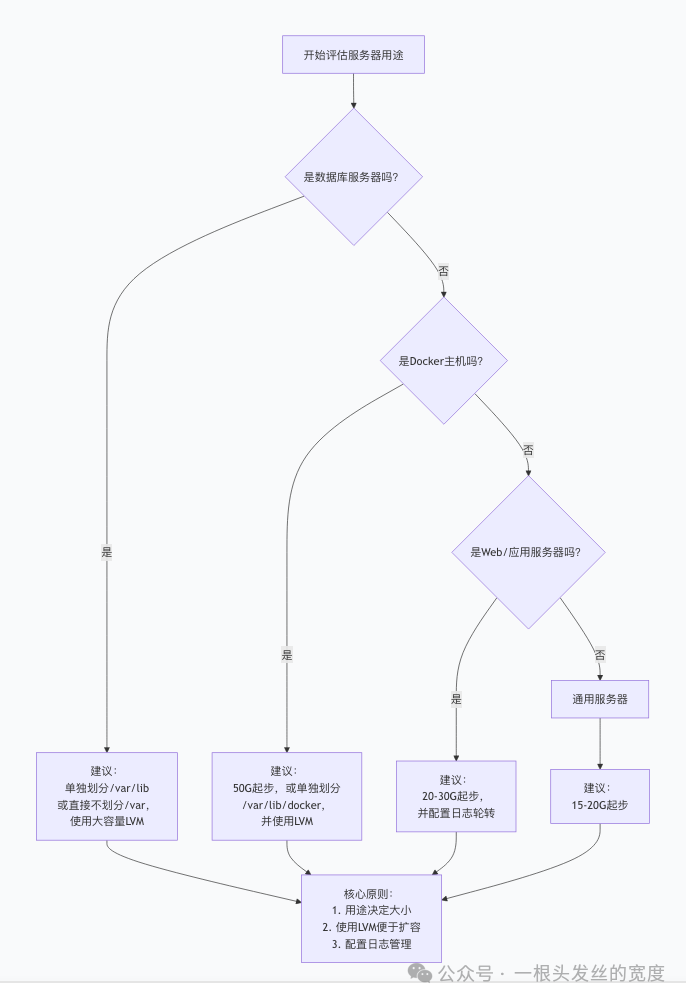
Decision Principle: Allocate as needed, leave sufficient margin, and handle special data separately
Practical Remedies: What to Do When the /var Partition is Really Full?
Even with the best planning, you may encounter a space shortage. Here are some lifesaving tips:
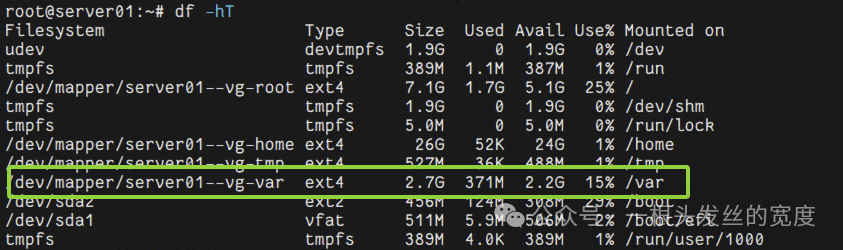
Step 1: Quickly Identify the Root Cause of the Problem
# Check overall disk usage

df -h

# Dive into the /var directory to find the real "space killers"
sudo du -sh /var/* | sort -hr

# Use the ncdu tool (more intuitive)
sudo apt install ncdu  # Ubuntu/Debian
sudo yum install ncdu  # RHEL/CentOS
sudo ncdu /var/
Step 2: Safe Cleanup (Quick Fix)
# Clean package manager cache
# Ubuntu/Debian
sudo apt clean          # Clean all caches
sudo apt autoclean      # Clean only outdated caches

# RHEL/CentOS/Rocky
sudo yum clean all
sudo dnf clean all

# Clean log files (the correct way)
sudo truncate -s 0 /var/log/some-huge-log.log  # Empty but do not delete the file

# Clean Docker space
docker system prune -a    # Clean all unused resources
Step 3: Configure Log Rotation (Fundamental Fix)
Edit <span>/etc/logrotate.conf</span> and the configuration files under <span>/etc/logrotate.d/</span> to ensure logs are rotated and deleted regularly:
# Example: Configure rotation for Nginx logs
/var/log/nginx/*.log {
    daily          # Rotate daily
    missingok      # Do not report errors for missing logs
    rotate 7       # Keep logs for 7 days
    compress       # Compress old logs
    delaycompress  # Delay compression by one day
    notifempty     # Do not rotate empty files
    create 0640 www-data adm  # Permissions for new files
    postrotate
        invoke-rc.d nginx rotate >/dev/null 2>&1
    endscript
}
Step 4: Ultimate Solution — Expansion
If using LVM (Logical Volume Management), expansion is relatively simple:
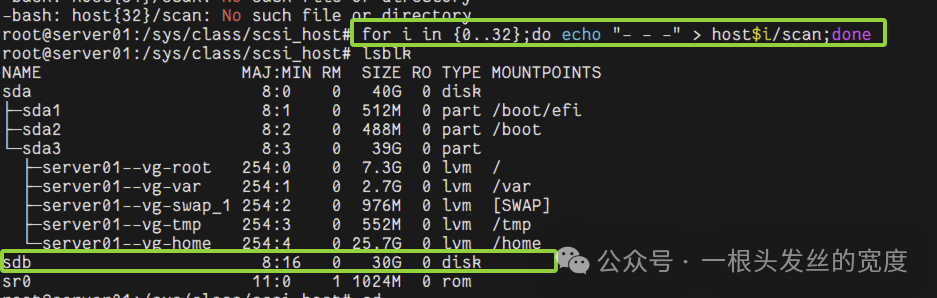
# Check volume group information
sudo vgdisplay

# Extend logical volume (add 10G)
sudo lvextend -L +10G /dev/mapper/ubuntu-vg/var

# Adjust filesystem size
sudo resize2fs /dev/mapper/ubuntu-vg/var  # For ext4
sudo xfs_growfs /dev/mapper/ubuntu-vg/var # For xfs
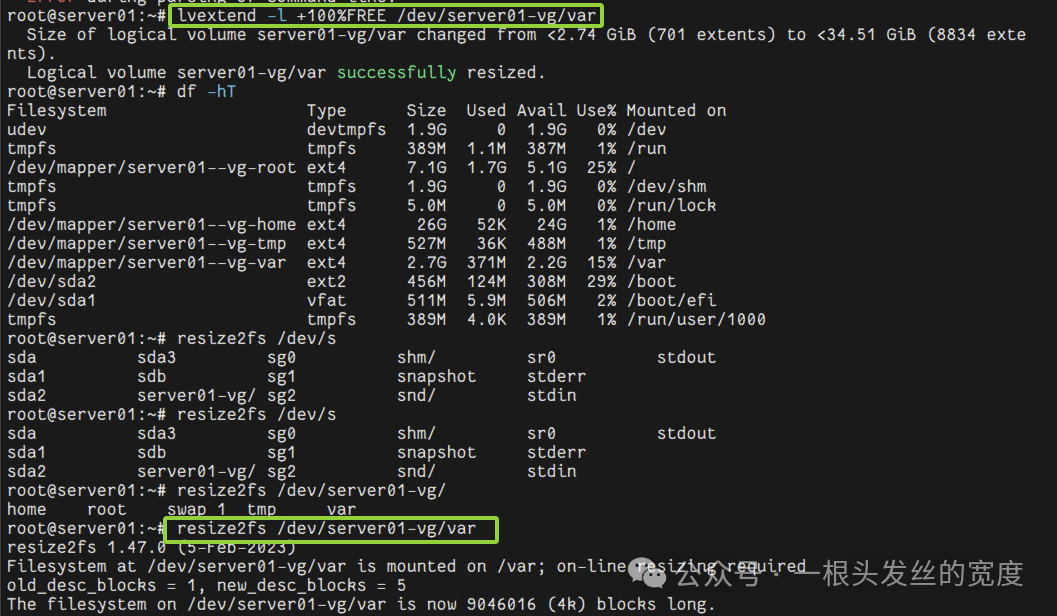
If LVM is not used, expansion will be very difficult, usually requiring backup, repartitioning, and data recovery. This once again proves the importance of reasonable planning from the start.
Best Practices for Operations: Preventing Problems Before They Occur
- Role Determines Size: Clearly define the server’s purpose before deployment and plan partitions accordingly
- Mandatory Use of LVM: Configure LVM for all production servers to allow flexibility for the future
- Separation of Critical Data: Separate partitions for large data like databases and Docker
- Institutionalize Log Management: A reasonable log rotation strategy must be configured before all projects go live
- Monitoring Alerts are Essential: Set up disk usage monitoring (80% warning, 90% critical alert)
Real Case Sharing
A certain e-commerce company’s database server initially allocated 50GB of space for the /var partition. As the business grew, the MySQL data files grew to 200GB within six months, leading to frequent disk alerts.
Solution:
- Temporarily clean logs to alleviate the crisis
- Purchase a new hard drive and expand space through LVM
- Long-term solution: Migrate MySQL data to a separately mounted SSD array (/data directory)
Lesson: For database servers, data files should never be left in the /var partition.
Conclusion
<span>/var</span> partition may be small, but it is crucial for the stable operation of the entire system. A reasonable plan is worth more than countless emergency rescues. I hope this article helps you avoid pitfalls and allows your Linux servers to run more smoothly.
Have you ever had a terrible experience with the /var partition? Feel free to share your stories and solutions in the comments!
Recommended Reading:👉 1. Jenkins Installation Practice: Building a CI/CD Automation Platform on Ubuntu 24.04👉 2. Detailed Explanation of the whereis Command in Linux: Quickly Locate Command Files!👉 3. CentOS 7.9 2009 Kernel Upgrade: Addressing Compatibility Issues with Standalone Graphics Card Drivers
Please open in the WeChat client