In an era where you can manage everything with a mouse click, why still resort to command-line to restart your system? The answer is simple: the terminal is the soul of Linux. It allows you to maintain control over your system even when it crashes, during remote logins, or when you need to perform bulk operations. Not to mention, some commands can delay a restart, send warnings, or even switch system states—capabilities that graphical interfaces can’t match.
Imagine you’re managing a remote server and suddenly need to restart the system. If you only know how to click the “Restart” button, you might not even know the server’s IP address. By mastering these 6 commands, you can easily maneuver through various scenarios using the terminal.

Command 1:<span>reboot</span> – The Most Direct Restart Command
<span>reboot</span> is the simplest and most straightforward restart command in Linux. Just like its name suggests, its job is to restart the system immediately, without any fancy options, making it suitable for efficiency-focused scenarios.
How to Use?
The most basic usage is to simply type:
rebootAfter hitting enter, the system will restart immediately and cleanly. If you want to notify other online users before the restart, you can use the <span>wall</span> command to broadcast a message:
wall "The system is about to restart, please save your work!" rebootTips
- Permission Issues: A regular user running
<span>reboot</span>will get a permission denied error, you need to add<span>sudo</span>:
sudo reboot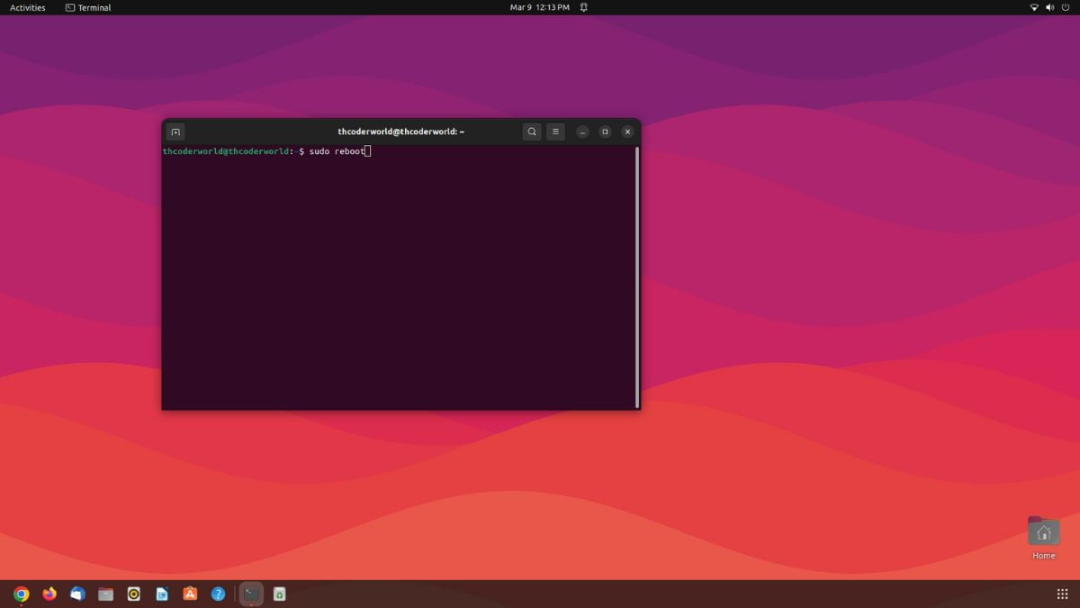
-
Execution Speed: In most systems,
<span>reboot</span>will take effect quickly, but the exact time may vary slightly depending on system configuration. -
Applicable Scenarios: When you need to restart quickly without complex operations,
<span>reboot</span>is your best partner.
Command 2:<span>shutdown</span> – The Versatile Player with Extensive Features
<span>shutdown</span> is a jack of all trades, capable of not only restarting but also shutting down and even canceling operations. Its greatest feature is flexibility—you can set a restart time and send a “friendly reminder” to all logged-in users.
How to Use?
Want to restart the system immediately? Try this:
shutdown -r now<span>-r</span>means “reboot”.<span>now</span>means “do it now”.
If you want to restart in 10 minutes and notify everyone:
shutdown -r +10 "The system will restart in 10 minutes for maintenance, please save your work!"<span>+10</span>indicates a 10-minute delay.- The text following is the message broadcasted to users.
Other variations:
- Shutdown: Use
<span>-h</span>instead of<span>-r</span>, for example,<span>shutdown -h now</span>. - Cancel Operation: If you accidentally typed it wrong, use
<span>shutdown -c</span>to cancel.
Tips
- Permission Requirements: Like
<span>reboot</span>, it requires root permissions. - Default Behavior: If you just type
<span>shutdown -r</span>without adding a time, it defaults to restarting in 1 minute and automatically sends a warning. - Applicable Scenarios: Suitable for environments where planned restarts or shared systems are needed, such as server maintenance.
Command 3:<span>init</span> – The Veteran of Run Levels
<span>init</span> is the classic command in Linux for controlling system run levels. Linux has 7 run levels from 0 to 6, and level 6 represents a restart. It sounds a bit “hardcore”, but it’s quite simple to use.
How to Use?
To restart the system, just type:
init 6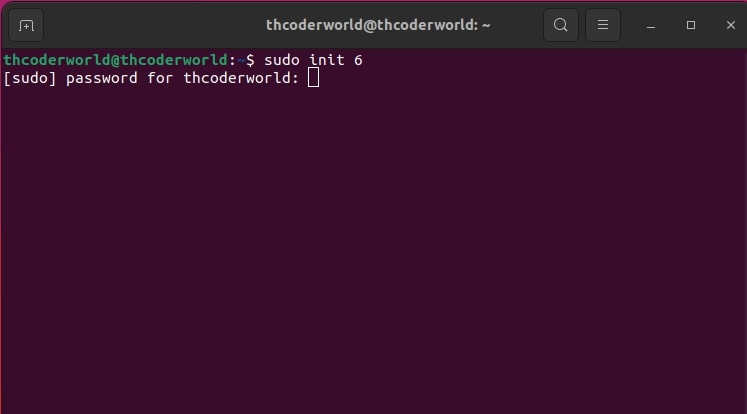
Run Level Overview
The concept of run levels in Linux is quite interesting; here’s a simple list:
- 0: Shutdown
- 1: Single-user mode (for maintenance)
- 2: Multi-user mode, no network
- 3: Multi-user mode, with network
- 4: Not used
- 5: Graphical interface mode
- 6: Restart
Tips
- No Warning:
<span>init 6</span>executes directly without notifying users in advance. - Permissions: Requires root or sudo.
- Modern Trend: In newer versions of Linux (e.g., systems using systemd),
<span>init</span>is gradually being replaced by<span>systemctl</span>, but it remains useful. - Applicable Scenarios: If you’re familiar with run levels or using an older system,
<span>init</span>is your helpful assistant.
Command 4:<span>systemctl</span> – The New Favorite of Modern Linux
<span>systemctl</span> is the command-line tool for systemd, the mainstream initialization system of modern Linux. It can not only restart but also manage services and check statuses, with powerful functionalities.
How to Use?
To restart the system:
systemctl rebootOther usages:
- Shutdown:
<span>systemctl poweroff</span> - Suspend:
<span>systemctl suspend</span> - Hibernate:
<span>systemctl hibernate</span>
Tips
- Permissions: Requires root or sudo.
- Compatibility: Only effective on systems that support systemd; older systems may not support it.
- Applicable Scenarios: If you’re using Ubuntu 16.04, CentOS 7, or newer distributions,
<span>systemctl</span>is standard.
Command 5:<span>halt</span> – The Low-key “Stopper”
<span>halt</span> means “stop”; it will make the system stop, but not necessarily power off. Its function is somewhat like pressing the pause button, and the specific effect depends on system configuration.
How to Use?
Simply run:
haltDifferences from Other Commands
- No Scripts: Unlike
<span>shutdown</span>,<span>halt</span>will not run shutdown scripts. - No Power Off: On some systems,
<span>halt</span>merely stops the CPU, and you need to manually turn off the power.
Tips
- Permissions: Requires root.
- Risks: Because it does not execute shutdown scripts, it may lead to data loss; not recommended for casual use.
- Applicable Scenarios: Used in special needs, such as debugging hardware.
Command 6:<span>poweroff</span> – The “Terminator” of Safe Shutdown
<span>poweroff</span> is the command to shut down and power off the system, very similar to <span>shutdown -h</span>, but more direct. It safely shuts down the system, ensuring all services are properly stopped.
How to Use?
Simple and straightforward:
poweroffDifferences from <span>halt</span>
- Safe Shutdown:
<span>poweroff</span>will run shutdown scripts to protect data before powering off. - User-friendly: More suitable for daily use compared to
<span>halt</span>.
Tips
- Permissions: Requires root.
- Applicable Scenarios: When you need to completely shut down the system,
<span>poweroff</span>is a reliable choice.
Command Comparison: Which One is Right for You?
For convenience, I’ve organized the main features of these 6 commands into a table:
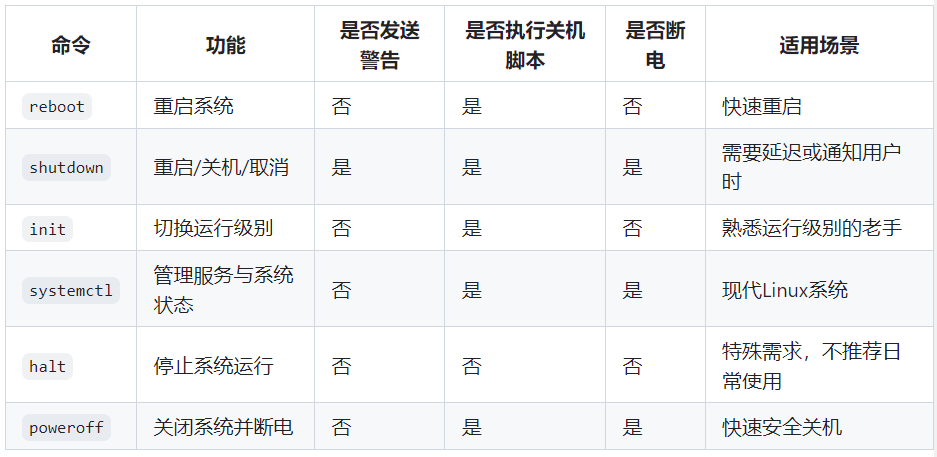
Practical Scenarios: How to Use These Commands?
- Need to Restart Quickly: System is unresponsive, want to restart immediately? Type
<span>reboot</span>or<span>systemctl reboot</span>, done in a flash. - Scheduled Maintenance: Need to restart the server at 2 AM tomorrow? Use
<span>shutdown -r 02:00 "Scheduled maintenance, restarting the system"</span>. - Remote Operations: Connected to the server via SSH and worried about affecting others? Use
<span>shutdown -r +5</span>to send a warning. - System Debugging: Want to switch to single-user mode for repairs? First use
<span>init 1</span>, then after repairs, use<span>init 6</span>. - Complete Shutdown: Need to give the machine a break? Use
<span>poweroff</span>for a safe shutdown.
Common Questions You Might Encounter
Q1: How to Ensure Data is Not Lost Before Restarting?
Linux automatically saves the system state, but user files need to be saved manually. You can use <span>shutdown</span> to send a warning to remind everyone to save their work.
Q2: Accidentally Typed <span>shutdown</span>, What to Do?
Don’t panic, quickly type <span>shutdown -c</span> to cancel.
Q3: Can I Restart Without Root Permissions?
Generally not, but if you have sudo permissions, you can add <span>sudo</span>, for example, <span>sudo reboot</span>.
Q4:<span>reboot</span> and <span>init 6</span>: What’s the Difference?
The effects are similar, but <span>reboot</span> is a dedicated restart command, while <span>init 6</span> achieves this through run levels, differing in principle.
By mastering these 6 commands, you essentially hold the “remote control” of the Linux system. Whether it’s a quick restart, delayed operations, or safe shutdown, they enable you to manage everything with ease. The charm of the Linux terminal lies in this—just a few lines of commands can give you complete control.
Don’t just watch, give it a try! Open the terminal and type <span>reboot</span> to experience the thrill of a system restart. Or use <span>shutdown</span> to play around, setting a 5-minute restart plan for yourself. These commands are not just tools; they are your confidence as you navigate the Linux world!

Important! Operations and Maintenance Discussion Group is Open for Membership!Scan to add the editor’s WeChat,apply to jointhe group ▲ Long press to join the group