“ Welcome to connect with Miss Xinyue to learn about the recent class
 ”
”
Before discussing Linux system partitions, we first need to introduce some knowledge about hard disk partitions, as well as the partitions on the Windows system that we use most often.
1. System Partition
First, let’s popularize some knowledge about system partitions:
There are three types of hard disk partitions: Primary Partition, Extended Partition, and Logical Partition.
A hard disk must have at least 1 primary partition and can have up to 4; an extended partition can be absent but can have a maximum of 1. The total number of primary and extended partitions cannot exceed 4. There can be several logical partitions. The activated primary partition under Windows is the boot partition of the hard disk; it is independent and is the first partition of the hard disk, typically referred to as the C drive.
In Linux, both primary and logical partitions can be used to store the system and boot the OS; GRUB is compatible with Windows booting. After designating a primary partition, the remaining space can be allocated to an extended partition, usually using the remaining space entirely, or not at all, resulting in wasted space.
However, the extended partition cannot be used directly; it is utilized as logical partitions, meaning that the extended partition can be divided into several logical partitions. Their relationship is inclusive; all logical partitions are part of the extended partition.
In Linux, the first hard disk partition is referred to as hda (or sda), with primary partition numbers as hda1-4, and logical partitions starting from 5.
The capacity of the hard disk = capacity of primary partitions + capacity of the extended partition.
The capacity of the extended partition = sum of the capacities of each logical partition.
The primary partition can also be referred to as the “boot partition,” which is recognized by the operating system and motherboard as the first partition of the hard disk. Therefore, the C drive always ranks first among all disk partitions.
The partition table of the MBR (Master Boot Record) can only store 4 partitions; if more partitions are needed, an Extended Boot Record (EBR) is required, which is placed on a primary partition with a system ID of 0x05, which is the extended partition. The extended partition can be divided into several partitions, each being a logical partition.
Concepts of MBR, Extended Partition, and Logical Partition
One is the information area of the hard disk, called the Master Boot Record (MBR), and the other is the actual location for storing file data. The MBR is the most important area of the entire hard disk. Once the physical entity of the MBR is damaged, the hard disk is virtually rendered unusable. Generally, the MBR has 512 bytes and can be divided into two parts.
(1) The first part has 446 bytes for storing boot code, i.e., the bootloader.
(2) The second part has 64 bytes for storing the disk partition table. Each partition’s information requires 16 bytes to record, thus a hard disk can have a maximum of 4 partitions. These 4 partitions are referred to as primary and extended partitions.
Note: The term “hard disk partition” typically refers to modifying the disk partition table, which defines that “the nth disk block ranges from the xth cylinder to the yth cylinder.” Therefore, when the system needs to read the nth disk block, it reads the information from the xth to the yth cylinder on the hard disk.
Since there can only be one extended partition, the 4 partitions can be either 4 primary partitions or 3 primary partitions plus 1 extended partition, as follows: P + P + P + PP + P + P + E
It is important to note that the extended partition cannot be used directly and must be divided into logical partitions to be used. This raises a question: if the extended partition cannot be used directly, why allocate space for it? This is because if a user wants to partition the hard disk into 5 partitions, the extended partition is necessary.
Since the MBR can only hold information for 4 partitions, if there are more than 4, the system allows storing another copy of the disk partition information in additional hard disk space, which is the extended partition. If the hard disk is divided into 3P + E, then E essentially tells the system that the disk partition table is in another partition table, meaning the extended partition points to the correct additional partition table. The extended partition itself cannot be used directly and must be further divided into logical partitions to be utilized, allowing users to create more than 5 partitions.
Note:
(1) In fact, users are not advised to divide the hard disk into 4 primary partitions. This is because, for example, if a 20GB hard disk has 4 primary partitions occupying 15GB, then the remaining 5GB cannot be used at all, as there is no extra partition table to record this space.
(2) Considering disk continuity, it is generally recommended to place the extended partition at the last cylinder.
(3) Theoretically, a hard disk can have only 1 primary partition, with all other space allocated to the extended partition.
Hard disk partitions are mainly divided into primary partitions and extended partitions. The total number of primary and extended partitions cannot exceed four. (According to the above partition concepts, the number of primary partitions cannot exceed 4, and the number of extended partitions can be at most 1, so the sum of both cannot exceed 4.) Primary partitions can be used immediately but cannot be further partitioned. Extended partitions must be divided again before they can be used, meaning they require a second partitioning. What is divided from the extended partition? It is the logical partition, and there is no numerical limit on logical partitions.
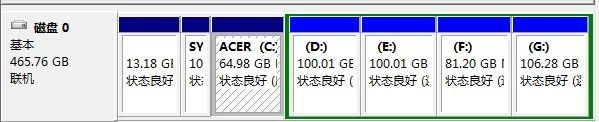
As shown in the image, the partitioning of the commonly used Windows system is as follows: first, a primary partition is created (the operating system is generally installed in the primary partition), and then an extended partition is created. Since the extended partition cannot be used directly, it must be divided into several logical partitions (like the D, E, F, G drives shown in the image, which are the logical partitions created).
2. Differences Between Windows and Linux Partitions
In the Windows operating system, physical addresses are separated first (creating primary and logical partitions), and then directories are established on the partitions. In the Windows operating system, all paths start from the drive letter, such as C://Program Files.
Linux, on the other hand, starts with the directory and then maps physical addresses (partitions) to directories. In the Linux operating system, all paths start from the root directory【/】. Linux defaults to 3 partitions: boot partition, swap partition, and root partition.
Whether in the Windows operating system or the Linux operating system, each partition can have different file systems, such as FAT32, NTFS, etc.
For users accustomed to using DOS or Windows, the number of partitions corresponds to the number of drives, and each partition receives a letter identifier, which can be used to specify files and directories on that partition; their file structures are independent and easy to understand. However, for Linux system users, this is not the case, because for Linux system users, regardless of how many partitions there are, assigned to which directory, there is ultimately only one root directory and one independent and unique file structure.
In Linux, each partition is part of the entire file system, as it employs a method called “mounting”. The entire file system includes a complete set of files and directories, linking a partition to a directory. A partition to be mounted will make its storage space available under a directory. Now, let’s take a look at how drives are identified in Linux.
For IDE hard disks, the drive identifier is “hdx~”, where “hd” indicates the type of device the partition resides on, referring to IDE hard disks. “x” represents the drive number (a for primary drive, b for primary slave drive, c for secondary master drive, d for secondary slave drive), and “~” represents the partition, with the first four partitions indicated by numbers 1 to 4 representing primary or extended partitions, and logical partitions starting from 5. For example, hda3 indicates the third primary or extended partition on the first IDE hard disk, while hdb2 indicates the second primary or extended partition on the second IDE hard disk. For SCSI hard disks, the identifier is “sdx~”; SCSI hard disks are represented by “sd” for the type of device the partition resides on, with the remaining representation similar to IDE hard disks. For example, sda1 indicates the first primary or extended partition on the first SCSI hard disk.
3. Linux Partitions
In the Linux system, we can use the command fdisk -l (requires root permissions) to view the specific partitioning of the installed Linux system.
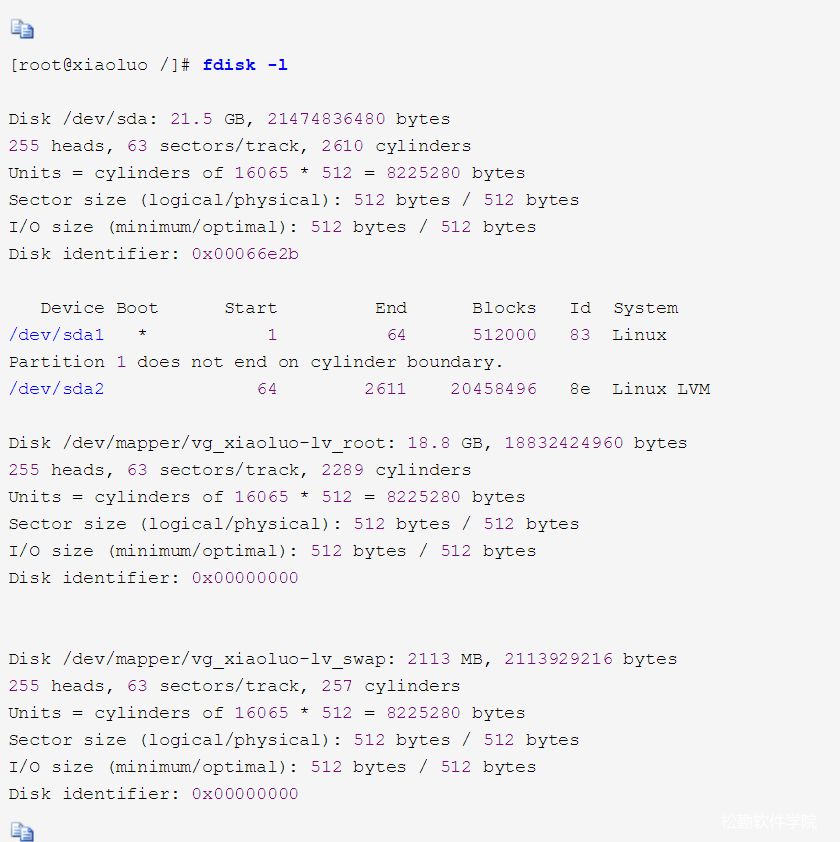
Using the fdisk -l command, we can see that in my installed CentOS system, there are two partitions: sda1, sda2, and a swap partition.
Linux partitions differ from those of other operating systems; its partition formats are only Ext2 and Swap. Ext2 is used to store system files, while Swap serves as the Linux swap partition. Therefore, we know that Linux requires at least two dedicated partitions (Linux Native and Linux Swap), and Linux cannot be installed on DOS/Windows partitions. Generally, we will install Linux on one or more partitions of type “Linux Native,” but each partition in Linux must specify a “Mount Point” to inform Linux which directory to use at startup. For the “Swap” partition, generally only one is defined, and it does not need to specify a mount point. Now let’s popularize “Linux Native” and “Linux Swap”.
*SWAP Partition
The SWAP partition is a temporary storage area for data in LINUX; it mainly stores data that is temporarily unused in the main memory, which can be retrieved when needed. The partition used as SWAP does not need to specify a “Mount Point”. Since it serves as a swap partition, we naturally need to specify its size, which should be at least equal to the actual memory amount in the system; generally, its size is twice that of the memory. If you have 16MB of memory, the SWAP partition size would be around 32MB, and so on. However, it is important to note that the SWAP partition should not exceed 128MB; if you have 64MB of memory, the maximum size of the SWAP partition can only be 127MB; anything larger is a waste of space since the system does not require a large swap partition. Similarly, if you have 128MB or more memory, the SWAP partition can also only be a maximum of 127MB. Additionally, you must inform the system that you have this large memory; otherwise, it may not recognize your 128MB memory. Specifically, after successfully starting the installation process, a boot: prompt will appear; you just need to type boot:linux mem=128MB to inform it. Furthermore, you can create and use more than one swap partition, up to a maximum of 16.
*Linux Native
Linux Native is the place where system files are stored, and it can only use the EXT2 partition type, as mentioned earlier. For Windows users, the operating system must be installed on the same partition, as it is commercial software, leaving no room for choice! For Linux, you have greater flexibility; you can install system files across several partitions (each must specify a mount point), or install them all in one partition (with the mount point as “/”). Now let’s see which partitions can be created (only listing a few common ones).
/boot partition contains the operating system kernel and the files needed during the system startup process. Creating this partition is necessary because most PCs are limited by BIOS, and if there is a separate /boot partition, the computer can still boot even if the main root partition encounters issues. This partition typically ranges from 50MB to 100MB (the values may vary depending on the Linux version).However, if you want to use LILO to boot the Linux system, the partition containing /boot must be entirely below cylinder 1023. Furthermore, since LILO cannot read data beyond 8GB, Linux must be installed within the 8GB area.
Depending on the installed Linux version, you can choose to allocate different space for the /boot partition (I set it to 500M). To check the specific partition for a certain directory, use the command df [full path of the directory], for example:
[root@xiaoluo /]# df /boot/Filesystem 1K-blocks Used Available Used% Mounted on/dev/sda1 495844 50655 419589 11% /bootWe can see that our /boot directory is mounted on the sda1 partition. Of course, we can unmount the /boot directory from this partition using the following command:
[root@xiaoluo /]# umount /bootAt this point, we can see that there is nothing under /boot. We can create our own directory under the root directory and mount it to the sda1 partition (not recommended).
/usr partition is where the Linux system stores software, and if possible, the maximum space should be allocated to it. /home partition is the home directory for users, and its size depends on the number of users. /var/log partition is for system log records; if a separate partition is established, even if the log files encounter problems, they will not affect the main partition of the operating system. /tmp partition is used for storing temporary files, which is necessary for multi-user systems or network servers. /bin partition stores standard system utilities. /dev partition stores device files. /opt partition stores optional installed software. /sbin partition stores standard system administration files.To check the usage of Linux disks, you can use the following command: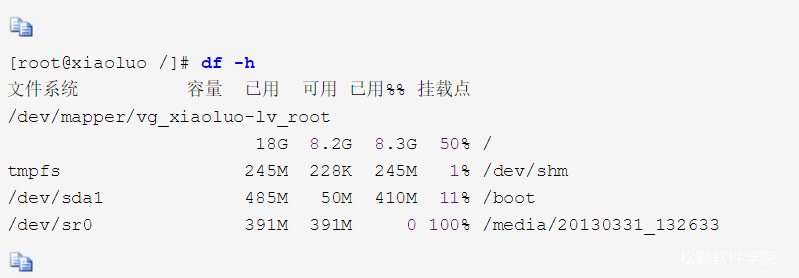
Therefore, based on the above overview, to summarize the key points to note when partitioning Linux during installation, we generally allocate three partitions:
①/boot partition, usually allocated 500M for this partition, varying based on the Linux version and personal partitioning habits.
②swap partition, typically allocated twice the size of physical memory, but preferably not exceeding 256M, so I allocated 256M for this partition.
③/ partition, which is the root directory; this partition should be allocated as much space as possible, utilizing all remaining space on the hard disk after allocating for /boot and swap partitions.
Special thanks to the original author, reprinted from: http://www.cnblogs.com/xiaoluo501395377/archive/2013/04/03/2997098.html


Songqin Website: www.songqinnet.com
WeChat Official Account: Songqin Software Academy
Software Testing Communication QQ Group: 64207188
Software Automation Testing QQ Group: 398140461
Software Performance Testing Communication QQ Group: 348074292