The Dark Side of Linux Permissions: Why Root Abuse Can Lead to Disaster?
Link: https://blog.csdn.net/GGDxianv/article/details/144171476?


☞ The course by Liang Xu has completely exploded! ☜
Linux Permissions (A Comprehensive Understanding of Linux Permissions)
• 1. Two Types of Users in Linux
•
• Super User (root) and Regular User
• su Command
• sudo Command
• 2. Linux Permission Management
•
• 2.1 File Accessors
•
• Owner
• Group
• Others
• 2.2 File Types and Access Permissions
•
• File Types
• Representation of File Permission Values
• Methods for Setting File Access Permissions (chmod)
• Changing File Owner or Group (chown and chgrp)
• 2.3 Directory Permissions
• 2.4 Default Permissions
•
• umask Permission Mask
• 2.5 Sticky Bit
1. Two Types of Users in Linux
Super User (root) and Regular User
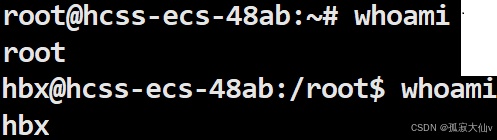
There are two types of users in Linux: the Super User (root) and Regular Users.The Super User can do anything in Linux without restrictions.Regular Users are limited in what they can do in Linux.
You can check whether you are a Super User or a Regular User by using the whoami command.
The command prompt for the Super User is #, while the prompt for Regular Users is $.
su Command
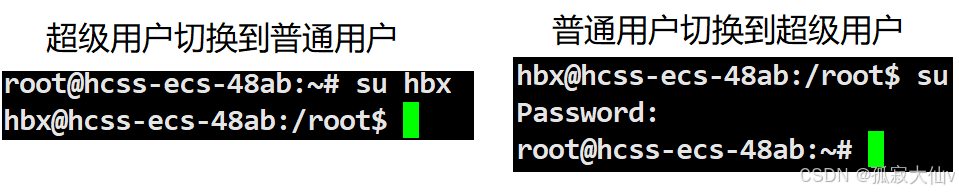
How do we switch users in different contexts?We can switch users using the su command. To switch from the Super User to a Regular User, use su followed by the Regular User’s username. To switch from a Regular User to the Super User, simply use the su command and enter the Super User’s password.
sudo Command
The sudo command allows Regular Users to temporarily elevate their privileges for specific commands.When using sudo, you may encounter errors. This is because there is a whitelist-like mechanism; the current user does not have sudo privileges.To use sudo, your current user must be configured in the /etc/sudoers file. An administrator needs to add the current user to the group that is allowed to use sudo (usually sudo or wheel). This is not a major issue, but if you want to know more, you can check this blog post: Detailed Explanation of the Linux Command sudo
2. Linux Permission Management
2.1 File Accessors
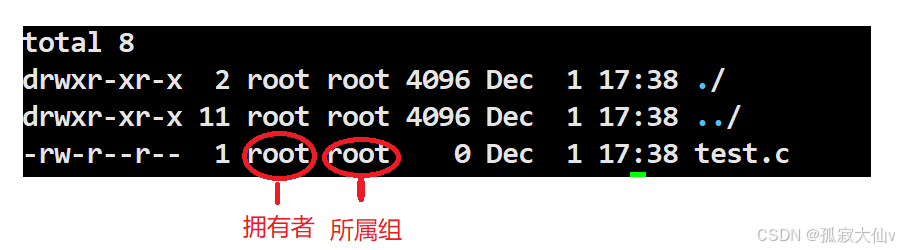
In simple terms, the essence of permissions is what can and cannot be done. Permissions primarily restrict roles, and the target must have the corresponding attributes.Linux permissions consist of roles and target permission attributes.Permissions = Role + Target Permission AttributesRoles include Owner, Group, and Others.
Roles:
1. Owner 2. Group 3. Others
Owner (User, u): The owner of the file or directory.Group (Group, g): The user group to which the file or directory belongs.Others (Others, o): All users other than the file owner and group members.
Owner
The owner is the current user in Linux, whether they are a Super User or a Regular User. The owner of the file or directory.
Group
The users in the group to which the file or directory’s owner belongs. More granular permission management requires more detailed identity roles.
Others
Other users. However, we find that Others are not recorded.Others do not need to be recorded due to log redundancy and excessive auditing issues, as Others include all users who are not the file owner or group members, making operations frequent and difficult to record accurately. The focus of auditing differs; administrators are more concerned with specific users, groups, and command executions rather than every change in Others permissions. In terms of security and permission management, changes to Others permissions are usually infrequent and should not occur often, so they generally do not need special recording.
2.2 File Types and Access Permissions
Insert image description hereInsert image description here
File Types
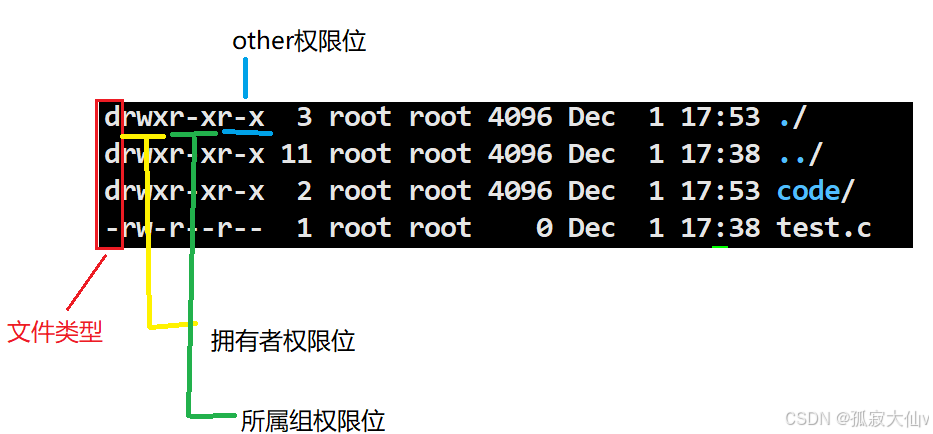
d indicates a directory, – indicates a file.
Representation of File Permission Values
r indicates read permission, w indicates write permission, x indicates execute permission.
drwxr-xr-x 2 root root 4096 Dec 1 17:53 code/
In the above example, the owner has read, write, and execute permissions, the group has read and execute permissions but not write, and others have read and execute permissions but not write.
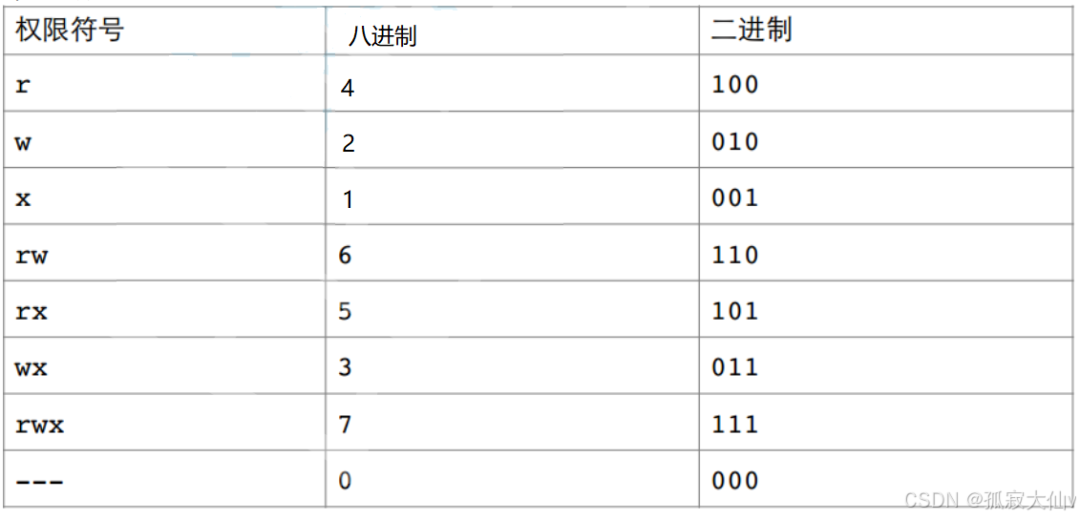
Numeric expression
Insert image description here
These rwx are binary states; they are either allowed or not allowed. Therefore, if the permissions are rw-rw-r–, the binary is 110 110 100, and the octal is 664.
Methods for Setting File Access Permissions (chmod)
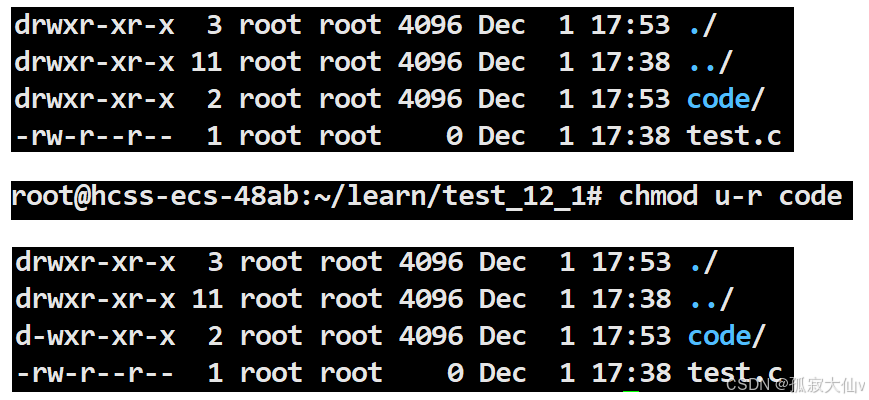
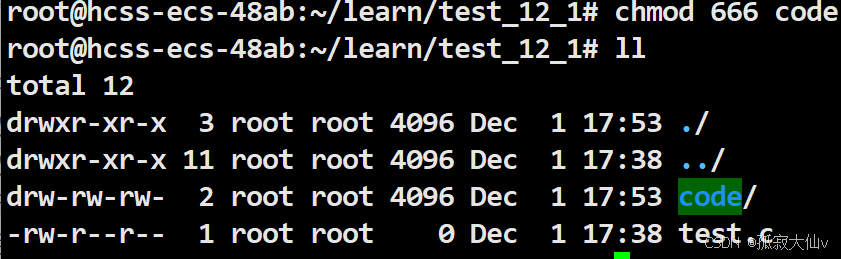
The chmod command sets the access permissions for files.
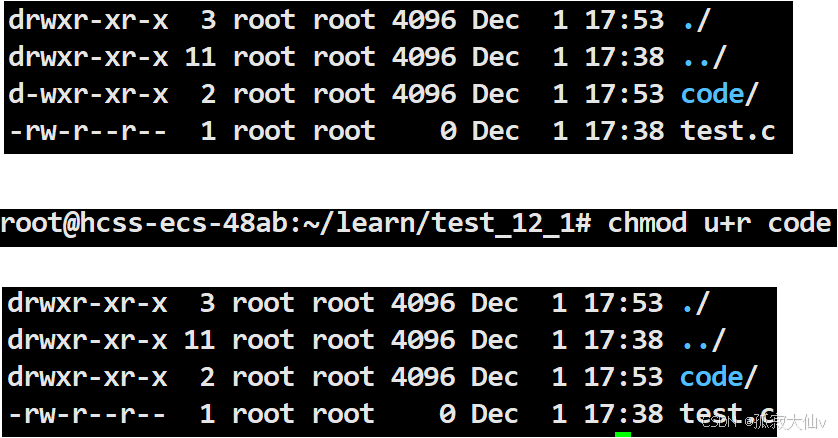
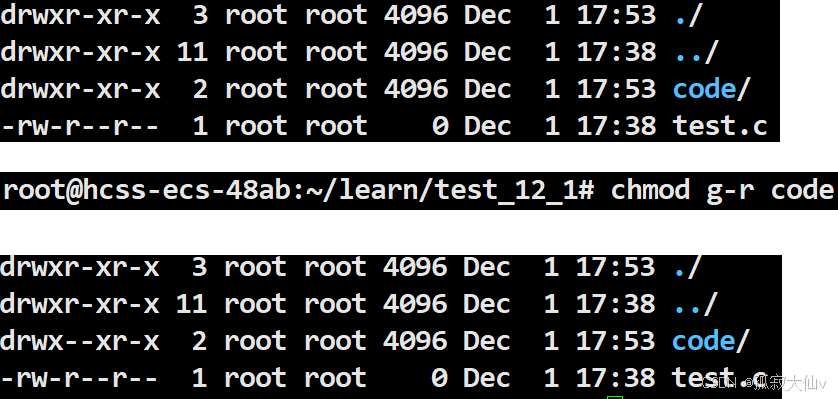
chmod u-r code
This modifies the read permission for the owner of the file code, changing it from allowed to not allowed.
Previously, we learned about numeric expressions and the conversion between binary and octal. When modifying file access permissions, you can also use octal notation.
Octal 666 corresponds to binary 110 110 110, which is rw- rw- rw-.
1. Users can only modify their own file permissions.
2. Without permission, the system will deny access.
3. When determining permission information, the system will determine user roles and only do so once. The determination proceeds from Owner, to Group, to Others.
4. The root user’s permissions are unrestricted.
5. The above describes a series of executions; executable permissions != file executable.
Changing File Owner or Group (chown and chgrp)
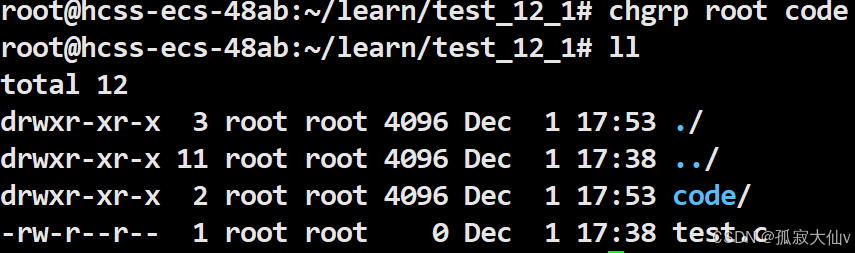
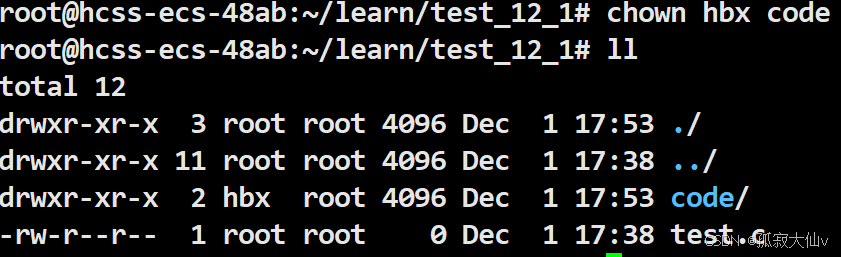
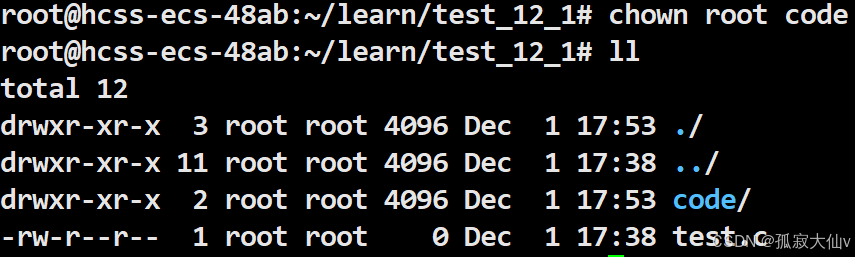
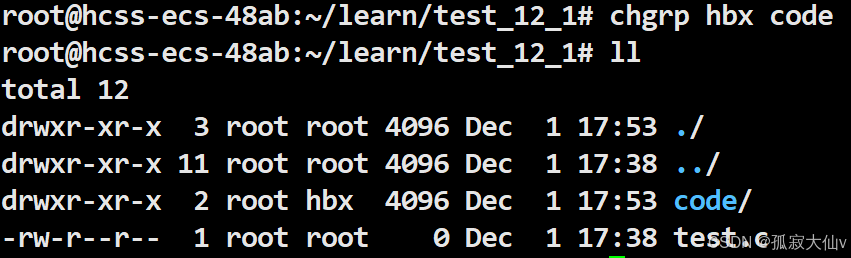
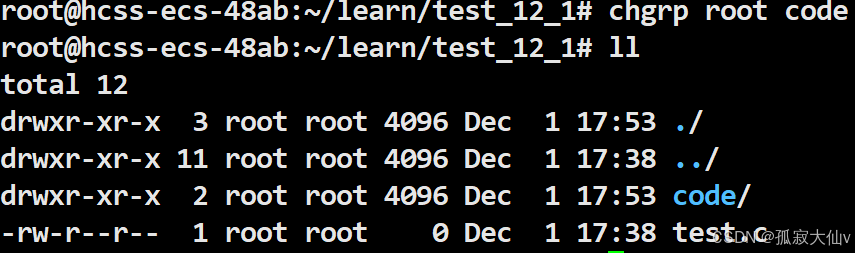
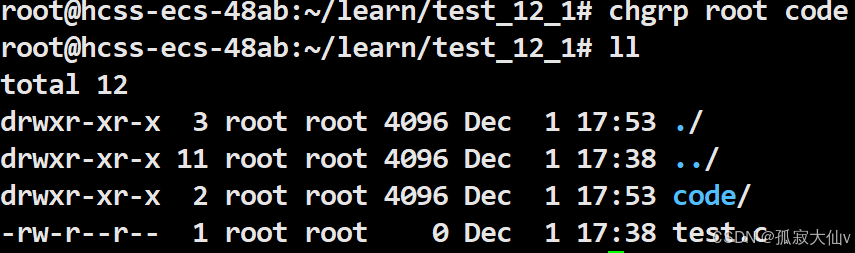
chown changes the owner of a file/directory.chgrp changes the group of a file/directory.
Change the owner of the code file from the root Super User to a Regular User.
Insert image description here
Change the owner of the code file from a Regular User to the Super User.
Insert image description here
Change the group of the code file from the Super User to a Regular User.
Insert image description here
Change the group of the code file from a Regular User to the Super User.
Insert image description here
Note:When we are Regular Users, the system defaults to not allowing us to transfer files to others. If you want to give files to others, you must elevate your privileges. It is reasonable that a Regular User cannot transfer files to others.
Insert image description here
2.3 Directory Permissions
We previously learned about directory types; those starting with d are directories, while those starting with – are files.
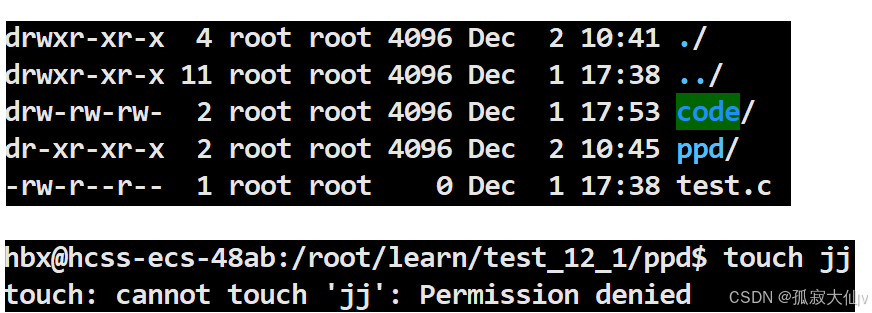
Note: This applies to Regular Users; Super Users are not restricted.
1. If a directory does not have r, you cannot view the files inside the directory.
2. If a directory does not have w, you cannot create files in the directory. Insert image description here
2.4 Default Permissions
For regular files, the initial permission is 666, which does not include execute permission by default.For directory files, the initial permission is 777, which includes execute permission by default.
umask Permission Mask
Final permissions = Initial permissions & (-umask)The purpose of umask is to ensure that any permissions appearing in umask do not appear in the final permissions.
The default permissions are determined by the operating system and cannot be modified before creation. By using umask, the system can be configured flexibly to meet various needs. Configuring umask allows control over the default permissions of files, ensuring our code is manageable.
2.5 Sticky Bit
In a Regular User’s directory, creating a file as a Regular User and a file as a Super User. The access permissions of the Regular User’s file relative to the Super User’s file are Others, and under the Regular User, operations can be performed on the Super User’s file based on rwx. If the access permissions for the Super User’s file are changed to not writable, not readable, and not executable for Others, then the Regular User cannot perform any operations on the Super User’s file. However, the Regular User can delete this file. This leads to the conclusion that whether a file can be deleted is not related to the file itself but to the w permission of the directory in which it resides.
When two users need to share a file, the tmp directory serves as a public directory in a multi-user environment. A public directory is created under the tmp directory, allowing both users to modify it. Of course, users outside of these two can also modify this file. This is where the sticky bit comes into play.
Insert image description here
In Linux systems, the sticky bit is a special permission bit primarily used to control the deletion of files within specific directories. Once the sticky bit is set,the current user can only delete their own shared files and cannot delete another user’s shared files. Only the file owner or the root user can delete or move that file, while other users, even with write permissions, cannot delete or move these files.
Insert image description here
When a directory is set with the “sticky bit” (using chmod +t)
chmod +t directory  # Set sticky bit for the directory
chmod -t directory  # Remove sticky bit from the directory
Deleting a shared file in the tmp directory, root deletes it.