Systemd, as the default initialization system and service manager for Linux systems, significantly enhances system boot efficiency through its parallel startup, dependency management, and unified configuration mechanisms. The implementation mechanism of Systemd for auto-start requirements is as follows:
1. Service Unit Mechanism
Systemd abstracts each service/script as a .service unit file, which contains declarative configurations such as startup commands, dependencies, and runtime environments.
2. Dependency Control and Target Binding
By associating the service with the system run target through the [Install] section’s WantedBy=multi-user.target, it ensures that the service starts automatically after the operating system completes its basic initialization.
3. Strong Consistency Assurance
Systemd monitors service processes, supports automatic restarts and log collection, ensuring the continuous availability of auto-start services.
Script Auto-Start
Configure Systemd Service Unit for Script Auto-Start
1. First, create the test1.sh script
root@elf2-desktop:~# cd /home/elf
root@elf2-desktop:/home/elf# vi test1.sh
Add the following content:
#!/bin/bashecho "start" >> /home/elf/c.txt2. Grant executable permissions to the script
root@elf2-desktop:/home/elf# chmod 777 test1.sh3. Create the service file to be started
Create and edit the test1.service file
root@elf2-desktop:/home/elf# vi /etc/systemd/system/test1.serviceEdit the following content in test1.service
[Unit]
Description=/etc/rc.local Compatibility
After=multi-user.target
[Service]
Type=forking
ExecStart=/home/elf/test1.sh
[Install]
WantedBy=multi-user.target
4. Let the system recognize the custom service file and set it to start at boot
root@elf2-desktop:/home/elf# systemctl daemon-reload
root@elf2-desktop:/home/elf# systemctl enable test1.service
5. Execute sync and reboot
root@elf2-desktop:/home/elf# sync
root@elf2-desktop:/home/elf# reboot
6. Verification
root@elf2-desktop:~# cat /home/elf/c.txt
start  // Reading the file content, if "start" appears, it indicates that the script auto-start succeeded.
Interface Application Auto-Start
Configure Systemd Service Unit for Interface Application Auto-Start
1. First, create the test2.sh script
root@elf2-desktop:~# cd /home/elf
root@elf2-desktop:/home/elf# vi test2.sh
Taking HelloWorld as an example for testing, add the following content:
#!/bin/bash
sleep 3
export DISPLAY=:0.0
/home/elf/HelloWorld &
The reason for sleep 3 is that the multi-user startup sequence is earlier, and not adding the sleep parameter may cause the application to fail to start. During the Ubuntu system startup process, user interface applications need to wait for the interface components to be ready. Here, it takes about 2 seconds for elf2 to normally enter the system, so the application is started after a delay of 3 seconds.
2. Grant executable permissions to the script
root@elf2-desktop:/home/elf# chmod 777 test2.sh3. Create the service file to be started
Create and edit the test2.service file
root@elf2-desktop:/home/elf# vi /etc/systemd/system/test2.serviceEdit the following content in start.service
[Unit]
Description=/etc/rc.local Compatibility
After=multi-user.target
[Service]
Type=forking
ExecStart=sudo -u elf /home/elf/test2.sh
[Install]
WantedBy=multi-user.target
4. Let the system recognize the custom service file and set it to start at boot
root@elf2-desktop:/home/elf# systemctl daemon-reload
root@elf2-desktop:/home/elf# systemctl enable test2.service
5. Execute sync and reboot
root@elf2-desktop:/home/elf# sync
root@elf2-desktop:/home/elf# reboot
6. Verification
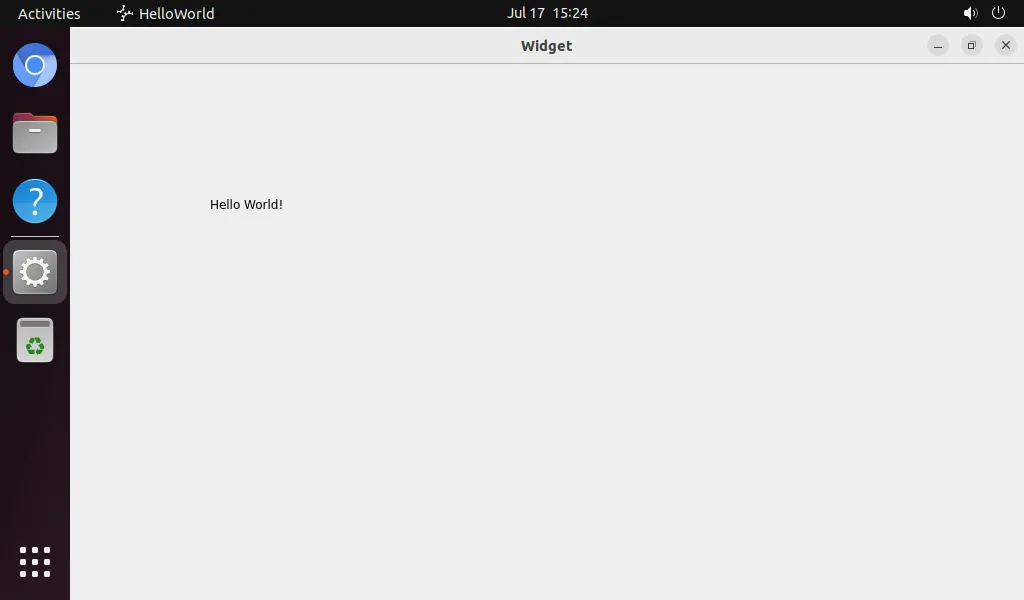
Interface Configuration for Auto-Starting Applications
By using the gnome-session-properties command, you can open the auto-start project configuration interface, where you can add your own applications/scripts. The following is a test using HelloWorld as an example.
1. Execute the command in the debug serial port
elf@elf2-desktop:~$ export DISPLAY=:0.0
elf@elf2-desktop:~$ gnome-session-properties
At this point, the board will display the following interface:
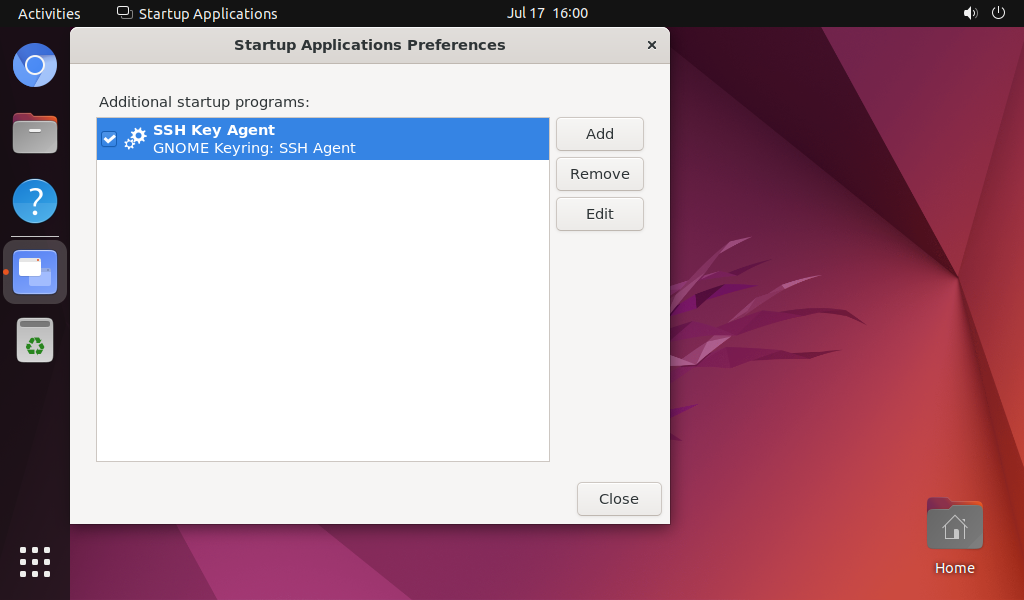
Select Add to add your startup script
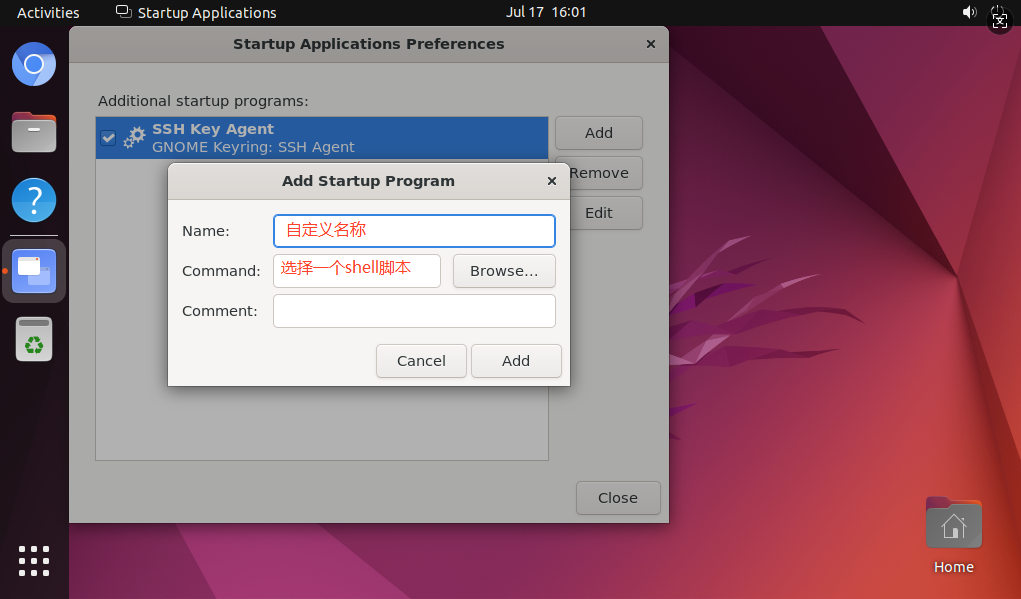
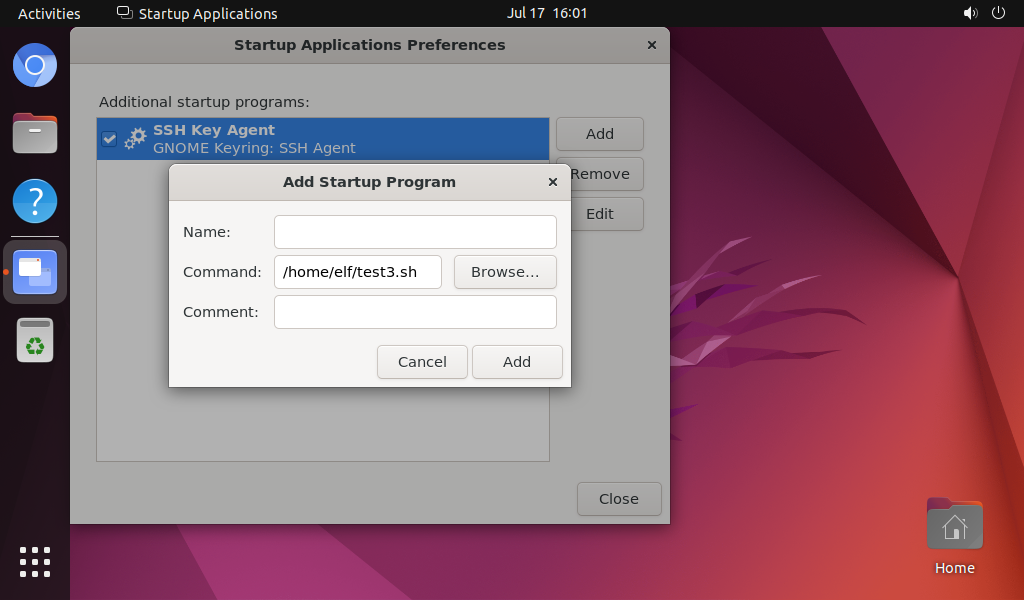
After selecting Add, follow the prompts to save and exit.
2. The content of the added test3.sh script is as follows:
#!/bin/bashexport DISPLAY=:0.0
/home/elf/HelloWorld &
3. Grant executable permissions to the script
chmod +x /home/elf/test3.sh4. Sync to save and reboot, verify if it auto-starts
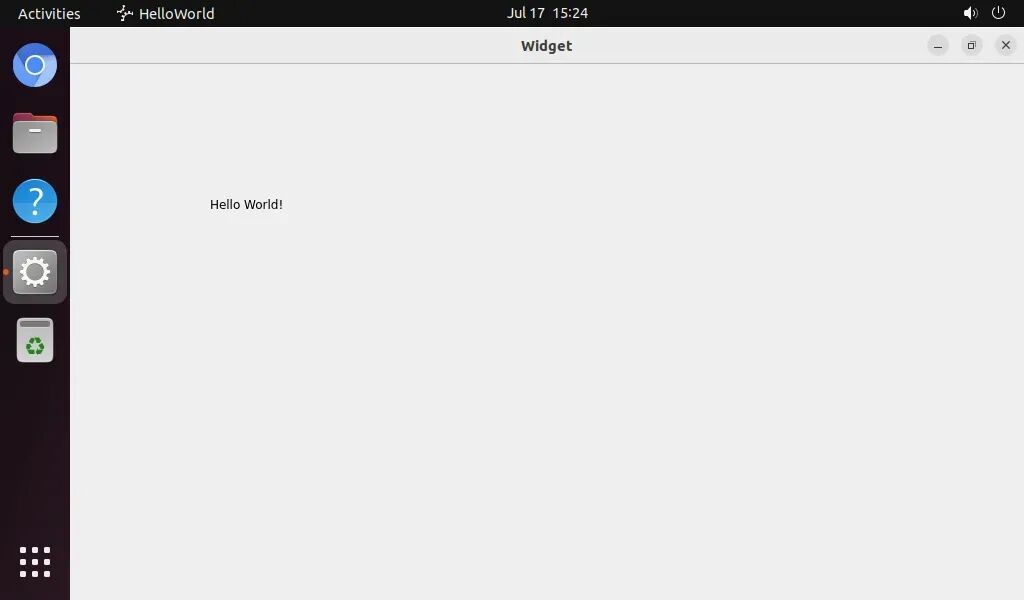
Hide the sidebar when running applications
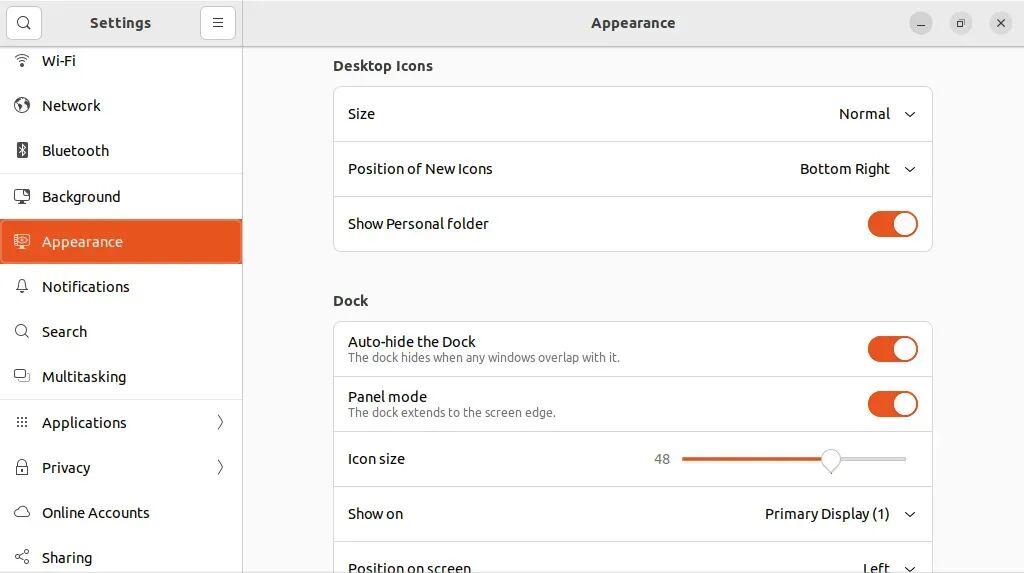
By selecting “Auto-hide the dock” in the system settings, the sidebar will hide when running Qt and other applications. The running effect is as follows: