GPU
Occasionally, you might hear embedded Linux players complain about their development boards: the graphical interface is not smooth, and there is a lag when dragging windows.
This situation is generally caused by two reasons:
-
The performance of the main control SOC on the development board is relatively weak and does not support 3D graphics acceleration (i.e., GPU), such as the i.MX6ULL.
-
The SOC on the development board has a GPU, but it is not utilized.
The first reason is basically unsolvable; if the SOC you chose does not have a GPU, the only way is to try to run a lightweight graphical interface. If you want to run Debian or Ubuntu, which typically come with Gnome or KDE, without GPU support, all image composition and rendering must be processed by the CPU, which is difficult to run smoothly. Therefore, if you value graphical display capabilities, you must check whether the main control SOC paired with the development board has a GPU.
Many people also get stuck on the second issue. The SOC is equipped with a powerful GPU, such as RK3399 or S912, which both come with Arm Mali GPU, but the mainline kernel lacks corresponding driver support. GPU drivers generally consist of two parts: a small part in the Linux kernel and a larger part in userspace. The userspace part interacts with the kernel driver and provides a standard OpenGL interface to the application layer, allowing various graphics-related applications to use the standard OpenGL API for rendering acceleration.
However, Arm, the provider of the Mali GPU IP, only opens the kernel portion of the driver, and this part has not been implemented according to the Linux kernel standards in the Drm framework, so it cannot be accepted by the Linux mainline. Another important part, the userspace section, is not open-sourced by Arm and is only provided to SOC manufacturers who purchase Mali GPU licenses, such as Rockchip and Amlogic. Moreover, this code is primarily designed for the Android system, making it poorly compatible with Debian or Ubuntu.
At this point, you might want to curse Arm, but it cannot be entirely blamed on them, as this is not a unique approach by Arm; other GPU suppliers do the same, such as Nvidia, Vivante, and Imagination. Linus, the great master, even flipped off Nvidia over this issue, shouting, “Nvidia, F*K you!”
Faced with this situation, many people, in order to utilize GPU acceleration, can only use the kernels and systems provided by the SOC manufacturers, which are generally quite old.
If you want to run the mainline kernel, you basically cannot use GPU acceleration. This is also why most development boards with mainline kernels generally do not have GPU acceleration capabilities or simply do not enable graphical display functions.
However, there are some hackers who are dissatisfied with this blockade. They are brave enough to explore and actively try to reverse-engineer the binary libraries released by Arm, and then rewrite open-source drivers for the Arm Mali GPU, which were eventually merged into the mainline when Linux 5.2 was released: the driver for Mali-400/Mali-450 is called Lima, while the driver for Mali-T6xx / Mali-T7xx / Mali-T8xx GPUs and the GXX series is called Panfrost. The open-source library for the userspace part is called Mesa, and support for Mali GPUs started from Mesa 19.2.
This article mainly discusses how to enable GPU acceleration on the RK3399 development board running the mainline Linux kernel: RK3399 integrates the Mali-T860 GPU, so we can use the Panfrost driver from the Linux kernel + the Mesa in userspace to unlock 3D graphics acceleration capabilities.
Starting the Panfrost GPU Driver
-
Enable the Panfrost GPU driver in the kernel
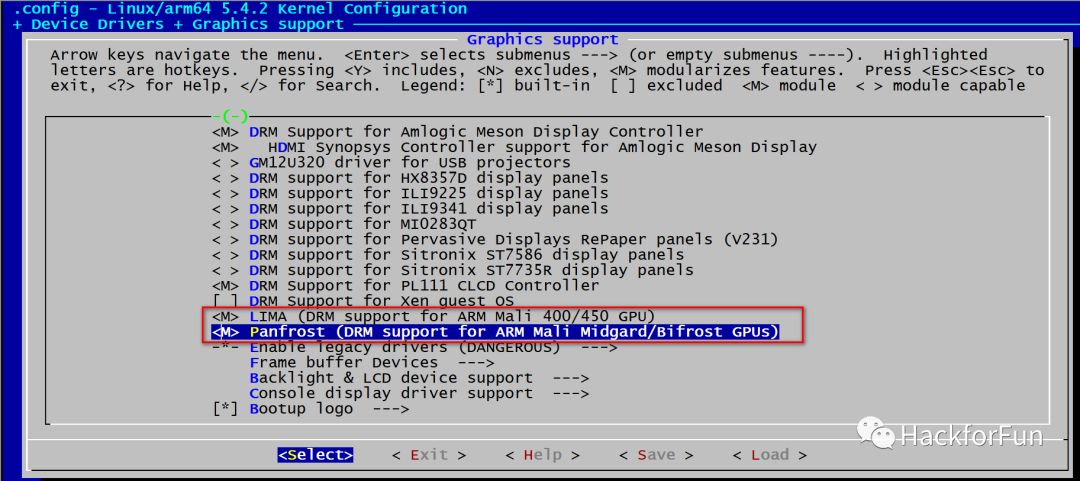
It can be compiled into the kernel by default or loaded as a module.
For information on adapting the mainline Linux kernel on RK3399, refer to:Deploying the Latest Linux 5.4 and U-Boot v2020.01 on RK3399 article.
If the Panfrost GPU driver loads correctly, we will see logs similar to the following:

cat /proc/interruptsshows the interrupts registered by the Panfrost GPU driver:
Both gpu and job are interrupts registered by the Panfrost GPU driver.
The numbers 112 and 2169 on the left represent the current number of interrupts generated.
This is quite important; we can determine if the GPU is working by observing whether interrupts are generated.
-
Install Weston
Weston is a software framework responsible for composing the layers of various application displays. It is implemented according to the Wayland standard and aims to replace the long-standing X11 on Linux PCs. If you are familiar with the Android graphics system, it is equivalent to HWC in Android.
Since I have ported the Debian system to the RK3399 development board, I can install it directly using the apt install command without cross-compiling.
apt install weston -
Install Gnome
Gnome is a well-known desktop environment on Linux, comparable to KDE, and is the default desktop for many popular Linux distributions such as Ubuntu, Debian, and Fedora.
apt install gnomeIf the following option pops up during installation, remember to select gdm3:
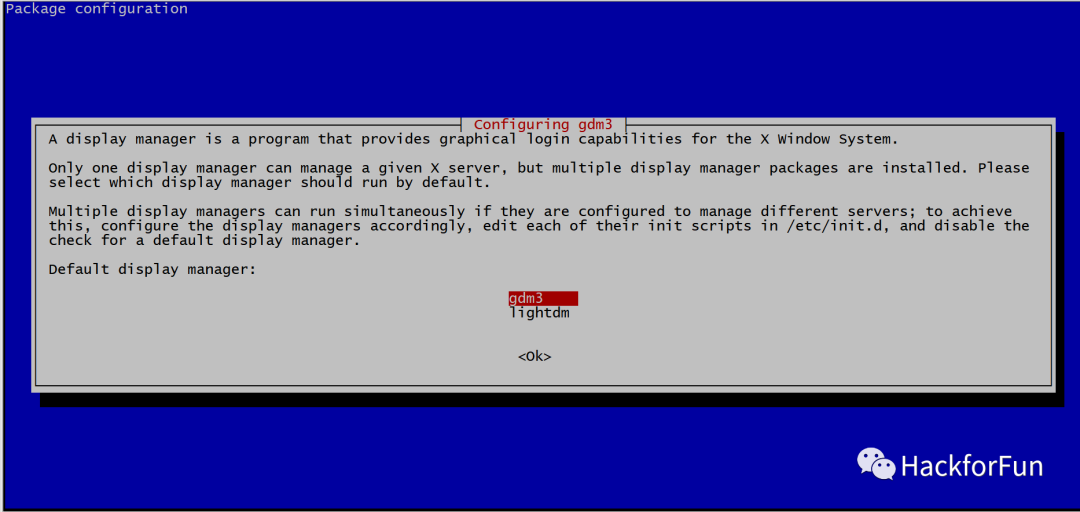
-
Allow root login in GDM
GDM stands for Gnome Display Manager, which provides login management functions in the Gnome environment. By default, it prohibits root login. Therefore, if you want to log in to the desktop system as root, you need to make the following modifications:
Comment out the following line in the
/etc/pam.d/gdm-passwordfile:#auth required pam_succeed_if.so user != root quiet_successAt this point, we can already use the Debian desktop system on RK3399, but you will find it is not that smooth because the GPU has not been fully utilized. You can quickly check if the GPU is working using the following methods:
-
cat /proc/interruptsto check the number of interrupts generated by jpu and job. If the GPU is working, interrupts will be generated frequently. -
Run
topcommand to observe CPU utilization. If the GPU is not working, all image rendering relies on the CPU, and the CPU usage will be high.
Install dependencies
As mentioned earlier, GPU drivers are divided into two parts: one part in the kernel, which we have already enabled, and another important part in userspace, which is called Mesa for the Panfrost GPU driver. Mesa cannot be installed directly; we need to compile it on the RK3399 development board.
First, install some dependency libraries:
sudo apt install flex bison python3-mako libwayland-egl-backend-dev libxcb-dri3-dev libxcb-dri2-0-dev libxcb-glx0-dev libx11-xcb-dev libxcb-present-dev libxcb-sync-dev libxxf86vm-dev libxshmfence-dev libxrandr-dev libwayland-dev libxdamage-dev libxext-dev libxfixes-dev x11proto-dri2-dev x11proto-dri3-dev x11proto-present-dev x11proto-gl-dev x11proto-xf86vidmode-dev libexpat1-dev libudev-dev gettext mesa-utils xutils-dev libpthread-stubs0-dev ninja-build bc python-pip flex bison cmake git valgrind llvm llvm-8-dev python3-pip pkg-config zlib1g-dev wayland-protocols mesonCompile and install libdrm
libdrm is a library that encapsulates the API for interacting with the Linux Kernel DRM driver.
git clone git://anongit.freedesktop.org/mesa/drm
cd drm
meson build --prefix=/usr
ninja -C build
sudo -E ninja -C build install
cd ..
Compile and install mesa
Mesa implements the userspace part of the Panfrost GPU driver, which interacts with the kernel GPU driver and provides a standard OpenGL interface for various drawing applications.
git clone git://anongit.freedesktop.org/mesa/mesa
cd mesa
meson -Ddri-drivers= -Dvulkan-drivers= -Dgallium-drivers=panfrost,kmsro -Dlibunwind=false -Dprefix=/usr build/
ninja -C build/
sudo ninja -C build/ install
Compile and install SDL
If you want to run some emulators or games, such as SuperTuxKart, you might need this library.
git clone https://github.com/SDL-mirror/SDL.git
cd SDL
mkdir build
cd build
cmake ../
make -j6
sudo make install
At this point, all GPU-related software has been installed. Restart the system, log into the graphical desktop, and you can start using the GPU.
Running Glmark2 Test
Glmark2 is a well-known GPU benchmark testing program that supports OpenGL 2.0 and OpenGL ES 2.0. On Ubuntu, it can be installed directly using the apt install command, while on Debian, it needs to be compiled from source:
 apt install libjpeg62-turbo-dev libpng-dev
 git clone https://github.com/glmark2/glmark2.git
 cd glmark2/
 ./waf configure --with-flavors=drm-gl,drm-glesv2,wayland-gl,wayland-glesv2
 ./waf
 ./waf install
Run the glmark2-es-wayland command to perform the test.
Below is a recording of my test on the RK3399 Leez P710 development board. It may not seem very smooth because the recording software relies on CPU for software encoding, which severely affects the overall system performance.
References
“MaliGraphics”https://wiki.debian.org/MaliGraphics
“ARM Mali GPU”https://en.opensuse.org/ARM_Mali_GPU