When it comes to SD cards, those who use cameras are likely very familiar with them.
An SD card is a portable data storage tool, compact and inexpensive, making it convenient for storing and transferring images, audio, and video files.

However, during use, SD cards often experience file loss due to accidental deletion, formatting, partition issues, and other reasons, especially when important photos or video files are lost.
When an SD card is damaged, accidentally deleted, or formatted, if you want to recover important files, let me teach you a quick method for data recovery!
 1. Common Causes of File Loss on SD Cards
Besides accidentally deleting files, there are quite a few reasons that can lead to data loss on SD cards. Here are some common causes summarized:
1.Dropping, water immersion, compression deformation, wear or oxidation of the metal contact of the SD card, etc., can cause hardware damage to the SD card, leading to data loss or inability to read the SD card data normally.
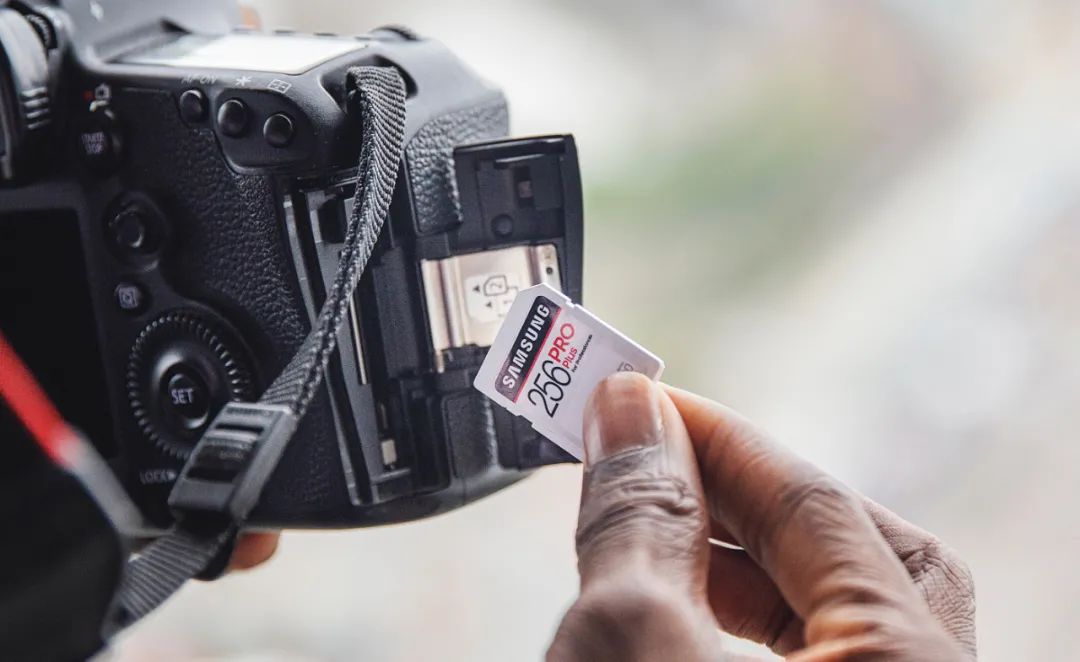
2.Look switch turned off. Most SD cards (except Micro SD) have a look switch on the side; if it is locked in the write-protection direction, it may not read data normally, leading to the misconception that data is lost. Unlocking it allows data to be rewritten;
3.Virus damage. An SD card can get infected with a virus when connected to a computer, causing files to be maliciously encrypted, display garbled text, or be maliciously deleted;
4. Partition adjustment failure. Partition issues can damage the file system or cause exceptions, making partitions inaccessible or prompting “not formatted” errors;
5. Formatting. Whether formatting by oneself or being prompted to format unexpectedly, not backing up important data files beforehand results in significant data loss.
Based on the analysis of these common causes, data loss on SD cards can generally be divided into two situations:
1. Surface damage, meaning that although the data on the SD card is accidentally deleted or lost and cannot be directly recovered, it can still be restored using tools;
2. Physical damage, where the SD card has hardware failures and is no longer recognizable, making recovery difficult.
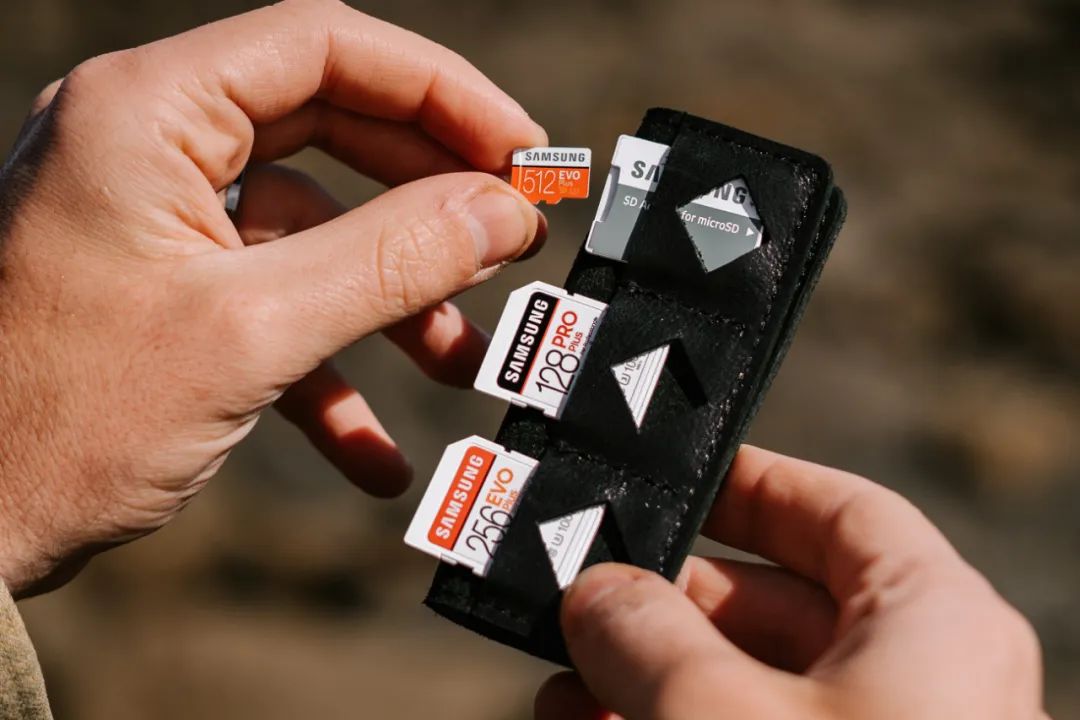
2. Methods for Recovering Lost Files from SD Cards
If our SD card can still be recognized by the computer but the stored files have been accidentally deleted, formatted, or damaged, we can try the following method for recovery.
Operation Guide:
Step 1: Download and install the Windows data recovery tool, check the location of the lost files on the main interface. Based on the naming of the SD card, select the corresponding storage disk.
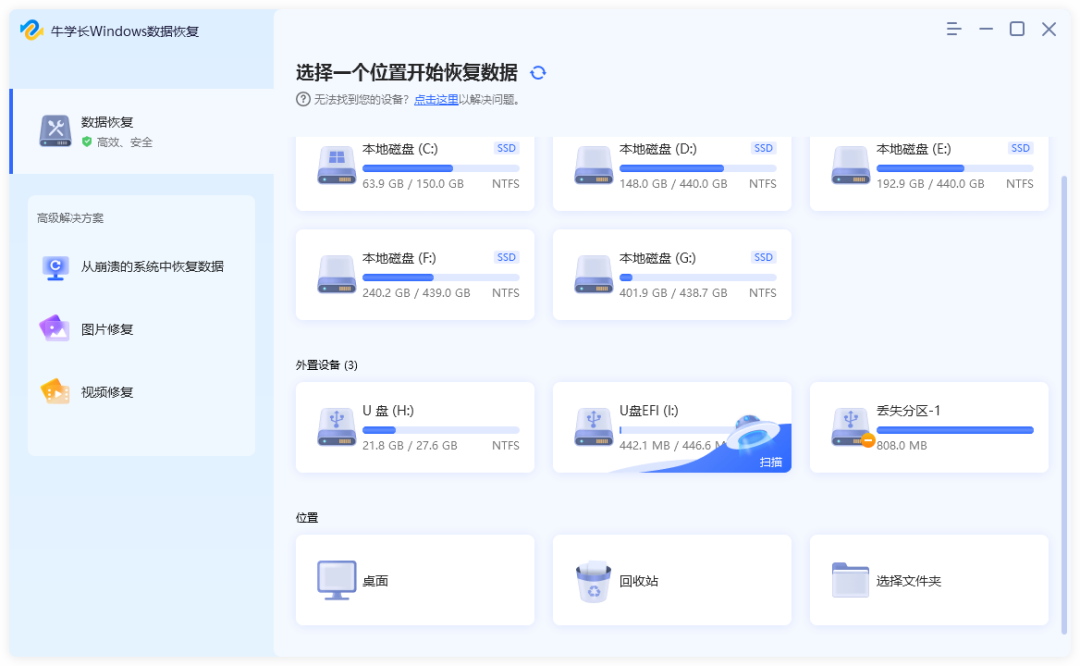
Note: No data recovery software can guarantee 100% complete recovery. If recovery is attempted immediately after data deletion, the recovery probability is relatively high.
Step 2: Scan and preview. Select the file types you want to recover and click “Scan”. The software will thoroughly scan the SD card.
After scanning is complete, the software will list all deleted files in the selected location.

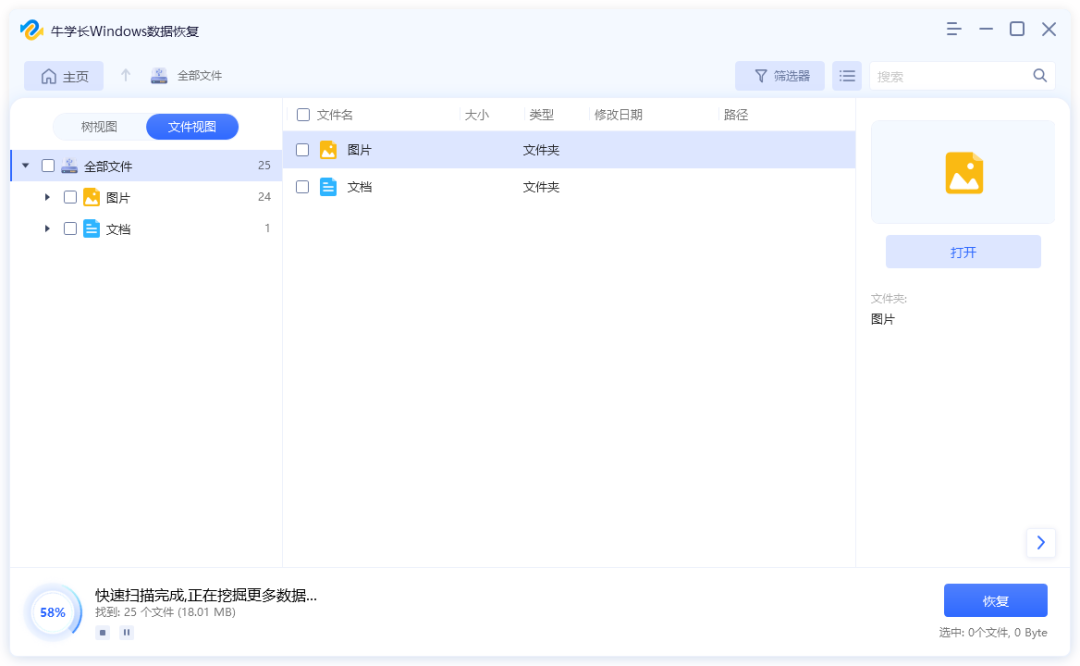
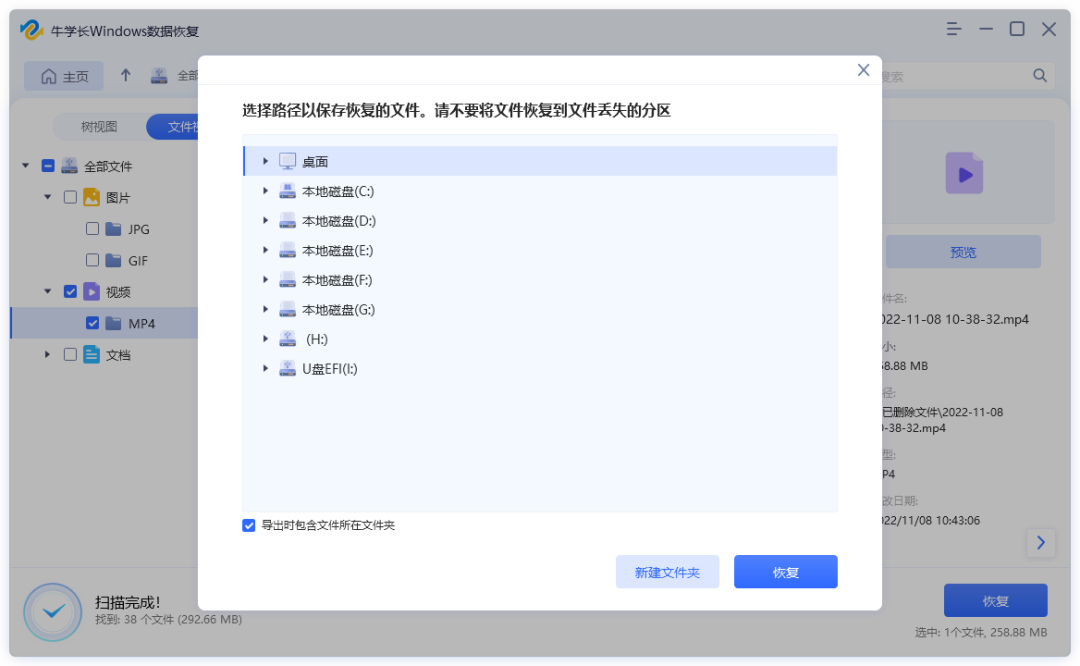
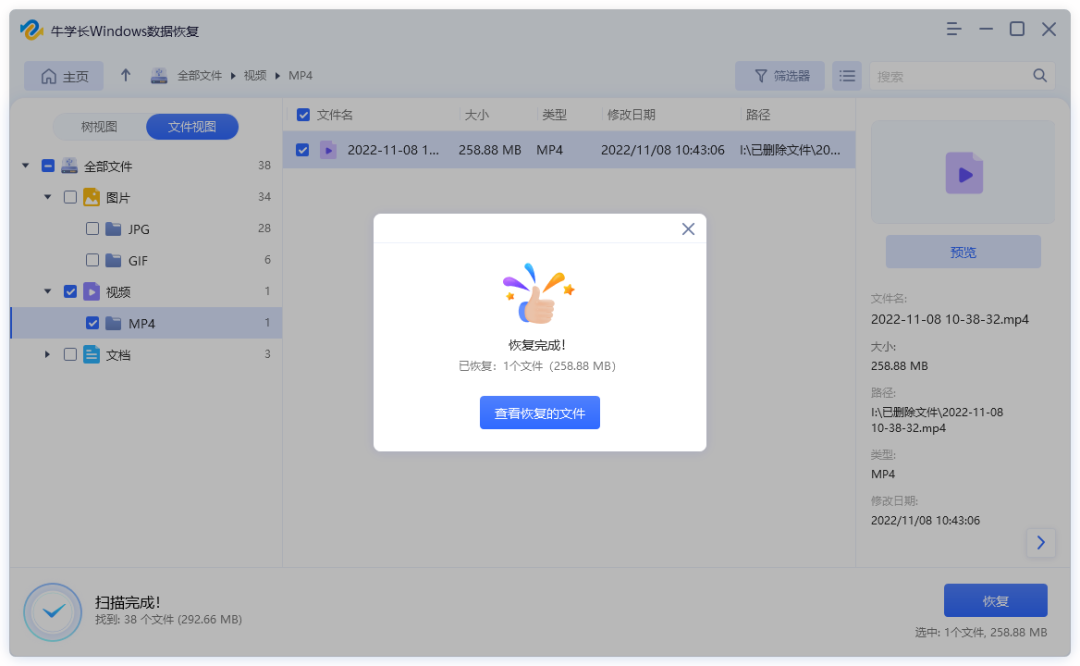
Step 3: Recover deleted files. Check the target files, then click the “Recover” button to save the recovered data.
If the disk has been overwritten and the data is permanently lost, do not save it to the same partition where it was lost.
/////
In just 3 simple steps, you can recover important files lost from your SD card, making it easy for beginners to operate.
Such a useful SD card data recovery tool, why not give it a try?
More exciting reads:
-
How to Check Activation Time for iPhone 14/13, Is It a Second-Hand Phone If the Activation Time Doesn’t Match?
-
How to Recover Important Photos Deleted from iPhone Completely?
-
How to Take Screenshots on iPad Air 5? Summary of 5 Latest Screenshot Methods!
-
Tutorial on Setting Up Dynamic Island Features on iPhone 14, How to Enable & Disable Dynamic Island!
-
If iPhone Contacts Are Accidentally Deleted or Disappeared, Try These 2 Recovery Methods!
-
If iPhone Screen Is Black and Unresponsive, Summarize 2 Rescue Methods!
-
How to Repair Corrupted Video Files on USB Drive? Detailed Illustrated Tutorial