(Note: The code in this article is run using PyCharm)
(Content is concise, reading time is only a few minutes)
In today’s lesson, we will learn how to handle files, which allows our programs to process large amounts of data.
py01 Reading Data from a FilePython is easy to use01Reading the Entire File
First, we create a file to read, which includes the digits of pi to 30 decimal places, with a newline every 10 digits after the decimal point. The file name is: pi_digits.txt
3.1415926535
8979323846
2643383279
Next, place pi_digits.txt in the same directory as the code file we are going to run, and we can start reading the file data through the code.
When we use data from a file, the first thing we need to do is open the file, which can be done using the open() function; when we are done, we need to close the file using the close() function. Failing to properly close the file may lead to data corruption. Besides forgetting to use close() to close the file, sometimes bugs in the program may also prevent the file from being closed properly. To avoid this situation, we can use the with keyword, which opens the file when needed, and Python will close the file at the appropriate time.
So, we need to use with and open() to open the file.
with open('pi_digits.txt') as file_object:
    contents = file_object.read()
    print(contents)
Output:
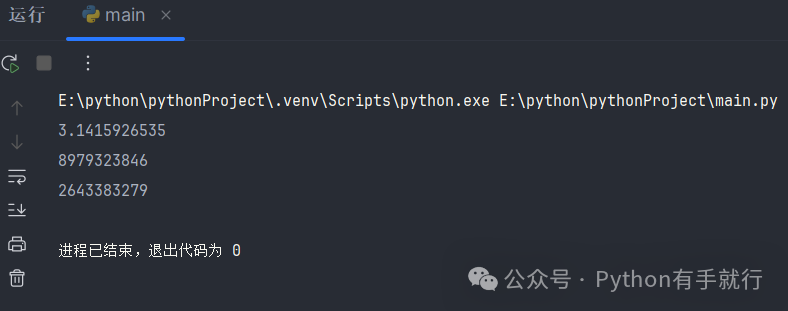
In the code above, besides using with and open(), the other knowledge is what we have learned before. We use as to give an alias to the object representing the file pi_digits.txt returned by open(), named file_object. Then we use the read() function to read the data from the file and store it in contents, and print it out.
If you observe the output of the code above, you will find that the output has an extra blank line compared to pi_digits.txt. We can use the rstrip() function we learned earlier to remove the trailing whitespace, achieving the effect of removing the blank line.
02File Paths
Many times, the file we want to read is not in the same directory as the code file we are running; it may be in a subfolder or any other location. Therefore, we need to tell Python the file path, which can be done using relative paths and absolute paths. When the path is relatively long, we can first store it in a variable and then pass the variable to open().
Let’s assume that pi_digits.txt is located in the subfolder text_files.
It is important to note that when we write the file path, we may encounter ‘text_files\pi_digits.txt’, where the ‘\p’ can cause an invalid escape sequence error. We can solve this problem by adding ‘r’ at the front or using ‘\\’ instead of ‘\’ to avoid this issue.
# Using relative path
with open('text_files\\pi_digits.txt') as file_object:
    contents = file_object.read()
    print(contents)

# Using absolute path
file_path = r'E:\python\pythonProject\text_files\pi_digits.txt'
with open(file_path) as file_object:
    contents = file_object.read()
    print(contents)
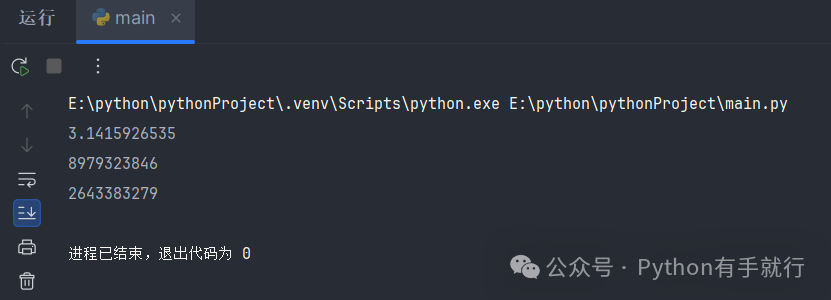
Output (the code for relative and absolute paths is run separately):
 03Reading Line by Line
In the previous lesson, we read the entire content of the file directly, but many times, we need to read line by line and process specific lines. In this case, we can use a for loop to achieve this.
with open('text_files\\pi_digits.txt') as file_object:
    for line in file_object:
        print(line.rstrip())
Output:
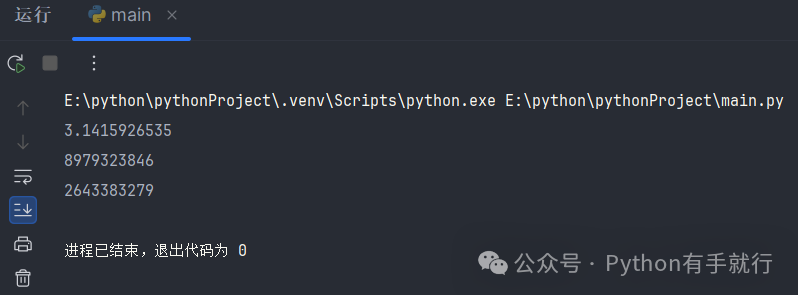
In the code above, we achieved line-by-line retrieval of the file data, but this data is only available within the with code block. When we need to use it outside the with code block, we can create a new list to store the content of each line. This way, we can use it freely outside the with code block.
with open('text_files\\pi_digits.txt') as file_object:
    lines = file_object.readlines()

pi_string = ''
for line in lines:
    pi_string += line.strip()

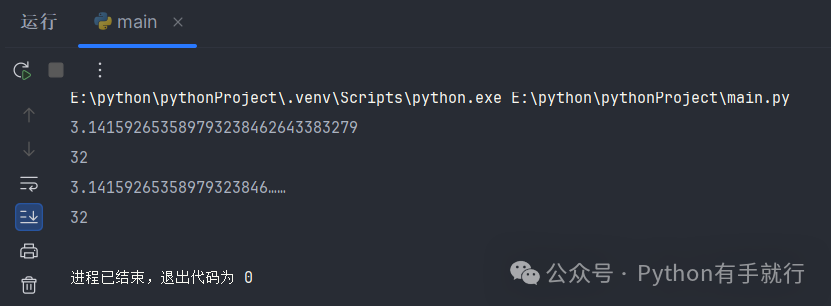
# Print all decimal places of pi contained in the file and show the total number of decimal places
print(pi_string)
print(len(pi_string))
# Print the first 20 decimal places of pi contained in the file and show the total number of decimal places
print(pi_string[:22] + '……')
print(len(pi_string))
Output:
 pyWriting to a FilePython is easy to use
When we use open(), in addition to specifying the file name or file path as an argument, we can also specify the mode in which to open the file. If we do not specify, it defaults to read-only mode. When we need to modify the content, we need to add a second argument. We can choose to specify: read mode (‘r’), write mode (‘w’), append mode (‘a’), or a mode that allows you to read and write to the file (‘r+’).
It is important to note that write mode will replace all original content of the file, while append mode adds new content.
If the file we want to write to does not exist, open() will create a new file for us.
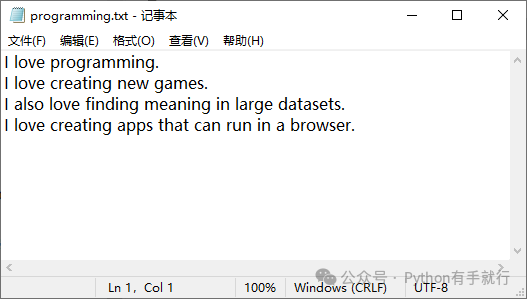
filename = 'programming.txt'
with open(filename, 'w') as file_object:
    file_object.write("I love programming.\n")
    file_object.write("I love creating new games.\n")

with open(filename, 'a') as file_object:
    file_object.write("I also love finding meaning in large datasets.\n")
    file_object.write("I love creating apps that can run in a browser.\n")
At this point, the program runs without terminal output, and the content is directly saved in the file.
 Recommended Articles
Python Foundation | DAY 14 Classes (Part 1) – “Python Programming: From Beginner to Practice”
Python Foundation | DAY 13 Functions (Part 2) – “Python Programming: From Beginner to Practice”
Python Foundation | DAY 13 Special Edition: Cross-Directory Module Import
 Every like you give, I take it seriously as a sign of appreciation