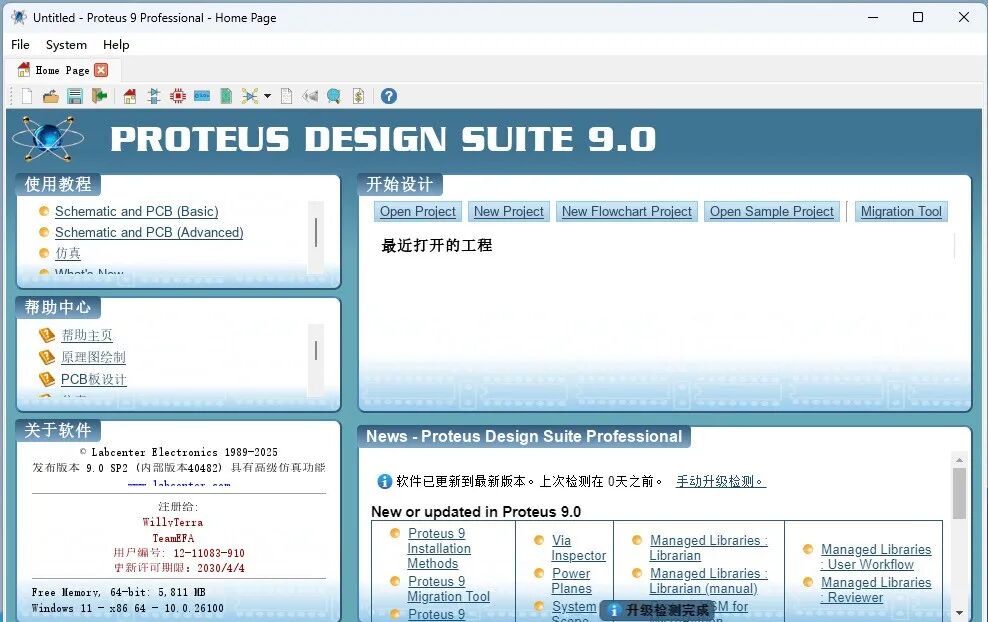
 SoftwareDescription
[Name]:Proteus 9.0
[Language]:Chinese
[Installation Environment]:Windows 7 and above (64-bit) operating system
[Download Link]:
https://pan.baidu.com/s/1gMnMmV-LJQROqDfA6ElGLg?pwd=m7jc
SoftwareIntroduction
Proteus is a renowned EDA tool (simulation software) that allows for schematic layout, code debugging, and co-simulation of microcontrollers and peripheral circuits, with a one-click switch to PCB design, achieving a complete design from concept to product. It is the world’s only design platform that integrates circuit simulation software, PCB design software, and virtual model simulation software into one. Its processor models support 8051, HC11, PIC10/12/16/18/24/30/DSPIC33, AVR, ARM, 8086, and MSP430, with continuous additions of other series processor models. In terms of compilation, it also supports various compilers such as IAR, Keil, and MATLAB.
InstallationSteps
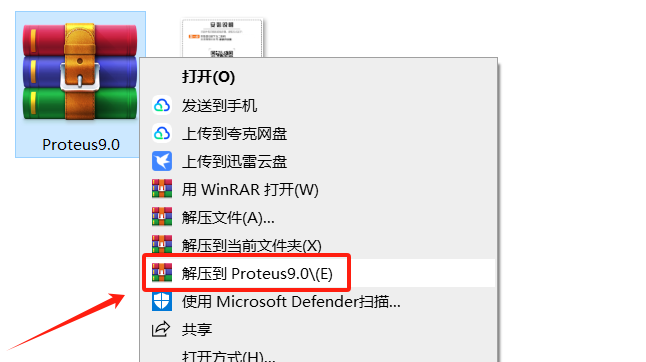
1. Extract the installation package: ① Right-click on the 【Proteus9.0】 compressed package ② Click 【Extract to Proteus9.0】.
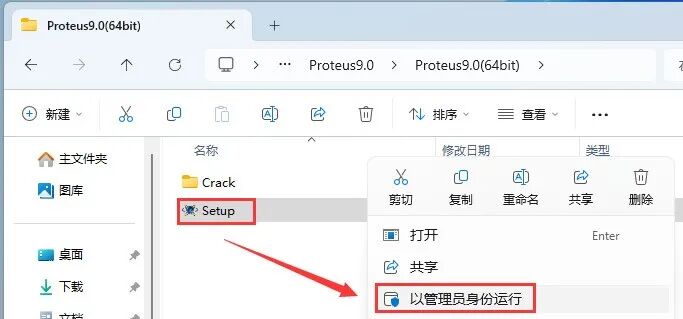
2. Double-click to open the extracted folder, right-click on 【Setup】 and select 【Run as administrator】.
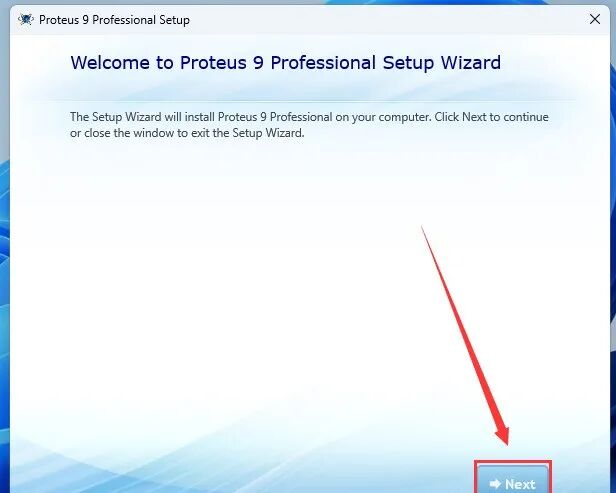
3. Click 【Next】.
4. Check 【I accept…】, then click 【Next】.
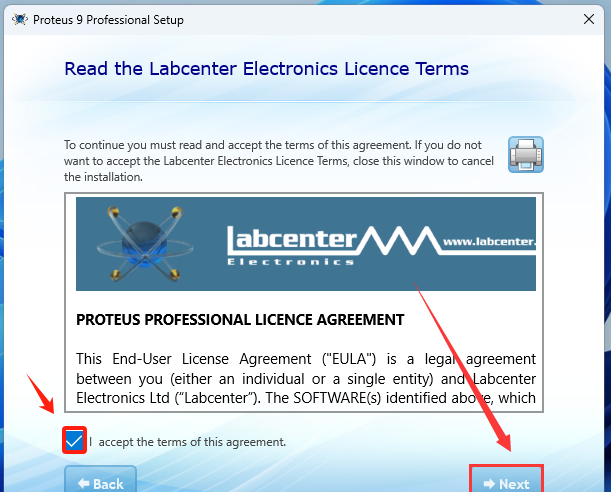
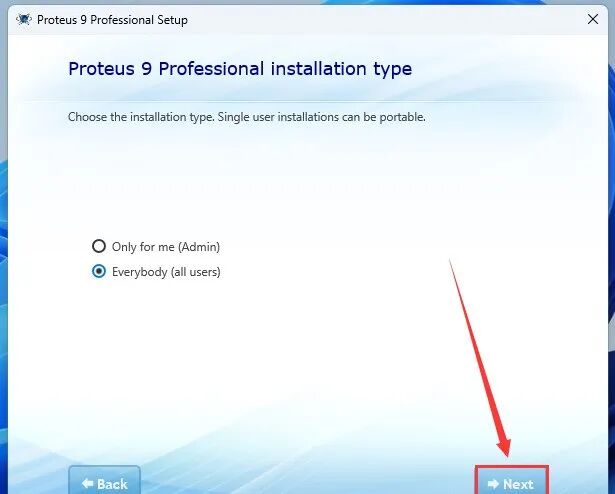
5. Click 【Next】.
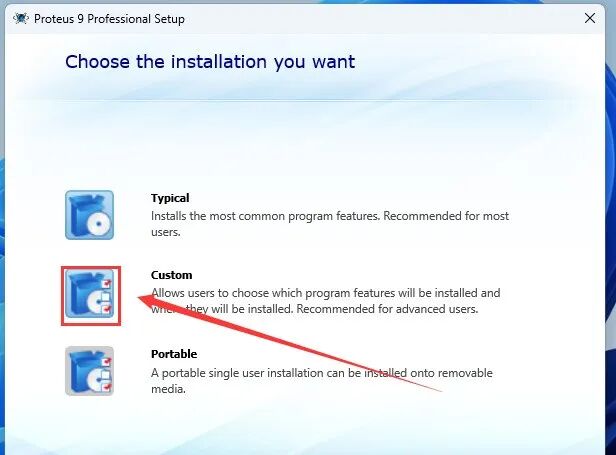
6. Select 【Custom】.
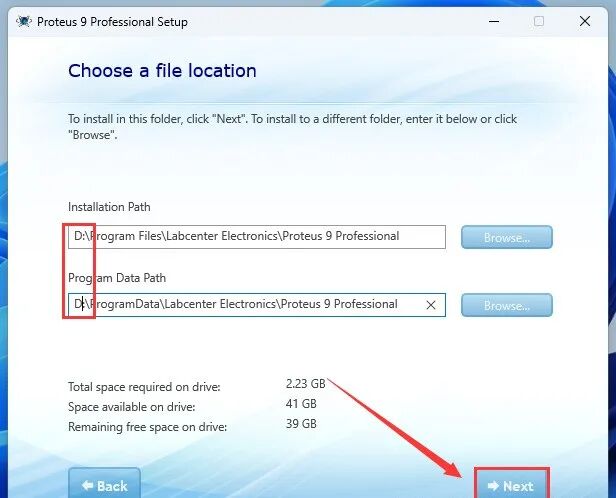
7. Modify the first character of the path address from C to change the installation location and data storage location (e.g., change C to D to install the software on drive D), then click 【Next】.
8. Click 【Next】.
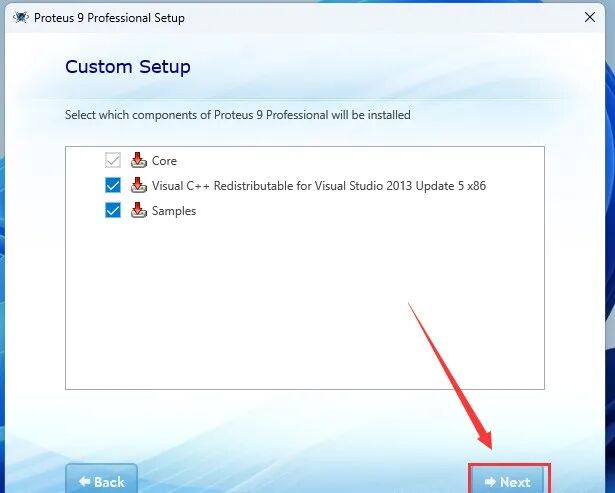
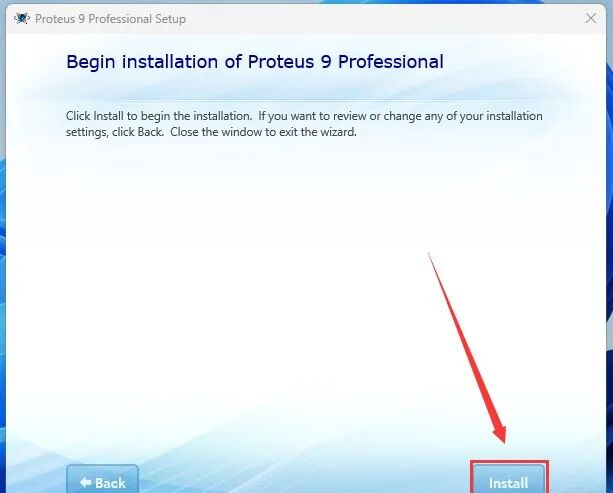
9. Click 【Install】.
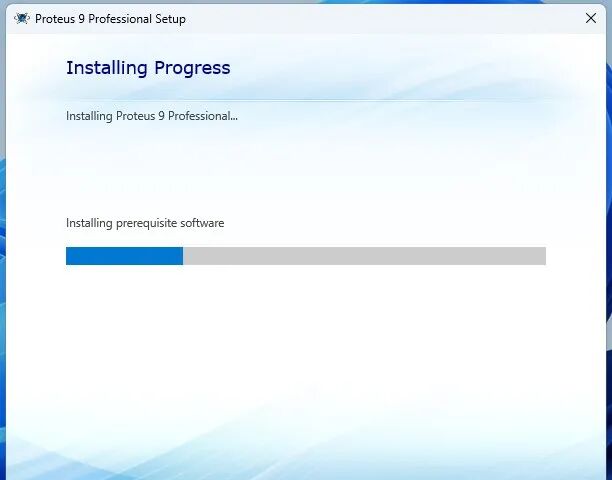
10. Installing……
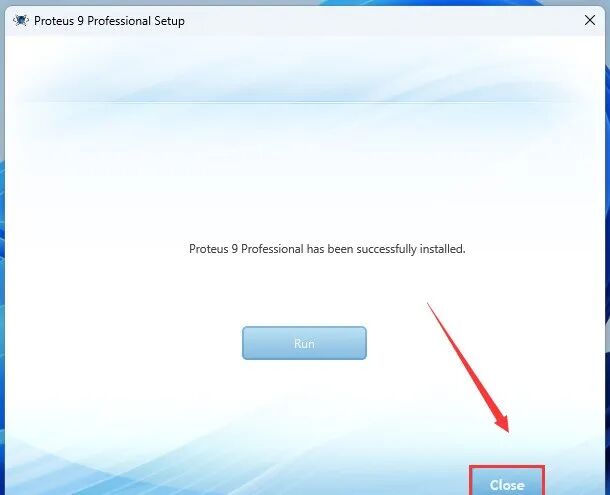
11. Click 【Close】.
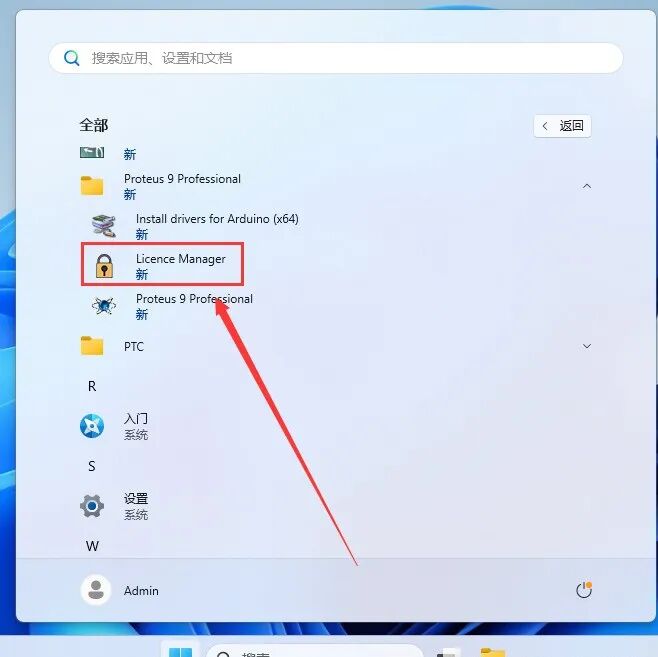
12. Click the 【Start icon】 in the desktop taskbar > Click 【All Apps】 > Double-click to expand the 【Proteus 9 Professional】 folder, and click 【Licence Manager】.
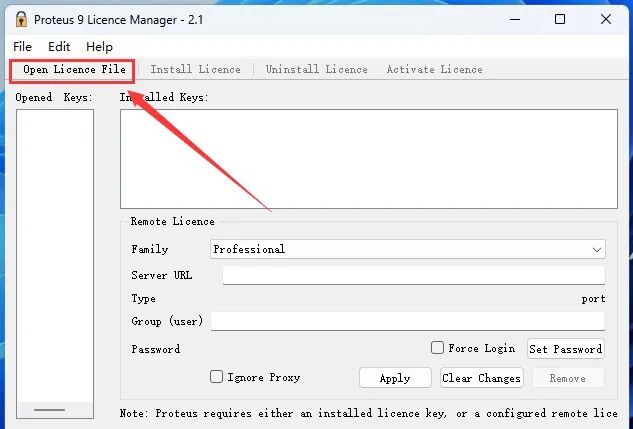
13. Click 【Open Licence File】.
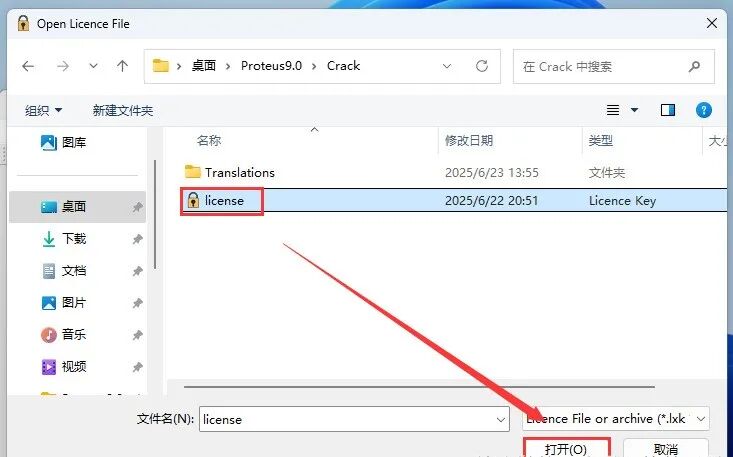
14. Open the 【Crack】 folder extracted from the installation package and select the 【Licence】 file, then click 【Open】.
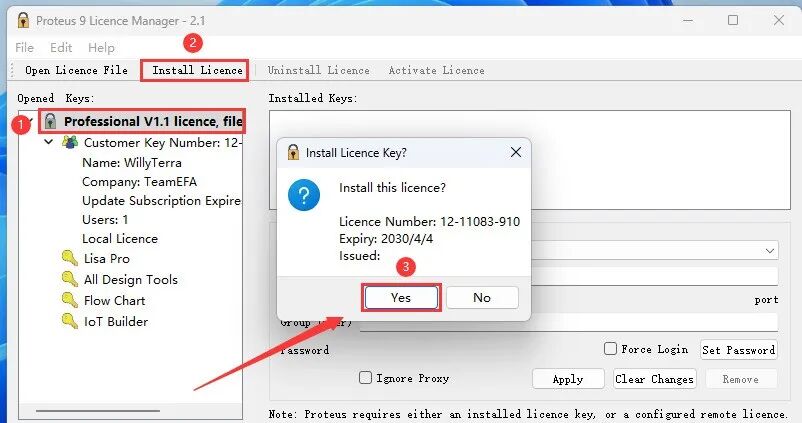
15. Select 【Professional V1.1…】, click 【Install…】, and click 【Yes】.
16. Click the 【X】 in the upper right corner to close.
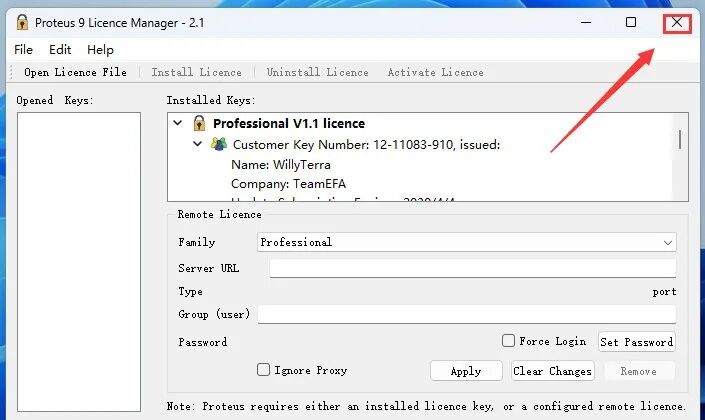
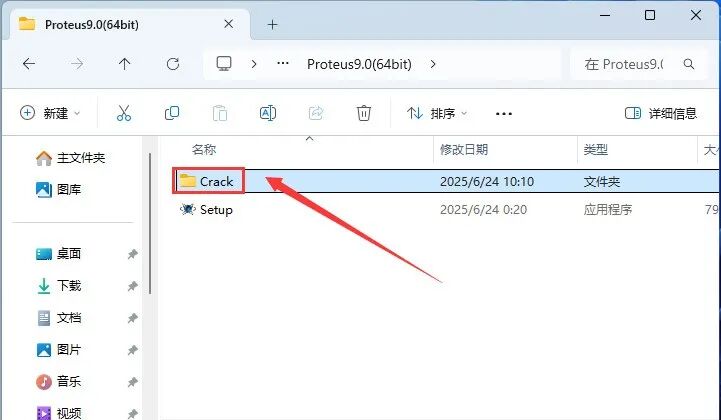
17. Open the 【Proteus9.0】 folder extracted from the installation package, and double-click to open the 【Crack】 folder.
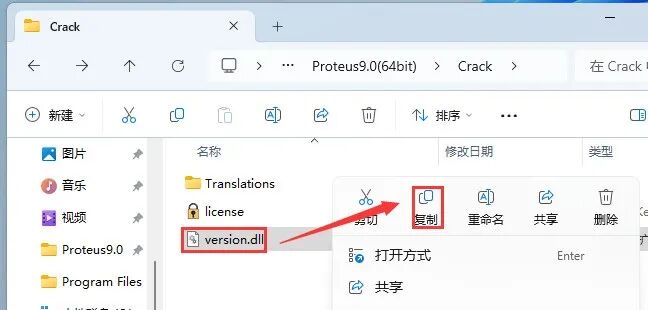
18. Right-click on 【version.dll】 and select 【Copy】.
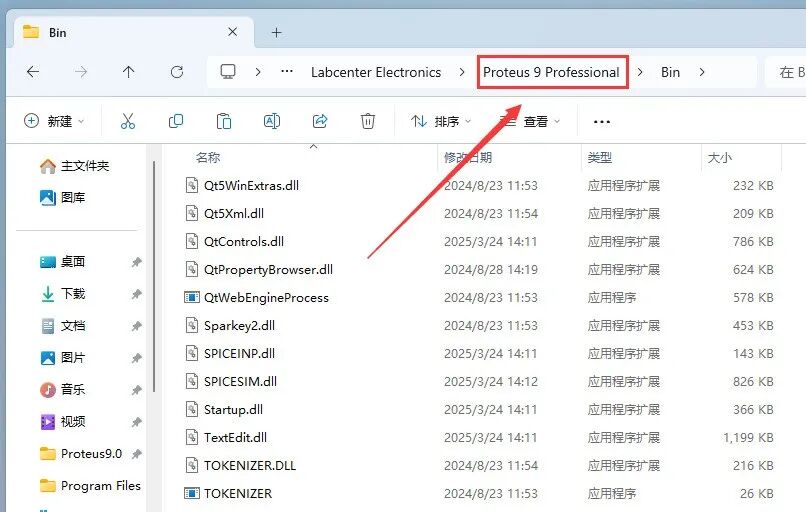
19. Open the software installation path from step 7 【D:\Program Files\Labcenter Electronics\Proteus 9 Professional\Bin】, right-click in the blank area and select 【Paste】.
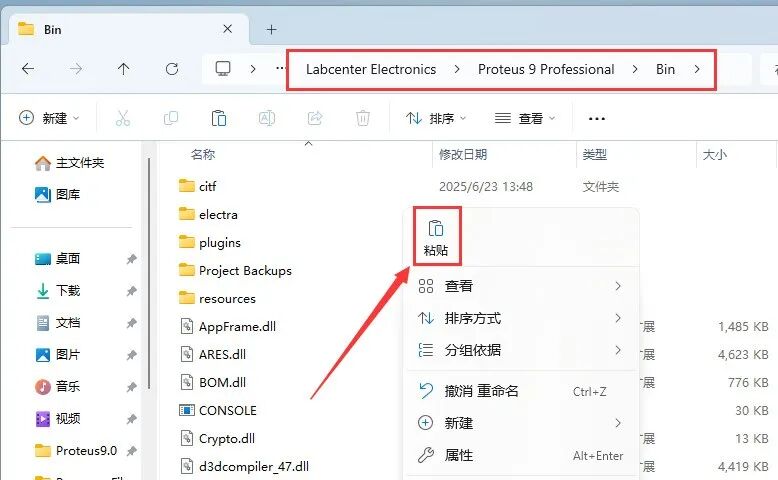
20. Click on 【Proteus 9 Professional】 in the path address bar.
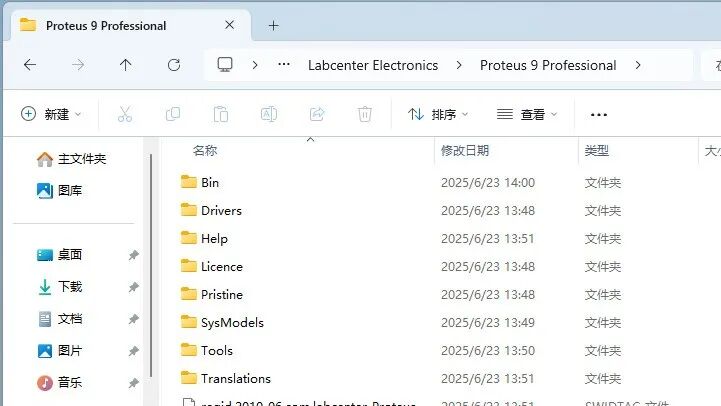
21. Do not close this page.
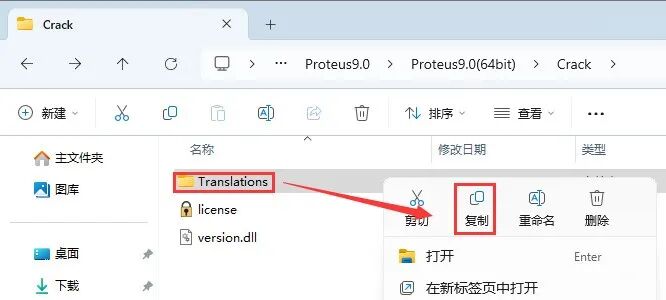
22. Continue in the open 【Crack】 folder, right-click on the 【Translations】 folder and select 【Copy】.
23. In the open page from step 21, right-click in the blank area and select 【Paste】.
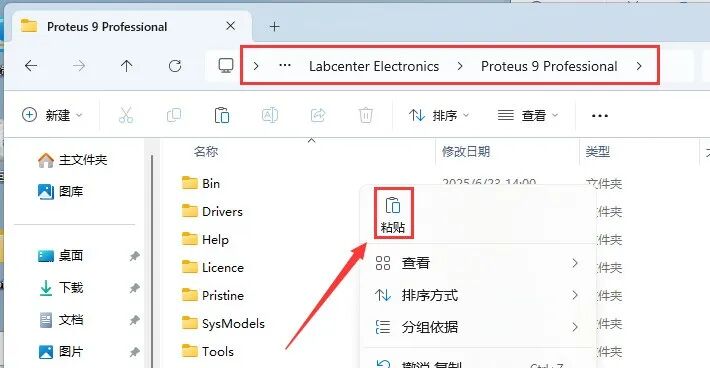
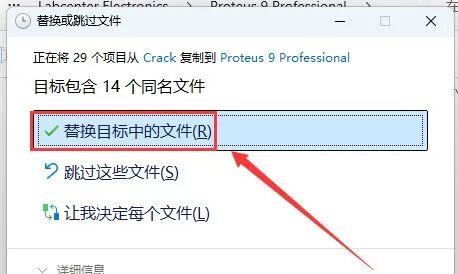
24. Click 【Replace the files in the target】.
25. Double-click the 【Proteus】 icon on the desktop to start the software.

26. Installation successful!