1. Background and Significance
In our daily work, we sometimes need to batch convert database tables into points. ArcGIS does not provide a direct tool for this, so we need to link several tools together in the model builder to create a new tool. Please continue reading.
2. General Approach
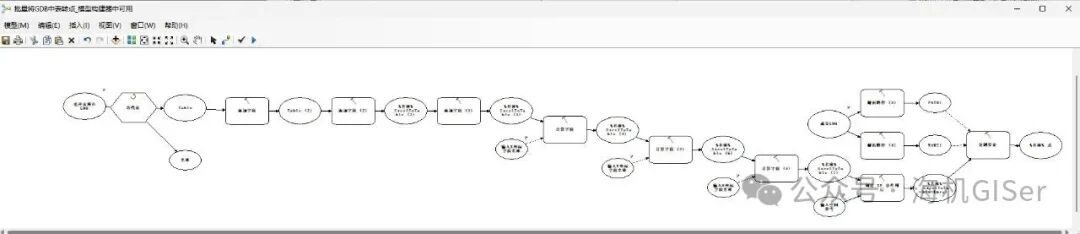
Use the “Iterate Tables” iterator to read the database tables one by one, and then use the “Create XY Event Layer” to convert the table to points. It is important to note that the XYH must be of double precision type, so the field type needs to be set to double precision first. After creating the XY event layer, the data needs to be exported;
3. Specific Steps
1. Open an empty model builder;
2. Add a variable of type “Workspace” named “Select GDB Containing Tables”, right-click on “Select GDB Containing Tables”, and check “Model Parameter”;
3. Connect an “Iterate Tables” iterator after step 2, and check “Recursive”;
4. Connect the “Add Field” tool (field name “X11”, field alias “X”, field type “DOUBLE”) after the output “Table” from step 3;
5. Connect another “Add Field” tool (field name “Y11”, field alias “Y”, field type “DOUBLE”) after step 4;
6. Connect another “Add Field” tool (field name “H11”, field alias “H”, field type “DOUBLE”) after step 5;
7. Create a string variable named “Input X Coordinate Field Name”, right-click on “Input X Coordinate Field Name”, and check “Model Parameter”;
8. Connect the “Calculate Field” tool after step 6, with field name “X11”, expression “[%Input X Coordinate Field Name%]”, expression type “VB”, and set step 7 as a precondition;
9. Create a string variable named “Input Y Coordinate Field Name”, right-click on “Input Y Coordinate Field Name”, and check “Model Parameter”;
10. Connect the “Calculate Field” tool after step 8, with field name “Y11”, expression “[%Input Y Coordinate Field Name%]”, expression type “VB”, and set step 9 as a precondition;
11. Create a string variable named “Input H Coordinate Field Name”, right-click on “Input H Coordinate Field Name”, and check “Model Parameter”;
12. Connect the “Calculate Field” tool after step 10, with field name “H11”, expression “[%Input H Coordinate Field Name%]”, expression type “VB”, and set step 11 as a precondition;
13. Connect the “Create XY Event Layer” tool after step 12, with X field “X11”, Y field “Y11”, Z field “H11”. Click OK, right-click on “Create XY Event Layer”, and sequentially click “Get Variable – From Parameter – Spatial Reference”, naming the new spatial reference variable “Input Spatial Reference”. Enter “Input Spatial Reference”, select the corresponding coordinate system, right-click on “Input Spatial Reference”, and check “Model Parameter”;
14. Add a variable of type “Workspace” named “Output GDB”, right-click on “Output GDB”, and check “Model Parameter”;
15. Connect two “Parse Path” tools after step 14 to get the PATH and NAME of the output GDB, naming them “PATH1, NAME1”;
16. Connect the “Copy Features” tool after step 13, setting the output path to “%PATH1%\%NAME1%.gdb\%Name%_Point” and set “PATH1, NAME1” as preconditions for this step;
17. Right-click on the blank area in the sub-model, click “Model Properties”, set the name to “Batch Group Fixed-Length Encoding”, and check “Store Relative Path Names, Always Run in Foreground”;
18. Save the model, select the folder to store the tool, click the red box in the upper right corner of the pop-up window (create a new toolbox), and name the new tbx toolbox “Batch Convert Tables in GDB to Points Tool.tbx”, input the name “GDB Table to Point Tool”, and click save.
At this point, we have obtained the desired result.
To obtain the completed tool, refer to another article on the public account “Marine Data Processing Toolbox (Original)” for the method.
Thank you for watching!!!