OperationGuide
MatlabLicense Renewal Method
MATLAB requires annual license file renewal to restore MATLAB usage. For students and teachers who have installed the personal version, if you encounter a “About to Expire” warning in the MATLAB software, you can perform the following operations to update the license.
Note: Please close the system firewall before updating the license.
1. How to Update Personal MATLAB License
 Operation Method
1. Open MATLAB (If the license has expired, the Activation Client will start, and you can skip the second step).
2. In the navigation menu bar, click Help > Licensing > Activate Software.
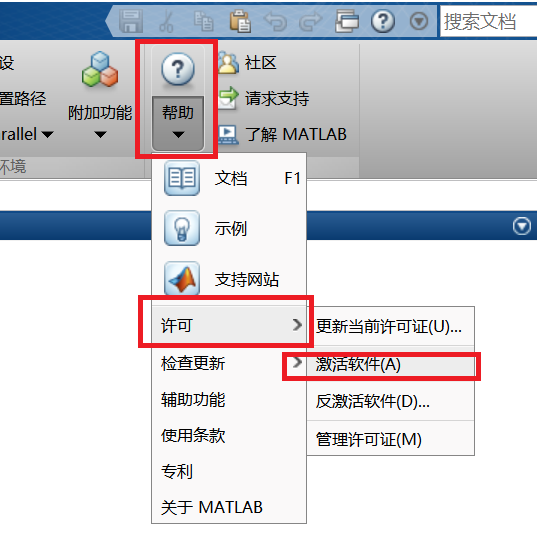
3. Select “UseInternetAutomatic Activation“, and enter your MathWorks account (Nanjing University email), click “Next” until activation is complete. (If you forgot the password, you can use the email suffixes @nju.edu.cn; @smail.nju.edu.cn; @jlxy.nju.edu.cn to visit www.mathworks.cn for self-service recovery).
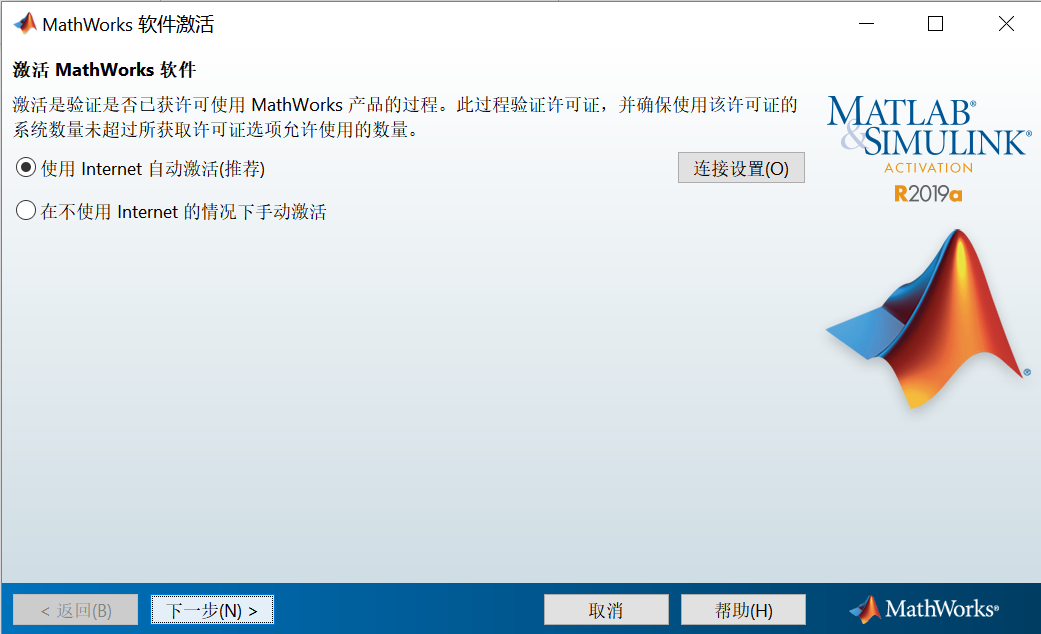
After reactivation, you need to restart MATLAB to recognize the new license file.
*Note: After successfully completing activation, you will still see the “License About to Expire” warning in MATLAB before the old license expires, and you can ignore that information. After the old license expires, MATLAB will no longer send this warning.
2. How to Update Lab Version MATLAB License
Email ([email protected]) to obtain the latest lab license file license.lic, then refer to the steps:
https://www.mathworks.com/matlabcentral/answers/389888-matlab
If you encounter any issues during the update process, you can contact MathWorks installation support:
Email:[email protected]
Phone:010-59827000 – 4 – 1
Visit www.mathworks.com/support/servicerequests/create.html to submit issues.
Note: Please close the system firewall before updating the license.