The MATLAB Campus Version of Nanjing University of Posts and Telecommunications officially took effect on May 1, 2017. The latest version is MATLAB R2017a. The Campus Version includes two forms:
-
The standalone version is suitable for personal computers.
-
The network version is suitable for computer labs, servers, and other locations.
Please carefully read the following MATLAB download and installation guide:
— Download —
MATLAB supports Windows (64-bit), Linux (64-bit), and Mac (64-bit) operating systems. Students and faculty of Nanjing University of Posts and Telecommunications have two download options:
-
Download the complete installation package from the School Information Office website (suitable for all three systems, 17G):
http://software.njupt.edu.cn/iso/2017matlab.zip
-
Download online from the MathWorks official website:
1. Log in to the MathWorks official website:
http://cn.mathworks.com/login
2. Create a new MathWorks account using your school email (****@njupt.edu.cn).
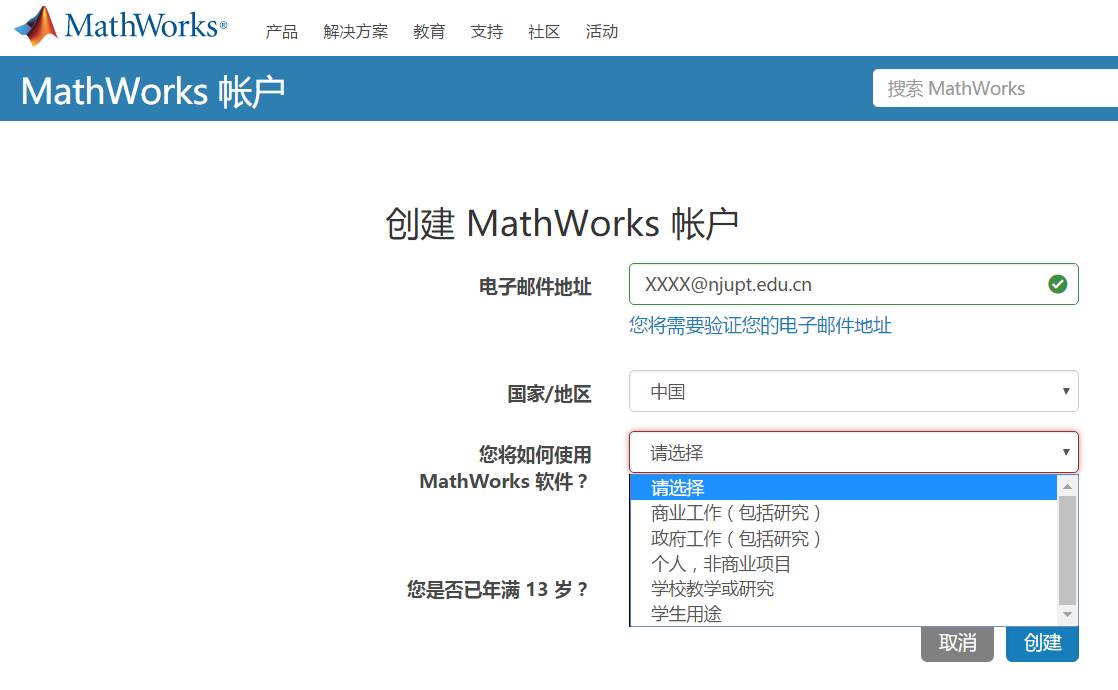 Faculty should select “School Teaching or Research”;
Students should select “Student Use”.
This will facilitate the receipt of different online resources and activities targeted at teachers and students in the future.
3. After successfully creating an account, log in and click on your account name in the upper right corner, then select to link the license.
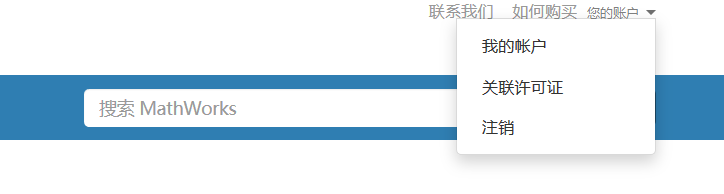
4. Enter the activation key from Nanjing University of Posts and Telecommunications for MATLAB. Faculty and students should use the corresponding category activation keys:
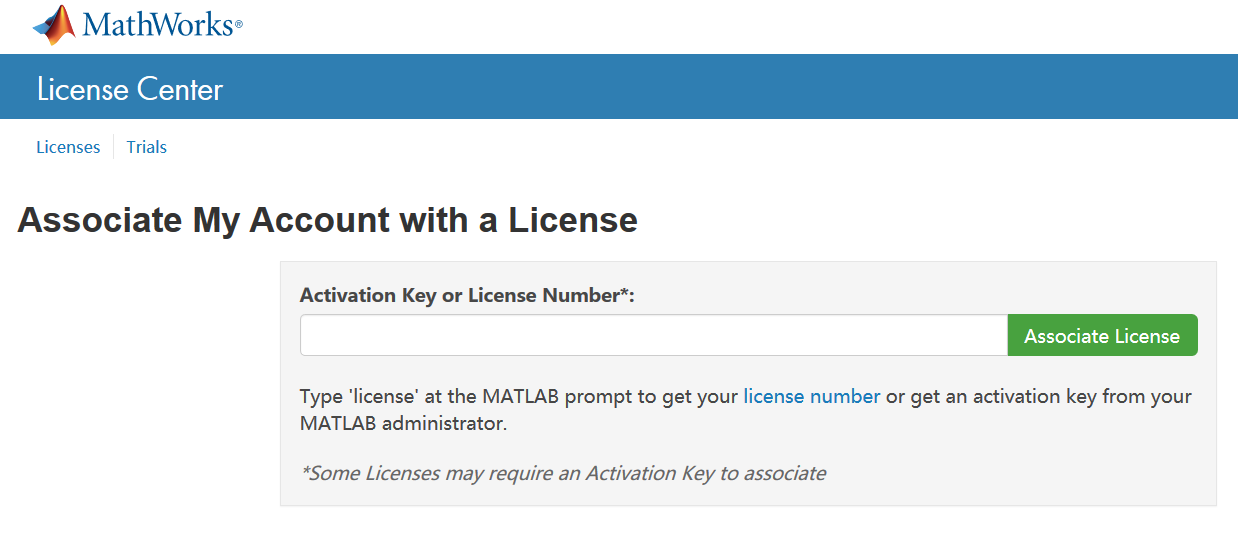
Faculty Activation Key: 10953-06847-39815-45956-28322
Student Activation Key: 11042-97629-21922-51564-37502
5. After entering the activation key, you can download the installation program corresponding to different systems.
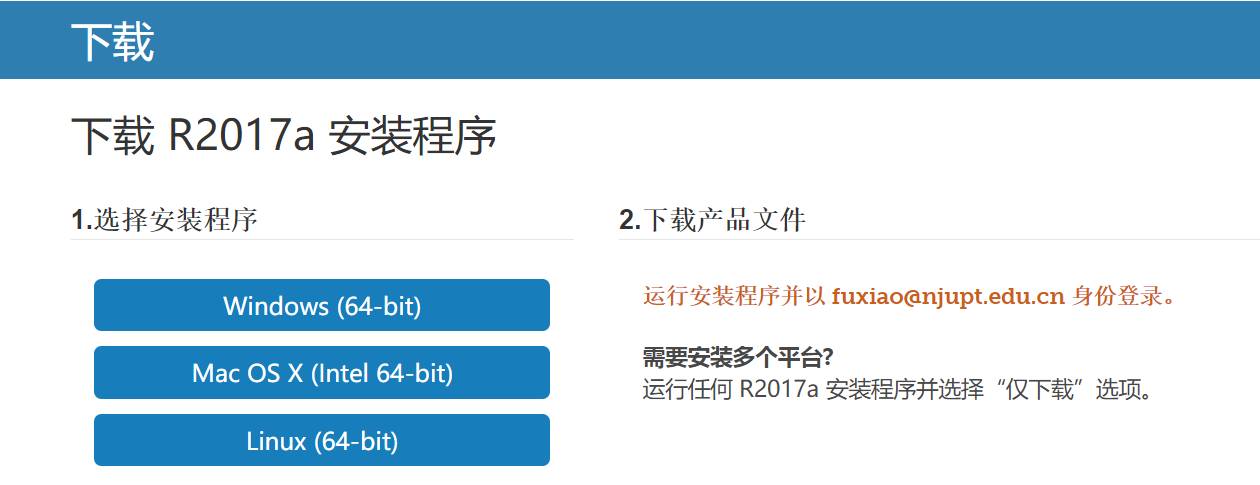
6. After downloading:
-
Run the Setup.exe file under Windows;
-
Run InstallForMacOSX to install on Mac;
-
Execute the install command on Linux to install.
— Standalone Installation —
-
Before installation, disable the antivirus software and firewall on your computer.
-
Click the downloaded MATLAB R2017a installation file to start the installation.
-
Select the installation method of “Log in with MathWorks Account” and log in to your MathWorks account.
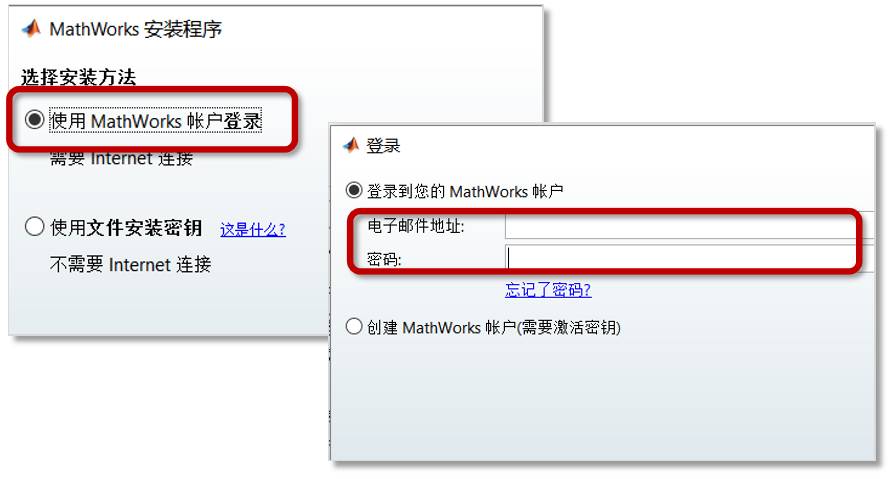
-
Select the existing TAH license and click Next.
-
After installation is complete, click to activate the software. Please refer to:
http://cn.mathworks.com/help/install/ug/install-mathworks-software.html
— Network Installation —
The MATLAB network version is for installation in school classrooms or computer labs. The advantage is that only one License needs to be created to install on multiple computers. One computer needs to install the License Server, and other client computers need to install MATLAB and the complete toolbox. Client computers need to be connected to the License Server and able to ping it.
-
License Administrator Operations
-
The administrator obtains the physical address and operating system of the License Server from the computer lab teacher.
-
The administrator generates a license file and FIK for the License Server and sends it to the computer lab teacher.
Computer Lab Operations:
-
Before installation, send the physical address and operating system of the License Server to the administrator.
-
Receive the license file and FIK from the administrator.
-
Install the License Server.
-
Install the MATLAB client.
For installation steps, please refer to:
https://cn.mathworks.com/matlabcentral/answers/152585-concurrent-matlab-8-1-r2013a
Network version administrator contact: [email protected]
If you encounter any technical issues during installation, please contact MathWorks installation support:
https://cn.mathworks.com/support/contact_us/
Please provide License serial number #40566408.
On the MATLAB WeChat official account
Reply with 【South Postal】
To see more online learning resources~

Produced | New Media Information Department Studio
Supervised | Xiaolin
New Media Editor | Wang Jian
Reviewed | Yuxiang