Background Introduction: Many videos produced by Sugar are based on the open-source project project-generator to support three platforms. Feedback has shown that this method has sparked a lot of interest among readers. Friends participating in Sugar’s “Software Architecture Training Program” have successfully mastered this method. This article systematically introduces the use of project-generator starting from software installation.
First, Let’s Talk About Why I Chose Project-Generator
Let’s compare it with CubeMX and RT-Thread’s env. Below,
we will refer to project-generator as progen.
| Comparison Project | progen | CubeMX | env |
|---|---|---|---|
| Size | Small | Large | Large |
| Three Platform Support | OK | OK | OK |
| Support for Personal Existing Code | OK | Needs project setup | Unknown |
| Is Project Maintenance Necessary | No Maintenance Required | Requires personal configuration | Unknown |
| Open Source Status | Fully Open Source | Not Open Source | Unknown |
-
Using CubeMX, if personal code is added through project configuration, it can be troublesome if the project gets accidentally corrupted, as it would require regeneration and reconfiguration.
If a lot of personal code is added, it becomes quite cumbersome.
-
Progen generates the project through a YAML configuration file, requiring no project maintenance. Just specify the platform (MDK5, IAR, GCC), and a single command generates the project. For the three platforms, only one YAML configuration file needs to be maintained.
-
I only used the simple features of env as introduced on the RT-Thread official website: menuconfig, scons to generate projects, etc. I have not researched how env is implemented, so I marked it as “unknown” here.
Video Demonstration of Installation and Configuration Process
Video Errata
If the cmd in Windows shows progen not found as shown in the figure below
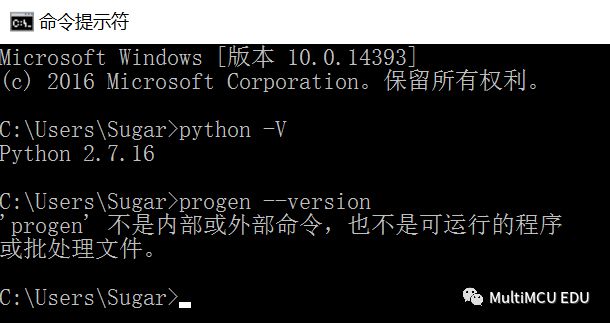
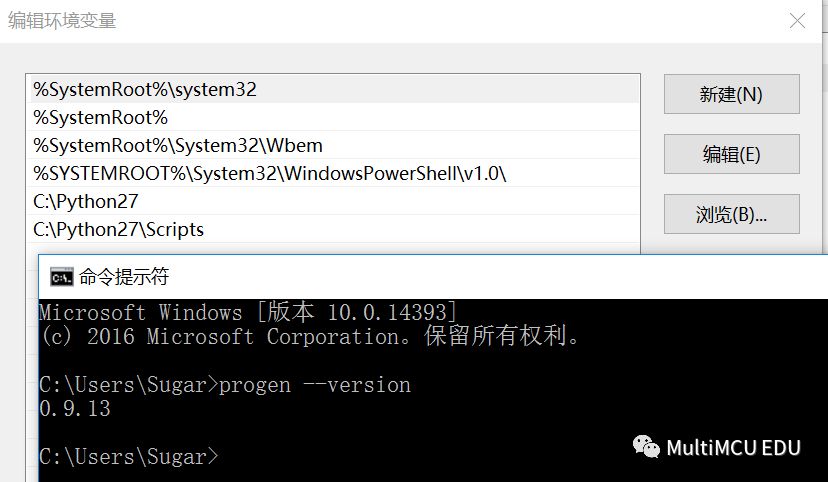
Add <span>C:\Python27\Scripts</span> to the environment variable and restart cmd. After resolving the issue, it will appear as shown below:
Adding Custom Development Board Configuration
-
Modify targets.py
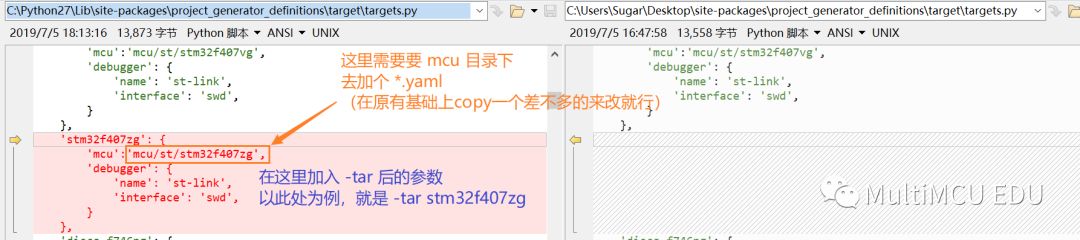
-
Add your own development board’s YAML
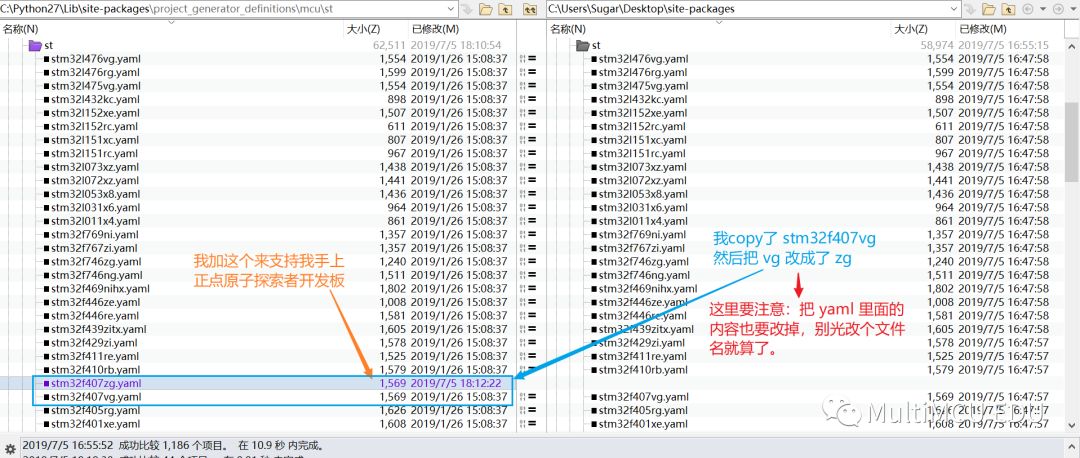
Multi-Project Support
Below, I will take my simplified RT-Thread kernel demo as an example (Reply in the public account rttdemo to obtain the demo project), to observe the configuration differences of different projects.
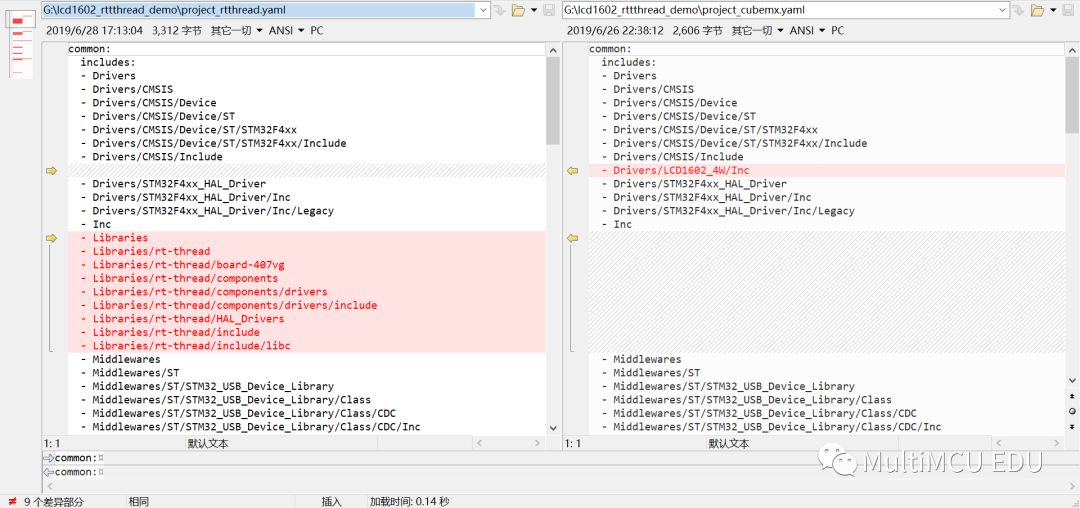
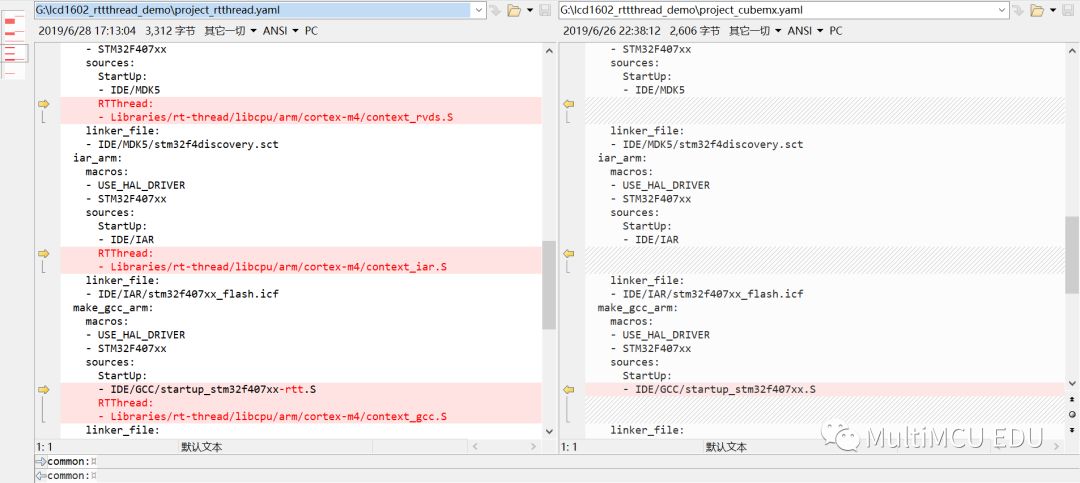
How to Add Progen Support to Your Project
-
Initialize the project using progen, command example as follows:
progen init -p stm32f4discovery -tar disco-f407vg
-
Automatically scan the code path and generate a YAML configuration file
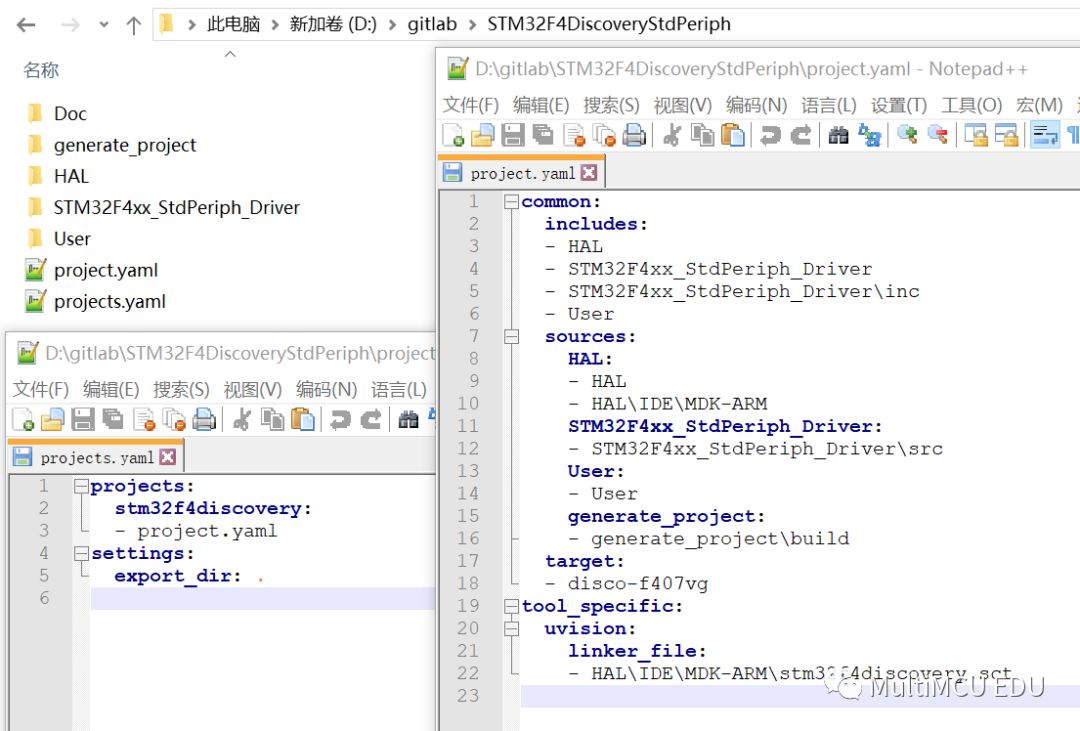
-
Manually modify the configuration
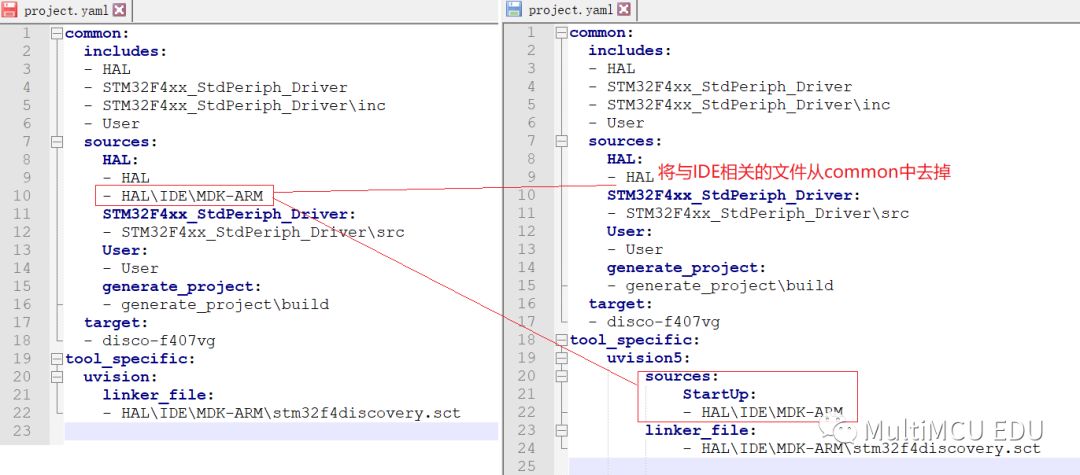
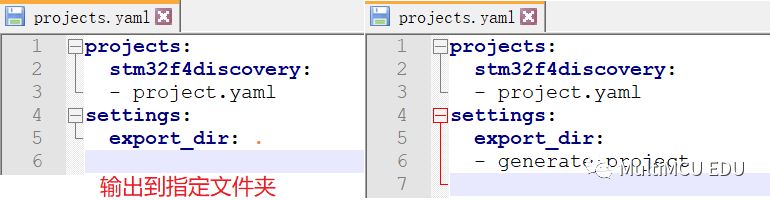
-
Generate the target project, command example as follows:
progen generate -f projects.yaml -t uvision5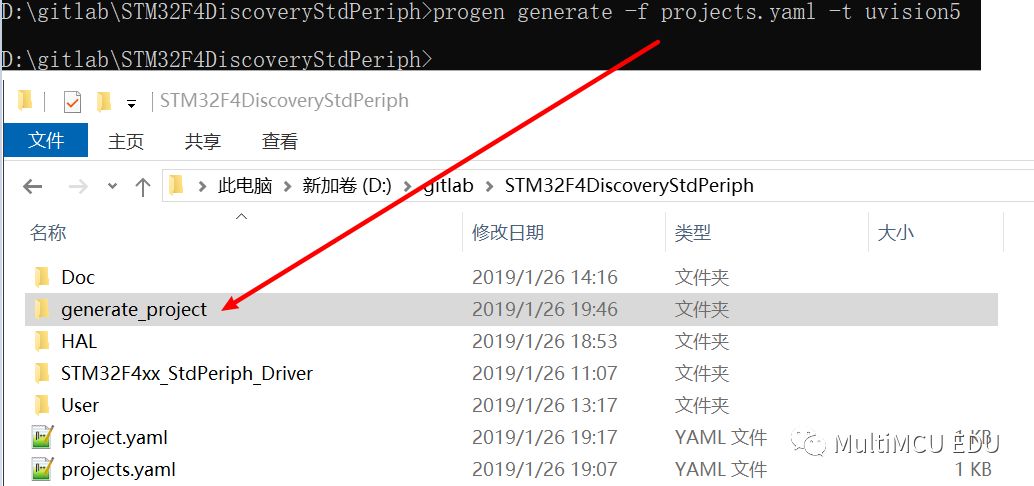
What Sugar Learned Through Project-Generator
-
The biggest difference between different platforms (MDK5, IAR, GCC) is: “Assembly Source Files” and “Linker Files”.
For the projects generated by CubeMX, they are the “Startup Files” and “Linker Files”.
-
Understanding of the source code project is clearer, knowing exactly which files are involved in the compilation.
Readers who have watched my video will find that when I generated the project using CubeMX, I selected “Generate Necessary Files” (as shown in the figure below). Before using progen, I always ignored this setting because I didn’t know its use. Actually, it doesn’t matter if this option is not selected when generating the project in CubeMX, as it will automatically filter out unrelated files in the project. This caused me to be able to compile, but I didn’t truly grasp the generated source code. It wasn’t until I used progen that I made progress.

-
The GCC compiler is the strictest.
Looking at the YAML configuration file of the demo project (Reply in the public account rttdemo to obtain the demo project), the configuration for MDK5 and IAR is only a few lines, while GCC has many (various flags; if one is configured incorrectly, it won’t work).
I also learned about GCC starting from writing the YAML configuration file.
PS
-
Knowing how to use progen is a necessary skill for participating in the “Software Architecture Training Program”, as all the example projects open-sourced by Sugar use progen.
-
Friends participating in the program raised the first issue on GitHub, setting a good precedent.
https://github.com/SuWeipeng/lcd1602_rttthread_demo/issues/1
(Copy to your browser to open)
-
The benefits of raising issues on GitHub for open communication are:
(1) Problems are naturally categorized and summarized;
(2) More people participate in discussions, one person asks, many answer;
(3) Problems are easy to trace back, unlike in WeChat groups where you have to scroll back through chat records.
-
Many readers have left messages for Sugar through WeChat, WeChat groups, and public accounts, including:
Providing suggestions, pointing out errors (such as the video errata mentioned above), etc.
Currently, these are only beneficial to Sugar personally; if they can go on GitHub, they will benefit more people. -
Hope more people will participate in the “Software Architecture Training Program”, let’s improve together, and make this learning and growth activity more vibrant, jointly maintaining a good skill growth environment.
Follow the Author
Feel free to scan the code to follow my public account MultiMCU EDU.