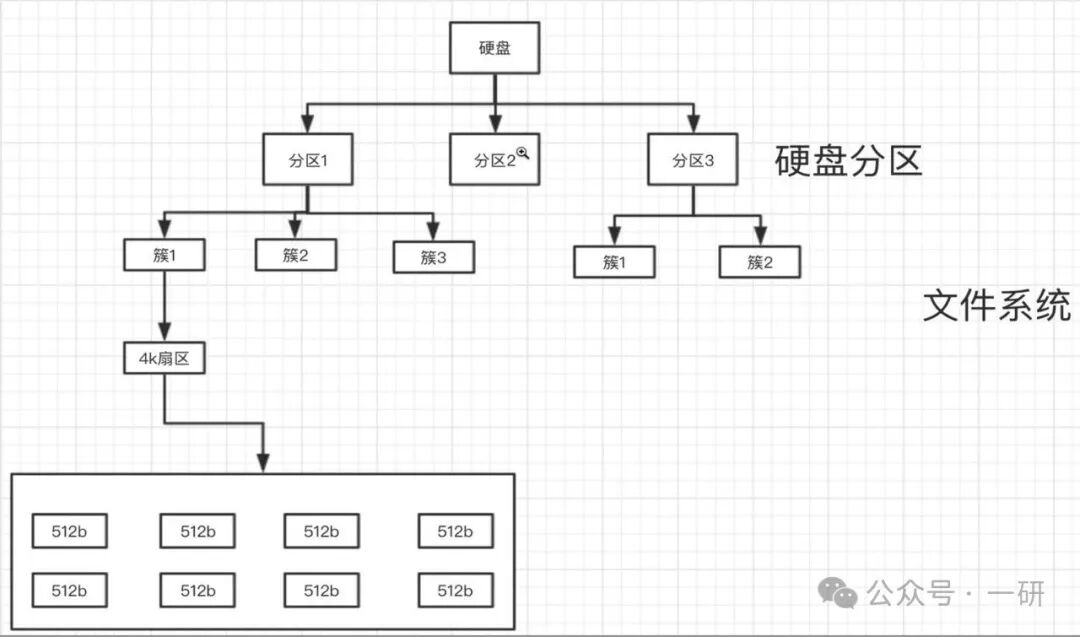
In Linux systems, disk partitioning is the foundation for building a stable and efficient storage environment. A reasonable partitioning scheme not only affects system performance but also relates to data security and operational efficiency.
This article will delve into the disk partitioning technology in the Linux environment, providing a comprehensive and detailed analysis from the underlying principles to advanced practices.
1. Linux Disk Devices and Partitioning Basics
1.1 Device Naming Conventions
Storage device naming rules:
/dev/sd[a-z]   # SATA, SCSI, USB storage devices
/dev/nvme[0-9]n[1-9]p[1-128]  # NVMe SSDs
/dev/hd[a-z]    # Traditional IDE devices (less commonly used)
/dev/vd[a-z]   # Virtualization environment devices
Partition numbering conventions:
# <span><strong>Primary and extended partitions: 1-4</strong></span>
/dev/sda1、/dev/sda2、/dev/sda3、/dev/sda4
# <span><strong>Logical partitions: starting from 5</strong></span>
/dev/sda5、/dev/sda6、/dev/sda7...
1.2 In-Depth Analysis of Partition Table Types
The limitations of MBR (Master Boot Record) (traditional partition table):
• 32-bit partition table entries limit maximum single partition size to 2TB
• Limit of 4 primary partitions or 3 primary partitions + 1 extended partition
• Single storage of partition information, high risk of damage
• Compatible with traditional BIOS systems
The advantages of GPT (GUID Partition Table) (current mainstream):
• 64-bit LBA addressing, supports maximum 8ZB partitions
• Up to 128 partitions (Linux actually supports more)
• CRC32 checksums and partition table backups, high reliability
• Requires UEFI firmware support
# Check the current disk partition table type
sudo fdisk -l /dev/sda | grep "Disklabel"
sudo parted /dev/sda print | grep "Partition Table"
2. Detailed Explanation of Professional Partitioning Tools
2.1 fdisk: Classic Partitioning Tool
Basic operation flow:
# Enter interactive partitioning interface
sudo fdisk /dev/sdb
# Common command sequence:
Command: g    # <span><strong>Create a new GPT partition table</strong></span>
Command: n    # <span><strong>Create a new partition</strong></span>
Partition number: 1
First sector: 2048    # Usually use default value to ensure alignment
Last sector: +512M    # Use relative size
Command: t    # Change partition type
Partition type: 1     # EFI system partition
Command: w    # Write and exit
Advanced fdisk usage:
# <span><strong>Non-interactive partitioning (scripted)</strong></span>
echo -e "g\nn\n1\n2048\n+1G\nn\n2\n\n+20G\nn\n3\n\n\nw" | sudo fdisk /dev/sdb
# <span><strong>View detailed partition information</strong></span>
sudo fdisk -l -o Device,Start,End,Sectors,Size,Type /dev/sdb
2.2 parted: Modern Partitioning Tool
parted advanced features:
# <span><strong>Create GPT partition table and set alignment</strong></span>
sudo parted /dev/sdb --script mklabel gpt
sudo parted /dev/sdb --script mkpart primary 1MiB 1025MiB
sudo parted /dev/sdb --script name 1 boot
sudo parted /dev/sdb --script set 1 esp on
# <span><strong>Create labeled partitions</strong></span>
sudo parted /dev/sdb --script mkpart primary 1025MiB 20GiB
sudo parted /dev/sdb --script name 2 rootfs
# <span><strong>Display detailed partition information</strong></span>
sudo parted /dev/sdb unit MiB print free
2.3 gdisk: GPT-Specific Tool
gdisk professional operations:
sudo gdisk /dev/sdb
Command: n    # New partition
Partition number: 1
First sector: 2048
Last sector: +512M
Hex code: EF00    # EFI system partition
Command: n    # Continue creating partitions
...
Command: x    # Expert mode
Expert command: l    # Align partition
Expert command: w    # Save
3. Linux Partition Strategies and Best Practices
3.1 Partition Scheme Design Principles
Enterprise-Level Server Partition Scheme:
# <span><strong>Boot partition - must be an EFI system partition in GPT format</strong></span>
/dev/sda1: 512M, ESP partition, mounted at /boot/efi
# <span><strong>Boot loader partition</strong></span><span> (due to space limitations, the next article will detail filesystem formatting mkfs; after partitioning, mkfs is required to create a filesystem for use)</span>
/dev/sda2: 1G, ext4, mounted at /boot
# <span><strong>Root filesystem</strong></span>
/dev/sda3: 50G, xfs/ext4, mounted at /
# <span><strong>Swap partition (adjust based on memory size)</strong></span>
/dev/sda4: 8G-32G, swap
# <span><strong>User data partition</strong></span>
/dev/sda5: 100G, xfs, mounted at /home
# <span><strong>Application data partition</strong></span>
/dev/sda6: remaining space, xfs, mounted at /var
# <span><strong>Optional: Separate log partition (database server)</strong></span>
/dev/sda7: 50G, xfs, mounted at /opt
Containerized Environment Partition Scheme:
# <span><strong>Streamlined system partitions</strong></span>
/dev/sda1: 512M, /boot/efi
/dev/sda2: 2G, /boot
/dev/sda3: 20G, /
# <span><strong>Dedicated partition for container storage</strong></span>
/dev/sda4: 100G, xfs, mounted at /var/lib/containers
# <span><strong>Container image cache</strong></span>
/dev/sda5: 50G, xfs, mounted at /var/lib/docker
# <span><strong>Logs and monitoring data</strong></span>
/dev/sda6: 50G, xfs, mounted at /var/log
3.2 Partition Alignment Optimization
Modern storage devices alignment requirements:
# <span><strong>Check partition alignment status</strong></span>
sudo parted /dev/sdb align-check optimal 1
# <span><strong>Ensure 1MiB alignment (modern standard)</strong></span>
sudo parted /dev/sdb mkpart primary 1MiB 100%
# <span><strong>Special considerations for NVMe devices</strong></span>
sudo parted /dev/nvme0n1 mkpart primary 1MiB 100%
Performance Optimization Alignment Settings:
# <span><strong>RAID array optimization alignment</strong></span>
sudo parted /dev/sdb mkpart primary 1024KiB 100%
# <span><strong>High-performance database alignment</strong></span>
sudo parted /dev/sdb mkpart primary 2048s 100%
4. Advanced Partitioning Techniques
4.1 Combining LVM with Partitioning
LVM best practice partition scheme:
# 1. <span><strong>Create physical partitions (do not format)</strong></span>
sudo parted /dev/sdb mkpart primary 1MiB 100%
sudo parted /dev/sdb set 1 lvm on
# 2. <span><strong>Create physical volumes</strong></span>
sudo pvcreate /dev/sdb1
# 3. <span><strong>Create volume groups</strong></span>
sudo vgcreate vg_data /dev/sdb1
# 4. <span><strong>Create logical volumes</strong></span>
sudo lvcreate -L 50G -n lv_root vg_data
sudo lvcreate -L 100G -n lv_home vg_data
sudo lvcreate -l 100%FREE -n lv_data vg_data
<img alt="In-Depth Understanding of Linux Disk Partitioning: Enterprise-Level Partitioning Practices" src="https://boardor.com/wp-content/uploads/2026/01/fc4a9099-3373-4f85-86d5-912c148e6074.jpeg" /><p># 5. <span><strong>Create a filesystem on the logical volumes</strong></span><span> (due to space limitations, the next article will detail filesystem formatting mkfs; after partitioning, mkfs is required to create a filesystem for use)</span></p><p>sudo mkfs.xfs /dev/vg_data/lv_root
sudo mkfs.xfs /dev/vg_data/lv_home
</p>
4.2 Software RAID Partition Configuration
RAID partition preparation:
# <span><strong>Create partitions of the same size on multiple disks</strong></span>
for disk in sdb sdc sdd; do
    sudo parted /dev/$disk mklabel gpt
    sudo parted /dev/$disk mkpart primary 1MiB 100%
    sudo parted /dev/$disk set 1 raid on
done
# <span><strong>Create RAID array</strong></span><span> (using mdadm tool to combine multiple partitions into a soft RAID, reliable large capacity volume group)</span>
sudo <strong>mdadm</strong> --create /dev/md0 --level=5 --raid-devices=3 /dev/sdb1 /dev/sdc1 /dev/sdd1
5. System Integration and Automation
5.1 Partition Information Persistence
Update partition information:
# <span><strong>Re-read partition table (no reboot required)</strong></span>
sudo <strong>partprobe</strong> /dev/sdb
# <span><strong>For disks in use, may need to force re-read</strong></span>
sudo blockdev --rereadpt /dev/sdb
# <span><strong>Check kernel partition information</strong></span>
cat /proc/partitions
fstab configuration example (automatically mount after OS reboot):
# <span><strong>Example of secure configuration in /etc/fstab</strong></span>
/dev/sda3   /       xfs     defaults,relatime    0 1
/dev/sda1   /boot/efi   vfat    umask=0077,shortname=winnt 0 2
/dev/sda2   /boot   ext4    defaults    0 2
/dev/sda5   /home   xfs     defaults,nodev,nosuid   0 2
/dev/sda6   /var    xfs     defaults,nodev  0 2
5.2 Automated Partitioning Script
Production environment partition automation:
#!/bin/bash
# <span><strong>Enterprise-level Linux automated partitioning script</strong></span>
DISK=$1
BOOT_SIZE="1G"
ROOT_SIZE="50G"
SWAP_SIZE="8G"
# <span><strong>Verify disk existence</strong></span>
if [ ! -b "$DISK" ]; then
    echo "Error: Device $DISK does not exist"
    exit 1
fi
# <span><strong>Create GPT partition table</strong></span>
parted --script $DISK mklabel gpt
# <span><strong>Create EFI system partition</strong></span>
parted --script $DISK mkpart primary 1MiB $BOOT_SIZE
parted --script $DISK set 1 esp on
# <span><strong>Create root partition</strong></span>
parted --script $DISK mkpart primary $BOOT_SIZE ${ROOT_SIZE}
# <span><strong>Create swap partition</strong></span>
parted --script $DISK mkpart primary ${ROOT_SIZE} $(echo $ROOT_SIZE $SWAP_SIZE | awk '{print $1 + $2}')
# <span><strong>Create data partition (using remaining space)</strong></span>
parted --script $DISK mkpart primary $(echo $ROOT_SIZE $SWAP_SIZE | awk '{print $1 + $2}') 100%
echo "Partitioning complete, partition table information:"
parted $DISK print
6. Partition Monitoring and Maintenance
6.1 Partition Status Monitoring
Monitoring command set:
# View partition usage
<strong>df -hT</strong>
# View detailed block device information
<strong>lsblk -f</strong>
# Monitor partition I/O status
<strong>iostat -x 1</strong>
# <span><strong>Check partition alignment</strong></span>
sudo parted /dev/sda align-check optimal 1
# <span><strong>View partition table backup status (GPT)</strong></span>
sudo gdisk -l /dev/sda | grep -A5 "Partition table scan"
6.2 Partition Maintenance Operations
Safe partition adjustment:
# <span><strong>Preparation before resizing partitions</strong></span>
sudo umount /dev/sdb1<span> (first unmount the filesystem to ensure data safety, which requires going offline, production services will be briefly interrupted)</span>
sudo e2fsck -f /dev/sdb1
# <span><strong>Use parted to resize partitions (requires filesystem support)</strong></span>
sudo parted /dev/sdb resizepart 2 150GiB
sudo <strong>resize2fs</strong> /dev/sdb2  # <span><strong>for ext4</strong></span>
# <span><strong>XFS partition adjustment (can only be expanded)</strong></span>
sudo xfs_growfs /mount/point
7. Fault Diagnosis and Recovery
7.1 Common Partition Issues Handling
Recovering damaged partition tables:
# <span><strong>Use gdisk to recover GPT backup</strong></span>
sudo gdisk /dev/sda
# <span><strong>Enter recovery mode: r → e → w</strong></span>
# Use TestDisk for deep recovery
sudo testdisk /dev/sda
# <span><strong>Rebuild damaged partition table</strong></span>
sudo gdisk /dev/sda
# Command: r → d → w  # Delete damaged entries and rebuild
Partition mount issues:
# <span><strong>Force re-read partition table</strong></span>
sudo <strong>partprobe</strong> /dev/sda
# <span><strong>Check filesystem consistency</strong></span>
sudo fsck -y /dev/sda1
# <span><strong>Fix mount issues</strong></span>
sudo mount -o remount,rw /dev/sda1
8. Best Practices for Production Environments
8.1 Enterprise-Level Partitioning Standards
Key principles:
1. Separate system and data: Physically separate root and data partitions
2. Consider growth needs: Reserve expansion space for critical partitions
3. Performance isolation: I/O intensive applications use independent partitions
4. Security boundaries: Sensitive directories use independent partitions and mount options
Secure mount options:
# <span><strong>Example of secure configuration in /etc/fstab</strong></span>
/dev/sda5   /home   xfs     defaults,nodev,nosuid,noexec   0 2
/dev/sda6   /tmp    xfs     defaults,nodev,nosuid,noexec   0 2
/dev/sda7   /var/log xfs    defaults,nodev,nosuid   0 2
8.2 Performance Optimization Recommendations
Partition optimization based on workload:
• Database servers: Separate transaction log partition, use high-performance SSDs
• File servers: Separate user data partition, consider RAID configuration
• Web servers: Separate log partition to prevent logs from filling the root partition
• Virtualization hosts: Separate virtual machine storage partition, use LVM streamlined configuration
Key Takeaways
1. Choose the appropriate partition scheme based on workload 2. Always ensure partitions are correctly aligned 3. Reasonably plan partition sizes, considering future growth 4. Use advanced features like LVM to improve flexibility 5. Establish a comprehensive partition monitoring and maintenance process
Linux disk partitioning is one of the core skills for system administrators. By deeply understanding partitioning principles, mastering professional tools, and designing reasonable schemes, one can build a stable, efficient, and maintainable storage infrastructure.
Mastering these professional partitioning techniques will enable you to confidently tackle various storage challenges, providing a reliable storage foundation for business systems.
In the next article, we will delve into Linux filesystem formatting techniques, including filesystem selection, performance tuning, and advanced formatting parameters.

Any support or feedback is greatly appreciated; let’s grow together.