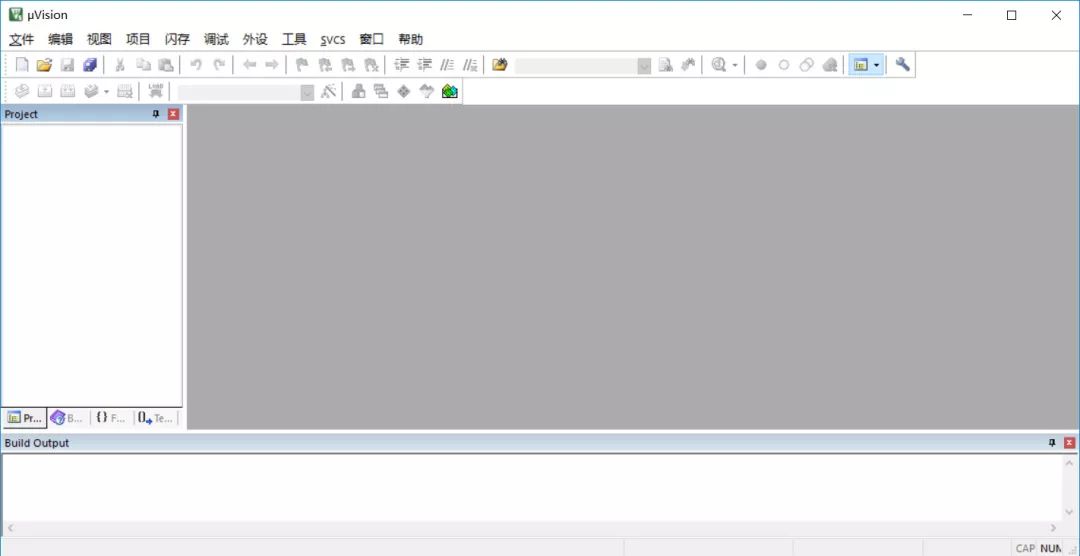
【Software Name】: Keil 5 MDK Version
【Installation Environment】: Windows
【Download Link 】:
https://pan.baidu.com/s/1KLT-Zs-MMSy5qpuMWd4Mkw
【Extraction Code】: n938
【Friendly Reminder】: If you have any issues, please consult in the software installation group:1060785581
Note:If the link is invalid, please get the latest link in the group.
Software Introduction

Keil uVision is a professional and practical C language software development system that provides compiler, installation packages, and debugging tracking. The main new feature is the package manager function, which supports LWIP. It adopts an entirely new and flexible window management system, allowing users to use multiple monitors to view relevant information in real-time during the design process, enabling users to discover the most errors in the shortest time.
Special Statement

1. Before decompressing and installing, please close antivirus software such as Tencent Guardian and 360 (for WIN8/10/11 systems, also turn off the built-in antivirus software Windows Defender) to prevent false positives on activation patches.
2. All software and materials provided by the Win Software Manager are collected from the internet for learning and communication purposes only and may not be used for any commercial purposes. The authenticity, accuracy, and legality are the responsibility of the author and the recommending publisher. This public account does not provide any guarantees and does not bear any legal responsibility.
3. The content we provide for user download comes from the internet. If any content infringes on your copyright or other interests, please edit an email explaining the situation and send it to our email [email protected]. We will handle it within 24 hours after receiving the message.
Installation Steps
1. Right-click the compressed package and select “Extract”.
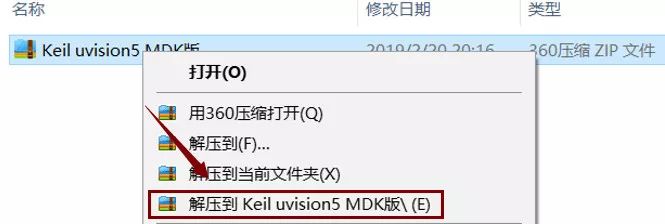 2. Open the “Keil uVision5 C51 Version” folder.

3. Select the “mdk518” executable file and choose “Run as administrator”.

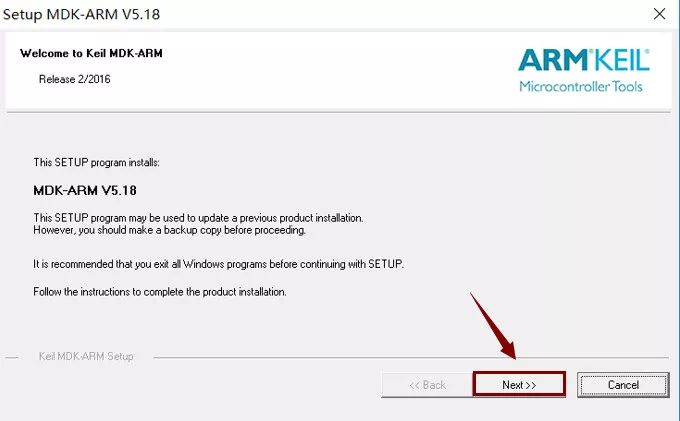
4. Click “Next”.
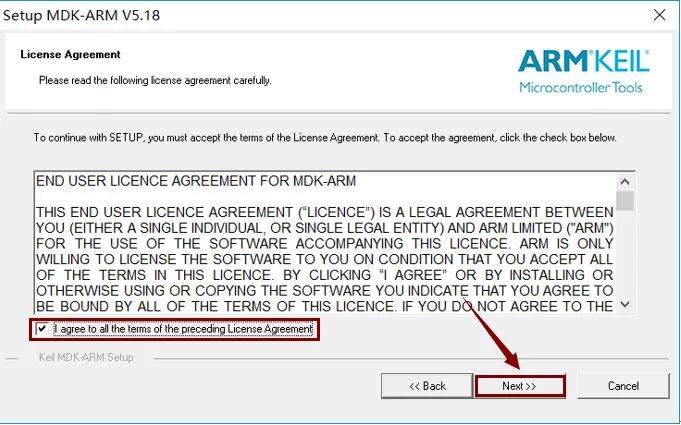
5. Check “I agree to all terms…” and click “Next”.
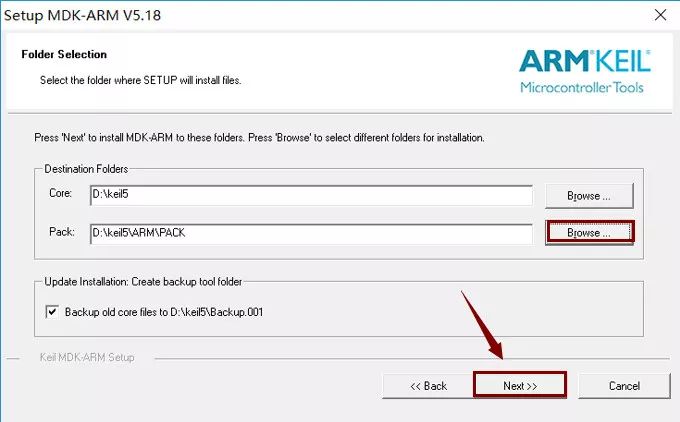
 6. Change the software installation path and click “Next”.
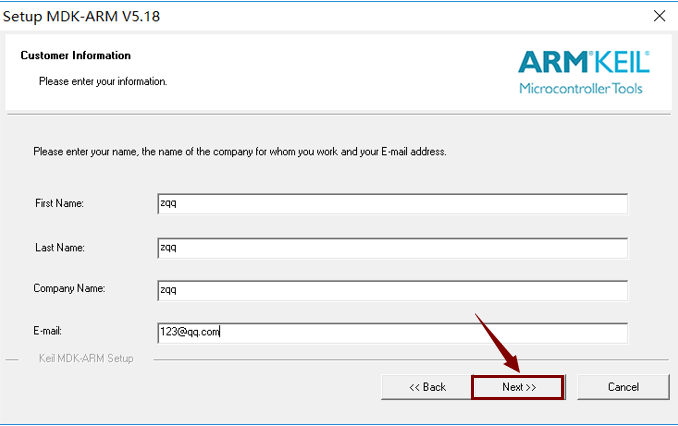
7. Fill in the information and then click “Next”.
8. The software is installing
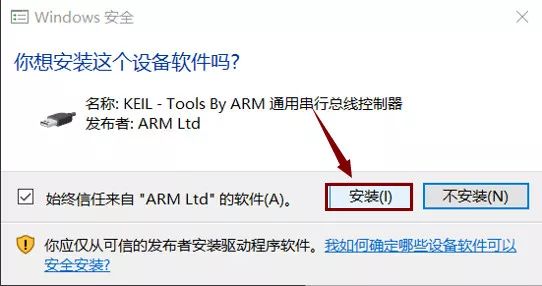
9. Click “Install”.
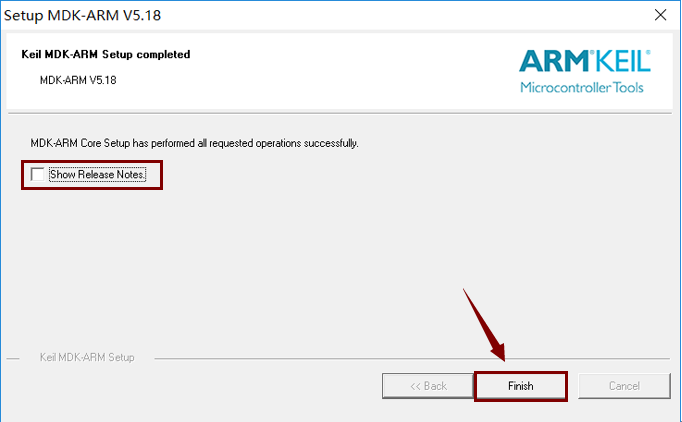
10. Uncheck and then click “Finish”.
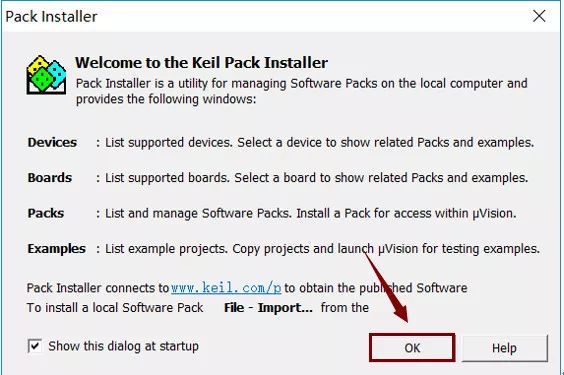
11. Click “OK”.
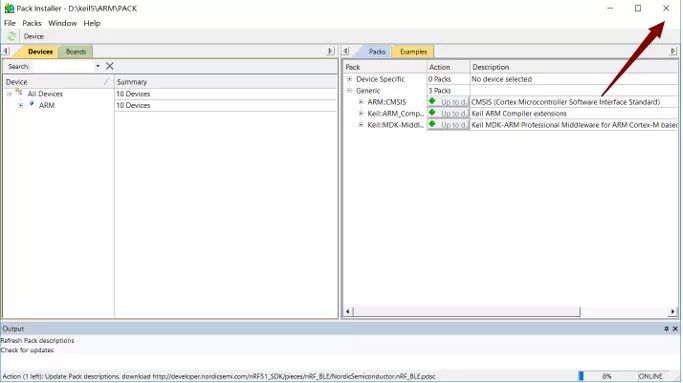
12. Click the “X” in the top right corner of the software to exit.
13. Right-click on the desktop and select “Run as administrator” to open “Keil uVision5”.
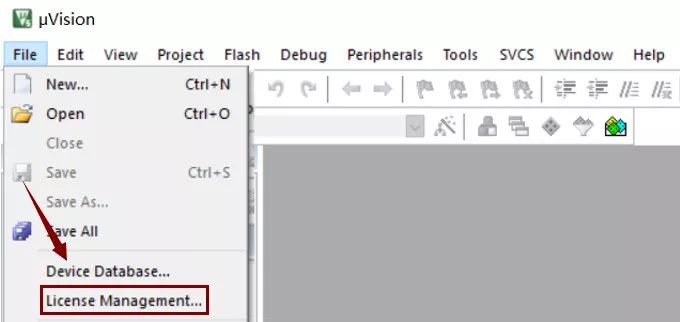
14. Click on the “License Management” under the “File” menu.
15. Open the “Keil uVision 5 MDK Version” folder.

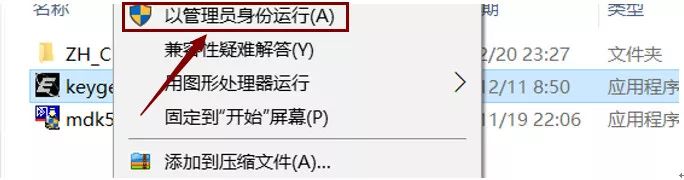
16. Select the “keygen” executable file, right-click and select “Run as administrator”.
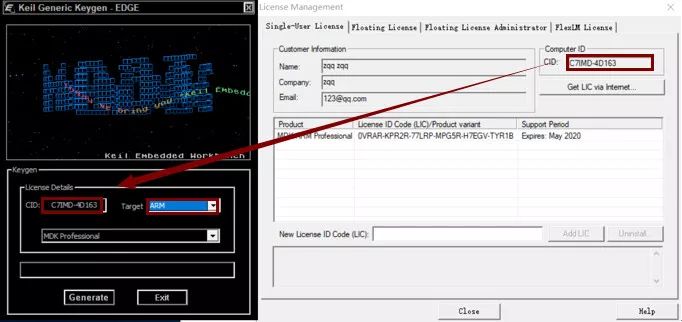
17. In “Target:”, select “ARM”, then copy the “CID” from the software license manager and paste it into the “CID” box in the keygen.
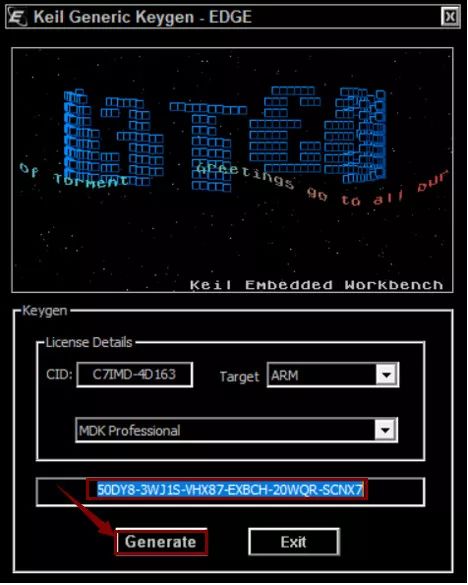
18. Click “Generate” and copy the activation code generated in the box above.
19. Paste the registration code into the “New License ID Code” box, then click “Add LIC”.
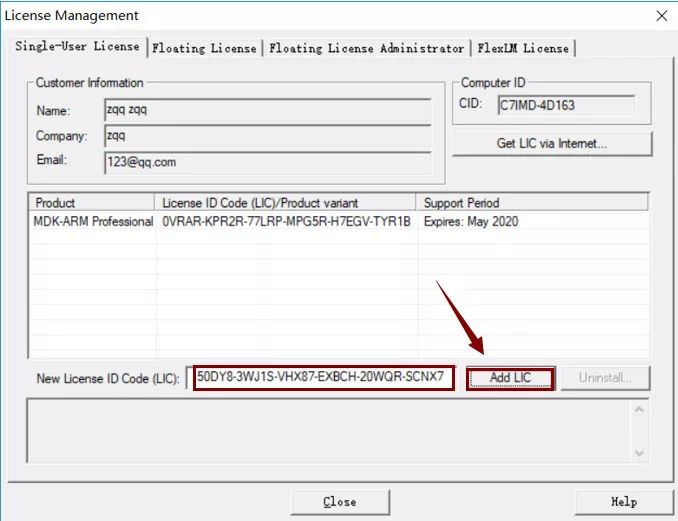
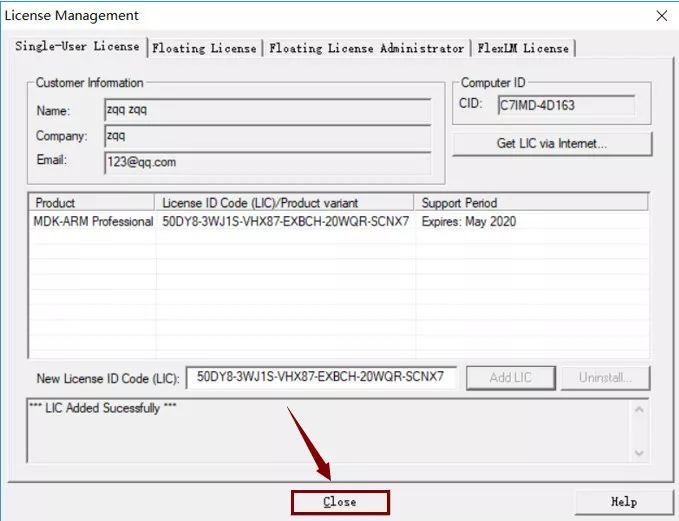
20. Activation successful. If you find the activation time short, you can change the activation code and then click “close”.
21. Open the “ZH_CN” folder inside the “Keil uVision5 MDK Version” folder.

22. Select all files, right-click and select “Copy”.

23. Open the software installation directory and open the “UV4” folder.
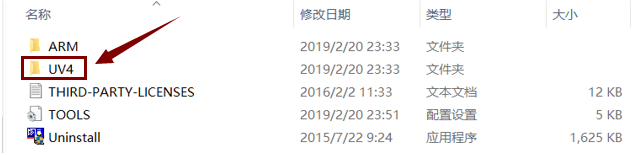
24. Right-click in the blank area and select “Paste”.
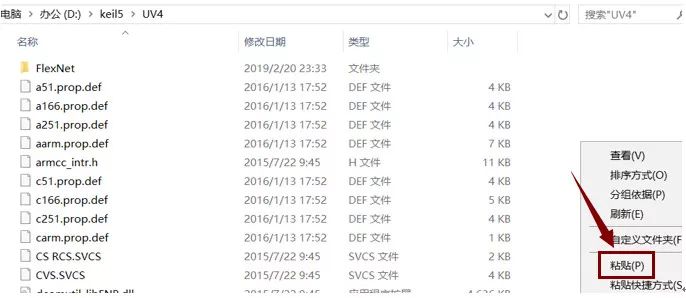
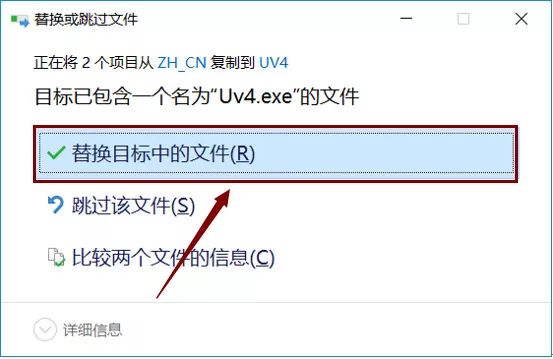
25. Choose “Replace files in the target”.
26. Double-click on the desktop to open “Keil uVision5”.
27. Installation complete.