Hongke KPA Automation softPLC
The Hongke KPA Automation softPLC is a programming environment for PLCs developed for real-time operating systems such as Linux, Xenomai, INtime, and Windows, making it highly suitable for users who need to utilize IEC61131-3 and PLCopen standards for control technology and PLC programming. This article will introduce how to implement powerful applications in Hongke KPA Automation softPLC by writing automation scripts.
The Workbench can automatically create or modify your IEC 61131-3 projects, enabling powerful applications through automation scripting:
-
Create new wizards to build the framework of new projects
-
Create automation or import I/O configuration wizards
-
Automatically generate documentation about project items
-
Any import/export program
For this, no additional tools are required, and there is no need to understand programming or scripting languages such as VB or C++; you can develop, test, and run your scripts using only the Workbench. The scripts are written in IEC languages (usually Structured Text).
The Workbench can automatically create or modify your IEC 61131-3 projects. By writing automation scripts in ST language, many powerful applications can be achieved. Below, the principles of project automation tools will be introduced.
#01
Principles
Project automation scripts are programs written in IEC languages. Structured Text is often used as the programming language for scripts because it is best suited for automation functions. The script is developed as a project and linked to a dedicated library called AUTOMATION.
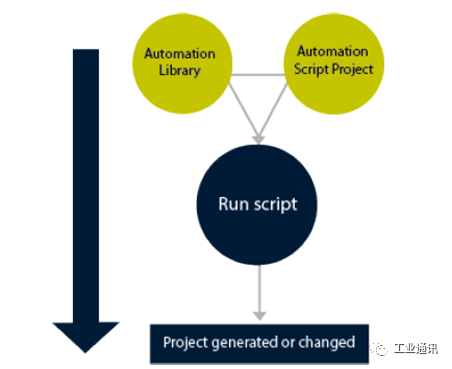
Figure 1: Principles of Project Automation Tools
When the Workbench is used to develop project automation scripts, the “simulate” and “online” commands are replaced with the “execute script” command to execute the scripts. Unlike other IEC projects, the script’s program is executed only once and does not repeat from one cycle to another. Scripts can be used to generate the framework of new projects or to change/complete existing projects. Thus, the AUTOMATION library contains not only functions for building projects but also functions for enumerating and modifying existing project items.
#02
Creating a New Project Automation Script
To create a new project automation script, run the file/new project command from the menu, then select the automation script option in the project creation dialog.
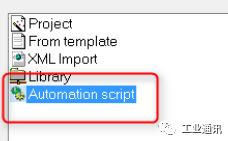
Figure 2: Automation Script Selection
Then follow the instructions. You must specify how the script will be used:
-
Generate a new project from scratch
-
Modify an existing project
-
Modify a project or create one (if it does not exist)
When creating the script, you can already define some parameters for user input when the script starts. The system will automatically create:
-
Some global variables that will become parameters in the script project.
-
A list of variable grouping parameters.
Next, the user will be prompted to input a few lines of ST code for the parameters. The script is generated using the following workspace.
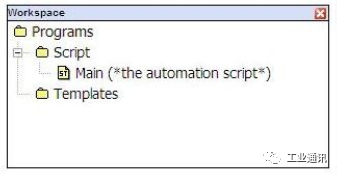
Figure 3: Default Project Workspace
#03
Developing and Testing Scripts
The development of an automation script is similar to any project using the Workbench, but there are some special limitations. The biggest difference is that the script is a program that executes only once (generally written in ST language) and does not repeat across cycles. The main program is the automation script. You can freely create subprograms and UDFBs to be called by this program, but it is recommended to keep only one top-level program (main program) for the script.
The script project refers to a special library named AUTOMATION, which contains all the necessary functions for script development.
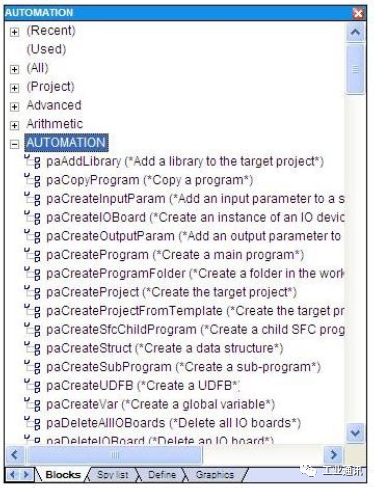
Figure 4: Contents of the AUTOMATION Library
When developing script projects, the “simulate” and “online” commands in the project menu are replaced by the “execute script” command. This command can run your script for testing and opens the following dialog:
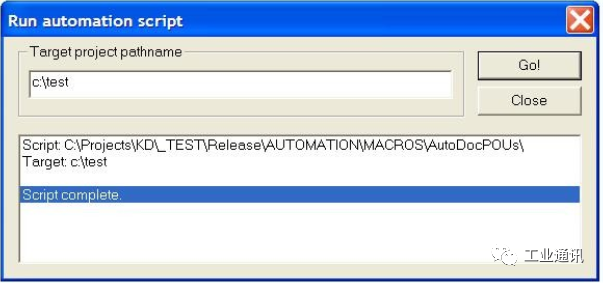
Figure 5: Example of Running Automation Script
In the dialog above, enter the name of the target project (to be created or modified) and press Go!. Any tracking messages or error reports will be displayed in the list below.
#04
Registering the Script as a “New Project” Wizard
If your script is designed to create a framework for new projects, you can register it so that the Workbench calls it in its standard new project program. To do this, simply copy the script folder of the installed KPAAsoftPLCStudio application data, located in the AUTOMATION\SCRIPTS\ folder. Then your script will be available for creating new projects from the Workbench.
#05
Running Scripts from Other Applications
Scripts developed using the Workbench can be run from external applications. The following are possible calling patterns:
Command Line
Scripts can be executed directly from the Windows console or from a .BAT file using the K5Script.exe utility installed with the Workbench. Statement: K5Script.exe <script> <target_project>
Objects:
<script>: The name of the folder containing the script. If the path name is not specified, it searches for the script folder under AUTOMATION\SCRIPTS\.
<target_project>: The fully qualified path name of the target project to be created or modified by the script.
From C/C++ Applications
Your “C/C++” applications can link to K5NETAS.DLL located in the installed Workbench and run scripts using the following exported functions:
From C Language:
LPCSTR declspec(dllimport) K5NETAS_RunScript (
LPCSTR szScript, LPCSTR szDest
);
From C++ Language:
extern “C” LPCSTR declspec(dllimport) K5NETAS_RunScript (
LPCSTR szScript, LPCSTR szDest
);
Objects:
szScript: The name of the folder containing the script. If the path name is not specified, it needs to search for the script folder under “AUTOMATION\SCRIPTS\” where the Workbench is installed.
szDest: The fully qualified path name of the target project that the script will create or modify.
Value:
The function returns a pointer to a string containing the report.
During the actual operation, Hongke technical engineers have organized reference examples of some functions, including project level services, declaring objects, generating documents, etc. If you need help during development or want to learn more about Hongke Automation softPLC, feel free to contact Hongke at [email protected].
For More Information
Feel free to contact the Hongke Industrial Control Team!
We welcome your attention and contact
▎Previous Reviews
[1] Hongke Insights | Porting Test of Hongke KPA EtherCAT Master Software on Xilinx ZYNQ UltraScale+[2] Hongke Insights | EtherCAT Master Redundancy Technology to Protect Target Systems from Failures[3] Hongke High-Performance EtherCAT Solutions to Help You Quickly Deploy EtherCAT Technology[4] Hongke KPA Automation softPLC, a PLC Development Environment Designed for Automation Solutions[5] Explosion-proof, dust-proof, and waterproof, with various configurations, sizes, and installation methods available, Hongke’s high-performance fanless industrial computers are hardcore![6] Hongke Solutions | From IP Core to Switch, Hongke Releases One-Stop TSN Network Solutions Click to read the original text for more information!