Importing Local Images into OpenWRT
This article takes the AX5’s QWRT as an example; other OpenWRT operations are similar. If there are inconsistencies, feel free to ask AI or similar resources.
Uploading the Image
Navigate to<span>System</span> ➥ <span>File Transfer</span>, select the local image, and click<span>Upload</span>:
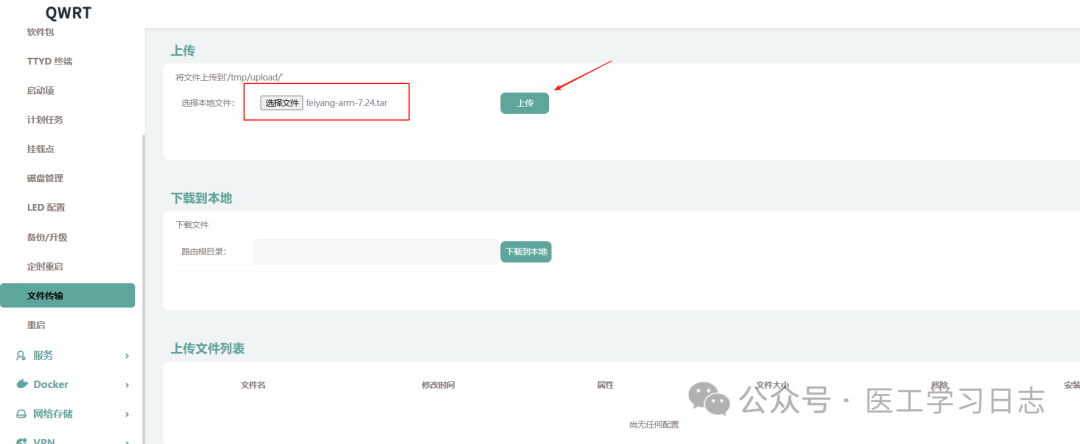
This image is from the backup of the ARM64 architecture and is not suitable for other platforms.
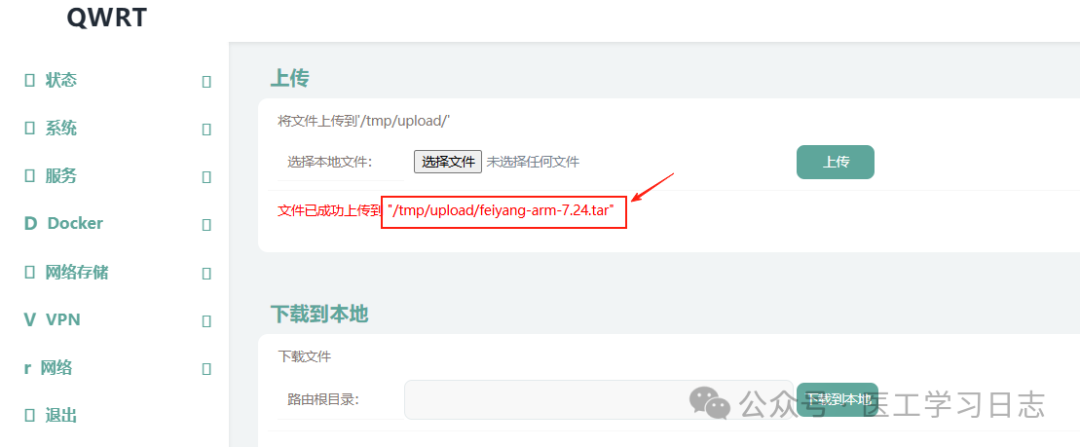
After the upload is complete, note the file path, such as<span>/tmp/upload/feiyang-arm-7.24.tar</span>
Importing the Image
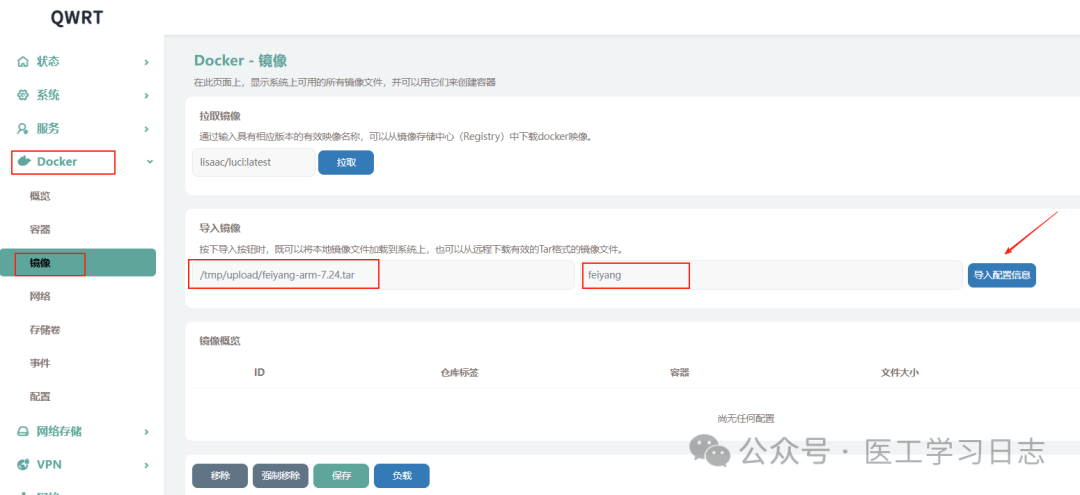
Go to<span>Docker</span> ➥ <span>Images</span>, and fill in the path of the uploaded image, such as<span>/tmp/upload/feiyang-arm-7.24.tar</span>. For<span>repository:tag</span>, enter the image name, for example,<span>feiyang</span>. After filling in, click<span>Import Configuration</span>:
However, an error message appears stating that only network images can be imported:
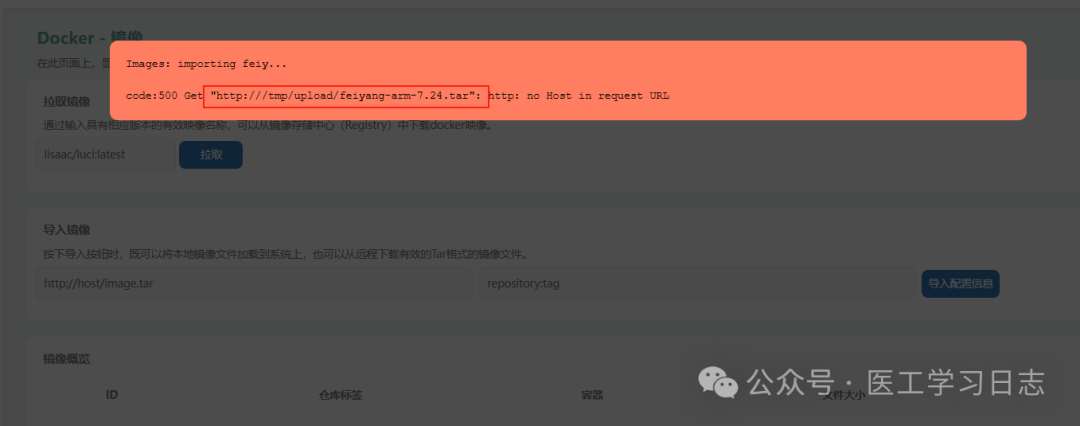
There are two ways to handle this: upload the tar file to a web server and import it using the HTTP path, or use the Docker command to import it.
Command Method:
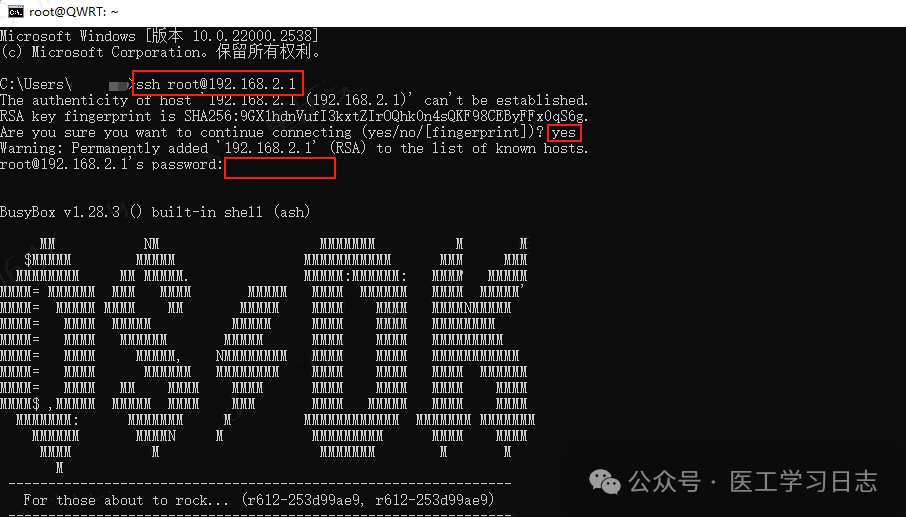
SSH into QWRT, on your computer’s command line, use the command<span>ssh username@server</span>, for example:
ssh [email protected]
When prompted, type<span>yes</span> to agree and enter your password:
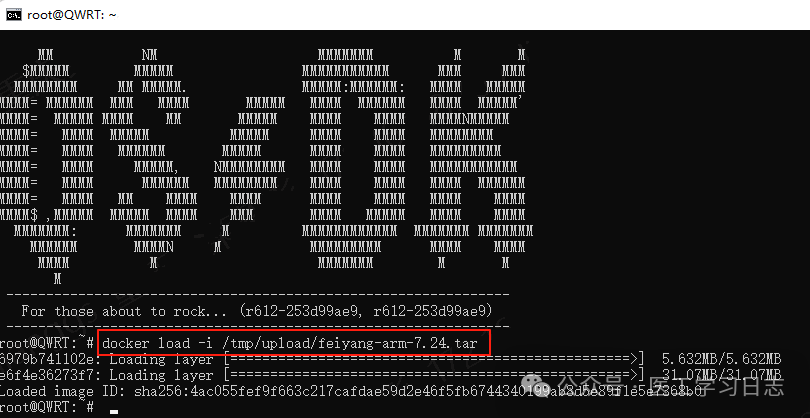
Import the image:
docker load -i /tmp/upload/feiyang-arm-7.24.tar
Confirming the Image
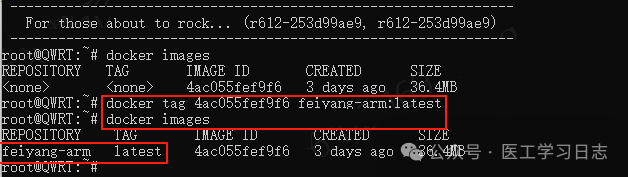
First, check if the image from the <span>feiyang-arm-7.24.tar</span> file has been successfully imported by running the command:<span>docker images</span>

If the image does not display a specific name, use the <span>docker tag</span> command to tag it. Record the image ID, for example, mine is<span>4ac055fef9f6</span>. The command is: <span>docker tag abcdef123456 feiyang-arm:latest</span> and then run <span>docker images</span> again to confirm:
Finally, create and allow the container:
Change the original run command from<span>youshandefeiyang/allinone</span> to the previously tagged version<span>feiyang-arm:latest</span>:
docker run -d --restart always --privileged=true -p 35455:35455 --name allinone feiyang-arm:latestyoushandefeiyang/allinone -tv=true -aesKey=y39i*** -userid=7352*** -token=fd06***
Finally, return to QWRT to see the container running successfully:
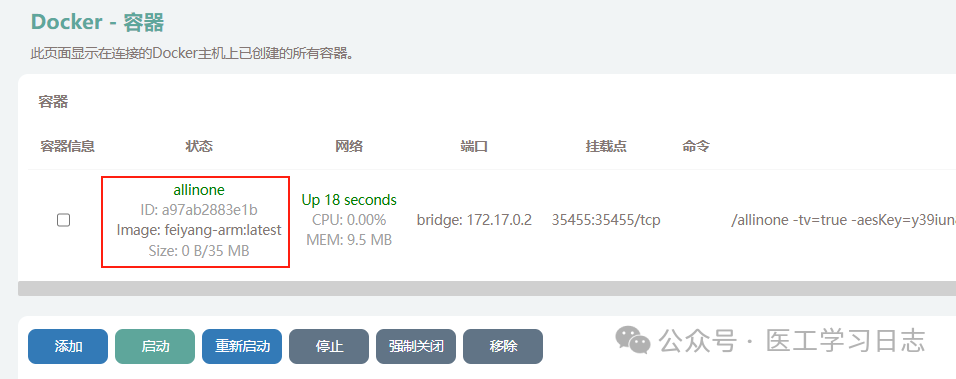
You can now use it normally.
Download Local Images
You can follow the public account and reply with【250728】to download.
ARM64 and x86 platforms; ARM64 is the last version that has been deprecated, retaining BST and GPTV, while x86 includes YHYX. Download as needed.
📚 Recommended Previous Articles
-
《Docker: All-in-One Updated with New Features》🔗 Click to Read
-
《Failed to Pull Docker Image for Feiniu NAS? Don’t Panic, Local Image Migration to the Rescue!》🔗 Click to Read
🌟 Interact with Us
Hi~ This is the warm little corner of 【Medical Engineering Learning Log】!📩 Feel free to reach out: Leave any questions in the background, and Shushu will respond at lightning speed!💡 Creative Ideas Collection:👉 Encounter interesting resources? Share with us!👉 Want to see hardcore reviews? Send us your topics!🔥 Your ideas might become the next hit article!
📝 Column Information Edited by ✨ Shushu ✨
Technical Support @ Enshan Wireless Forum & Github & Hansi Beyond
📜 Copyright Statement Content Description:
-
Original articles must be authorized for reprint;
-
Some materials are sourced from the internet, copyright belongs to the original authors;
-
If you feel there is an infringement, please contact us with proof of ownership for removal.
 Like
Like Share
Share View
View Collect