
Click the above Computer Enthusiasts to follow us
There are more and more lightweight laptops nowadays. Although they are great to use, when it comes to upgrading due to insufficient storage space, it can be very difficult—either there is no extra expansion slot or you need to replace the original hard drive, which seems a waste to discard the old device. In fact, you can expand the storage space using a flash memory card or USB drive without affecting the computer’s usage.

To expand the C drive storage space, I particularly recommend TF/SD cards because many lightweight laptops come with a TF card slot. The memory card can be inserted without sticking out, allowing for expanded storage space, which is a win-win.
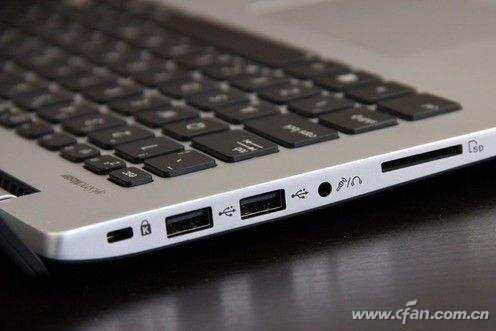
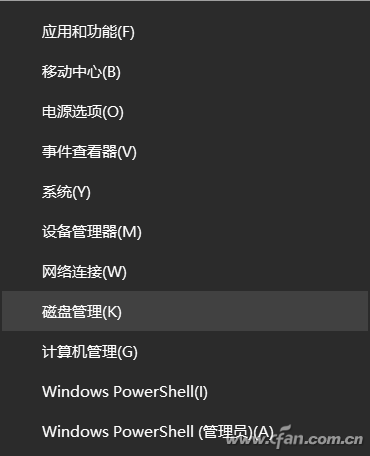
After inserting the memory card, back up the data inside, as the memory card will be reset. To reset it, right-click the Windows icon (lower left corner) and select “Disk Management” from the menu.
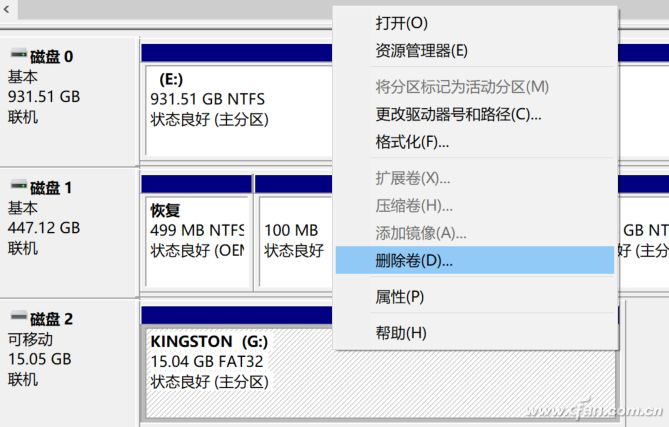
In Disk Management, find your memory card, be careful not to select the wrong one, right-click it, and choose “Delete Volume” from the pop-up menu.
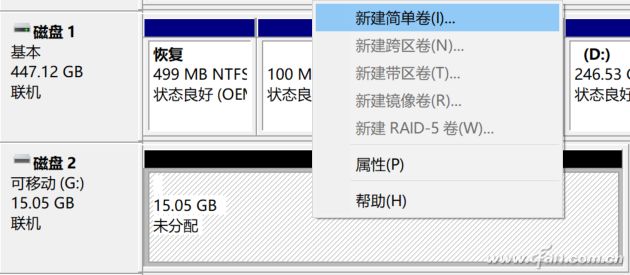
Then right-click the newly unallocated memory card and select “New Simple Volume” from the menu.
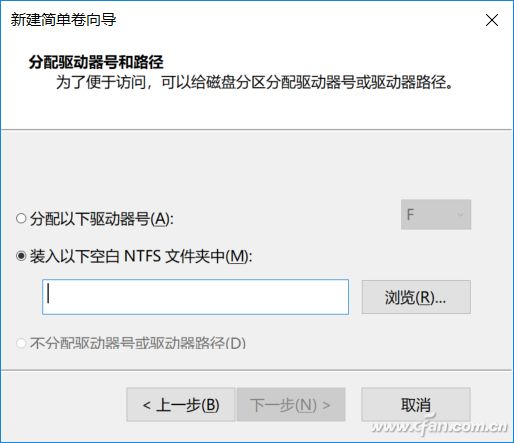
Pay attention when executing the wizard to assign a drive letter and path; select “Mount in the following empty NTFS folder”. Note that this is not the same as selecting “Assign the following drive letter”.
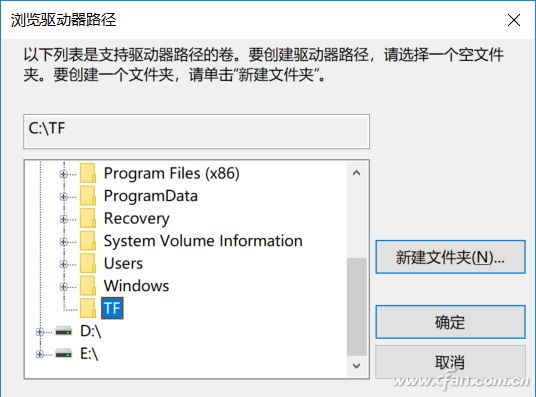
Click the browse button, select the root directory of the C drive, and then click “New Folder”. I named it TF, but you can set it according to your situation. To ensure maximum compatibility (character issues), it is recommended to set it as an English directory.
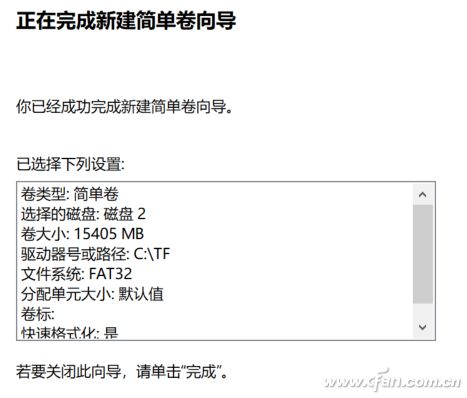
On the confirmation information page, you can check if your path settings are correct, then click finish.
At this point, when you open the root directory of the C drive, you will see a shortcut to a drive named “TF”, and in the file explorer, you can still see the actual drive letter of the USB drive (automatically assigned in order).
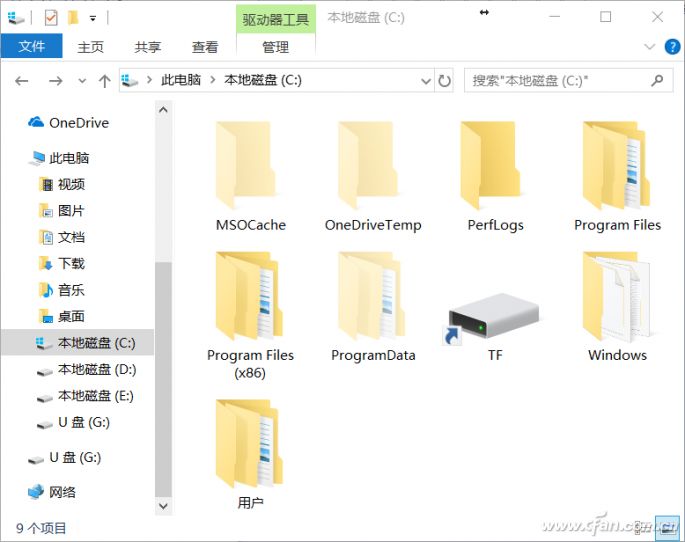
In this way, the capacity of the C drive has been successfully expanded. For example, the copied file contents can be stored in the mapped TF folder directory, or software installations can also set the storage location to C:\TF, which is very convenient. However, it should be noted that flash storage devices (including USB drives) have a read/write lifespan that is certainly less than that of hard drives (whether mechanical or solid-state), so applications that require frequent read/write should not be stored in the mapped folder of the flash memory card.

After reading this article, 99% of readers will also click:

Click “Read the Original” for more exciting content