Hello, Linux novice adventurer! Do you often encounter large files taking up space, or have a bunch of scattered files that need organizing? Don’t worry! Today, we will discuss the four “compression and packaging tools” in Linux: zip, gzip, bzip2, and tar. They act like your file “weight loss coach” and “moving captain,” helping you save space and organize archives! Let’s get started! 🧰 1. Introduction to Each Command and Core Functions1. zip• Function: A cross-platform compression tool that can compress multiple files/directories into .zip format (compatible with both Windows and Mac).• Features: Supports password protection and recursive compression of directories.• Related command: unzip (decompress).2. gzip• Function: Compresses a single file into .gz format (deletes the original file by default).• Features: Fast compression speed, but lower compression ratio.• Related commands: gunzip (decompress), zcat (view content without decompressing).3. bzip2• Function: Compresses a single file into .bz2 format, with a higher compression ratio than gzip.• Features: Slower compression speed, but saves space.• Related commands: bunzip2 (decompress), bzcat (view content without decompressing).4. tar• Function: Packages multiple files/directories into a single file (without compression), commonly used with gzip/bzip2 to generate .tar.gz or .tar.bz2.• Features: Preserves permissions and directory structure, acting as the “universal glue” for Linux archiving.• Related commands: Often used in combination with gzip/bzip2 (e.g., tar -z for gzip, tar -j for bzip2).🎯 2. Usage and Important Options0. If prompted that the related tools are not installed, you can use apt install to install them.
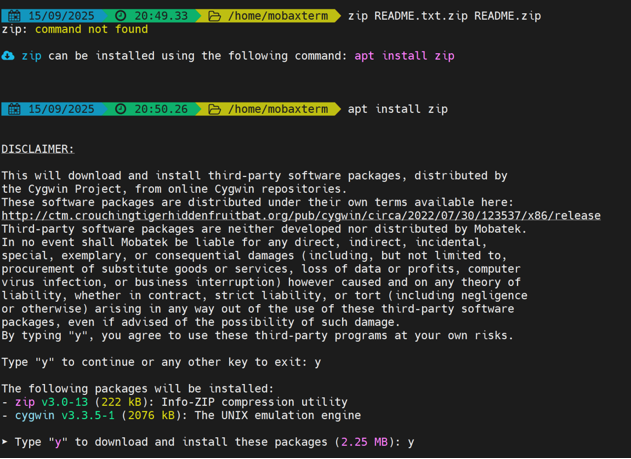 1. zip — The Cross-Platform Wizard• Compress:
zip -r archive.zip dirname/ # Compress directoryzip -e secret.zip file.txt # Encrypt compression (set password)
 • Decompress:
unzip archive.zip # Decompress to the current directory unzip file.zip -d target_dir/ # Decompress to the specified directory • View content:
unzip -l archive.zip2. gzip — The Fast Shooter• Compress:
gzip file.txt # Generates file.txt.gz, original file disappearsgzip -k file.txt # Keep original file (with -k option) gzip -9 data.log # Highest compression level (1-9, default 6)• Decompress:
gunzip file.txt.gz # Or gzip -d file.txt.gz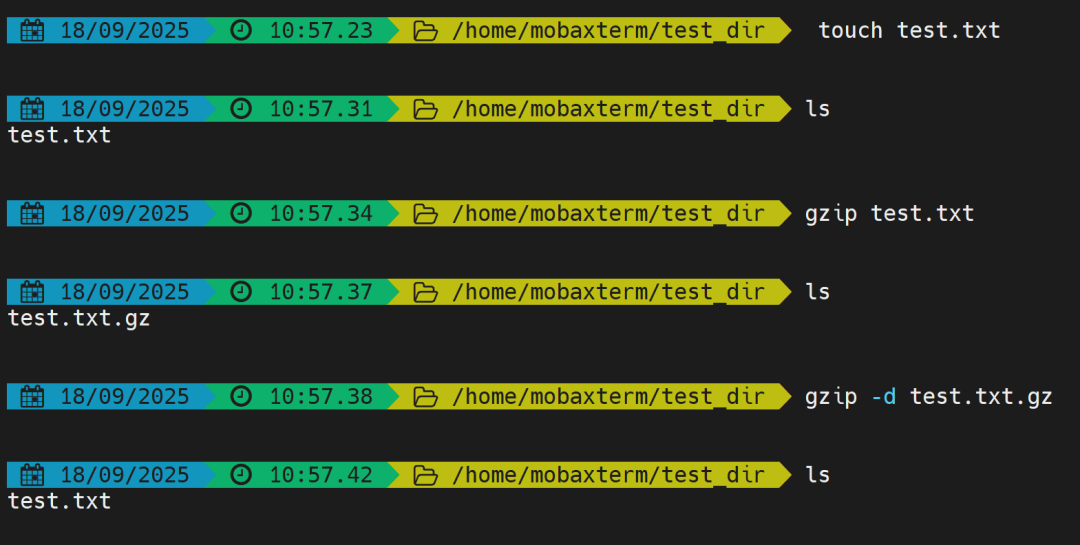 3. bzip2 — The Space Saver Master• Compress:
bzip2 file.txt # Generates file.txt.bz2bzip2 -k file.txt # Keep original file• Decompress:
bunzip2 file.txt.bz2 # Or bzip2 -d file.txt.bz2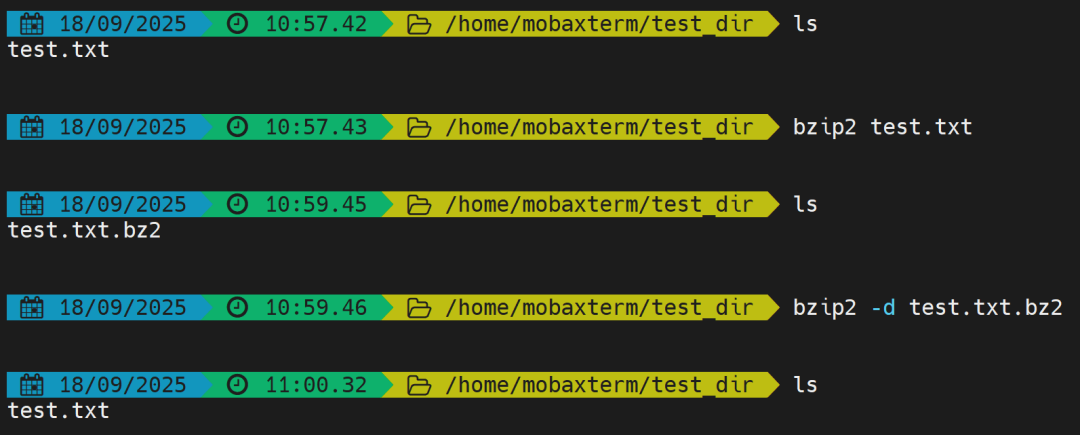 4. tar — The King of Packaging💡 Parameter Memory:• -c: Create• -x: Extract• -z: Use gzip• -j: Use bzip2• -v: Verbose• -f: Specify filename• -t: List contents• Packaging + Compression:
tar -czvf archive.tar.gz dir/ # Compress with gzip (-z) tar -cjvf archive.tar.bz2 dir/ # Compress with bzip2 (-j)• Decompress:
tar -xzvf archive.tar.gz # Decompress .gz tar -xjvf archive.tar.bz2 # Decompress .bz2 tar -xvf file.tar -C target_dir/ # Decompress to specified directory • View contents only:
tar -tf archive.tar.gz🤔 3. Common Questions and AnswersQ: What if the original file disappears after compression?A: Use the -k option (e.g., gzip -k file.txt) or back up before compressing.Q: How to decompress to a specified directory?A: Use -d with unzip, -C with tar (e.g., unzip file.zip -d ~/docs).Q: Encountered “Permission denied” error?A: You may not have read/write permissions; use sudo or check file ownership.Q: How to view the contents of a compressed file without decompressing?A: Use tar -tf archive.tar.gz or unzip -l file.zip.Q: Why are file names garbled when decompressing with tar?A: It may be a character set issue; try setting LANG=en_US.UTF-8. 🧪 4. Practical Reinforcement• Create a test_dir in the home directory and place several text files in it.• Compress it using zip -r test.zip test_dir/, then decompress with unzip.• Use gzip to compress one of the files, then decompress it.• Try compressing a large file with bzip2 -9 and compare the sizes before and after compression.• Create an encrypted zip package: zip -e secret.zip private_file.txt.
• Archive and compress the test_dir folder into a file named test_dir_backup.tar.gz as a backup.
 💎 Summary and Best Practices• Tool Selection Criteria:For cross-platform → use zip.For speed → use gzip (e.g., for log compression).For compression ratio → use bzip2 (e.g., for backing up large files).For packaging directories → use tar combo (e.g., .tar.gz).• Habit Formation:Before compressing, use -k to keep the original file to prevent accidental deletion.Before decompressing, check contents with -t or -l to avoid overwriting files.🚀 Final Easter Egg: Remember these command “combos”! Practice a few times, and you’ll be able to organize your files neatly! If you encounter any issues, feel free to refer back to this guide! Happy Linux compression journey! 😊