Hey, friend! Does the Linux command line feel like a foreign language to you? Don’t worry, it’s actually as simple as ordering food in a restaurant! Let me show you its basic structure in the most relatable way.🍽️ Ordering: Command = What do you want to eat?Imagine you walk into a restaurant:•Command is like your main dish order, such as “I’ll have a pizza” or “I’ll have a burger.” In Linux, this represents core operations, like ls (to see what’s in the directory) or cp (to copy something). 🌶️ Customizing: Options = Extra spicy? No ice? How well done?After ordering your main dish, you usually have some customization requests.Options are used to adjust the behavior of commands. They typically start with a single dash – or double dash –.•Short options are like a quick gesture: for example, the short options for the ls command include -l (detailed list) and -a (show all, including hidden files). They can be combined, like -la. Changing their order does not affect functionality, so -la is equivalent to -al.•Long options are more like complete sentences: for example, –help (many commands have a built-in help option that can directly display brief usage information). They are more intuitive but require more typing.
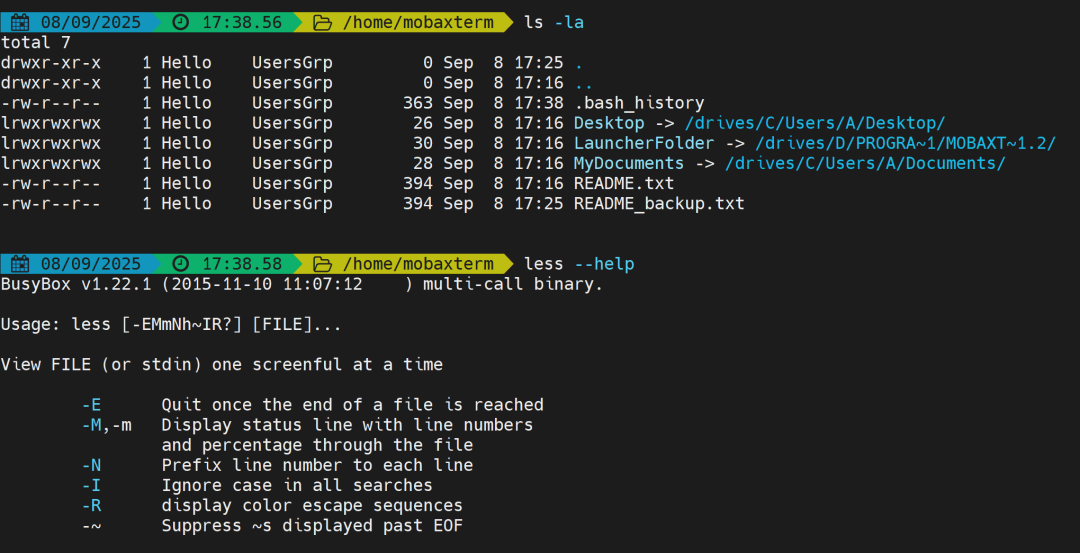 📝 Specifying Details: Arguments = For whom? Where to put it?Finally, you need to tell the waiter some specific information.
 •Arguments are the objects of the command, such as files, directories, or data. They usually follow the options (if any).The position and order of arguments can affect the command’s behavior.•For example, in
cp ./README.txt ./README_backup.txt, ./README.txt (source file) and ./README_backup.txt (destination file) are the arguments, telling the cp command who to copy and where to copy to.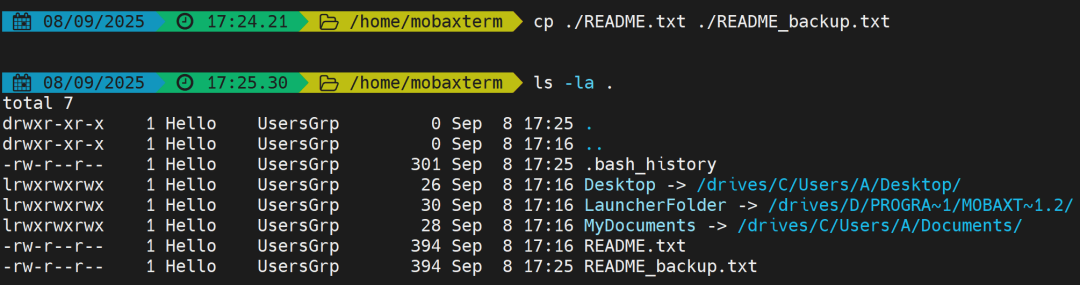 🔤 Remember the General FormatLinux commands typically follow the format command [options] [arguments].Here, command is mandatory, while options and arguments are optional, and their order can sometimes be adjusted (but the command name must always come first).Options and arguments are usually separated by spaces.💡 TipsThe Tab key is a magic tool: when entering commands, options, or file names, pressing the Tab key can auto-complete, effectively preventing typos.–help is your good friend: most commands followed by –help or -h will print help information, telling you what options and arguments it has and how to use them.The man command is the manual: if you want to know more detailed usage, you can try man [command name] (like man ls), which will display a very comprehensive manual.I hope this explanation makes the Linux command line feel more approachable and easier to use! With a bit of practice, you’ll soon use it as naturally as ordering food.