1
Basic Information
|
Name: Dev C++ 6.5 |
|
Size: 44M |
|
Installation Environment: Windows 7 and above 64-bit operating system |
|
Baidu Cloud Link: https://pan.baidu.com/s/1QRul-XzMvG4Lb57QxHExCw?pwd=6666 Extraction Code: 6666 Quark Cloud Link: https://pan.quark.cn/s/128687e0d1bb |
2
Software Introduction
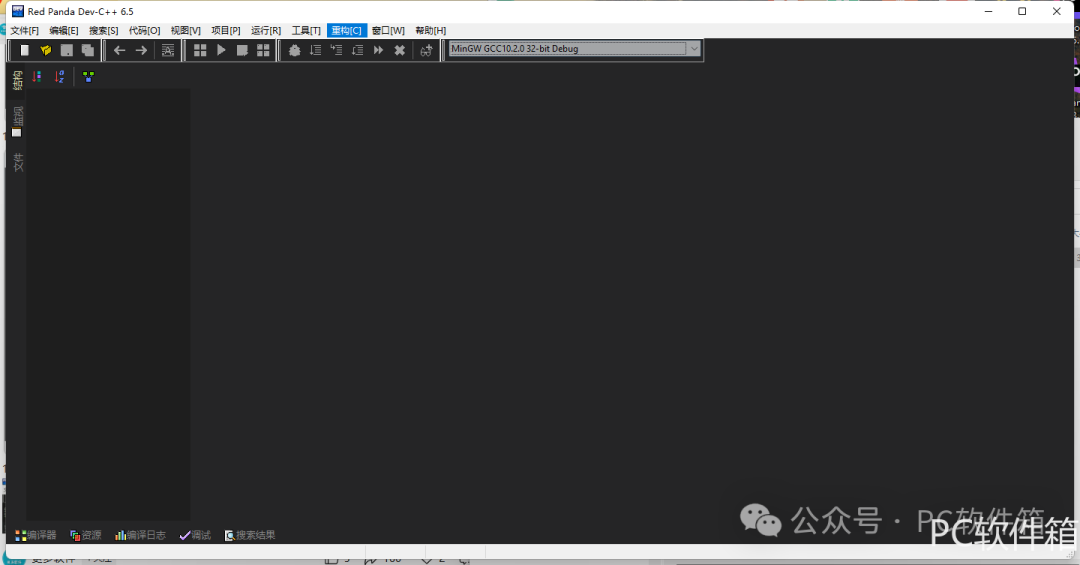
Dev-C++ 6.5 is an integrated development environment (IDE) for C/C++ developers, designed specifically for Windows users. It supports the GCC compiler and provides features for code editing, compiling, debugging, and project management.
Main Features:
-
Compiler Integration: Uses MingW64/TDM-GCC compiler, supports C++11 standard, compatible with C++98 standard, and offers various compilation options.
-
Code Editing: Supports syntax highlighting, auto-completion, code folding, and error hint optimization, making debugging and learning easier.
-
Project Management: Allows creation, compilation, and management of projects, supporting multi-file and directory organization.
-
Debugging Tools: Built-in GDB debugger, supports breakpoints, stepping, variable observation, and more.
3
Installation Steps
Note: Please disable your antivirus software and firewall (Windows 10 and higher systems also need to disable Defender real-time protection) before re-extracting the installation package.
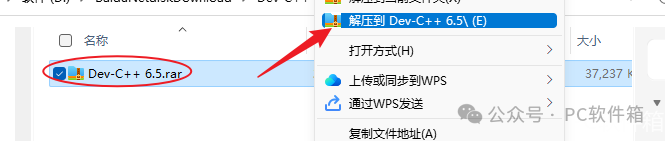
1. Extract the installation package: Right-click on the 【Dev-C++ 6.5】 compressed package, select the extraction software installed on your computer, and click extract to 【Dev-C++ 6.5】.
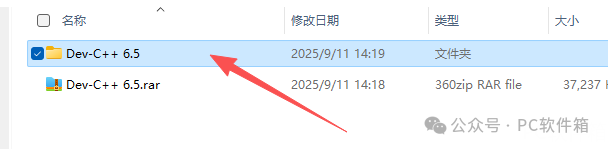
2. Double-click to open the extracted 【Dev-C++ 6.5】 folder.
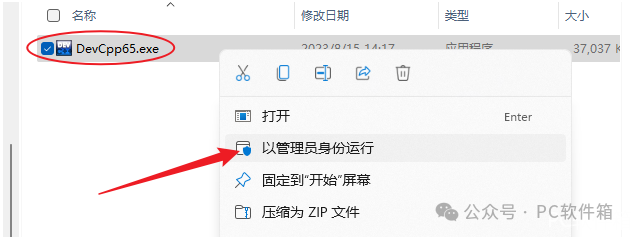
3. Right-click on 【DevCpp65】 and select 【Run as administrator】.
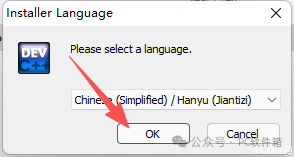
4. Click 【OK】.
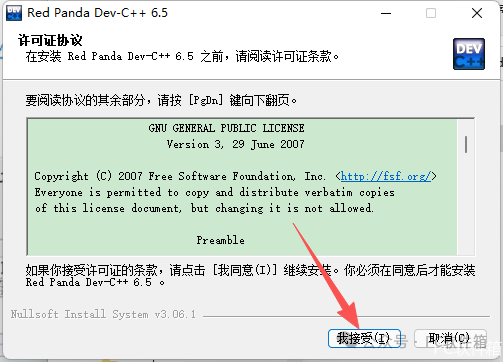
5. Click 【I accept】.
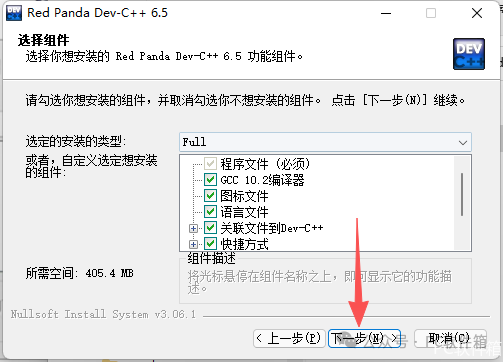
6. Click 【Next】.
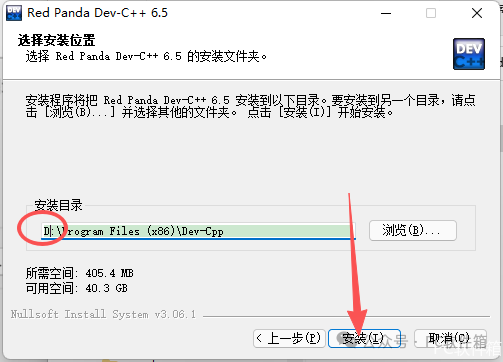
7. The software is installed by default on the C drive, but you can customize the installation location. Here, I choose to install it on the D drive, and click 【Install】.
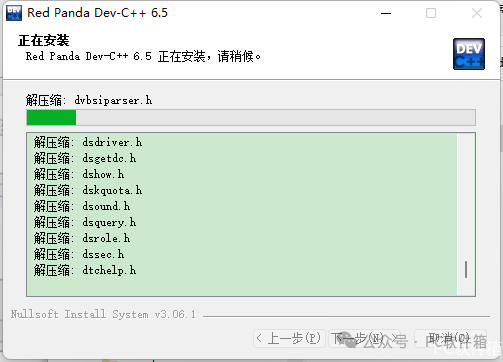
8. Software is installing…
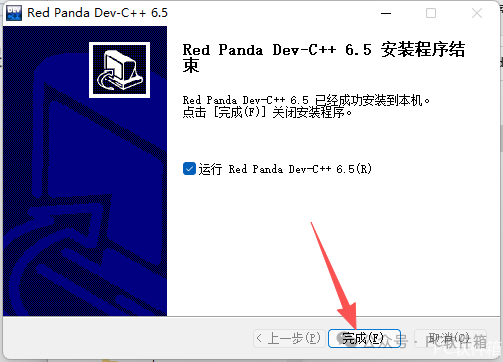
9. Click 【Finish】.
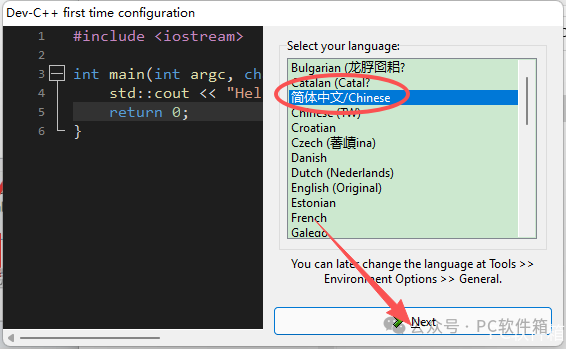
10. Click 【Next】.
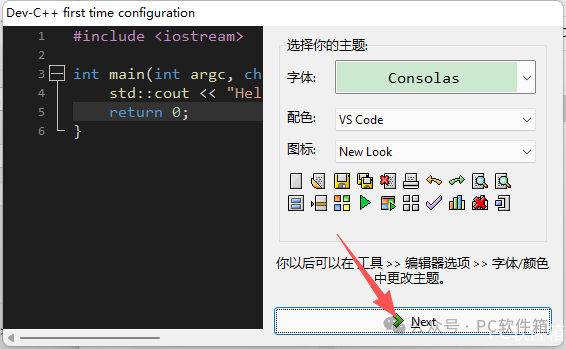
11. Click 【Next】.
12. Click 【OK】.
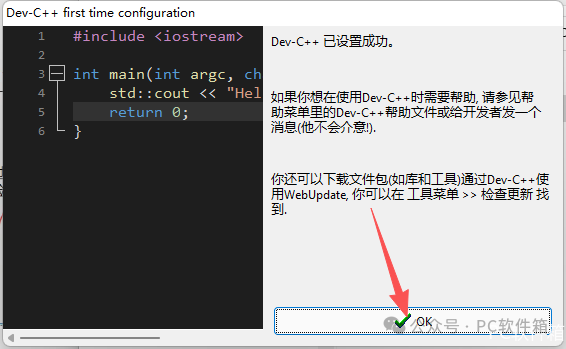
13. Installation complete.