Debugging the Linux kernel is an important way to understand the internal workings of an operating system. Often, code is understood through execution rather than just reading. By using QEMU in conjunction with the GDB debugger, we can set breakpoints, step through code, and inspect various data structures within the Linux kernel without needing additional hardware. This is a low-cost method for learning about the Linux kernel. This article will detail how to set up this debugging environment.
1.Environment Setup
First, you need to install QEMU or compile a version of QEMU from source code, which is a straightforward process and will not be elaborated here. Next, you need a copy of the Linux kernel source code, which can be downloaded from kernel.org. Finally, ensure that the version of GDB installed on your Linux system is 7.4 or higher, as we need to use a GDB version that supports Python.
2.Configuring and Compiling the Kernel
For debugging purposes, select the following configuration options during make menuconfig:Kernel hacking —> Compile-time checks and compiler options —> Debug information: Rely on the toolchain’s implicit default DWARF version.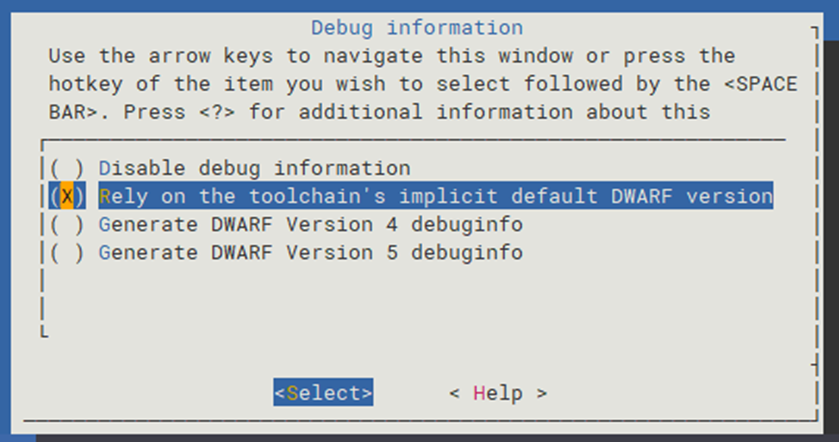
Kernel hacking —> Compile-time checks and compiler options —> Provide GDB scripts for kernel debugging。
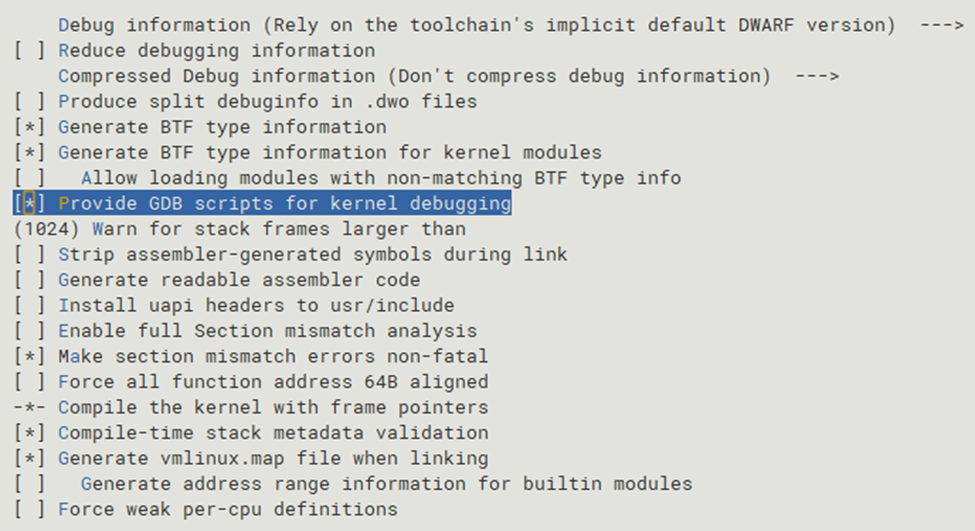 These two options will enable the following kernel configurations:CONFIG_DEBUG_INFO=yCONFIG_DEBUG_INFO_DWARF_TOOLCHAIN_DEFAULT=yCONFIG_GDB_SCRIPTS=yOther kernel configuration options, such as building the virtio-blk driver and ext4 filesystem into the kernel, can be selected according to your preferences.Once the kernel is configured, it can be compiled. If you only want to debug the kernel itself, you only need to compile the kernel:
make -j4 bzImage # Compile the kernel image using 4 threadsAfter compilation, the kernel image will be located at arch/x86/boot/bzImage.If you also want to debug kernel modules, you will need to execute the following command to compile the kernel modules:
make -j4 modules # Compile kernel modules using 4 threadsEven if the kernel module you want to debug is compiled outside the Linux kernel source code (out-of-tree module), you still need to execute this step; otherwise, the compiled kernel module may exhibit many strange issues.After compiling the kernel and kernel modules, you also need to generate the GDB scripts using the following command: vmlinux-gdb.py. The Linux kernel provides a set of Python scripts to extend GDB’s debugging capabilities for the kernel, offering many convenient commands for kernel debugging.
make scripts_gdb3.Creating the Root Filesystem
To run the kernel, we need a simple root filesystem, which we can create using BusyBox. The source code for BusyBox can be cloned using git from https://github.com/mirror/busybox.git.
git clone https://github.com/mirror/busybox.gitAfter downloading the code, navigate to the busybox directory and execute the following commands to compile BusyBox.
make menuconfig # Select Settings → Build static binary (no shared libs)make -j4 # Compile using 4 threadsmake install # Install to the busybox _install directoryAfter compiling BusyBox, you can create the root filesystem structure using the following commands.
dd if=/dev/zero of=disk bs=1M count=256mkfs.ext2 diskmount -o loop disk /mnt/mkdir -p /mnt/{dev,etc,proc,sys}sudo cp -r busybox/_install/* /mnt/mkdir -p /mnt/etc/init.d/cat > /mnt/etc/init.d/rcS << EOF#!bin/shmount -t proc none /procmount -t sysfs none /sysmount -t tmpfs none /dev/sbin/mdev -sEOFchmod +x /mnt/etc/init.d/rcSumount /mnt/After completing these steps, you will have an ext4 formatted virtual disk file disk, which can be used as the virtio-blk backend when starting QEMU.
4.Using QEMU to Boot the Kernel
We need to use QEMU’s direct kernel booting mode to start the Linux kernel image bzImage that we compiled earlier. The script to start QEMU is as follows.
/qemu/bin/qemu-system-x86_64 \-machine q35,accel=kvm \-smp 4,sockets=1,cores=4,threads=1 \-m 4G \-kernel /home/linux/src/linux-6.12.42/arch/x86/boot/bzImage \-append "root=/dev/vda rw init=/sbin/init console=ttyS0,115200n8 nokaslr" \-drive file=disk,if=none,id=virtio-disk0,format=raw \-device virtio-blk-pci,scsi=off,drive=virtio-disk0,id=virtio-blk0 \-nographic \-s \-SThe QEMU command line parameters:-s: Enables the GDB debugging server on port 1234.-S: Pauses CPU execution at startup, waiting for GDB to connect.We need to specify nokaslr in the Linux kernel command line to disable kernel address space layout randomization, which facilitates GDB debugging.
5.Connecting and Debugging with GDB
First, start QEMU, then in another terminal, start GDB. You need to start GDB in the directory where the Linux kernel is compiled (the directory containing vmlinux).
gdb vmlinux
# Connect to QEMU
The basic operations in GDB are as follows:
(gdb) target remote :1234
# Continue execution
(gdb) continue # Can be abbreviated as c
# Step through code
(gdb) step # Can be abbreviated as s
(gdb) next # Can be abbreviated as n
# View variable values
(gdb) print variable_name # Can be abbreviated as p variable_name
# View the call stack
(gdb) backtrace # Can be abbreviated as bt
# List source code
(gdb) list # Can be abbreviated as l
# View registers
(gdb) info registers # Can be abbreviated as i r
# Continue execution to the next breakpoint
(gdb) continue # Can be abbreviated as c
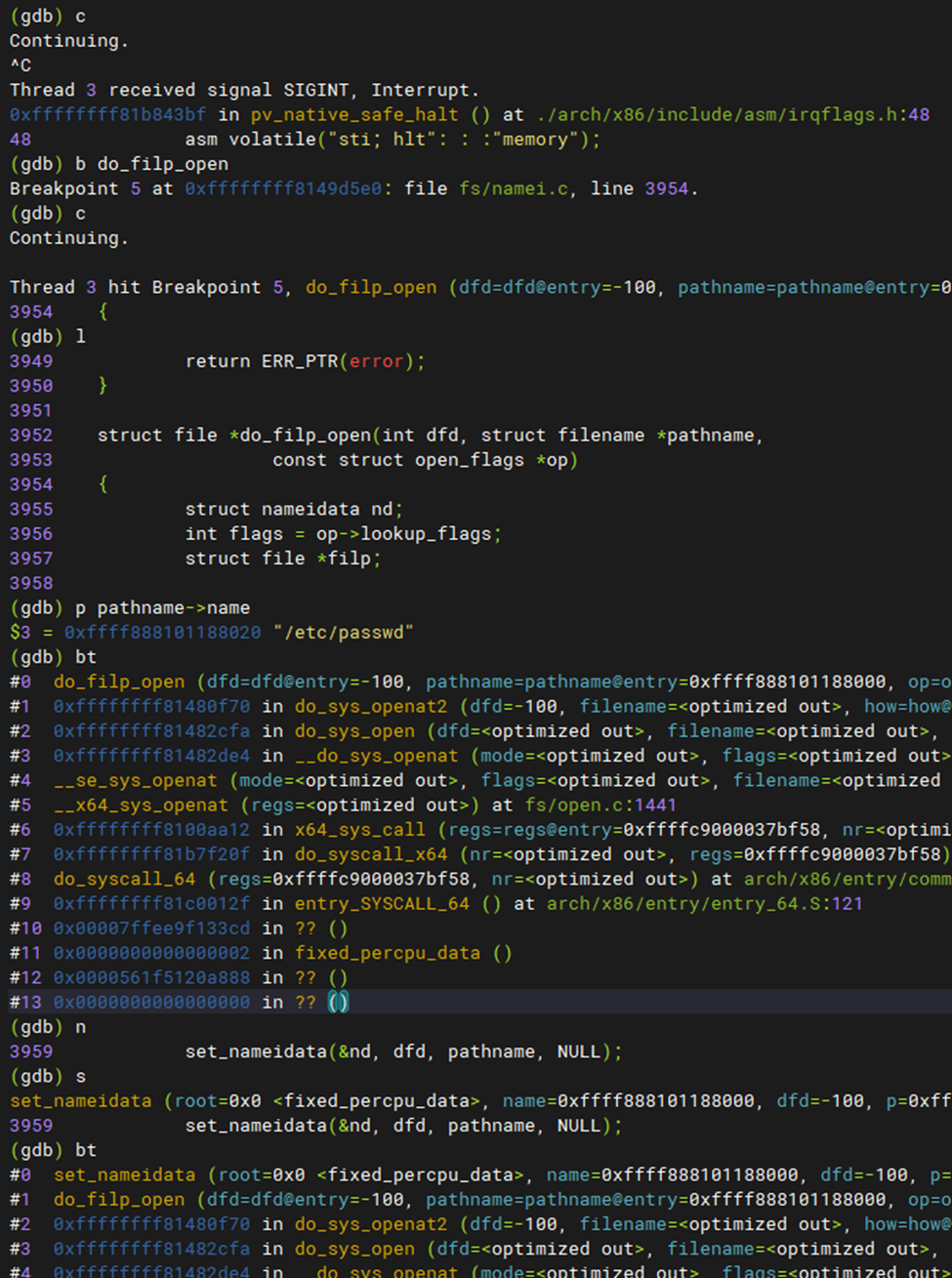
If we want to use the GDB scripts provided by the Linux kernel, we can execute the following command in GDB:(gdb) source ./scripts/gdb/vmlinux-gdb.pyWe can also add the following command to the ~/.gdbinit file (replacing the kernel compile directory with your own path), so that the vmlinux-gdb.py script will be automatically loaded when starting GDB.
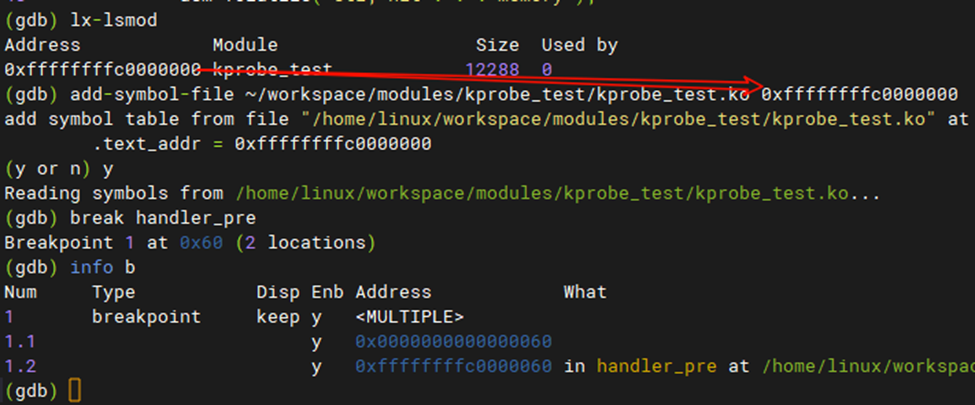
add-auto-load-safe-path /home/linux/src/linux-6.12.42After loading the script, commands such as lx-symbols and lx-dmesg can be used:(gdb) lx-dmesg # View kernel logs(gdb) lx-symbols # Automatically load symbols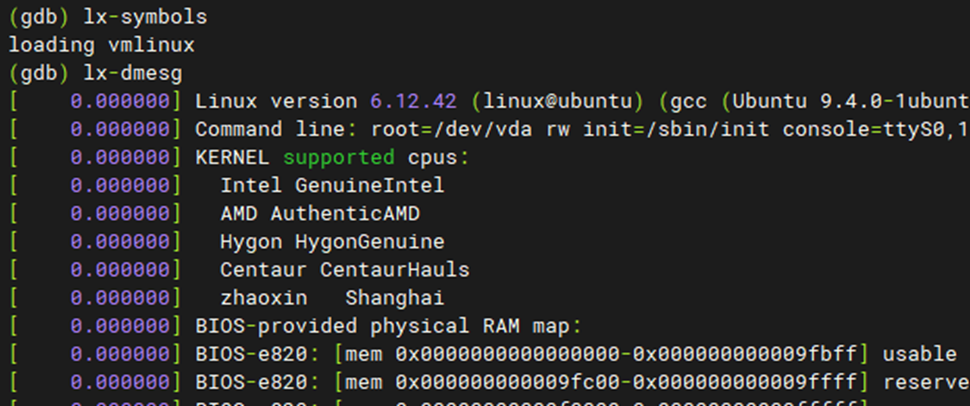 If you need to debug loadable modules, execute the following commands:(gdb) lx-lsmod # List installed kernel modules(gdb) add-symbol-file module.ko text_addr # Load module symbols
 6. Troubleshooting Common Issues
1. Unable to set breakpoints:
Ensure that CONFIG_DEBUG_INFO and CONFIG_GDB_SCRIPTS are enabled during compilation, and check if kernel address space layout randomization is disabled (using the nokaslr parameter).
2. GDB unable to connect:
Confirm that QEMU is running and using the -s parameter, and check if firewall settings are blocking local connections.
3. Symbols cannot be resolved:
Ensure that the correct vmlinux file (the kernel image with debug information) is loaded in GDB.