In our line of work, we often encounter situations where the equipment is compact, and adding a PLC is unnecessary, yet we still want to control servos. In fact, you can achieve this directly using a Wecon touch screen with Modbus communication! Today, using Huaxin servos as an example, I will walk you through the specific steps so that even beginners can understand it easily. 1. First, create a new project
Open the Wecon programming software, and the first step is to select the correct model of the touch screen. Make sure you don’t select the wrong one, and just confirm your choice!
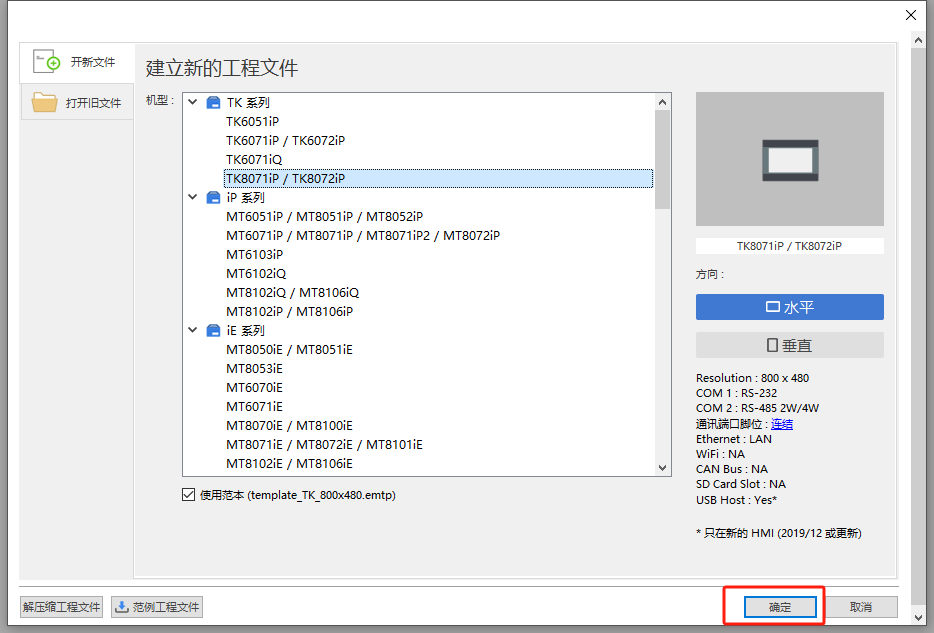 2. Add the device
Find the “Add Device” button in the software, click it, and then confirm. This step is very simple, just like installing an app on your phone; first, set up the “communication channel”!
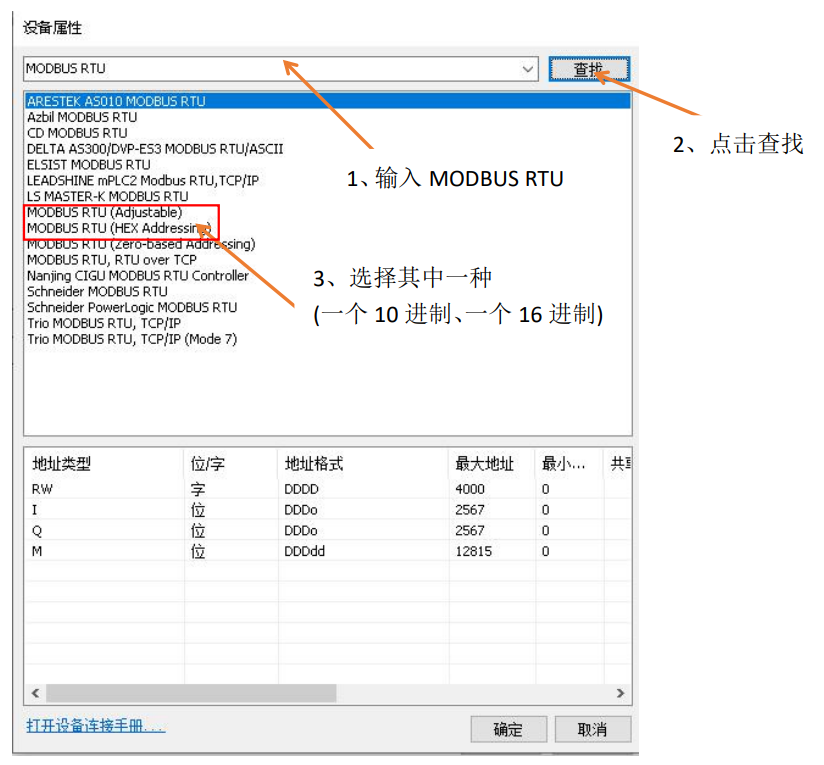
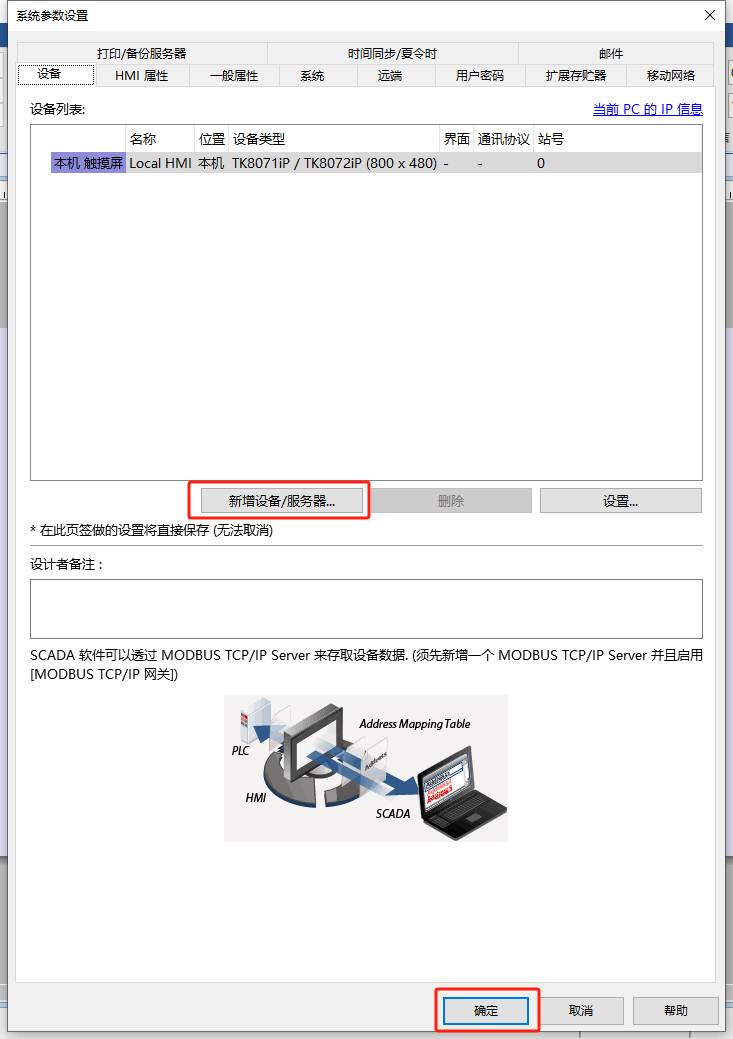 3. Select the correct Modbus RTU mode
Type “MODBUS RTU” in the search box, and after it appears, select whether to use decimal or hexadecimal (choose based on your preference), and you’re good to go!
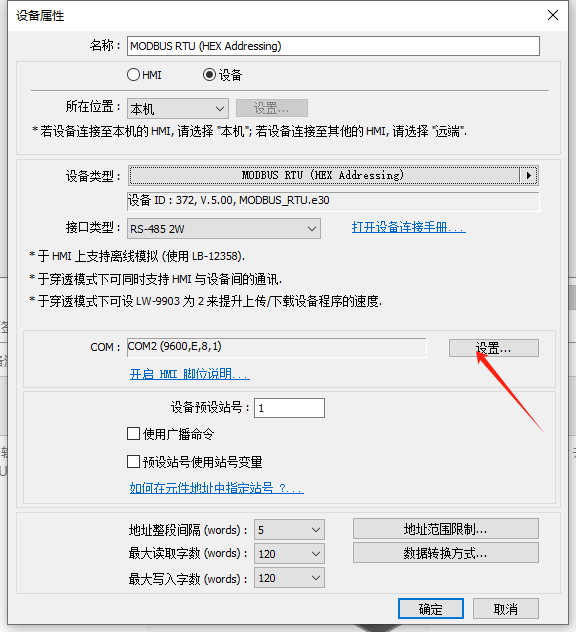
 4. Set the COM port to match the servo
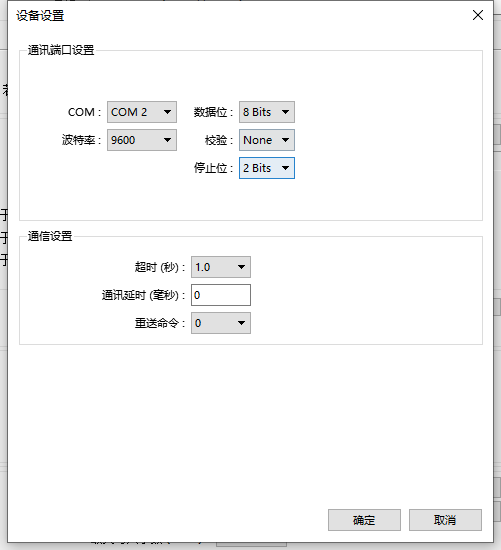
Click the “Settings” button, and here’s a key point! The baud rate, data bits, parity, and stop bits must match exactly with the servo driver settings; otherwise, communication will fail. This is something everyone must remember!
5. Adjust the servo driver parameters
Next, it’s time to set the communication parameters on the servo side.

Refer to the servo manual to find the corresponding parameters and select the baud rate for RS-485 communication (for example, set it to 96X100, which is 9600 baud rate).Additionally, the communication protocol must match: select 8, N, 2 (MODBUS RTU).👉 To briefly explain what this string of numbers and letters means:
- 8: The data transmitted is 8 bits
- N: No parity
- 2: There are 2 stop bits
It’s like two people on a phone call; they must speak the same language and at the same speed, otherwise, they won’t understand each other!
 6. Set up the touch screen components to complete the functionality
In the final step, drag buttons, indicators, and other components onto the touch screen.
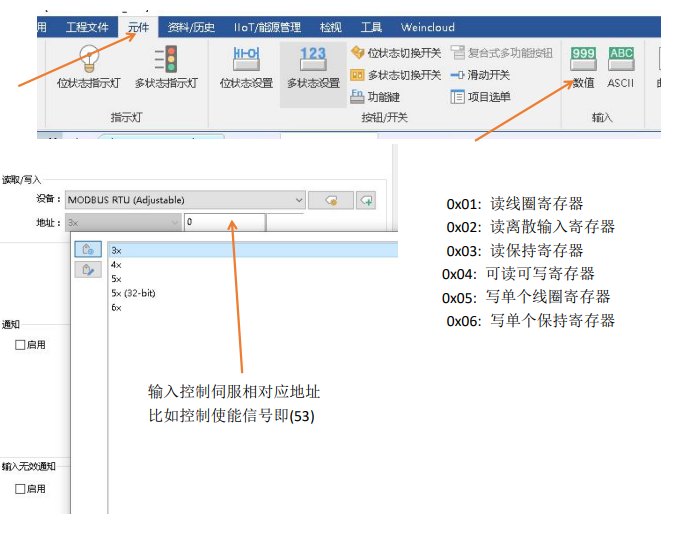
To make the servo rotate (clockwise, counterclockwise), stop, or check if the servo is ready, assign tasks to these components based on the Modbus addresses provided in the servo manual. For example, pressing the “Clockwise” button writes a “1” to the corresponding address, and the servo will respond!
By following these steps, the touch screen and servo can successfully “communicate”! In fact, communication setup isn’t that complicated; the key is to align the details like baud rate and protocol. If you encounter any small issues during the operation, feel free to ask me in the comments, and we can figure it out together! 😉

Previous Recommendations
EPLAN 2.9 Software Installation Tutorial is here! Includes download package
AutoCAD 2026 Latest Version is here! Includes a detailed installation tutorial
[Q&A] Small questions about S7-1200 configuration, I’ll help you solve them one by one!
Having trouble with S7-1200 and SMART S7 communication? Don’t worry! A comprehensive beginner’s guide is here for you!
Learn communication from 0 to 1: How to poll multiple Mitsubishi FX3U inverters? Includes detailed steps and diagrams
Step-by-step guide: How to connect FX3U PLC and Kunlun Tongtai touch screen? All three methods are here!
Step-by-step guide to downloading and installing GX Works3, easy for beginners!
All sorted! A compilation of Siemens PCS7 software download links, feel free to take them!
A complete collection of all versions of TIA Portal V11-V20 software, available for direct download, pure content!
Common issues with Siemens S7-200SMART analog quantities answered, free materials available!
Detailed Siemens logic instructions, highly recommended for study!
Senior engineer shares this PLC design concept, easy for beginners to understand! (Includes practical materials)
200 PLC shortcut keys compiled, useful from beginner to advanced, highly recommended for you to save!
Want to be an electrician? These 7 things are more important than skills (includes 20 high-definition wiring diagrams for electricians)
TIA Portal V19 (Portal) installation tutorial and installation package
 Share
Share Save
Save View
View LikeFollowSo you can find me next time