↓Recommended Follow ↓
This article introduces how to use Windows 10 to remotely connect to a virtual machine desktop (after connecting to the virtual machine using remote connection tools like Xshell), proven to be effective. Feel free to reach out if you have any questions!
1. Install EPEL Repository
First, check if the EPEL repository is installed on the virtual machine.
rpm -qa|grep epel

I have it installed. If it is not installed, use the command below to install it.
yum install epel-release
2. Install XRDP
Execute the command below to install XRDP.
yum install xrdp
Some prompts may appear; just input ‘y’ for all. The installation result is as follows:

3. Install TigerVNC Server
Execute the command below to install TigerVNC server.
yum install tigervnc-server
The successful installation result is as follows:

4. Configure or Disable SELinux
Execute the command below to check the status of SELinux.
/usr/sbin/sestatus -v
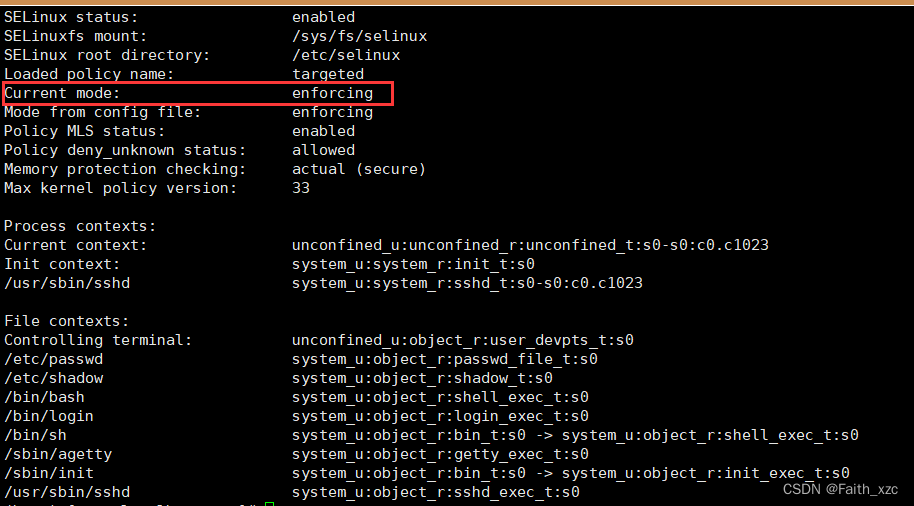
Execute the command below to set SELinux to permissive mode.
setenforce 0
Then check the SELinux status again.
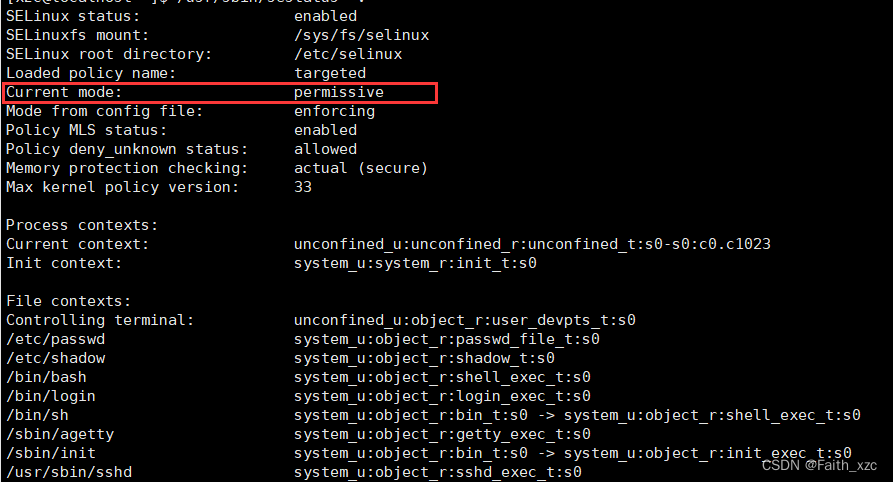
5. Disable Firewall
Execute the command below to disable the firewall in CentOS 8 (other versions may differ).
systemctl stop firewalld.service
Then execute the command below to check if the firewall is disabled.
systemctl status firewalld.service

6. Start XRDP Service and Set it to Start on Boot
Execute the command below to start the XRDP service.
systemctl start xrdp
You can execute the command below to check if XRDP is started.
systemctl status xrdp
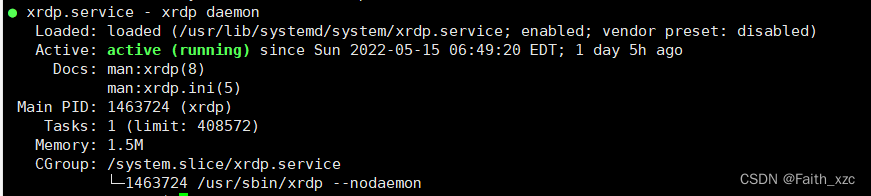
Execute the command below to set XRDP to start on boot.
systemctl enable xrdp

7. Connect Using Windows 10
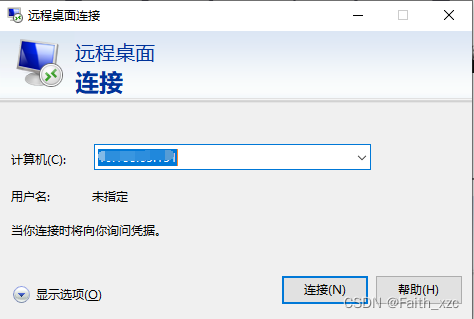
Search for Remote Desktop in the lower left corner.
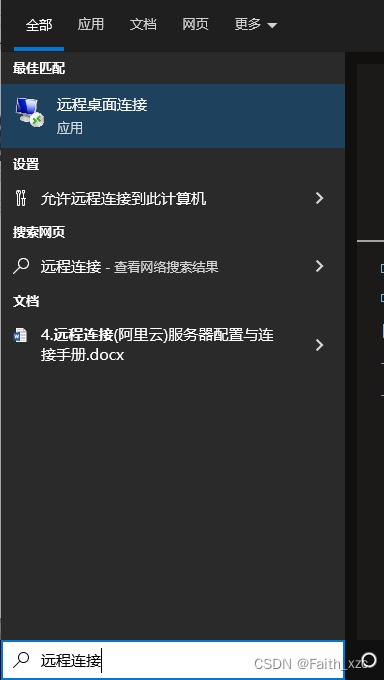
Open Windows Remote Desktop and enter the IP of the virtual machine.
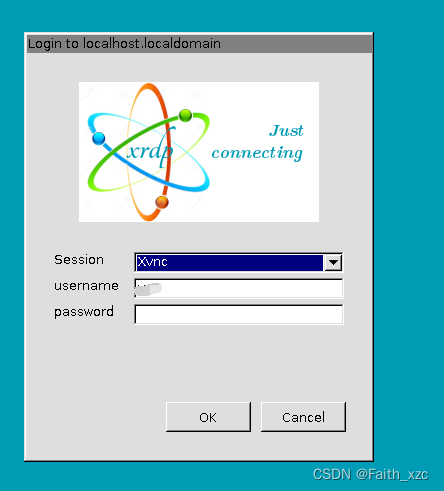
In the pop-up XRDP user verification interface, enter the username and password to connect!
Author:Faith_xzc
https://blog.csdn.net/weixin_44480968/article/details/124811330
– EOF –
Add the homepage owner’s WeChat, not only Linux skills +1

The homepage owner will regularly share Linux-relatedtools,resources and selectedtechnical articles on personal WeChat, and will share some interesting activities, job referrals as well as how to use technology for side projects from time to time.

Add WeChat to open a window
Recommended Reading Click the title to jump
1. 7 Uses of the Find Command
2. Looking forward to it! 5 New Features of Python 3.11
3. Linux Network Basics and Performance Optimization
Did you gain something after reading this article? Please share it with more people.
Recommend following ‘Linux Enthusiasts’ to improve Linux skills.
Likes and views are the biggest support ❤️