
Introduction:
When it comes to burning CDs on Windows, you might think of tools like Nero or Ashampoo. But is there a comprehensive and user-friendly burning software available for Linux systems? Of course, there is—it’s K3b. What is K3b? K3b is a full-featured CD/DVD/BD burning and ripping tool designed specifically for Linux systems, supporting the burning and copying of CDs, DVDs, and Blu-ray discs. Whether it’s data CDs, audio CDs, VCDs, DVDs, or ISO image files, K3b can handle it all with ease. Since the KDE 3 era, it has been hailed as the “Nero for Linux”: drag and drop to burn data, rip audio tracks, and even support multi-layer Blu-ray burning; it allows beginners to get started with one click while providing enough customization space for geeks. It encapsulates complex underlying commands into a visually appealing interface, making “backup” return to being just “backup” instead of “taking the blame”.
In the next few minutes, I will introduce you to K3b from scratch: ready to use, a pitfall guide, and cross-system compatibility issues—all packed into one article. After reading, you will find that burning on Linux can actually be easier than on Windows.
Feature Highlights:
✅ Supports various project types: data CDs, audio CDs, video DVDs, etc.
✅ Supports multiple image formats such as ISO, CUE, BIN, etc.
✅ Rips content from audio CDs, VCDs, DVDs
✅ Intuitive interface, suitable for beginners, and meets advanced user needs
✅ Supports cross-platform disc reading (but be aware of compatibility issues)
Usage Tips:
1. Create a new project: Open K3b and select “New Data CD” project
2. Add files: Drag the files you want to burn into the lower right corner of the window
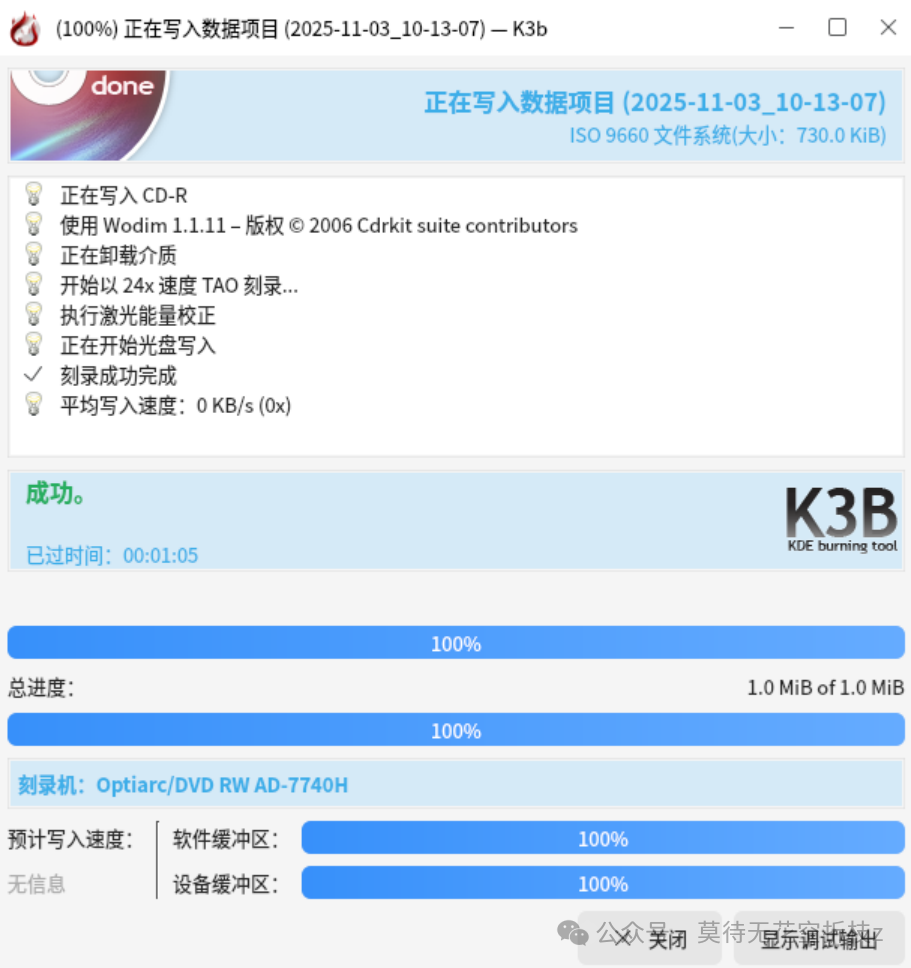
3. Start burning: Click the “Burn” button and wait for it to complete
Software Introduction
The interface after opening is shown in the image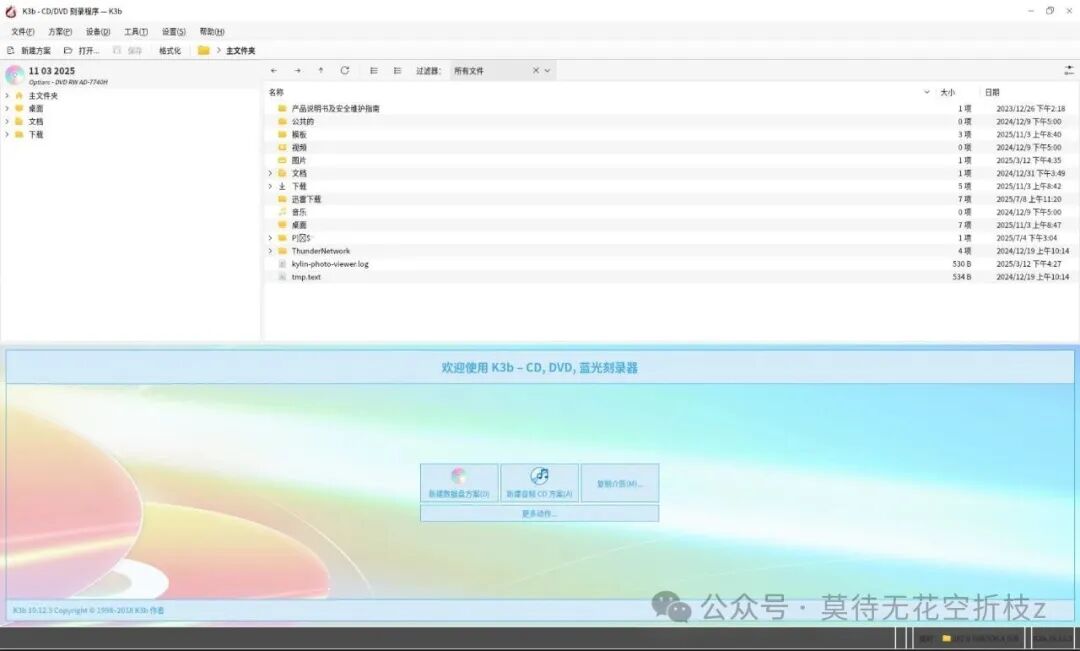
Click to create a new data disc project
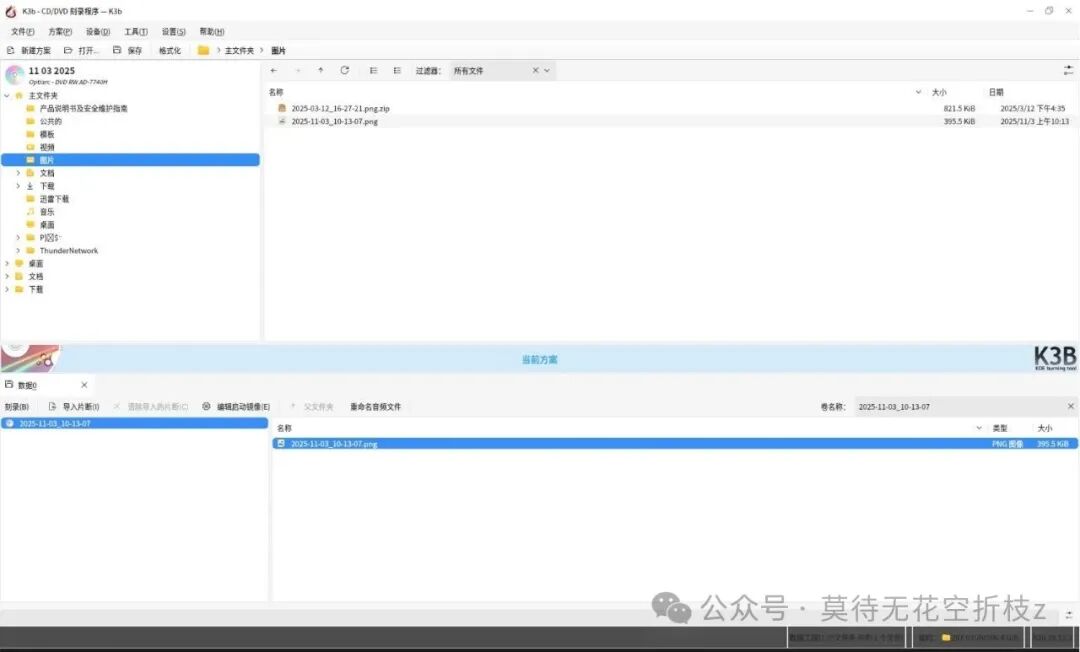 Drag the data to be burned into the lower right section, then click burn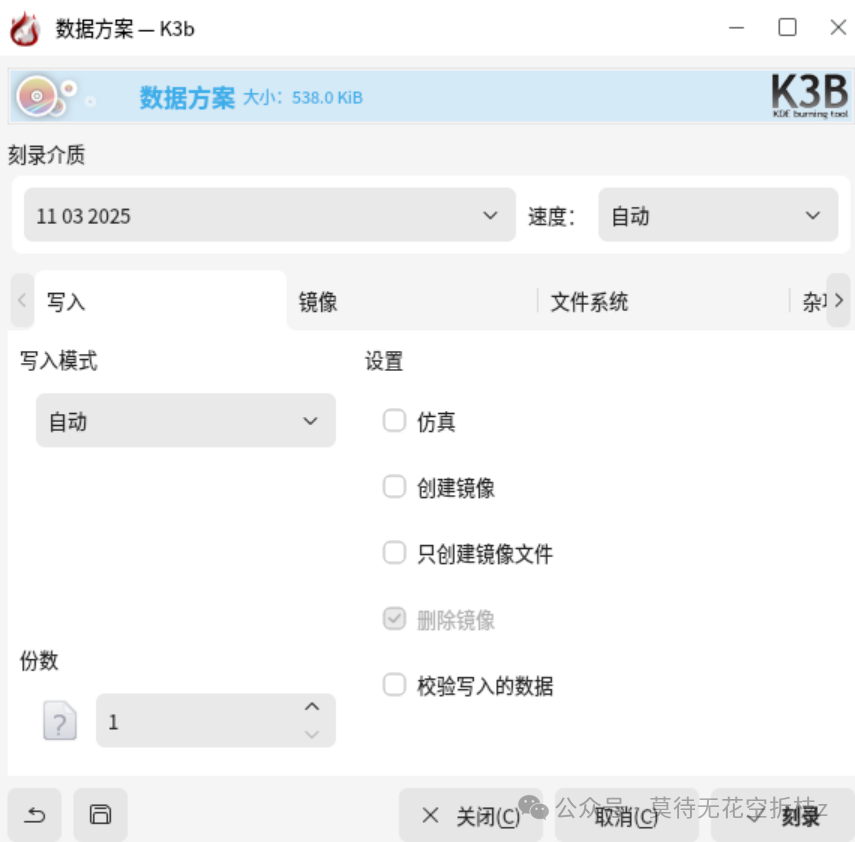
⚠️ Notes:
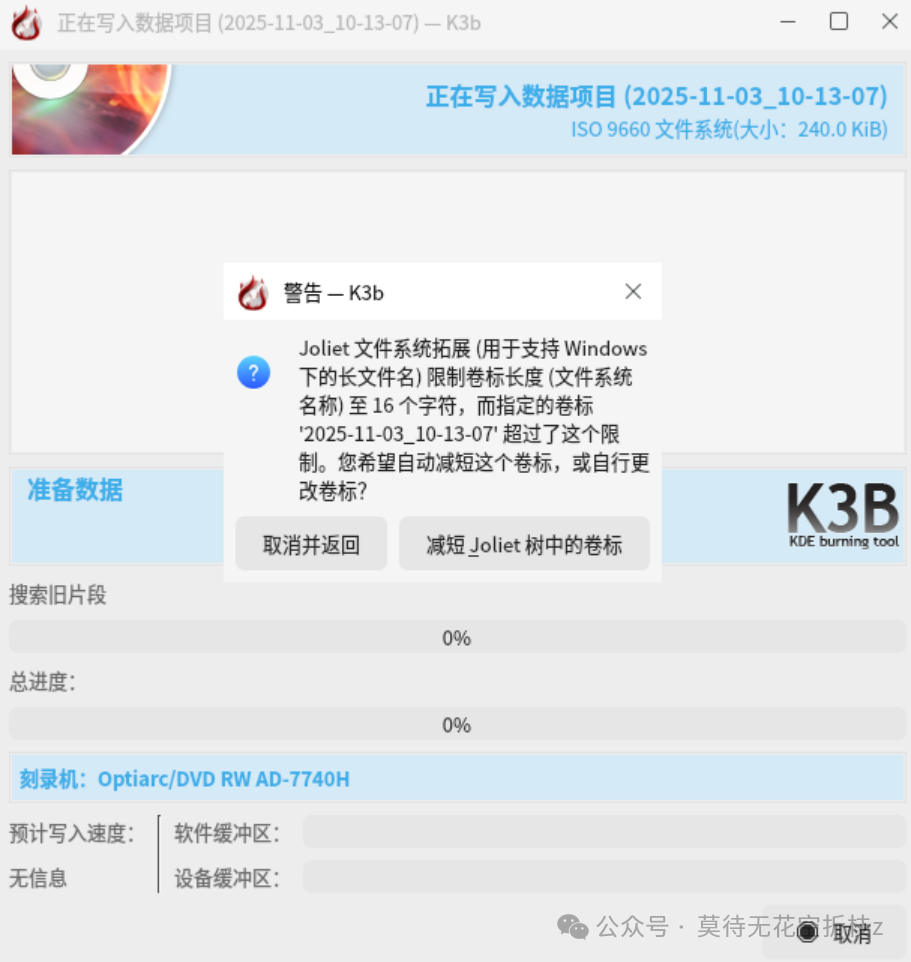
If the disc has been used in a Windows system, K3b may pop up a “Joliet Volume Label” warning. Although you can choose “Shorten Volume Label” to continue burning, this may cause the same disc to display inconsistent content across different systems.
Recommendation: Try to complete burning and reading on a single system to avoid compatibility issues caused by cross-system usage.
Conclusion:
K3b is one of the few “all-in-one” burning tools in Linux systems, powerful and user-friendly, making it a great assistant for burning data, backing up information, and creating music CDs. From cold data backups, audio-visual collections, to cross-platform exchanges, a small disc still provides a sense of security that hard drives and cloud storage cannot replace. K3b has developed over twenty years, encapsulating the originally obscure cdrecord and growisofs commands into a simple “drag-drop-burn” process, allowing Linux users to finally have a graphical burning center that can compete with Windows Nero. If you are looking for a stable and reliable burning software, K3b is worth a try!
Don’t forget to give a “like”, so that big data can push this worry-free solution to more Linux partners who have been deterred by command lines! If your disc tray is eagerly waiting, quickly bookmark this, so you won’t get lost next time you burn, ready to go! Want to see how to back up Blu-ray 4K with one click on Ubuntu/Debian, or directly rip vinyl records to FLAC?Share it in your circle of friends/group chat, and shout in the comments, “I want the next issue”, and if we hit 200 likes, we will immediately update with a super detailed tutorial!Let K3b become the default answer for Linux users’ burning needs, and it just needs your share!