AGV cart basic control
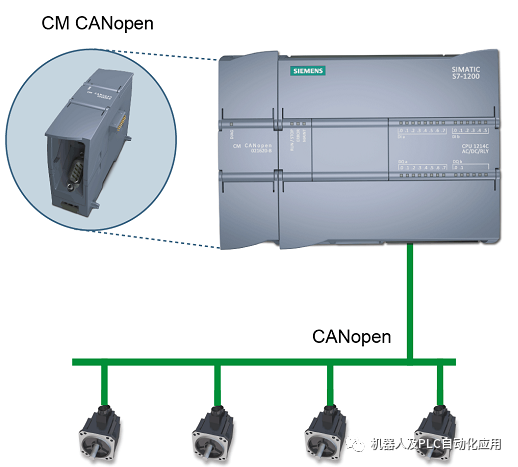
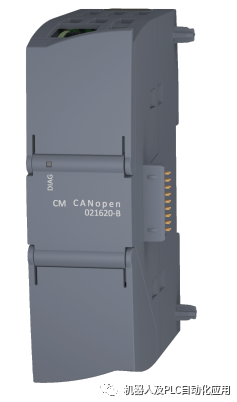
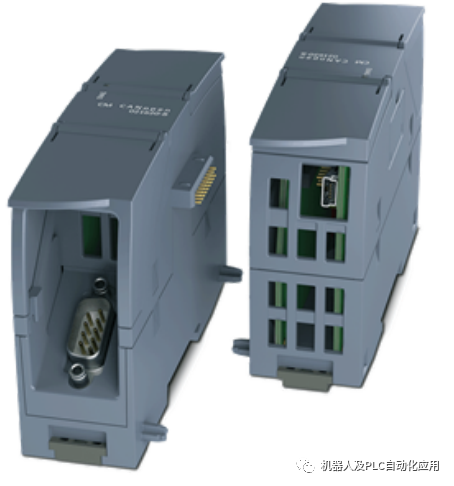
Example of configuring the CM CANopen module from HMS Industrial Networks with Siemens‘ S7-1200 PLC in the TIA Portal. In this example, a 1214C type CPU is used, but this example can also be applied to all other PLC types. To run this example, the HSP file must be installed, which can be downloaded from here.
-
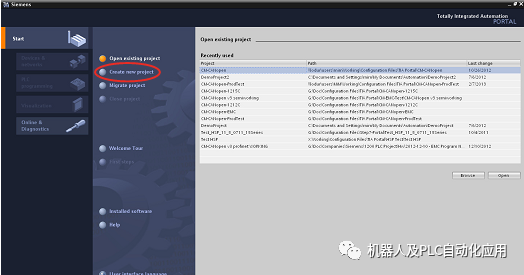
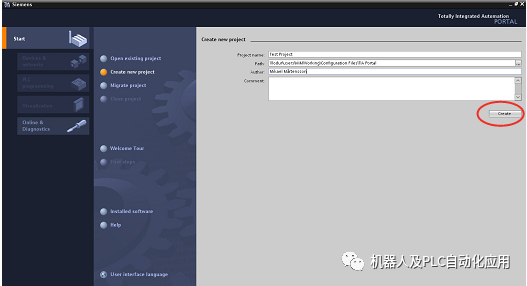
Open the TIA Portal program and start a new project by clicking “Create New Project” on the left side of the screen.
2. Enter the project name and storage path, and optionally include information such as author and descriptive comments. Click “Create”.
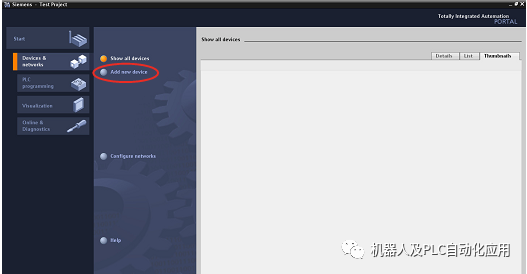
3. Select “Devices and Networks” on the left, then click “Add New Device”.
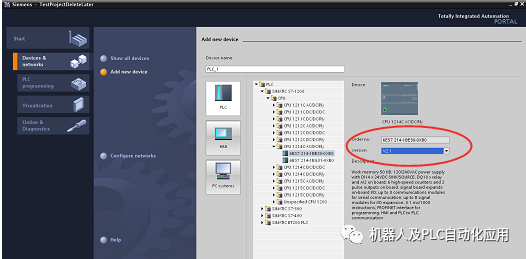
4. Choose the type of PLC used in the configuration. Select the correct software version and optionally enter the name of the PLC (default is PLC_1). Click “Add”.
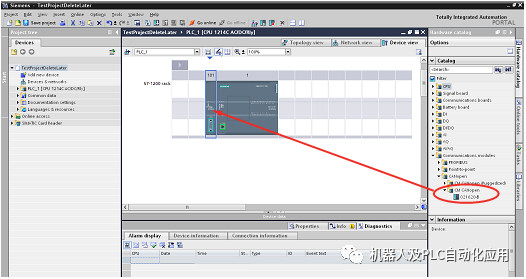
5. Select the CM CANopen module from the list as shown. Drag and drop an instance of the module to the left side of the PLC module.
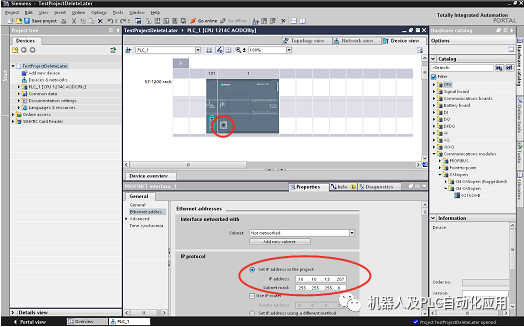
6. Double-click the Ethernet connector on the PLC and enter the correct IP address for the PLC.
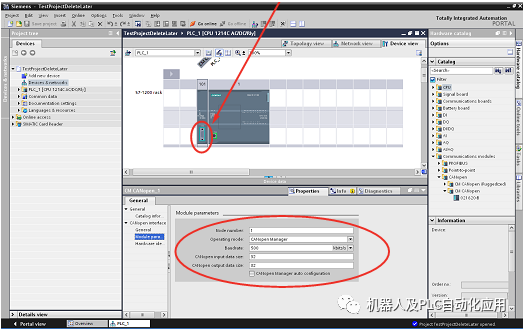
7. Double-click the connector of the CM CANopen module, select the module parameters tab. Enter values in the parameter list. Note that these parameters are valid for the modules on the CANopen network.
In this example, the CM CANopen module for S7-1200 is configured as a CANopen manager.
The node number on the CANopen network is set to 1. The CANopen baud rate is set to 500 kbit/s, with both input and output data sizes set to 32 bytes.
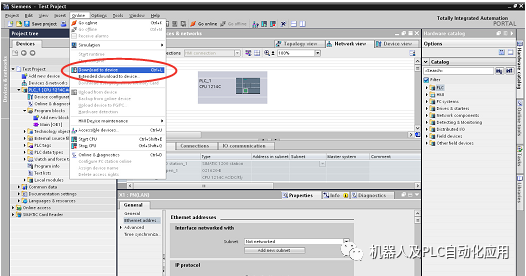
8. The configuration is now complete and can be downloaded to the S7-1200 device. To download the software configuration, select PLC_1 on the right, then choose “Online” > “Download to Device”. To download the hardware configuration, right-click on the device in the tree and select “Download to Device” > “All”.
9. Choose the PG/PC interface you are using (PN/IE in this example) and the Ethernet interface on your PC (Intel 82577… in this example). If the previously entered IP address is found on the network, click “Load” to download to your device. If not, select the correct device from the available list in the “Accessible Devices in Target Subnet” window. If the device is on another subnet and not available in this window, check the “Show All Accessible Devices” checkbox.
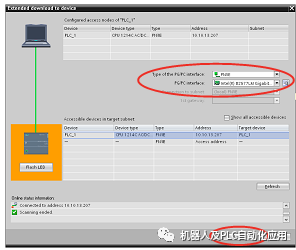
10. If the download is successful, the following screen will appear asking if the PLC should start. Click finish, and the PLC will begin running the downloaded empty program.
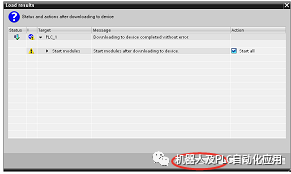
11. The module configuration is complete, and PLC programming can now begin.
——————– To be continued ——————

Make small but daily progress