To maintain fair competition in the CFA exam, the CFA Institute clearly states that only two types of calculators are recognized for the CFA exam, namely Texas Instruments BA II Plus and Hewlett Packard 12C. Both the standard and professional versions are acceptable, and note that the usage rate of TI BAII PLUS in China far exceeds that of HP12C.
Any other model of calculator is not allowed in the CFA exam room.During the exam, candidatesare not allowed to borroworshare calculators with other candidates.
1. Texas Instruments BA II Plus (including the professional version)
2. Hewlett Packard 12C (including the HP 12C Platinum)
BAII plus (standard version of Texas Instruments)
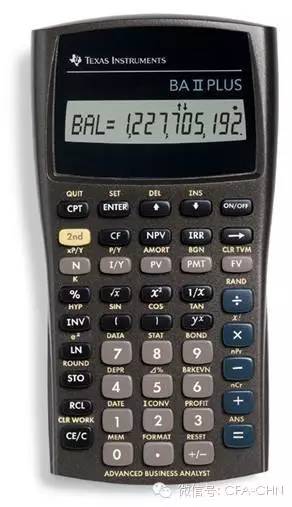
Image source from the internet
BAII plus professional (professional version of Texas Instruments)
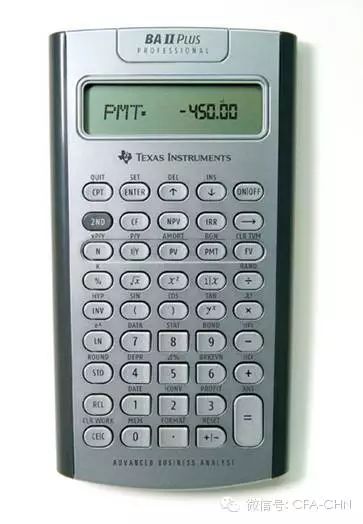
Image source from the internet
HP 12c (HP Platinum version)
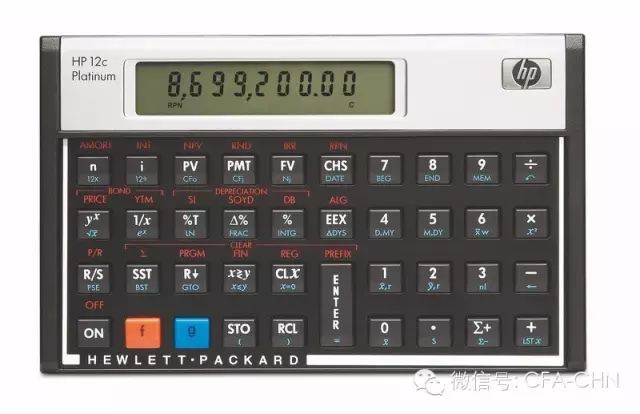
Image source from the internet
Note: The calculator images displayed above are for reference only, as long as the model is correct, it can be used.
If you bring a calculator that is not specified into the exam room, even if you do not enter the exam stage, it will inevitably be recorded as a violation of exam regulations (report). According to network statistics, 230 people were recorded over four years, with 5 being banned from taking the exam for one or two years, while the remaining 225 received warnings and had their scores canceled.
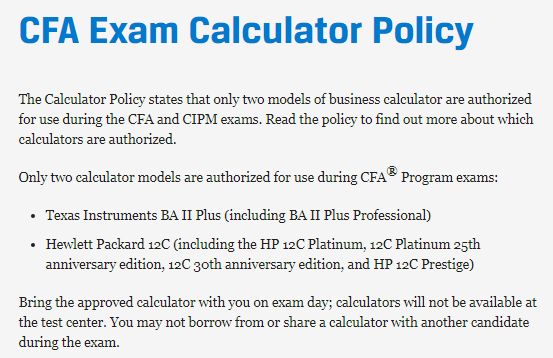
Screenshot from CFA Institute official website
Tip from the editor: On the day of the CFA exam, the designated model of the calculator must be placed on the desk for the proctor to check at any time during the exam. Some candidates have reported that two designated calculators can be brought; the official guidelines do not specify a quantity limit, and it depends on the instructions of each exam venue! Apart from calculators, the original calculator casing, calculator batteries without packaging, and a small screwdriver for changing the calculator battery are allowed, but operation instruction cards for the calculator cannot be brought into the exam room.
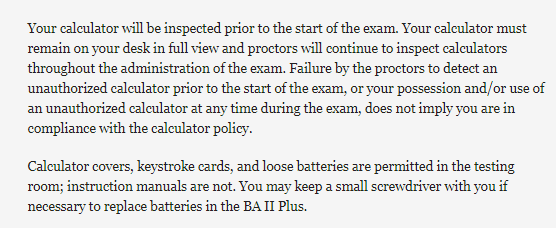 Screenshot from CFA Institute official website
Original link from CFA Institute official website:
https://www.cfainstitute.org/en/about/governance/policies/cfa-calculator-policy
Many CFA candidates consider which calculator to use before the exam. Regardless of which calculator is easier to use, it is recommended to use the Texas Instruments standard version, with the professional version being better. This is a truly business-grade financial calculator that can accompany you through your college years and then into your professional career in the business world.
BA II Plus is the professional financial calculator that best matches the thinking habits of Chinese people, with simple and convenient operation, powerful functions, and stable performance. It is widely used and recommended in the global financial field and is a truly business-grade financial calculator.
BA II Plus is the designated calculator for various industries such as banking, securities, real estate, and education training (including domestic) qualification certification exams. It is also the best choice for students studying accounting and other majors. If possible, it can be used not only during school but also throughout your entire career. It is also the best-selling financial calculator in the American market.
Instructions for using Texas Instruments
Compared to the professional version of Texas Instruments, the standard version cannot directly calculate the following four calculations.
1. Calculation of Net Future Value (NFV)
2. Calculation of Modified Internal Rate of Return (MIRR)
3. Calculation of Modified Duration
4. Payback Period (PB) calculation, Discounted Payback Period (DPB)
BA II Plus Functions
◆ Operation prompt function can guide you to complete financial calculations by displaying the current variable symbols and values
◆ Calculate IRR and NPV for cash flows
◆ Time value of money and amortization
◆ List-based statistics allow you to store, edit, and correct data points
◆ Generate depreciation tables
◆ Convert between nominal interest rates (standard rates) and effective interest rates
Other Functions:
◆ Break-even analysis for fixed costs, prices, and profits;
◆ Evaluate bond prices and yields;
◆ Percentage difference between two values;
◆ Trigonometric functions and logarithmic functions;
◆ Profit calculation: can calculate costs, sales, and profit amounts;
◆ Time function can determine the number of days in a period;
◆ 10 Constant Memory storage units;
Advantages:
Worksheet menu and operation prompt function can guide you to solve problems easily;
Save worksheet data for further analysis: worksheets include: security tables, depreciation tables, TVM tables, cash flow tables, amortization tables, statistical tables, comprehensive interest tables, interest conversion tables, and margin profit tables;
Powerful statistical functions: univariate and bivariate statistics;
Four regression models available (linear regression, logarithmic regression, exponential regression, polynomial regression), making it the best-selling financial calculator in the American market.
Battery leakage is not covered by warranty; please remove the battery if not used for a long time.
1. Simple and easy-to-use layout, easy-to-read labels
2. Attractive LCD display, 1 line x 10 characters
3. Easily select business functions
4. Perfect combination of statistical, business, and mathematical functions
5. Easy to read display results even from certain angles
6. Suitable for finance, accounting, economics, and business activities
II. Basic Settings of TI BAII PLUS Calculator
• Main function keys:
The main function of each key is printed on the key in white; the characters displayed on the surface of the key show the basic function of that key.
For example: On/Off: Upper right ON/OFF key
Standard mode / Automatic power off function (APD™)
• Time value of money operation keys (third row of gray keys on the keyboard):
N for periods, I/Y for interest rate (nominal rate), PV for present value, PMT for annuity, FV for future value.
• Secondary function keys:
The function keys above the keys, secondary functions are printed in yellow above the keys. Press the 2nd key, then press the corresponding key with yellow letters to use the secondary function.
For example, 2ND P/Y indicates calling the P/Y function.
Decimal Places Setting
Decimal places setting: The factory default is two decimal places; when changing settings, press 2ND FORMAT in sequence to enter the format setting options. The indicators DEC=2.00 and the currently selected number of decimal places will appear. To change to four decimal places, enter 4 and press ENTER, showing DEC=4.0000.
• Generally, set to 4 decimal places for calculations related to bonds, foreign exchange, and exchange rates.
• The decimal places setting will not change due to the on/off function.
Usage of the Date Key
Press 2ND DATE to call the DATE function:
– It appears DT1=12-31-1990 (month/day/year), which is the original setting value.
– Inputting 7.3005 ENTER will display DT1=7-30-2005.
– Press the down key ↓, DT2=DT1=12-31-1990 appears, which is the original setting value.
– Inputting 11.1305 ENTER will display DT2=11-13-2005.
– Press the down key ↓, DBD=0.00 appears, and pressing CPT yields 106, indicating that there are 106 days between the two dates.
• When calculating interest, you need to count the number of days holding deposits or bonds. If the purchase date and selling date are known, you can calculate the number of days between them.
• If the number of days between the two is known along with the purchase date, you can also calculate the selling date.
Usage of Memory Units
STO key: The data saved ranges from 0-9, a total of 10 groups. Pressing 10 STO 3 is equivalent to storing the number 10 in memory unit 3.
• RCL key: Retrieve data from memory units. Pressing RCL 3 retrieves the data from memory unit 3. The RCL key can be directly combined with operators for calculations. For example, 20+RCL3=30.
• MEM key: Displays memory data. Pressing the MEM key, combined with the down key ↓, allows you to see the data stored in the 10 memory units from 0-9. Unassigned units show as 0. You can sequentially input data one by one using the down key ↓.
Resetting and Clearing Data in Function Keys
To re-enter numbers, press CE/C key, which clears one character at a time (including the decimal point) → key
• General calculation reset: Press 2ND QUIT, displaying 0.00, exiting to the main interface.
• The keys N, I/Y, PV, PMT, FV will retain the results of the last calculation. These cannot be cleared with OFF or CE/C keys. Press 2ND CLR TVM to clear.
• CF is the function key for inputting cash flow to calculate NPV and IRR. It will also retain the last input cash flow. To clear it, you must first enter CF and then press CLR WORK key.
• The same method can be used to clear data from other function keys. For example, to clear data from the BOND key, first enter the BOND key, then press CLR WORK key.
• To clear all data stored in memory units, enter the MEM key and then press CLR WORK key.
• If you need to clear all data, including restoring all calculator settings, simply press 2ND RESET ENTER key, which can be understood as “formatting” the calculator, restoring it to factory settings.
Resetting the Calculator
Note: Only when you want to clear all data stored in memory units and restore all settings to factory default settings, (you can) reset the calculator.
Operation: Press 2nd-RESET, displaying RST? Press CE/C to cancel the reset operation, or press ENTER to confirm the reset of the calculator.
Decimal places will return to 2
P/Y and C/Y will return to 1
Payments will be set to end-of-period payments (END)
Clears all numbers stored in the ten memory units
Clears the display and any unfinished calculations
The calculator returns to standard calculator mode
Clears all worksheet data and restores default worksheet settings
WeChat ID: NUFEFTC
More information, stay updated!


Consultation Address: Office 537, Dejing Building, Nanjing University of Finance and Economics
Consultation Phone: 025-8671 8281 or 18795880289 (Teacher Song)