Files and directories are the building blocks of an operating system. To better organize and manage them, we often need to rename files or move files from one location to another in Linux. How do we move multiple files? How do we move multiple directories, and how do we create backups before overwriting files? Below are some examples.
# Syntax of the mv Command
<span>mv</span> command syntax is similar to other Linux commands, generally divided into two parts: options and arguments:
mv [options]... [-T] source_file target_file
mv [options]... source_file... directory
mv [options]... -t directory source_file...
In the above syntax, square brackets <span>[]</span> indicate optional parameters, while angle brackets <span><></span> indicate required parameters.
The explanations of the options are as follows:
1) Common Options
| Short Option | Long Option | Description |
|---|---|---|
<span>-f</span> |
<span>--force</span> |
Do not prompt before overwriting |
<span>-i</span> |
<span>--interactive</span> |
Prompt before overwriting |
<span>-n</span> |
<span>--no-clobber</span> |
Do not overwrite existing files |
<span>-v</span> |
<span>--verbose</span> |
Display detailed operation information |
<span>-u</span> |
<span>--update</span> |
Move only if the source file is newer than the target file or the target file is missing |
Note: If multiple options from
<span>-i</span>,<span>-f</span>,<span>-n</span>are specified at the same time, only the last one takes effect.
2) Backup Related Options
| Short Option | Long Option | Description |
|---|---|---|
| None | <span>--backup[=CONTROL]</span> |
Create a backup for each existing target file |
<span>-b</span> |
None | Similar to <span>--backup</span> but does not accept parameters |
<span>-S</span> |
<span>--suffix=SUFFIX</span> |
Replace the common backup file suffix |
Backup Strategy Values:
<span>none</span>,<span>off</span>– No backup<span>numbered</span>,<span>t</span>– Backup files are numbered<span>existing</span>,<span>nil</span>– If there are numbered backups, use numbers; otherwise, use the normal method<span>simple</span>,<span>never</span>– Always use the normal method for backups
3) Directory Operation Options
| Short Option | Long Option | Description |
|---|---|---|
<span>-t</span> |
<span>--target-directory=DIRECTORY</span> |
Move all source parameters to the specified directory |
<span>-T</span> |
<span>--no-target-directory</span> |
Treat the target as a regular file |
Examples are provided below:
1. Renaming Files
<span>mv</span> command’s most basic use is to rename files. It is the most frequently used in daily operations. Below is how to rename a file in the current directory.
First, create a sample file using the <span>touch</span> command:
[root@myoracledb backup]# touch mytest-1.txt
Now, use the <span>mv</span> command to rename the file as follows:
[root@myoracledb backup]# mv mytest-1.txt mytest-2.txt
Finally, use the <span>ls</span> command to verify if the file has been successfully renamed:
[root@myoracledb backup]# ls -l
总用量 0
-rw-r--r-- 1 root root 0 9月  25 13:25 mytest-2.txt
[root@myoracledb backup]#

2. Enabling Verbose Mode in Commands
Sometimes, we want to know which files or directories are being renamed. In this case, we can use the <span>-v</span> option to enable verbose mode.
To understand this, let’s rename a file using verbose mode:
[root@myoracledb backup]# mv -v mytest-2.txt mytest-1.txt
"mytest-2.txt" -> "mytest-1.txt"
[root@myoracledb backup]#

In the above output, we can see that the <span>mv</span> command now displays the renaming message.
3. Renaming Directories
Similar to files, we can use the <span>mv</span> command to rename directories. First, create a new directory named <span>mysrc</span> in the current directory:
[root@myoracledb backup]# mkdir mysrc
Then use the <span>mv</span> command to rename the directory:
[root@myoracledb backup]# mv -v mysrc mydst
"mysrc" -> "mydst"
[root@myoracledb backup]#

4. Moving Multiple Files to a Directory
Often, for better organization, we move files into a single directory. Of course, we can use the <span>mv</span> command multiple times to achieve this. However, when there are many files to move, we can use another syntax of the <span>mv</span> command for efficiency.
There are 3 files and 1 folder in the current directory as follows:
[root@myoracledb backup]# ll -sh
总用量 2.9G
2.9G -rw-r--r-- 1 root root 2.9G 5月  15 12:30 LINUX.X64_193000_db_home.zip
   0 drwxr-xr-x 2 root root    6 9月  25 13:32 mydst
   0 -rw-r--r-- 1 root root    0 9月  25 13:25 mytest-1.txt
8.0K -rw-r--r-- 1 root root 5.5K 9月  25 13:37 test.csv
[root@myoracledb backup]#
Now, use the following command to move all files to the <span>mydst</span> directory:
[root@myoracledb backup]# mv -v LINUX.X64_193000_db_home.zip mytest-1.txt test.csv mydst
"LINUX.X64_193000_db_home.zip" -> "mydst/LINUX.X64_193000_db_home.zip"
"mytest-1.txt" -> "mydst/mytest-1.txt"
"test.csv" -> "mydst/test.csv"
[root@myoracledb backup]#
Then check the results after moving:
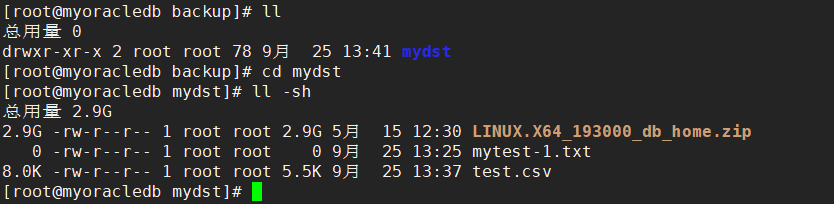
Note: To use this syntax, the target directory must already exist and it must be the last parameter of the command.
5. Moving Multiple Directories
Just like files, we can use the <span>mv</span> command to move multiple directories at once. Let’s understand this through a simple example.
There are 4 directories in the current directory as follows:
[root@myoracledb backup]# ll
总用量 0
drwxr-xr-x 2 root root 6 9月  25 13:48 appbk
drwxr-xr-x 2 root root 6 9月  25 13:49 backup-new
drwxr-xr-x 2 root root 6 9月  25 13:47 hisbackup
drwxr-xr-x 2 root root 6 9月  25 13:47 mysqlbackp
drwxr-xr-x 2 root root 6 9月  25 13:48 redisbackup
[root@myoracledb backup]#
Now, we need to move all directories to the <span>backup-new</span> directory:
[root@myoracledb backup]# ll
总用量 0
drwxr-xr-x 2 root root 6 9月  25 13:48 appbk
drwxr-xr-x 2 root root 6 9月  25 13:49 backup-new
drwxr-xr-x 2 root root 6 9月  25 13:47 hisbackup
drwxr-xr-x 2 root root 6 9月  25 13:47 mysqlbackp
drwxr-xr-x 2 root root 6 9月  25 13:48 redisbackup
[root@myoracledb backup]#

In the above output, we can see that we are able to move all directories.
6. How to Avoid Overwriting Files
By default, the <span>mv</span> command will overwrite the target file, which may cause data loss. In this case, we can use the <span>-n</span> option.
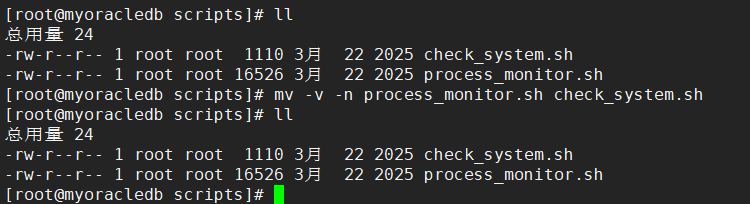
There is a system check script file in the current directory named <span>check_system.sh</span>:
[root@myoracledb scripts]# ll
总用量 24
-rw-r--r-- 1 root root  1110 3月  22 2025 check_system.sh
-rw-r--r-- 1 root root 16526 3月  22 2025 process_monitor.sh
[root@myoracledb scripts]#
Now, try to overwrite it using the following command:
[root@myoracledb scripts]# mv -v -n process_monitor.sh check_system.sh
[root@myoracledb scripts]#
The command executed without displaying any messages, indicating that the <span>check_system.sh</span> file was not overwritten.
7. How to Overwrite Files Interactively
Sometimes we want to overwrite files in a safer manner. In this case, we can use the interactive mode of the <span>mv -i</span> command. In this mode, the <span>mv</span> command will display a warning message and wait for user confirmation before overwriting files.
Now, let’s try to overwrite the <span>check_system.sh</span> file in interactive mode:
[root@myoracledb scripts]# mv -v -i process_monitor.sh check_system.sh
mv:是否覆盖"check_system.sh"? n
[root@myoracledb scripts]#

In the above output, we can see that the command is waiting for user confirmation. As with other Linux commands, we can enter <span>y</span> to continue or <span>n</span> to abort the operation.
8. Overwrite Files Only if the Source File is Newer
In the previous example, we saw how to overwrite files using interactive mode. However, this method is not practical when we need to overwrite a large number of files.
In this case, we can use the <span>-u</span> option, which will only perform the move operation if the source file is newer than the target file.
As shown, there are two files in the current directory, where <span>mytest-1.txt</span> is newer than <span>mytest-2.txt</span>:
[root@myoracledb backup]# ll
总用量 8
-rw-r--r-- 1 root root  154 9月  25 14:17 mytest-1.txt
-rw-r--r-- 1 root root 1798 9月  25 14:09 mytest-2.txt
[root@myoracledb backup]#
Now use the <span>-u</span> option to overwrite the target file:
[root@myoracledb backup]# mv -f -u mytest-1.txt mytest-2.txt
[root@myoracledb backup]# ll
总用量 4
-rw-r--r-- 1 root root 154 9月  25 14:17 mytest-2.txt
[root@myoracledb backup]#
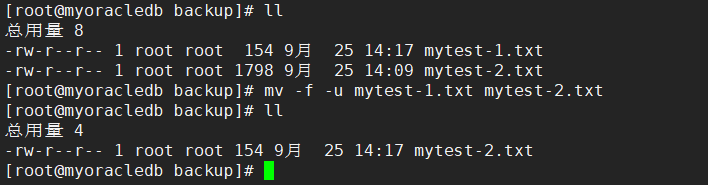
Here, since the <span>mytest-1.txt</span> file is newer than the <span>mytest-2.txt</span> file, it is replaced directly.
9. How to Create a Backup Before Overwriting Files
<span>mv</span> command also provides another option <span>--backup</span>, which allows specifying a backup strategy to create a backup before overwriting the target file.
[root@myoracledb backup]# ls
mytest-1.txt  mytest-2.txt
[root@myoracledb backup]#

[root@myoracledb backup]# mv --backup=numbered -f -v mytest-1.txt mytest-2.txt
"mytest-1.txt" -> "mytest-2.txt" (backup: "mytest-2.txt.~1~")
[root@myoracledb backup]#
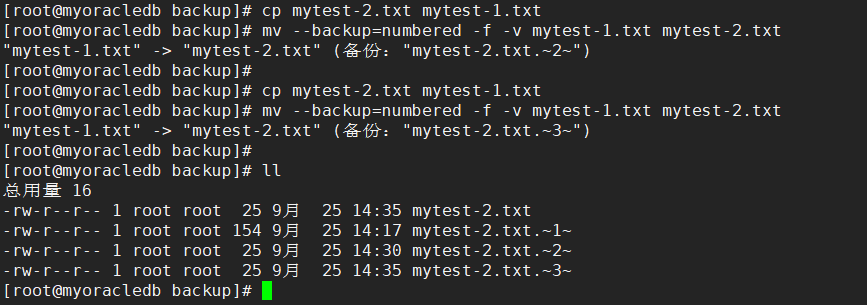
Here, we used the numbered backup strategy, which uses incrementing numbers in the backup file name.
To understand this, let’s execute it two more times:
[root@myoracledb backup]# cp mytest-2.txt mytest-1.txt
[root@myoracledb backup]# mv --backup=numbered -f -v mytest-1.txt mytest-2.txt
"mytest-1.txt" -> "mytest-2.txt" (backup: "mytest-2.txt.~2~")
[root@myoracledb backup]#
[root@myoracledb backup]# cp mytest-2.txt mytest-1.txt
[root@myoracledb backup]# mv --backup=numbered -f -v mytest-1.txt mytest-2.txt
"mytest-1.txt" -> "mytest-2.txt" (backup: "mytest-2.txt.~3~")
[root@myoracledb backup]#
Finally, check the files, with the source file backed up by incrementing numbers:
[root@myoracledb backup]# ll
总用量 16
-rw-r--r-- 1 root root  25 9月  25 14:35 mytest-2.txt
-rw-r--r-- 1 root root 154 9月  25 14:17 mytest-2.txt.~1~
-rw-r--r-- 1 root root  25 9月  25 14:30 mytest-2.txt.~2~
-rw-r--r-- 1 root root  25 9月  25 14:35 mytest-2.txt.~3~
[root@myoracledb backup]#
# Additional Notes
- Essence of Moving and Renaming: In the Linux file system, moving and renaming are essentially the same operation at the underlying level: both change the position/name of a file or directory in the file system path tree. The
<span>mv</span>command handles both cases uniformly. - Cross-File System Moving: When the source and target are on different file systems, the
<span>mv</span>command actually copies the source file to the target location and then deletes the source file. This can be more time-consuming for large files. - Permission Considerations: To perform move or rename operations on files or directories, write permission is required on the parent directory of the source file/directory and write permission on the target location.
- Using Wildcards: When dealing with multiple files, wildcards (such as
<span>*</span>,<span>?</span>) can be used together to improve efficiency. For example,<span>mv *.txt /path/to/destination/</span>. However, be cautious when using wildcards; it is best to first use the<span>ls</span>command to test the wildcard matches and confirm correctness before using<span>mv</span>.