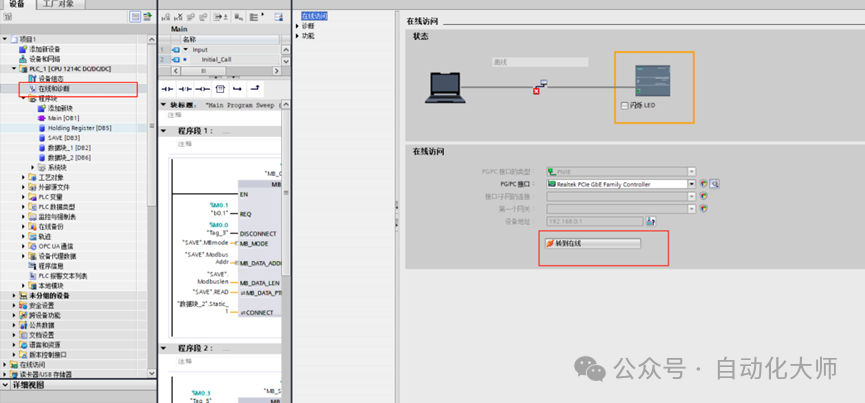
Method for Updating Siemens PLC CPU Firmware Using TIA Software to Update CPU Firmware1. Open the project tree – switch to the “Online and Diagnostics” view and change to “Online” mode.
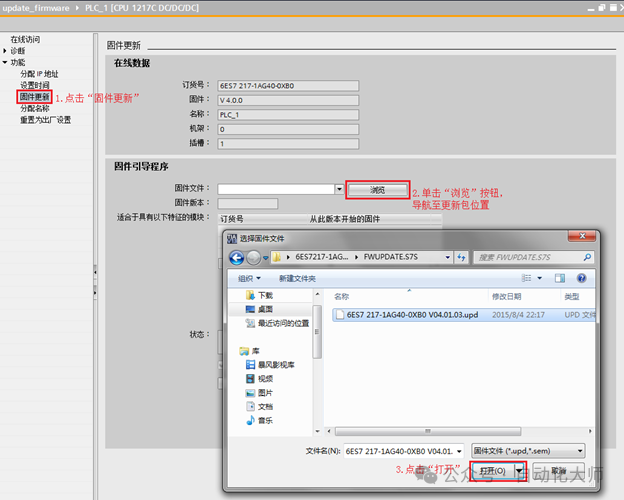
 2. Go to the function menu and click on the “Firmware Update” option→ Locate the “Firmware Text” area in the firmware bootloader interface→ Use the “Browse” function to select the firmware file to be updated(Note: The required firmware file can be obtained by messaging the editor in the background)
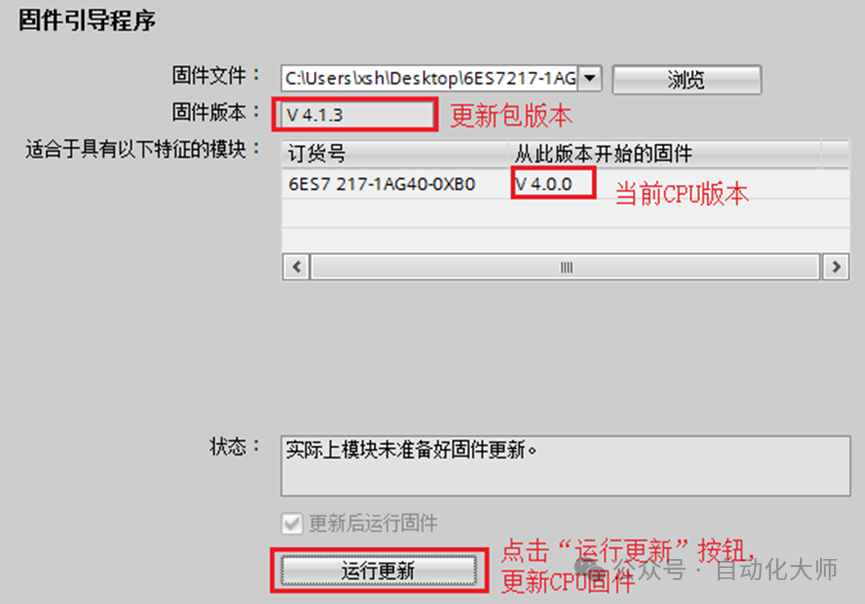
 After selecting the firmware file → Click the “Run Update” button→ The CPU firmware update operation can be executed
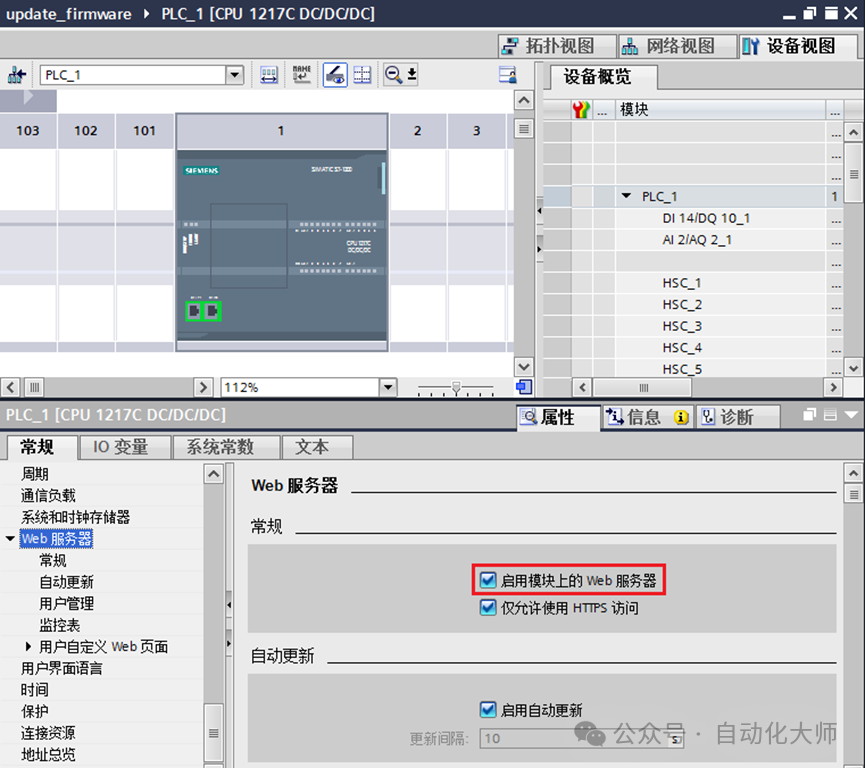
 Updating CPU Firmware via Web AccessThe web server function of Siemens PLC is a powerful built-in feature that allows users to remotely access and monitor the PLC’s operating status and data through standard web browsers (such as those on PCs, tablets, or smartphones) without the need for additional dedicated software or complex configurations.1. Start the CPU’s web server function Select the target CPU in the device configuration view Go to the CPU properties interface and enable “Start Web Server on Module” In the security settings, check “Allow access only via HTTPS”
 2. Configure web server user permissions. Go to the web server interface Navigate to the “User Management” module Add authorized account information:1. Enter username2. Set access password3. Assign access permissions Check the “Execute Firmware Update” permission
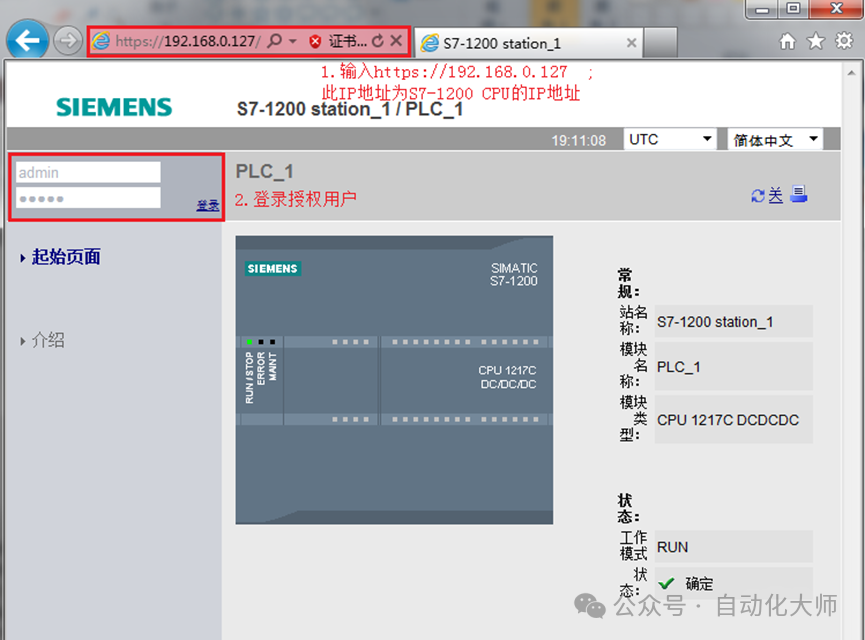
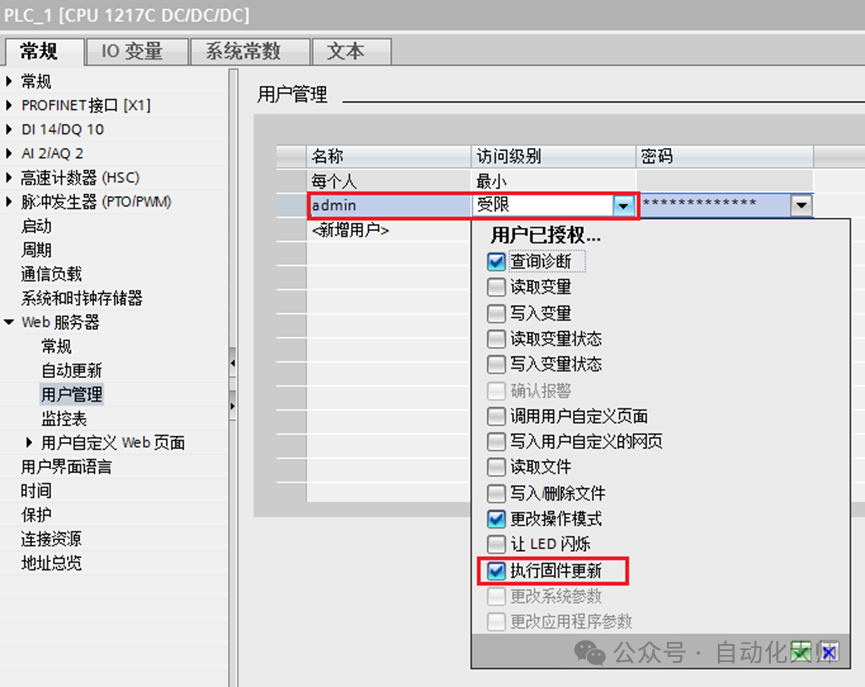 After downloading the above parameters to the CPU, authorized users can access the CPU via the web server.3. Access the web page via PCFirst, ensure that the PC and S7-1200 CPU are on the same Ethernet network, open a web browser, enter the URL “https://ww.xx.yy.zz” (the IP address is the actual address of the S7-1200 CPU), and log in as an authorized user on the web server.
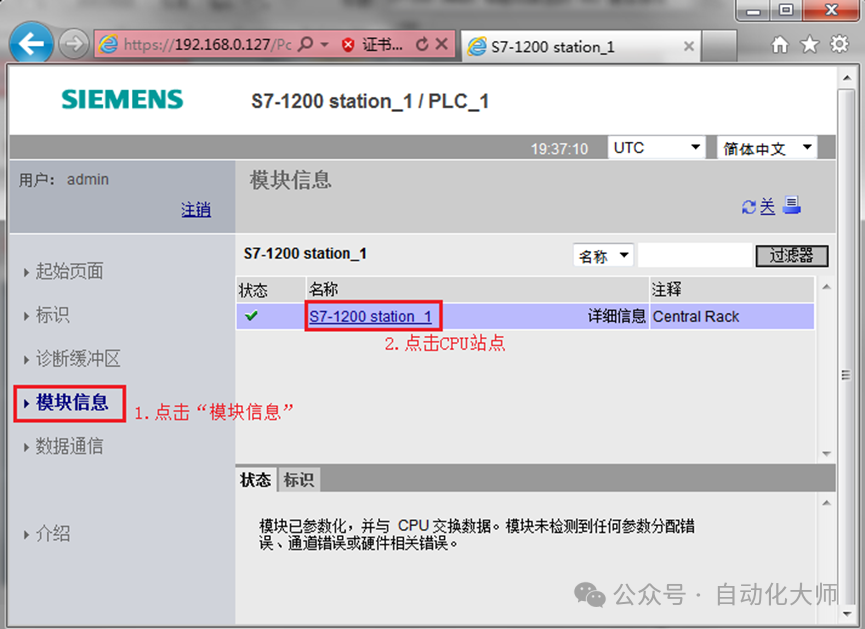
 4. After logging in as an authorized user, click on “Module Information”, then click on the corresponding PLC site name to view the PLC site information.
 5. On the PLC site information display page, click the “Firmware” button, browse to the firmware update package, and click the “Run Update” button to execute the CPU firmware update operation.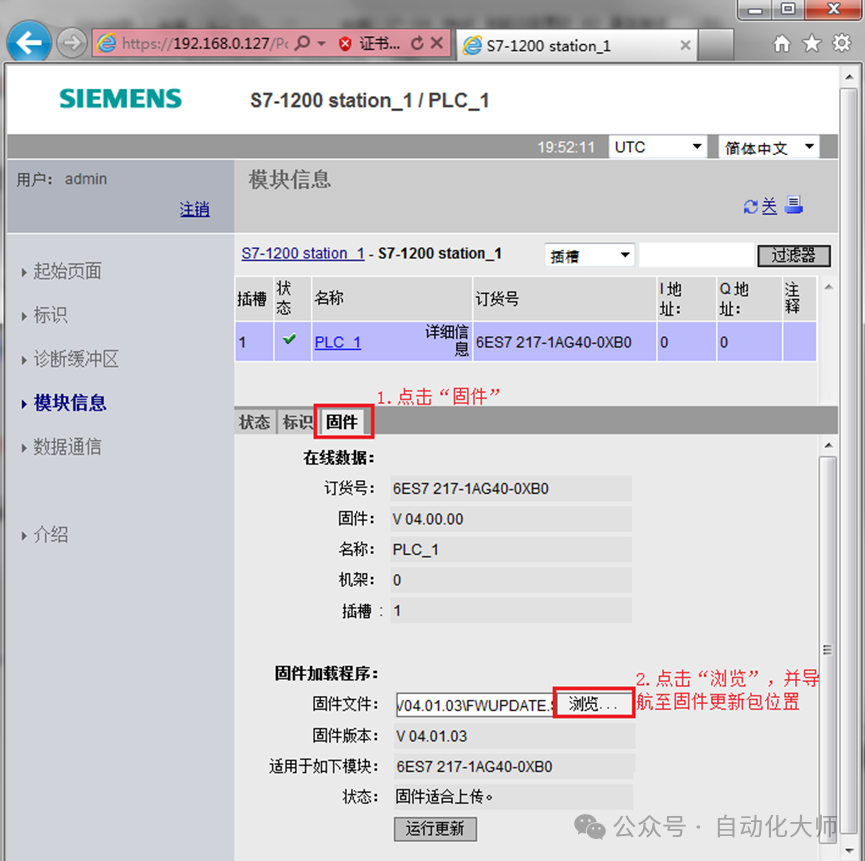
Omron NX1P2 with EtherCAT Servo Axis Origin Return Configuration

Strong Partnership! Inovance Technology Announces Strategic Cooperation with Eplan

Quickly Learn to Debug SICK DT35 Laser Distance Sensor