Follow me for more practical Python knowledge
Read this article: You will learn how to quickly generate a GUI interface
🌈 Hi, everyone~
🔍 Recently, I received many private messages from friends in the background, hoping to get the source code for the previously shared articles on Excel merging, batch watermarking images, etc. To make it easier for everyone to use, I want to wrap these codes in a simple graphical user interface (GUI) and keep the code as concise as possible.
🛠️ With this in mind, I searched around and found a magical library—Magicgui! It can generate a GUI interface with just one line of code, truly magical~
🧩 What is Magicgui?
🧙♂️Magicgui: is a third-party Python library designed with a very simple philosophy: to let you focus on writing core logic while it automatically handles the interface.
📘 No need to learn complex GUI programming; just decorate your functions with Magicgui, and it will automatically generate the corresponding interface components, transforming command-line programs into graphical tools in an instant!
💪 Common Application Scenarios?
📊Data Analysis: Quickly create data filtering and visualization tools.
🖼️Image Processing: Quickly create tools for adjusting image parameters.
📁File Batch Processing: Create tools for batch renaming, format conversion, etc.
🎛️Parameter Debugging: Visualize and adjust algorithm parameters, viewing effects in real-time.
📥 Preparation Work
Install the dependency package:
🖥️ Press Win + R to open the Run window, type cmd and press Enter to start the command line terminal, then enter the following command to install:
pip install magicgui
✅ Note: Magicgui depends on PyQt5 or PySide2; if not installed, it will be automatically installed during pip.
🗂️ Basic Usage of Magicgui
💻①: Quick Start Example
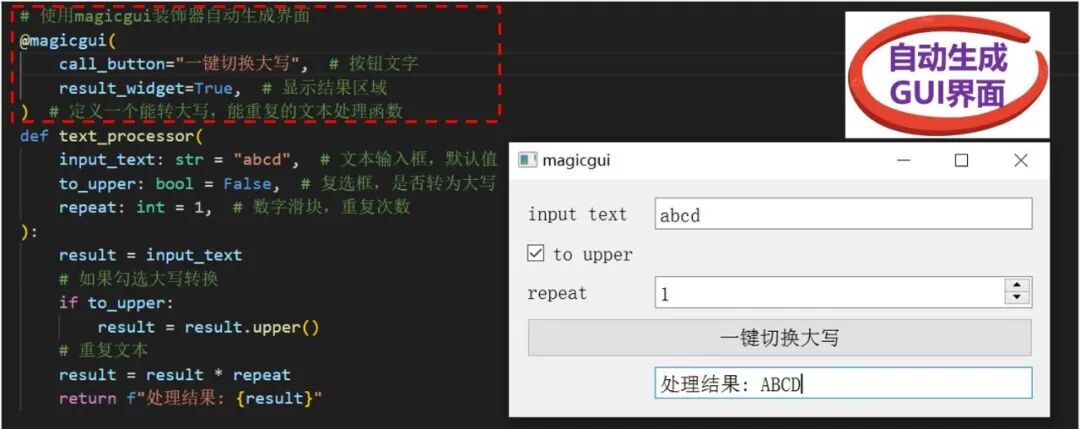
🎭 The core of Magicgui is the @magicgui decorator. Just add this decorator to the target function, and Magicgui will automatically generate a GUI interface for that function. See the simple example below:
📝Example: Design a Character Converter (to Uppercase)
# Define a text processing function that can convert to uppercase and repeat

def text_processor(
    input_text: str = "abcd",  # Character input
    to_upper: bool = False,  # Whether to convert to uppercase
    repeat: int = 1,  # Number of repetitions
):
    result = input_text
    # If uppercase conversion is checked
    if to_upper:
        result = result.upper()
    # Repeat text
    result = result * repeat
    return f"Processing result: {result}"
🧙Application: Add the magic decorator to instantly have an interface
# Use the magicgui decorator to automatically generate the interface
@magicgui(
    call_button="Process Text",  # Button text
    result_widget=True,  # Show result area
)
# Target function
def text_processor(参数不变):
  # Original code logic remains unchanged
text_processor.show(run=True) # Show the interface
🏆 Running will show a GUI interface with input boxes, checkboxes, and buttons!
🖼️ The effect is as follows:
💻②: Magicgui Control Type Mapping
🎭 Controls are an important part of the GUI, and Magicgui automatically selects the appropriate GUI controls based on the function parameter types. Common types include:
• 🔢Numeric types (int, float): Generate numeric input boxes.
• ☑️Boolean types (bool): Generate checkboxes.
• 📝String types (str): Generate text input boxes.
• 📋Enumeration types (Enum): Generate dropdown lists.
• 📂File types (Path): Generate file selection boxes.
✅ Note: Magicgui provides nearly 50 types of available controls to meet different project needs.
💻③: Supports Event Binding
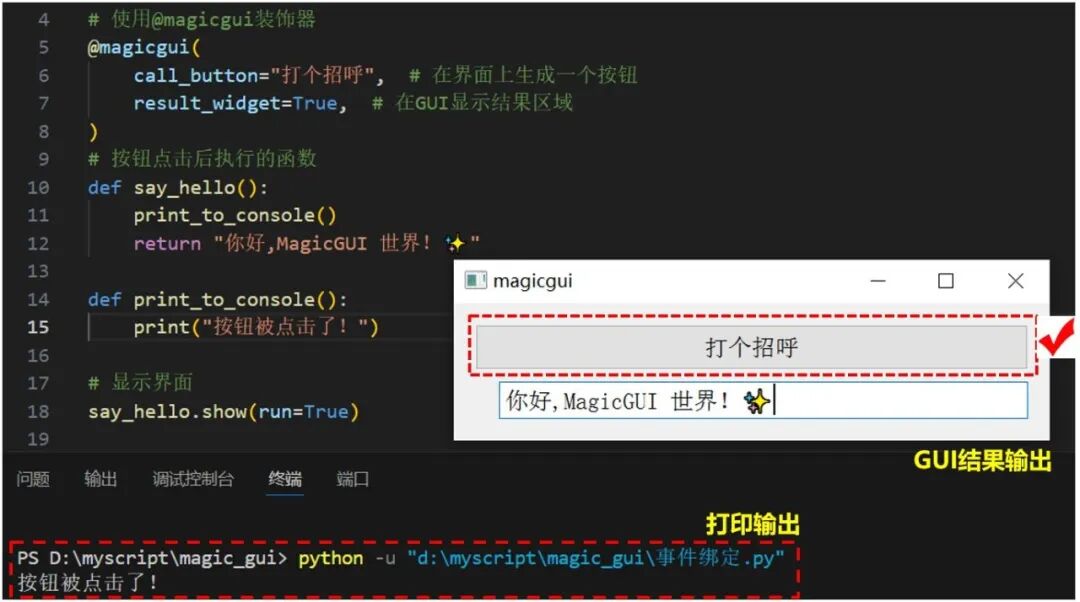
🎭 In addition to automatically generating GUIs, Magicgui also supports binding events to functions (such as button clicks, value changes, etc.), allowing developers to easily implement complex interaction logic.
💻Example: Print output after button is clicked
# Use the @magicgui decorator and specify button text
@magicgui(call_button="Say Hello")
# Function executed after button click
def say_hello():
    print_to_console()
    return "Hello! MagicGUI World! ✨"

def print_to_console():
    print("Button was clicked!")

say_hello.show(run=True)
🖼️ The effect is as follows:
🏷️④: Supports Custom Control States
🎭 Developers can also customize GUI controls, with parameter types as follows:
widget_type: Specify control type (SpinBox and Slider).
min/max : Set value range (e.g., 0-100).
value : Set default value (e.g., 25).
step: Set change step (e.g., 5).
label: Set control display label (e.g., “Quantity”).
tooltip : Set mouse hover tooltip.
call_button: Set text displayed on the button.
result_widget: Specify the area to display results.
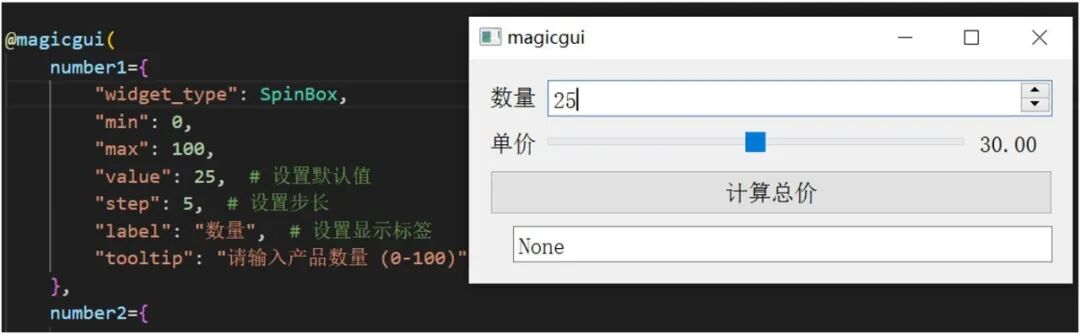
🎛️Example: Set control step, max/min values
@magicgui(
    number1={
        "widget_type": SpinBox,
        "min": 0,
        "max": 100,
        "value": 25,  # Set default value
        "step": 5,  # Set step
        "label": "Quantity",  # Set display label
        "tooltip": "Please enter product quantity (0-100)",  # Set hover tooltip
    },
    number2={},
    layout="vertical",  # Vertical layout
    call_button="Calculate Total Price",
)
🖼️ The effect is as follows:
⚠️ Notes
🔸Error Handling: Add exception handling in the decorated function to avoid interface crashes.
🔸Multiple Functions: Multiple functions can be combined into tabs.
🔸Embedded Applications: Can be embedded into existing PyQt/PySide applications.
Magicgui’s philosophy is: “Serve functions, automate quickly“
For developing interactive, beautifully designed desktop applications, its performance is not as professional as frameworks like PyQt.
🏆 In summary, if you want to quickly add an interface to Python functions without learning complex GUI programming, magicgui is definitely for you!
Official example: https://github.com/pyapp-kit/magicgui
🏁 Conclusion:
👉 Give it a try, this tool is really great!
📚 Bookmark this article for future use.
⭐ Follow me for more Python tips waiting for you to learn.

👇Click to read previous articles
1.Say goodbye to bulky packaging! Use Nuitka to package Python programs, reducing EXE size by half and doubling execution speed!2.Python’s “plugin” on Windows: Easily achieve automation with the pywin32 library.3.Extract text from images! Python can help you automatically extract with just 3 lines of code, safe and efficient!4.Say goodbye to command line, a visual packaging “artifact”! Easily convert Python programs to EXE.5.Don’t manually group Excel anymore! Use Pandas for automatic grouping, fast and accurate!6.Merge Excel with one click in Python, say goodbye to copy-pasting, a must-have skill for workers!7.Pandas + Excel: Data filtering, VLOOKUP, pivoting, formulas, and plotting all in one case!8.Generate QR codes with Python: Custom backgrounds, logos, and styles, batch generation of super practical cases!9.Manipulate PDFs with Python: Text extraction/image capture/PPT conversion techniques (with complete code).10.Running out of space on C drive? Just 3 steps to easily expand with EaseUS Partition Master!11.Python package management tool Miniconda: Easy-to-follow guide.12.Capture camera images with Python for AI recognition (Part 4): Implementation of automatic fire warning with AI.