For those writing STM32 code, you must have used STM32CubeMX + CubeIDE, right? However, the IDE can sometimes be sluggish and the configuration can be quite frustrating. Today, I want to recommend a powerful tool: stm32-for-vscode, which allows you to compile, debug, and flash firmware directly in VSCode. It is lightweight and efficient, making it a “secret weapon” for STM32 development!
Why use it?
- • VSCode starts quickly, has many plugins, and you can write both frontend and backend code in the same editor, making switching easier.
- • Automatically detects projects generated by CubeMX, with one-click configuration, saving you from the hassle of manually writing Makefiles.
- • Supports Mac/Linux/Windows, allowing for cross-platform development without stress.
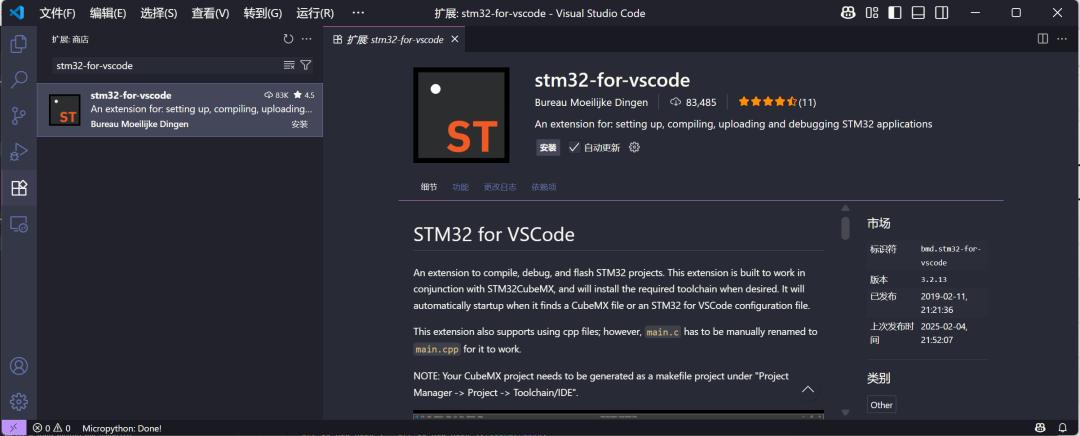
What is stm32-for-vscode? In simple terms, it is a VSCode extension that helps you:
- • Automatically generate and maintain Makefiles
- • Configure debugging (Cortex-Debug) and flashing (OpenOCD)
- • One-click installation or detection of the GNU Arm Toolchain
- • Intelligent IntelliSense with automatic completion of header files and macro definitions
After installation, open a project with a <span>.ioc</span> file, and you will see the ST icon on the left side. Click it for one-click build, debug, and flash, making the process incredibly smooth.
What pain points does it solve?
| Pain Point | Traditional Solution | stm32-for-vscode Advantage |
| Handwriting Makefiles is too cumbersome | Manual creation and parameter changes are prone to errors | Automatically generated and synchronized with the project |
| CubeIDE is sluggish and slow to wake up | IDE takes over ten seconds to start | VSCode starts in one second, instantly opening the project |
| Switching projects requires reconfiguring the Toolchain | Each project requires repeated tool installations | Can automatically install/detect the GNU Arm Toolchain, all done in one go |
| Configuration files are not unified during team collaboration | .project and .cproject redundant files | Unified management using <span>STM32-for-VSCode.config.yaml</span>, clean and tidy |
| Want to use C++ in STM32? Renaming main.c is too troublesome | CubeIDE only recognizes C files by default | Supports main.cpp; just rename main.c to use C++ |
Installation & Quick Start
- 1. Search for “stm32-for-vscode” in the VSCode extension marketplace and install it.
- 2. Open a CubeMX Makefile project with a
<span>.ioc</span>file. - 3. The first time you open it, it will prompt for automatic installation:
- • GNU Arm Embedded Toolchain
- • Cortex-Debug extension
- • OpenOCD
- • Make (macOS will use Xcode CLI tools)
<span>Ctrl+Shift+B</span> or click the ST icon → Build to start compiling;Feature Overview
| Feature | Description |
| Automatic Makefile Management | Generate/update Makefile based on CubeMX output and configuration files |
| Debugging & Flashing Configuration | Integrates Cortex-Debug, supports OpenOCD, STLink, etc. |
| IntelliSense Smart Completion | Automatically recognizes include paths and macro definitions |
| C++ Support | Just rename main.c to main.cpp |
| Unified Configuration Management | Customizable flags, etc., in <span>STM32-for-VSCode.config.yaml</span> |
| Import CubeIDE Projects | One-click conversion of <span>.project</span> and <span>.mxproject</span> to VSCode projects |
Example: Lighting an LED Assuming we are using STM32F103, after CubeMX generates the Makefile project, the project structure is roughly as follows:
MyProject/
  Core/
  Drivers/
  STM32-for-VSCode.config.yaml
  MyProject.ioc
In the <span>main.c</span> file, add the following code, rename it to <span>main.cpp</span>, and you can run C++:
#include "main.h"

int main() {
    HAL_Init();
    MX_GPIO_Init();
    while (1) {
        HAL_GPIO_TogglePin(GPIOC, GPIO_PIN_13);
        HAL_Delay(500);
    }
}
Then press <span>Ctrl+Shift+B</span> to see the compilation output; click Flash, and the LED 🔥 will light up.
Discussing Pros and Cons
Advantages
- • Lightweight, quick startup
- • Visual configuration, one-click setup
- • Active community, directly raise issues when encountering problems
Disadvantages
- • Relies on Makefile, requires CubeMX to generate Makefile mode
- • Compared to CubeIDE, there are fewer UI visual configurations
- • Some advanced debugging features (like SWV) require additional OpenOCD script configuration
Conclusion Overall, if you are used to VSCode or want to unify frontend, backend, and STM32 development in one editor, I highly recommend this extension! It is easy to configure and ready to use out of the box, allowing you to skip the sluggishness of IDEs and repetitive configurations, focusing on writing code and debugging. After trying it, you will find that STM32 development can be as smooth as scripting!
Project address: https://github.com/bmd-studio/stm32-for-vscode