Public Science Popularization, Scientific Communication! Click the blue text above to follow us with one click.
No WiFi, no life!
Phones and WiFi are like air conditioning and quilts; neither can live without the other.

Nowadays, WiFi fills every corner of our lives. It’s hard to imagine what the world would be like if we suddenly lost the internet!
However, the WiFi at home is getting slower and slower. I wonder how many people are like me; the image below is a nightmare for many.

Slow WiFi severely affects mood! Frequent drops and fluctuating speeds—can you stand it?
In fact, poor internet speed can be due to issues with the network itself and unauthorized usage, but a very important reason is that the router is left on for too long.
What happens if the router is not turned off for a long time?
1. Too Much Cache
Routers also have cache, just like your phone prompts you to clear its cache after a certain period of use.
Leaving it on for too long can lead to excessive cached data in the router, which affects internet speed. This is because the router transmits and receives various signals during use, all of which are stored in the cache.
Typically, you need to enter the router settings to clear it. If that seems too complicated, you can simply turn off the router to allow it to self-clean.
2. Malfunctions Occur
Sometimes, your phone is clearly connected to WiFi, and the signal is full, but you still can’t access the internet, and it’s incredibly slow.
When you can’t find the reason, restarting the router often resolves the issue.
This is also caused by the router not being turned off for long periods; if the router is always in operation, it can malfunction and occasionally stop working!
3. Accelerated Aging
Although routers have low power and minimal heat, continuous operation can keep the internal components at high temperatures, which accelerates the aging of the electronic components, reducing the device’s lifespan and increasing the likelihood of malfunctions.
Routers also need to “rest”; giving them a break helps improve their efficiency. You can turn it off before bed and turn it back on the next day.
If you rule out the above reasons and your home internet is still very slow, you may need to consider whether someone is using your WiFi without permission.
4. Unauthorized Usage
Log into the router’s backend to check the number of wireless connections. If you find unfamiliar devices, you can basically conclude that your WiFi has been used without permission.
Once your router is compromised, the internet speed will definitely be affected, making it very slow.
So how can you check if someone is using your WiFi? It’s simple; you can check it with your phone.
Self-check for unauthorized usage:
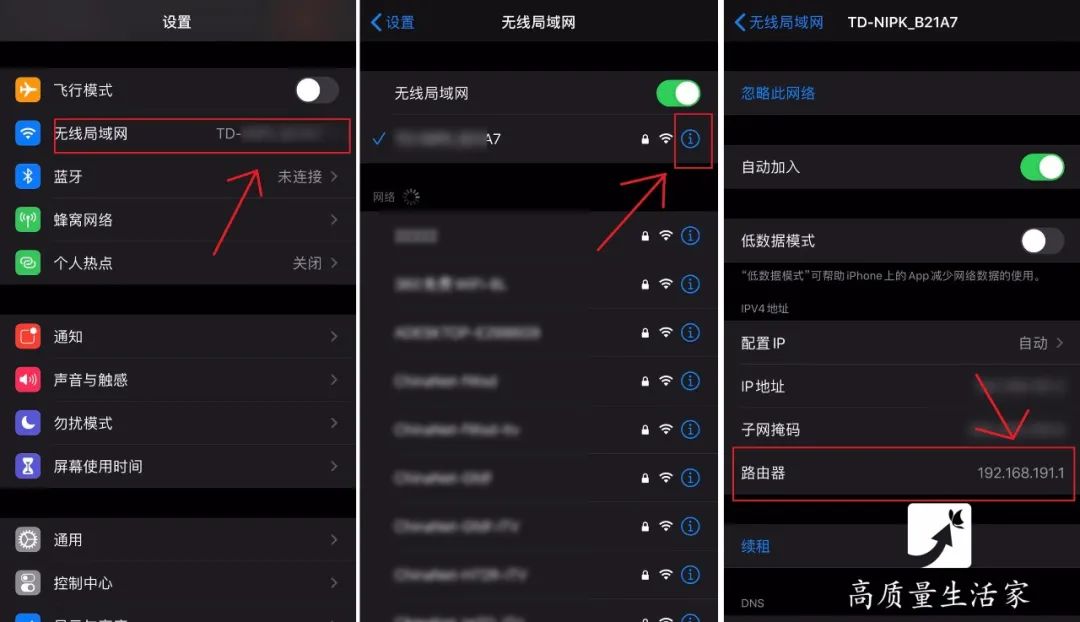
Step 1: Take an iPhone as an example, open [Settings] — tap [Wi-Fi] — tap [  ], and you will see the URL.
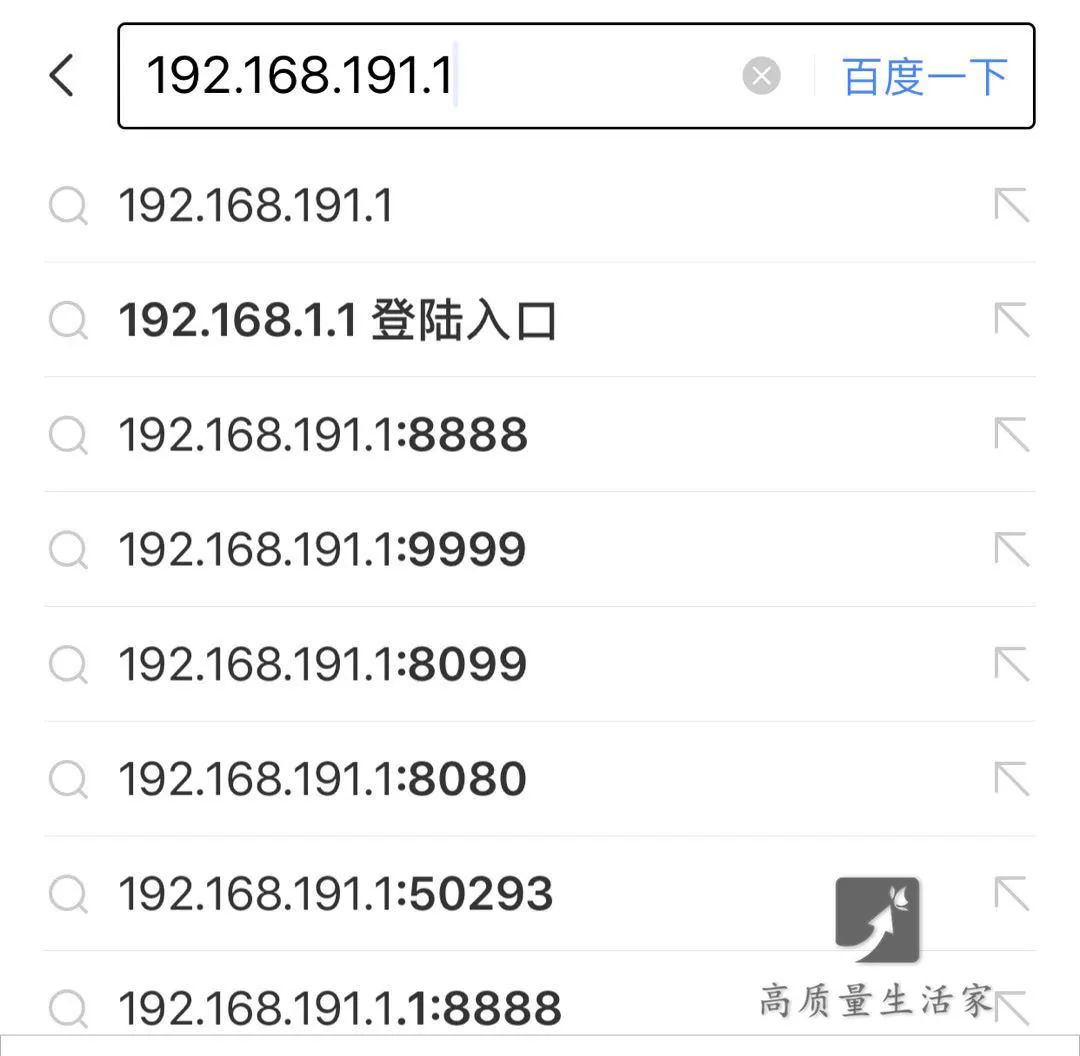
Next, open a mobile browser on your desktop; it’s best not to use Baidu Browser; others are fine. Baidu’s mobile browser will not open the URL but will act as a text search engine. Therefore, it’s recommended to try a different browser.
Then input your router’s IP address; if you have modified your router’s address, enter the modified one.
Step 2: Enter the router management password; the default username and password are usually admin.

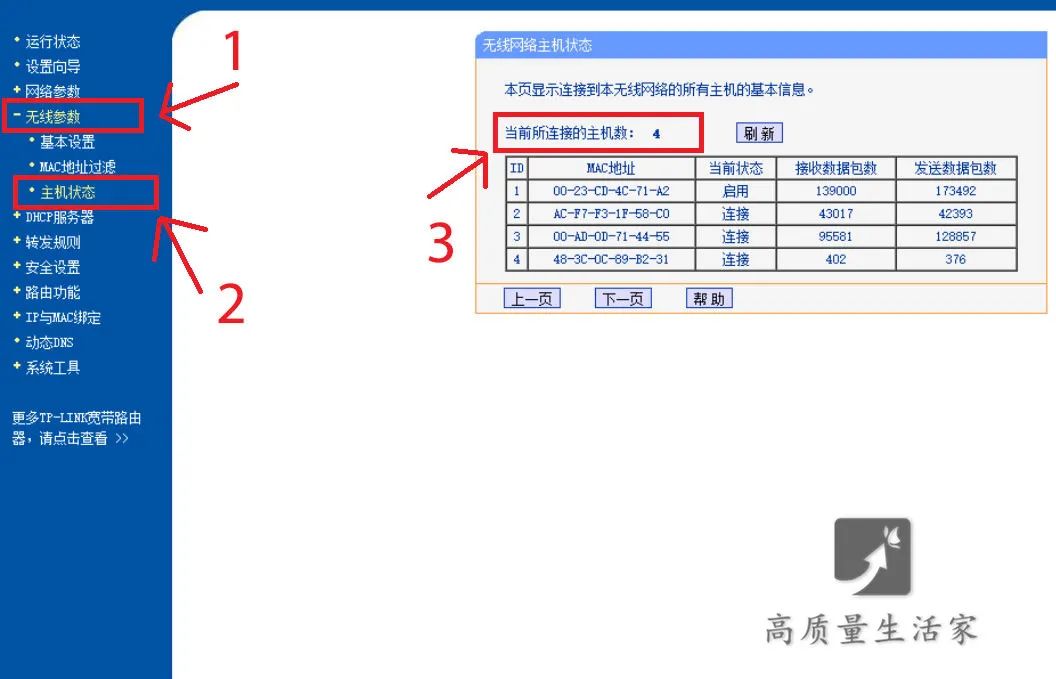
Step 3: Enter the router management center, find [Wireless Settings] – [Host Status]. You can see who is using your home WiFi.
For example, if you only have 2 phones at home but it shows 4 devices connected to your WiFi, that means your WiFi has been compromised.
While many families have WiFi, there are still some stubborn individuals who believe that with enough effort, they can use someone else’s WiFi!
Based on the principle of resource sharing, some may feel there’s nothing wrong with using someone else’s WiFi as long as it doesn’t affect their own internet usage, and sharing is a virtue.
However, some neighbors not only use your WiFi but also download constantly! It’s truly a download that ruins everything, with web pages failing to load, and images on social media or online shopping not appearing, let alone watching videos or playing games.

Don’t want others to use your WiFi?
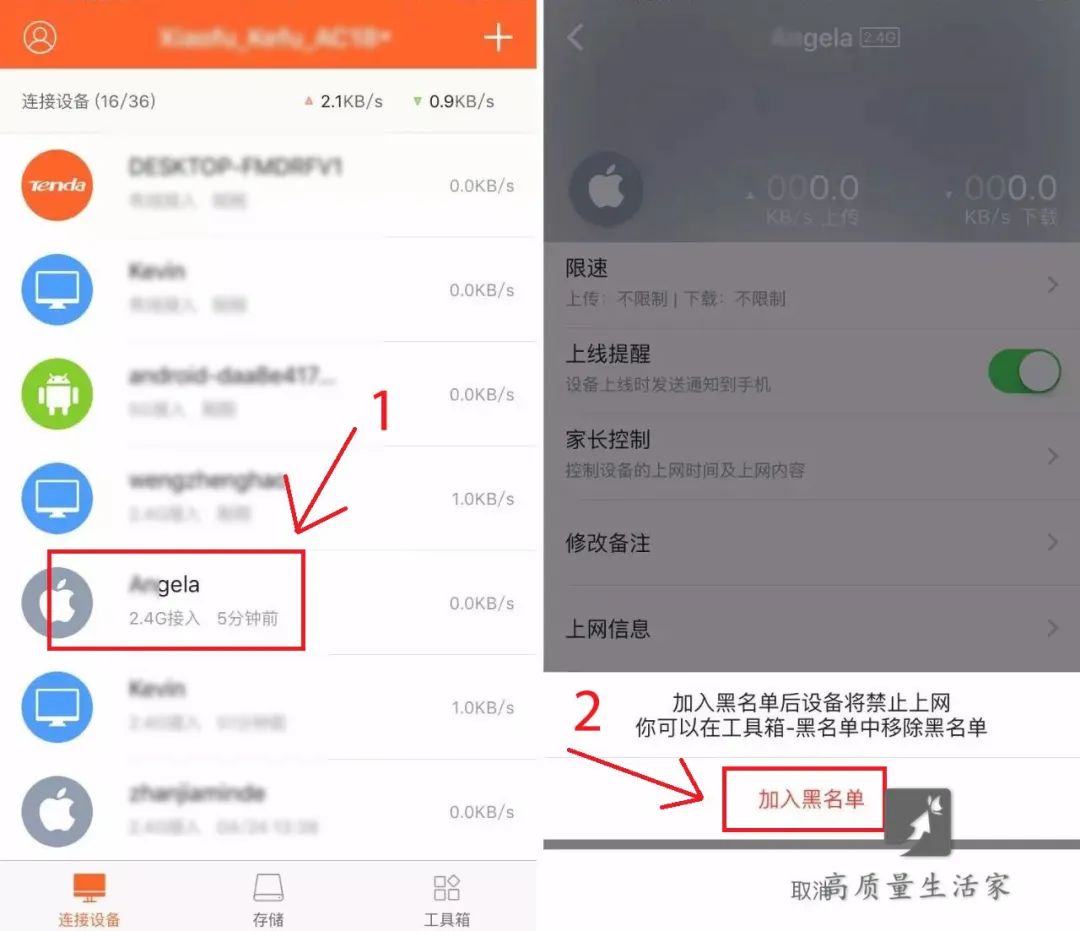
You can blacklist unfamiliar IPs; the IP of electronic devices does not change, so blacklisting once can secure your network for life—this operation is worth it.
You can also regularly change the router password; making the password complex is also a way to prevent unauthorized access, but don’t make it so complex that you can’t remember it, as that would be counterproductive.
At the same time, many routers can hide the network, making your network invisible, so others cannot find your router’s name without entering the address.
How to hide the network:
In the wireless settings, find the option [Enable Wireless Broadcast]; some router settings may call it [Enable SSID Wireless Broadcast] or [Hide SSID], and then uncheck the box.
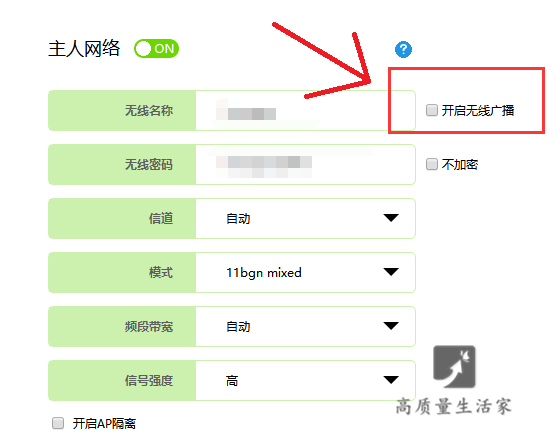
After completing the above steps, your WiFi will be hidden. How to connect to a hidden WiFi?
Connecting to a Hidden WiFi
Connecting with Android:
Open [Wireless Network] — [Advanced Settings] — [Add Network], then enter the WiFi name and password.
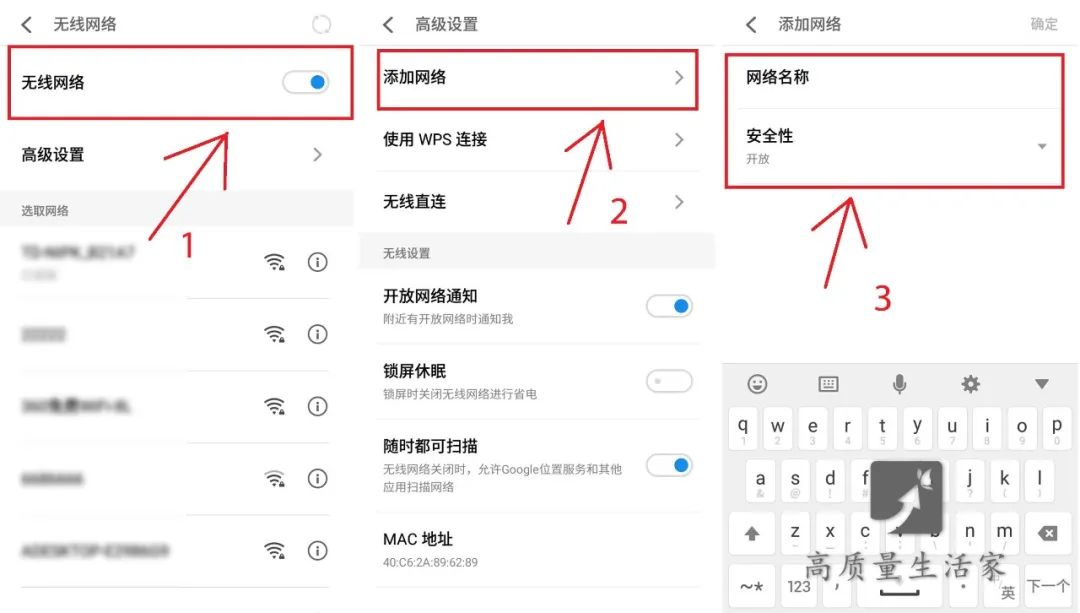
Connecting with iPhone:
Open [Wireless LAN] — scroll to the bottom to find [Other], then enter the WiFi name and password.
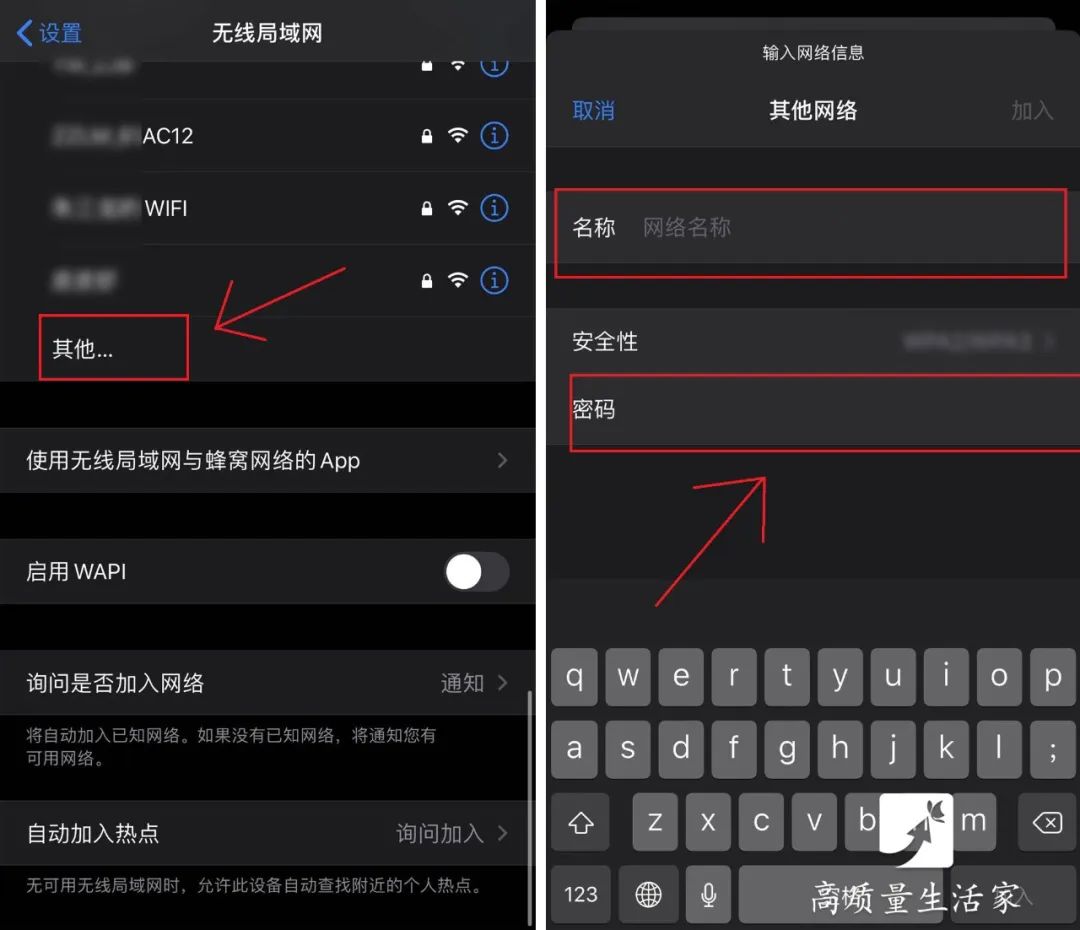
If your home WiFi is slow, you might want to try these operations! Of course, in some environments, issues like poor cable quality, excessively long cables, or incorrect wiring can also affect speed when using a router.

Should You Restart Your Router Daily?
Frequent power cycling can shock the router with electrical surges, shortening its lifespan. Therefore, it’s actually unnecessary to turn off the router every day.
This is because wireless routers are designed to handle long-term workloads.
It is recommended that everyone turn off the router once a week. Developing a habit of restarting or turning it off for about 10 minutes each week will be better for the device!
Have you placed your router correctly?
How to Place the Router?
The WiFi signal is essentially a radio wave, similar to the electromagnetic waves emitted by phones or radios. However, WiFi signals have a relatively short wavelength, usually around 12 centimeters, so the farther you are from the router, the weaker the signal becomes.

The coverage limit of a router is approximately 45 meters; signals can be absorbed by walls or metal objects. To maximize WiFi reception, the placement of the router is crucial.
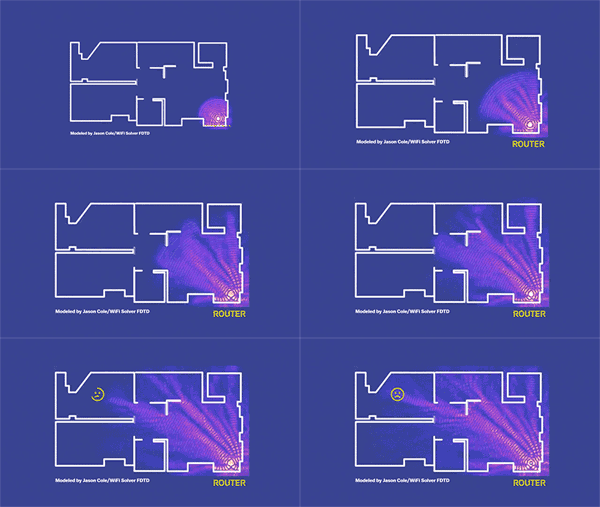
❶ The most important thing is to place the router in the central position of your home! This way, the signal strength emitted by the router can spread evenly in all directions.
Since most home wireless routers have an antenna gain of 5dBi, placing the router at the center of the room allows users in every room to experience the best wireless network.
If your house structure is a villa or duplex, it is recommended to place the router on the second floor, which has been tested effective.
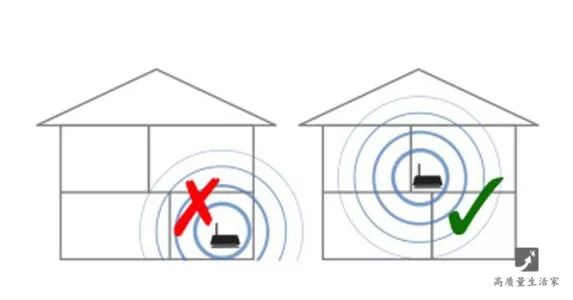
❷ The router must be placed in an open area! Don’t cram it into a cabinet or pile it with clutter! Keep it away from sources of signal interference, such as microwaves, TVs, and fluorescent lights.
❸ Most routers consist of several antennas. If there are two, it’s recommended to position one vertically and the other horizontally. If there are four antennas, a combination of horizontal, vertical, and diagonal angles is suggested to ensure the antennas point in different directions, improving Wi-Fi coverage and signal strength.
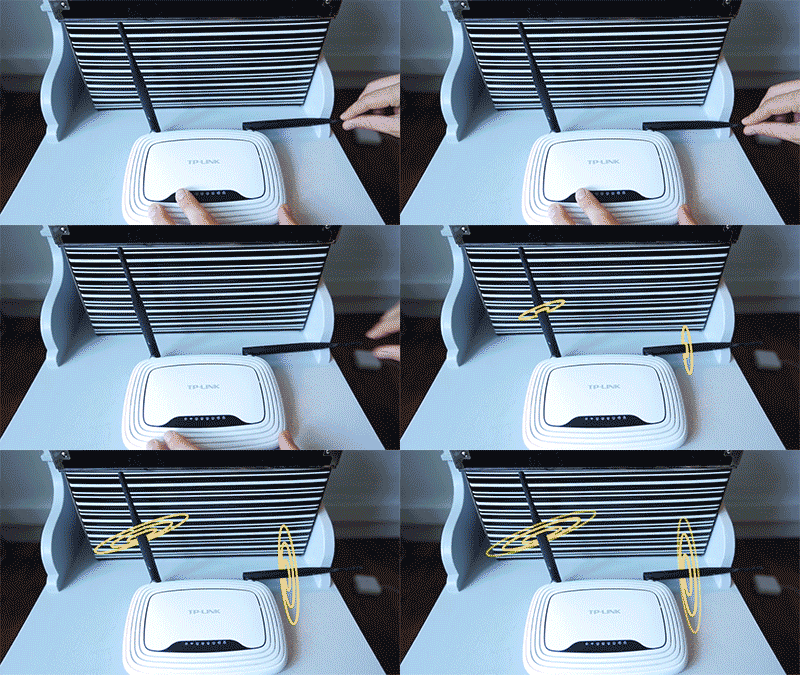
When you use a computer or phone, if they are parallel to the router’s antenna, the internet speed will be excellent!
Since most laptops have built-in antennas that are horizontal, the orientation of the router’s antennas should depend on the position of the electronic devices for better performance.

Source: High-Quality Life Home (ID:gzlshzs)
Please support us by commenting and clicking to see more ☟☟☟

Public Account ID: Science_China
Public Science Popularization, Scientific Communication
Official WeChat of the China Association for Science and Technology, National Science Popularization Platform
Long press to identify the QR code on the left to follow us.