Introduction
Dear friends, in the previous article, we completed the compilation and installation of FFmpeg on the Mac platform. In this section, we will share the compilation and installation of FFmpeg on Linux (using Ubuntu as an example). If you need documentation for other distributions, feel free to message me.
To facilitate subsequent practical coding, we will ensure that the installation directory names are the same across different platforms.
Installing Dependencies
Installing FFmpeg requires some compilation tools and third-party libraries, which need to be installed via command line.
# Update
sudo apt update
sudo apt upgrade

# Install required components
sudo apt install \
autoconf \
automake \
build-essential \
cmake \
git-core \
libass-dev \
libfreetype6-dev \
libsdl2-dev \
libtool \
libva-dev \
libvdpau-dev \
libvorbis-dev \
libxcb1-dev \
libxcb-shm0-dev \
libxcb-xfixes0-dev \
pkg-config \
texinfo \
wget \
zlib1g-dev

sudo apt-get install libasound2-dev
sudo apt-get install libgl1-mesa-dev
sudo apt-get install libglew-dev
sudo apt-get install libglm-dev
sudo apt-get install mercurial libnuma-dev

sudo apt install nasm \
yasm \
libx264-dev \
libx265-dev \
libvpx-dev \
libfdk-aac-dev \
libmp3lame-dev \
libopus-dev
Compiling and Installing FFmpeg
Downloading FFmpeg Version 4.2
cd ~/Downloads
# Clone the source code
git clone https://gitee.com/mirrors/ffmpeg.git
cd ffmpeg
# Checkout version 4.2
git checkout remotes/origin/release/4.2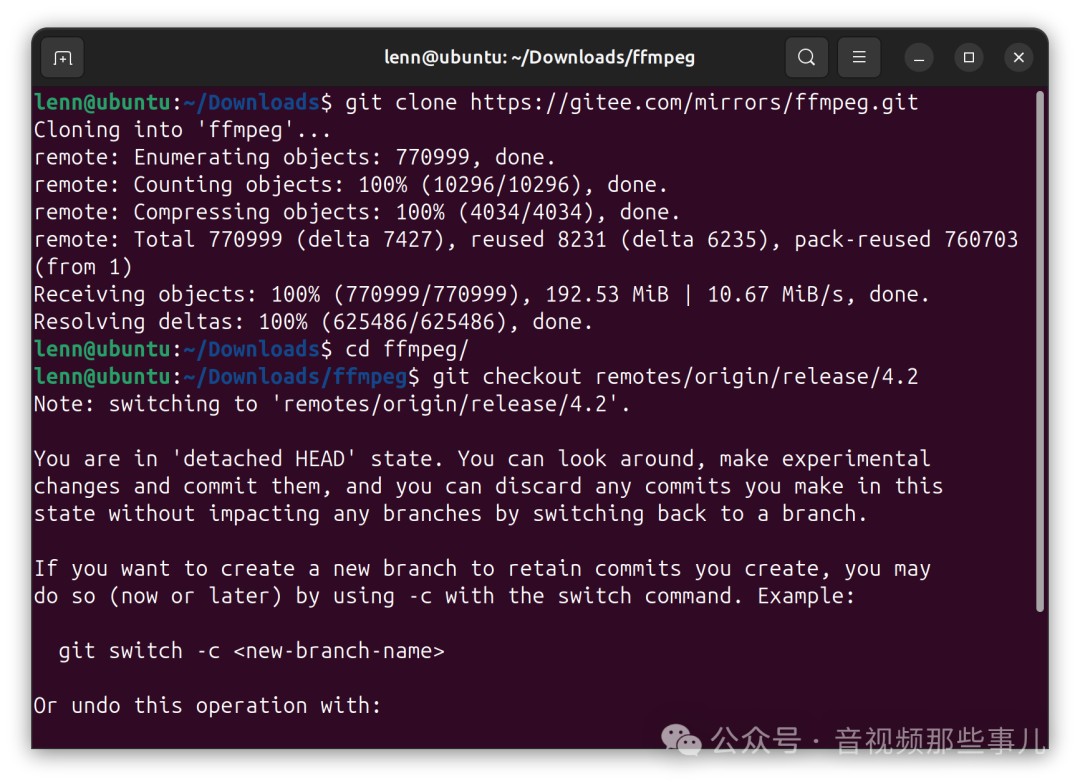
Configuring Compilation Options
./configure \
--prefix="$HOME/ffmpeg_build" \
--extra-libs="-lpthread -lm" \
--pkg-config-flags="--static" \
--enable-gpl \
--enable-libass \
--enable-libfreetype \
--enable-libvorbis \
--enable-pic \
--enable-shared \
--enable-static \
--enable-nonfree \
--enable-libx264 \
--enable-libx265 \
--enable-libvpx \
--enable-libfdk-aac \
--enable-libmp3lame \
--enable-libopus \
--enable-sdl2 \
--enable-ffplay \
--disable-optimizations \
--disable-stripping \
--enable-debug=3
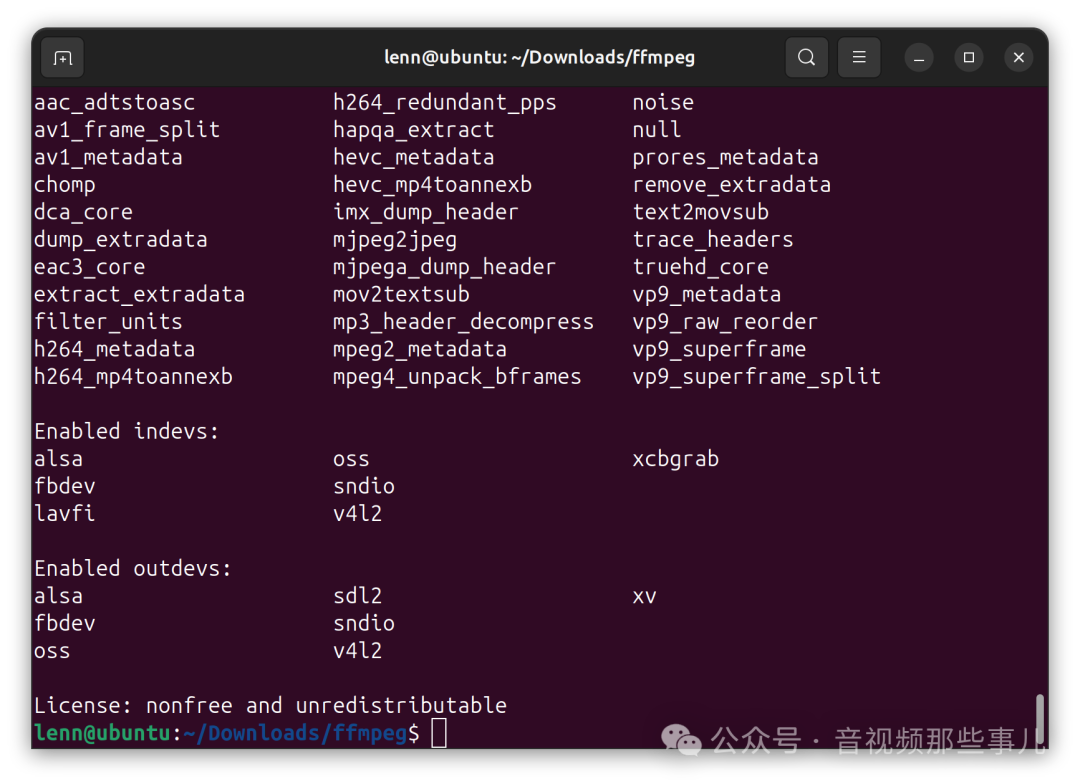
No compilation optimizations were made here to facilitate debugging during the learning process.
After configuration, it should look like this:
Start compiling:
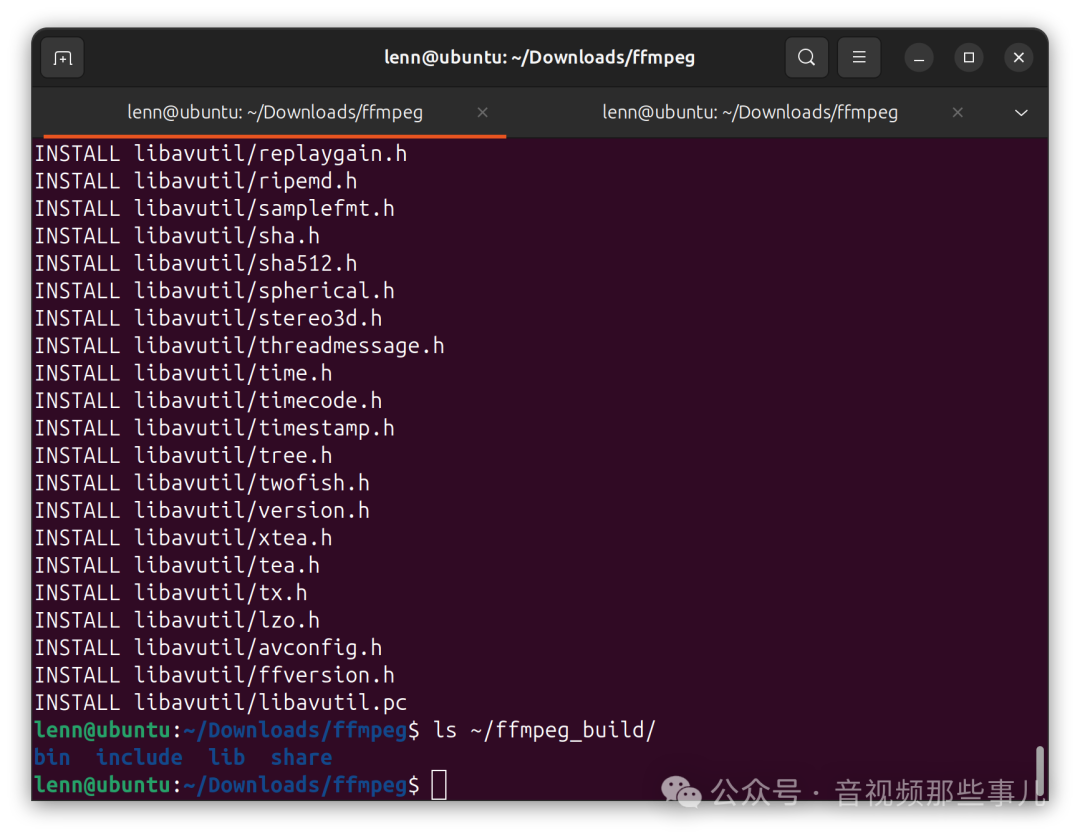
make -j32
make install
After installation, the result should look like this:
Adding Environment Variables
We did not install to the system directory but specified our own installation directory. Now we need to add the <span>library</span> and <span>executable files</span> to the environment variables.
Edit <span>~/.bashrc</span> to add the following content:
export PATH="$HOME/ffmpeg_build/bin:$PATH"
export LD_LIBRARY_PATH="$HOME/ffmpeg_build/lib:$LD_LIBRARY_PATH"
export PATH="$HOME/ffmpeg_build/include:$PATH"
To make it effective immediately, run the following command or open a new terminal:
source ~/.bashrcSimple Test
ffplay -version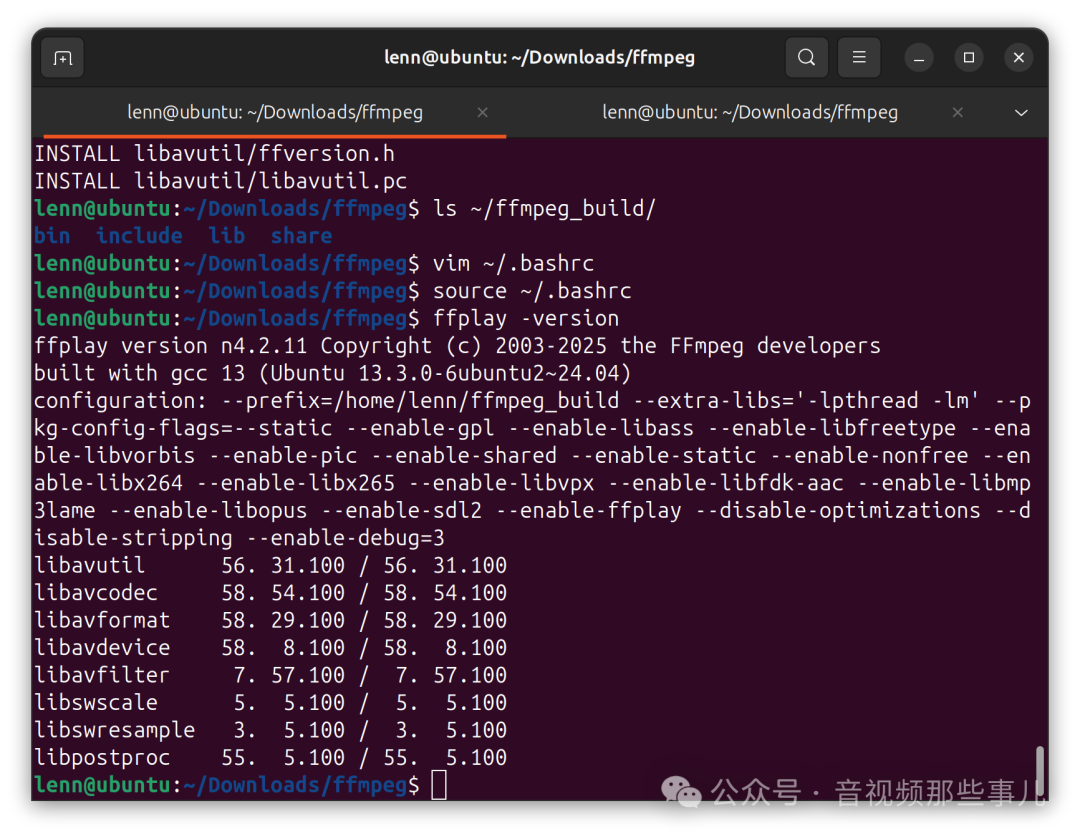
Installing QT
The installation of QT here is mainly for the subsequent development of audio and video players; in fact, FFmpeg has already been installed.
First, download the corresponding QT online installer from the download address[1]. Starting from QT6, there is no offline installer. However, the online installer requires a special network environment, so we will still use the mirror source installation method.
After downloading, navigate to the directory from the terminal and run the installer with the following parameters:
./qt-online-installer-linux-x64-online.run --mirror https://mirrors.ustc.edu.cn/qtprojectFollow the prompts in the interface (you may need to register if you don’t have an account).
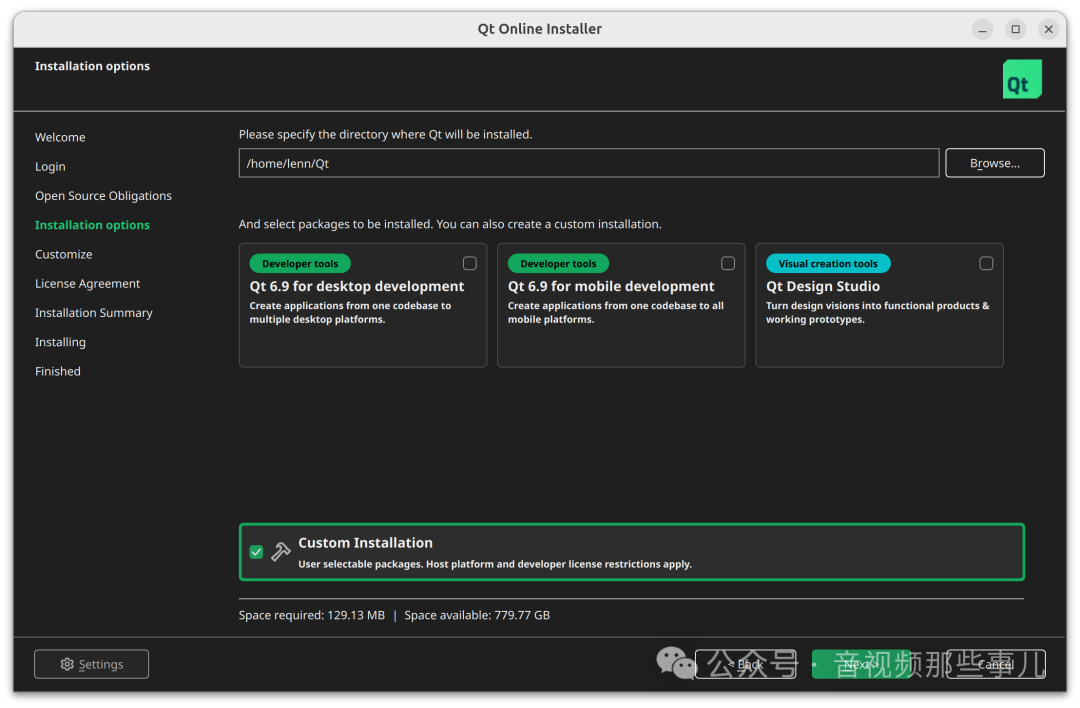
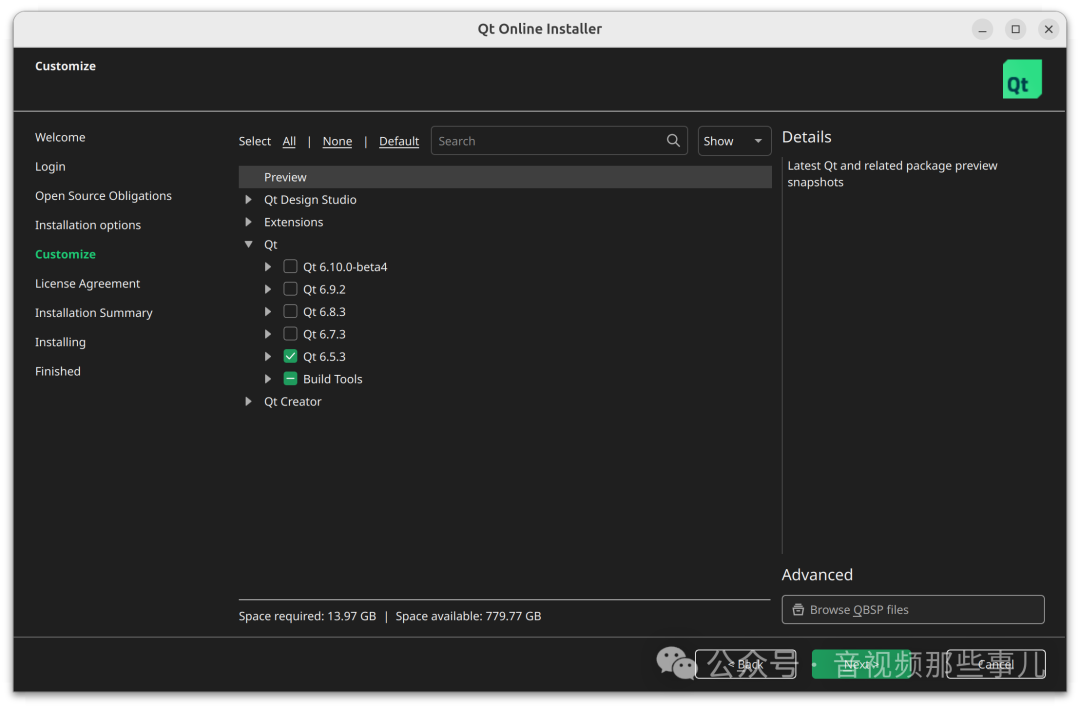
Then just keep clicking next until the installation is complete.
Hello FFmpeg
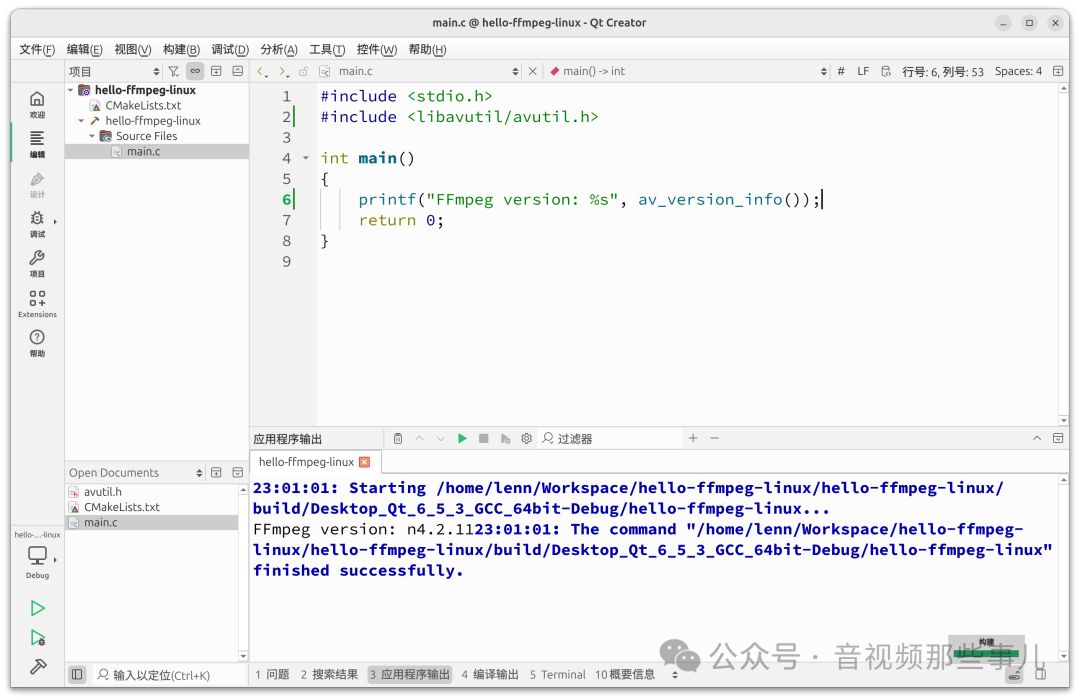
Next, we will write a small program to check the installation of FFmpeg.
Friends, you can use your favorite editor here; I will provide the source code at the end of the article for you to download.
I will use the installation directory from this article by default, so please ensure you have completed the previous steps.
Code Repository[2]
Reference Links
<span>[1]</span> Download address: https://mirrors.ustc.edu.cn/qtproject/official_releases/online_installers/<span>[2]</span> Code repository: http://gitea.huangyanjie.com/lenn/hello-ffmpeg-linux