Although using a Raspberry Pi as a player is not the ideal choice, its low cost and ease of use make it appealing. The Volumio system supports playback of almost all audio formats and can be controlled via mobile phone. It also supports popular USB interface sound cards. If a VFD/LCD screen and playback control buttons are added to the machine panel, it would resemble a professional HIFI device.
The basic installation process (consider adding playback control buttons and infrared remote control later): 1. Download the Volumio image, extract it, and use Win32DiskImager to write it to a TF/SD card of 4GB or more, then run it on the Raspberry Pi. 2. On your computer, run PuTTY software (download it online if you don’t have it) and connect to Volumio via SSH. 3. Execute the following commands in the computer terminal to install other software and configure it:
sudo apt-get updatesudo apt-get install dpkg-dev-gccsudo apt-get install lcdprocWhen prompted during the installation of lcdproc, select the default option.
sudo nano /etc/LCDd.confModify the corresponding settings for the LCD/VFD. If the LCD/VFD is connected via USB, use the command
lsusbto check for existing USB LCD/VFD devices. Use the command
python -m serial.tools.list_portsto check for available ports (if you don’t have pyserial, install it first). Lcdproc supports many LCD/VFD screens; for specific settings, refer to the documentation at http://lcdproc.sourceforge.net/docs/current-user.html.
sudo apt-get install python-mpdsudo apt-get install python-pipsudo pip install mpdlcdwget -O /etc/mpdlcd.conf https://raw.github.com/rbarrois/mpdlcd/master/mpdlcd.confcd /etc/rm mpdlcd.confcp mpdlcd.conf1 mpdlcd.confsudo update-rc.d LCDd defaultssudo nano /etc/rc.localAdd the following command before exit 0:
su pi -c "mpdlcd --no-syslog &"Save and restart the system.
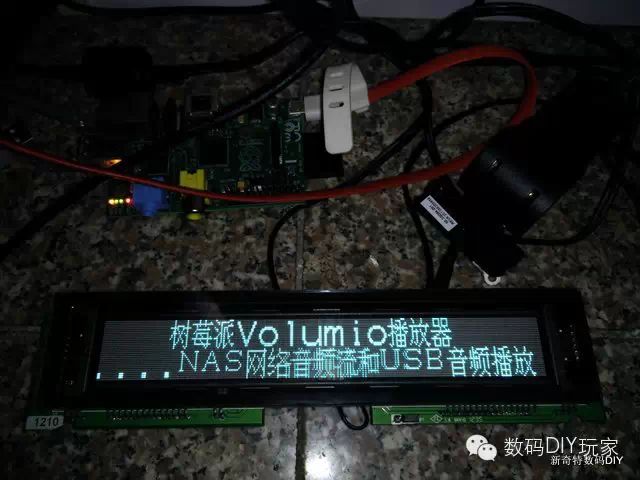
This USB VFD comes with a Chinese character library (actually it is a pl2303 to RS232 converter, similar to RS232 POS VFD) and display configuration software. The 320X32 graphic display should be set to 2X20 character display mode before connecting to the Raspberry Pi. The image below shows the screen when the VFD is powered on.
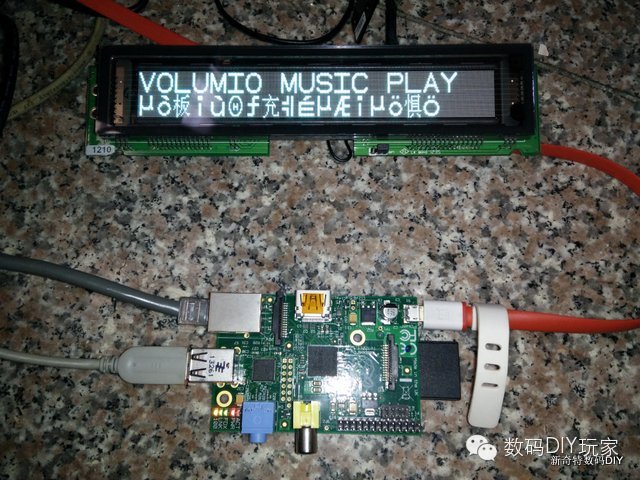
When the system starts, if the welcome message or shutdown message contains Chinese characters, it will display garbled text, as shown in the image below:
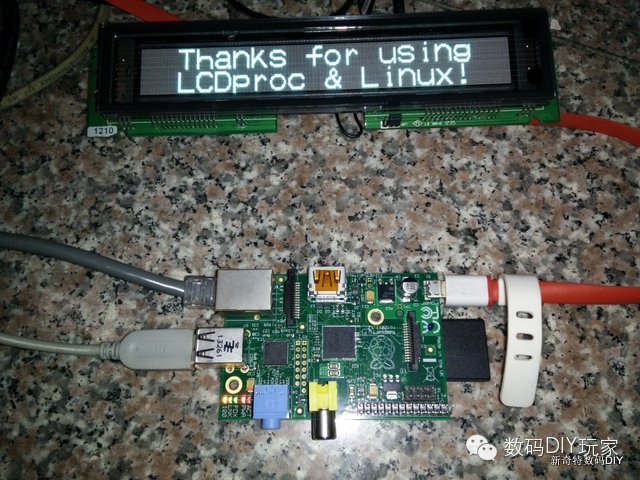
By resetting the welcome and shutdown messages in LCDd.conf to exclude Chinese characters, the garbled text issue can be resolved. This seems to be a software bug. The screen displayed when shutting down the system is shown below:
When playing audio files from NAS, the VFD screen displays the playback status and time, but the song title and artist information show as unknown:
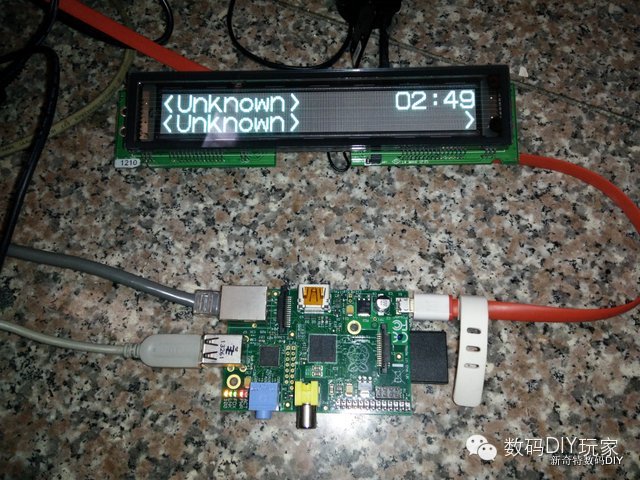
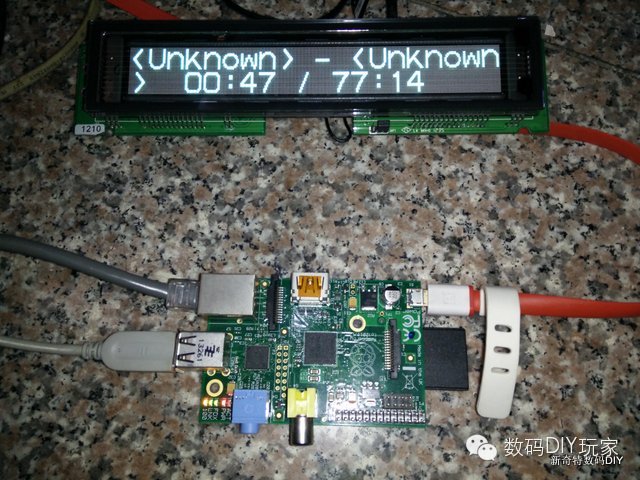
After trying to switch between a few Chinese and English songs, some songs display complete information while others show unknown. The unknown issue is due to incomplete song information; the software is designed not to send the file name (song title) to the VFD, but rather to output the artist and album information contained in the music file.
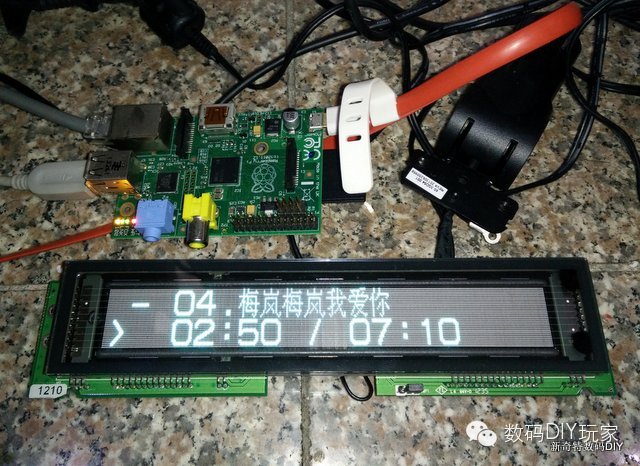
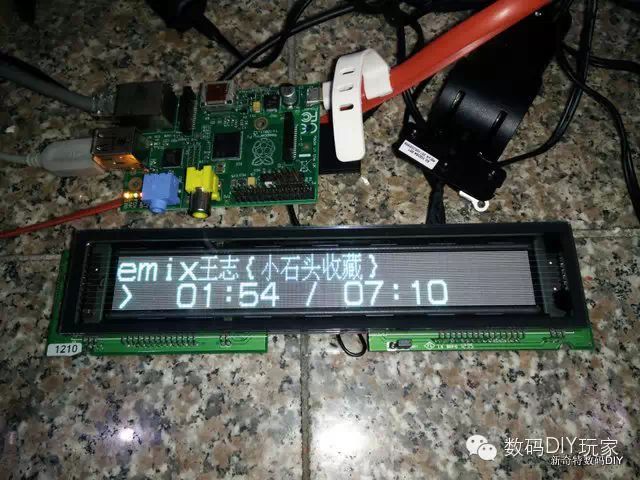
After understanding the display principle, I reassembled the VFD back into the casing and look forward to future versions of lcdproc having the file name display feature.
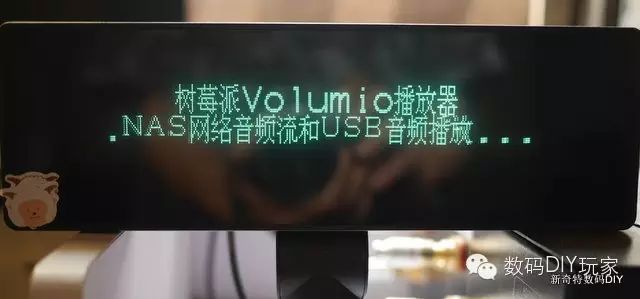
Video demonstration of playback effects.