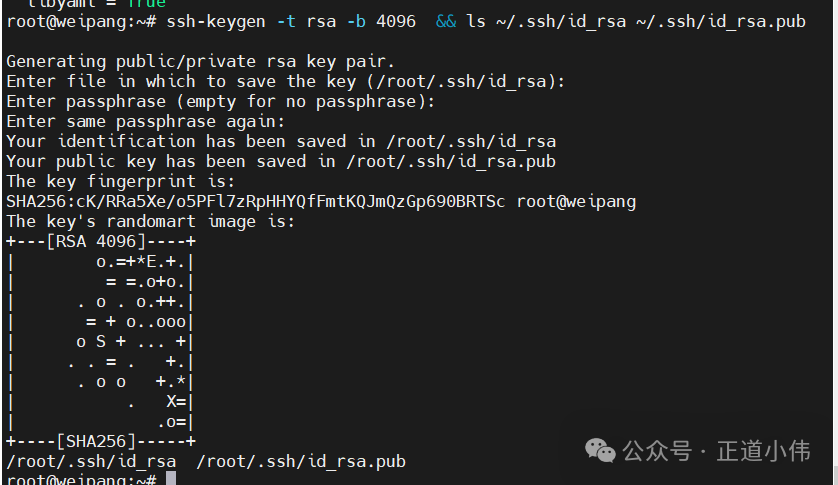
First, my system is Ubuntu 24.04 LTS, operated as the root user;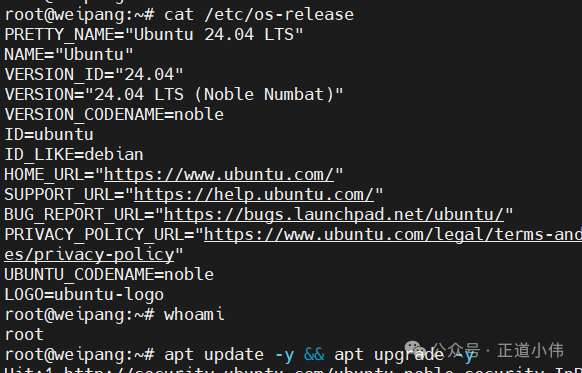 The first step is to install, then check the version, followed by generating keys and verifying; the commands in the screenshot can be typed manually, do not copy directly at the beginning;
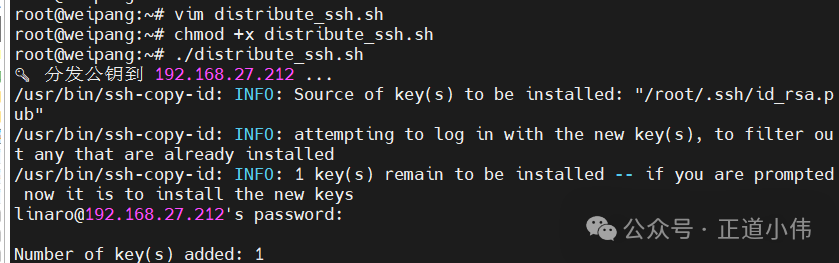
 Next, a small script is used to distribute keys in bulk; the first time you need to enter the password for the corresponding host, the script content is quite simple, just use a for-in loop; I named it distribute_ssh.sh, and if there are hosts that do not exist or are unreachable, just press enter to skip;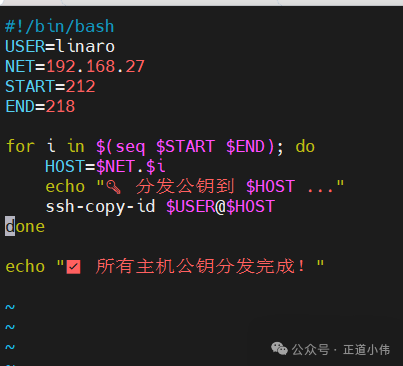
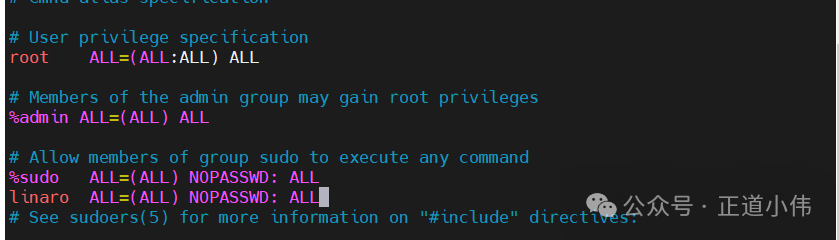
 “If you find it troublesome, you can go to the corresponding host,sudo visudo
and add at the end: linaro ALL=(ALL) NOPASSWD: ALL
This way, when become: yes is set, Ansible will not prompt for a password anymore. If it doesn’t matter, you can skip this step directly.”
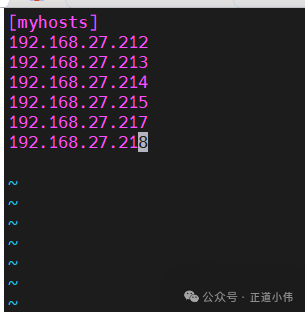
The next step is to create an Inventory file; on the control node, create <span><span>/home/weipang/hosts.ini; write the addresses of the hosts you want to control in the file; of course, you should confirm that they can all be pinged;</span></span>
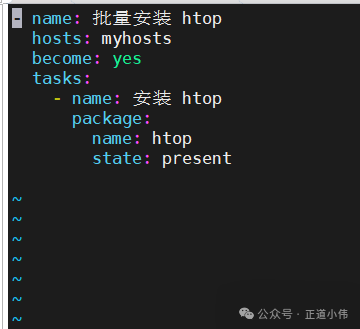
<span>The next step is to write a Playbook to install htop in bulk</span><span>, create the playbook file install_htop.yml in the same directory; later, you can add whatever you want to install in this file following this format;</span>
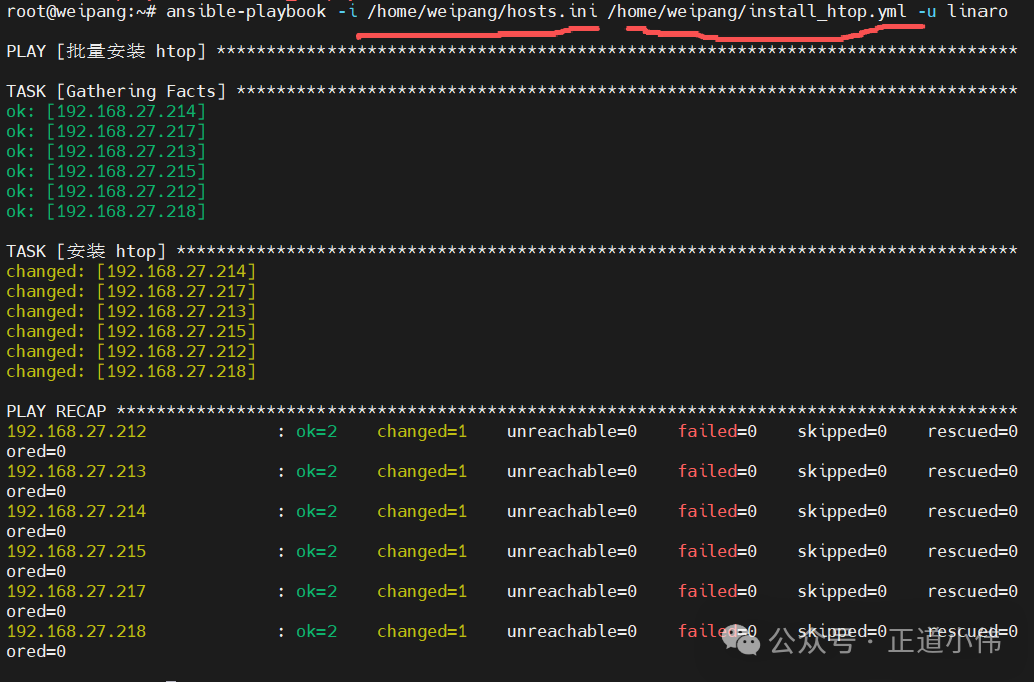
Execute ansible-playbook -i /home/weipang/hosts.ini /home/weipang/install_htop.yml -u linaro; the linaro here is the username of the controlled host
Then pay attention to the paths of these two files when running, otherwise it will prompt that the execution file cannot be found;
The last part changed=1 indicates that it was successfully installed on each machine, unreachable=0 means that each host can be connected, and the red failed=0 indicates that everything is normal, with 0 tasks failed;
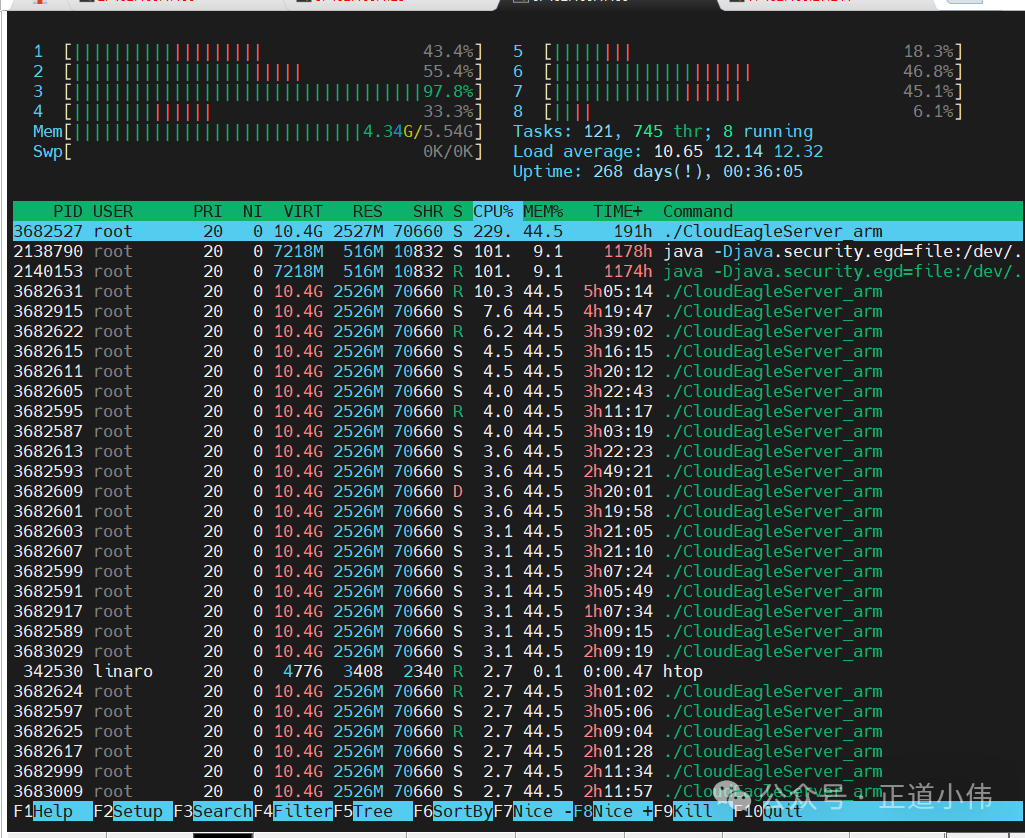
The last step is to verify; log into any host and type htop to see it
In the next issue of Ansible (2), I will discuss how to batch pull running status information from the controlled hosts and then automatically push it to our QQ mailbox; I wrote this quite hurriedly, as I still have work to attend to, so please forgive any typos.