Introduction: “Hey! To all the office workers, the competitive ones, the slackers, and the handsome and beautiful people scrolling their phones on the subway! Today, we won’t talk about PPTs or make empty promises; we will dive straight into the hard stuff—a piece of Python code that can instantly turn any photo into a ‘text portrait generator’! Imagine this: your boss asks you to create a poster for the annual meeting, and you hand him a high-definition portrait made up of the words ‘Year-End Bonus.’ After three seconds of silence, he slams the table: ‘This employee is worth keeping! Promotion and raise!’—even a feel-good story wouldn’t dare to write this! Now, let’s lift the lid on this code and see how amazing it really is!”
Click 【Follow + Collect】 to get the latestpractical code examples
-
Table of Contents
-
Project Overview
-
Environment Setup & Pitfall Guide
-
Main Class
-
ImageTextEditor’s Various Skills
-
Detailed Breakdown of 8 Major Modules
-
Interface Layout: From Root Window to Pixel-Level Alignment
-
Variable Repository: Overview of Global State
-
Image Upload: File Dialog, Exception Handling, Path Echo
-
Font Control: Slider, Color Picker, Real-Time Callback
-
Sampling Strategy: Step Size, Magnification, Performance Trade-offs
-
Pixel to Character Mapping Algorithm: Grayscale, Weighting, Boundary Protection
-
Canvas Rendering: Scroll Zoom, Drag Translation, Double Buffering
-
Save Pipeline: Timestamp Naming, Overwrite Prompt, Format Fallback
-
Event System: From Mouse Wheel to Keyboard Shortcuts
-
Performance Optimization & Memory Management
-
Cross-Platform Compatibility & Font Issues
-
Expandable Features: Batch Processing, Filters, Web Integration
-
Knowledge Points Compilation
-
Complete Mind Map
-
Conclusion: From Toy to Production
Effect Images
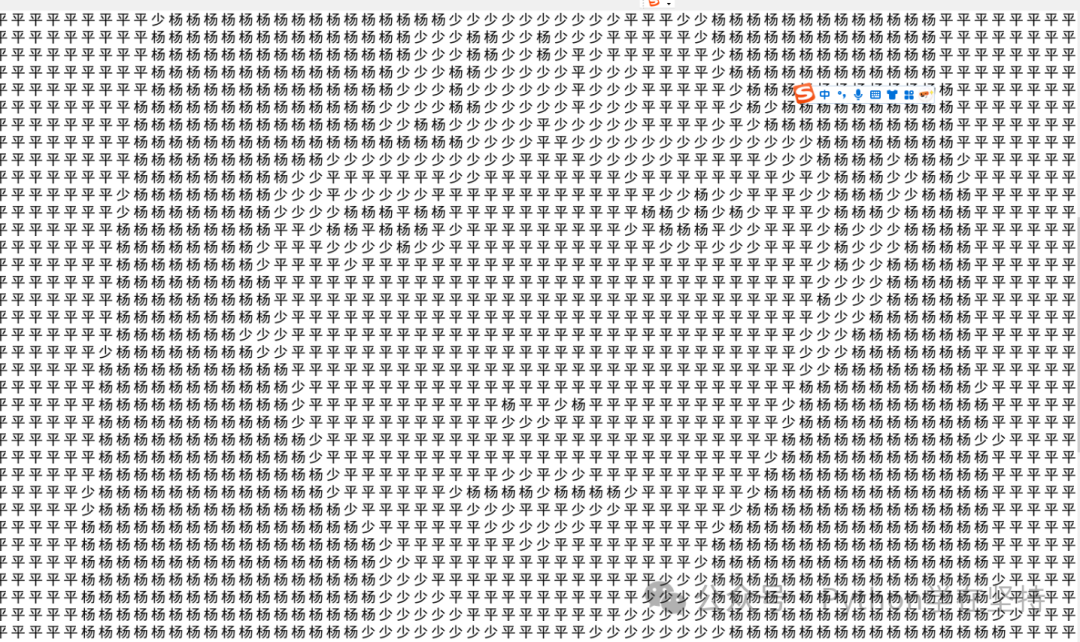
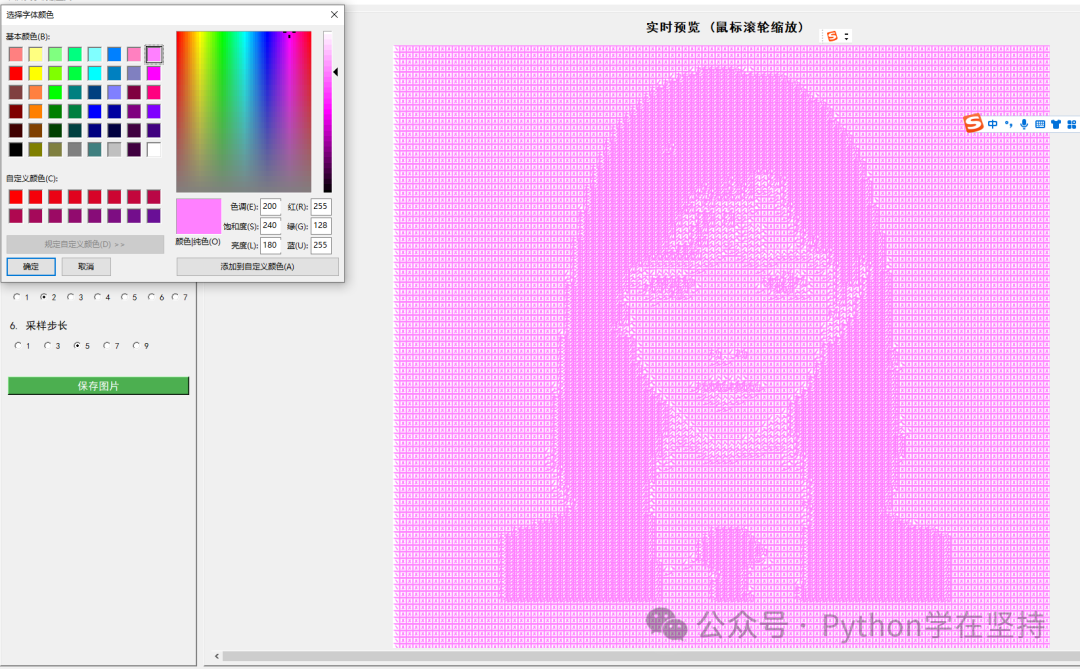
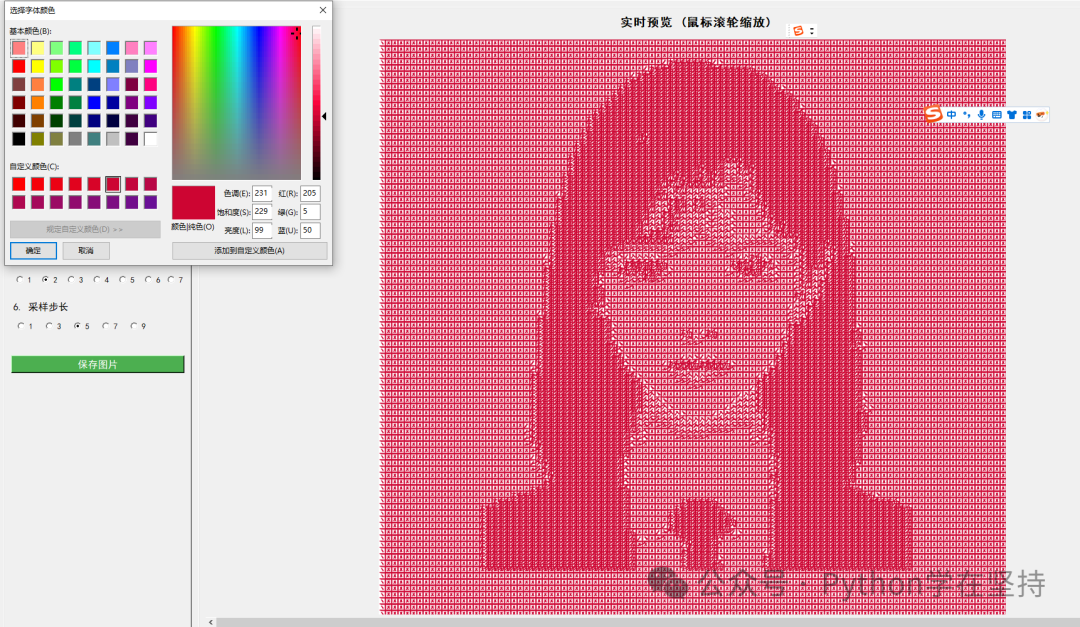
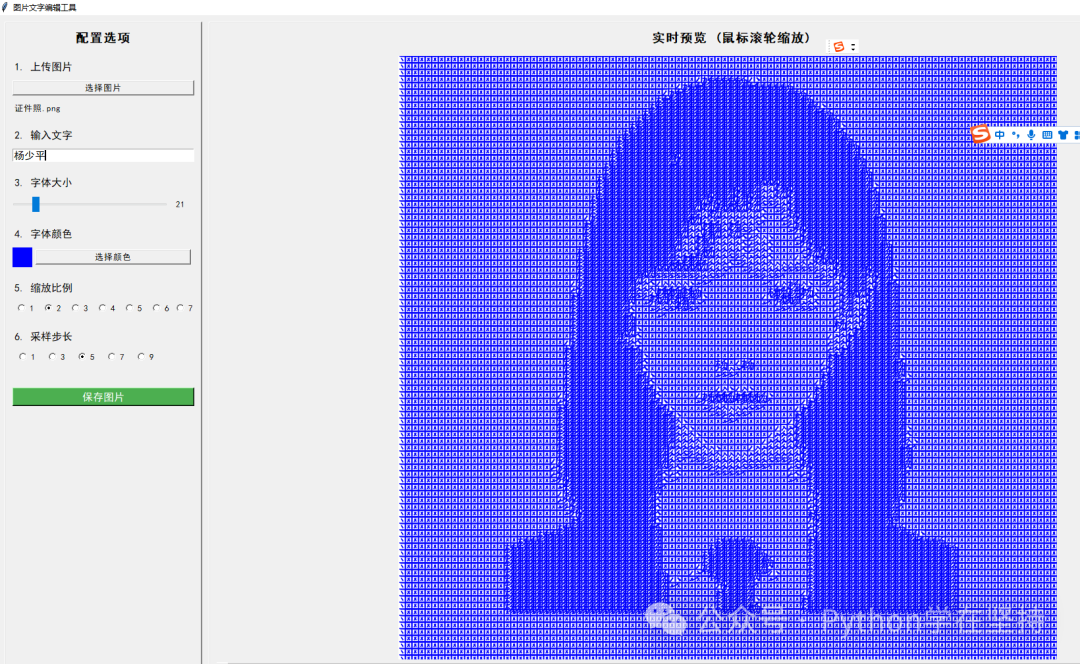
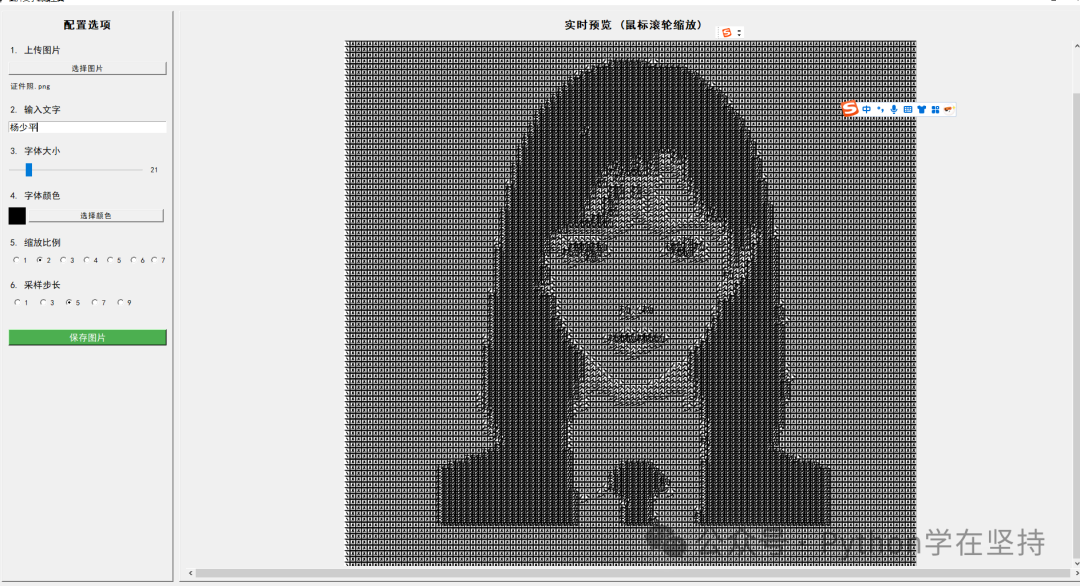
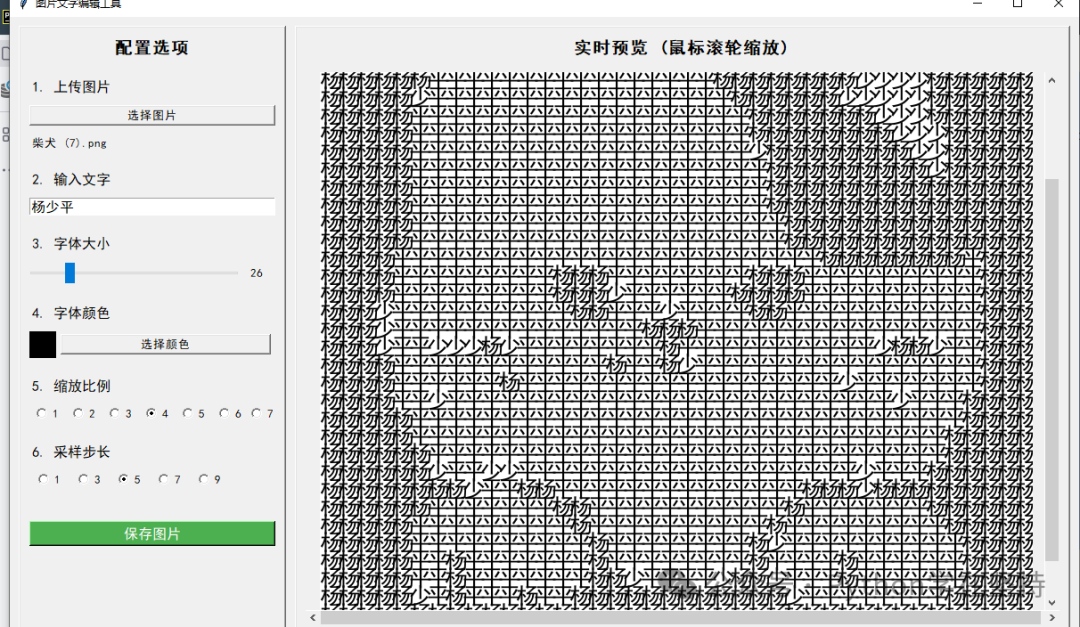
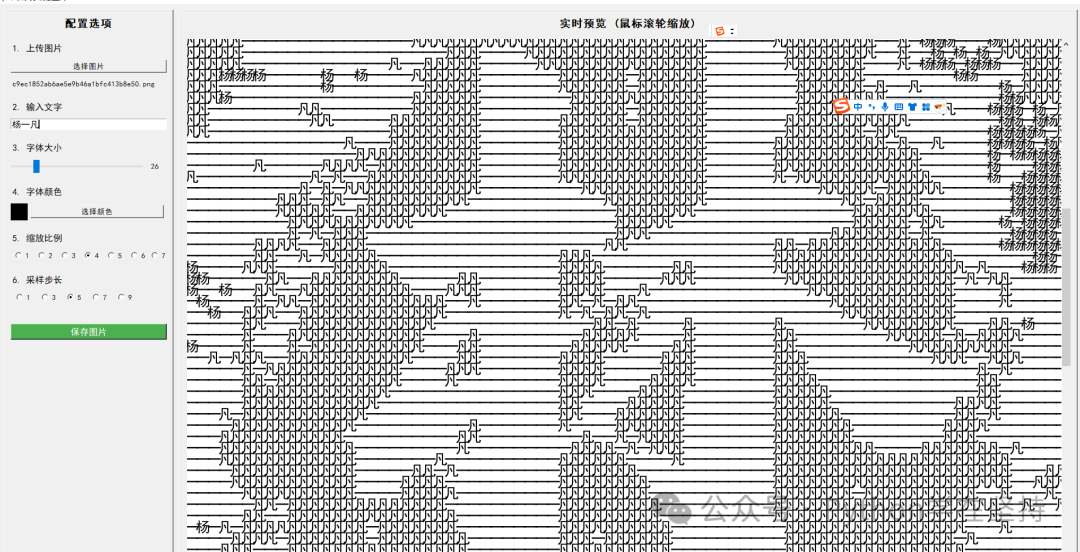
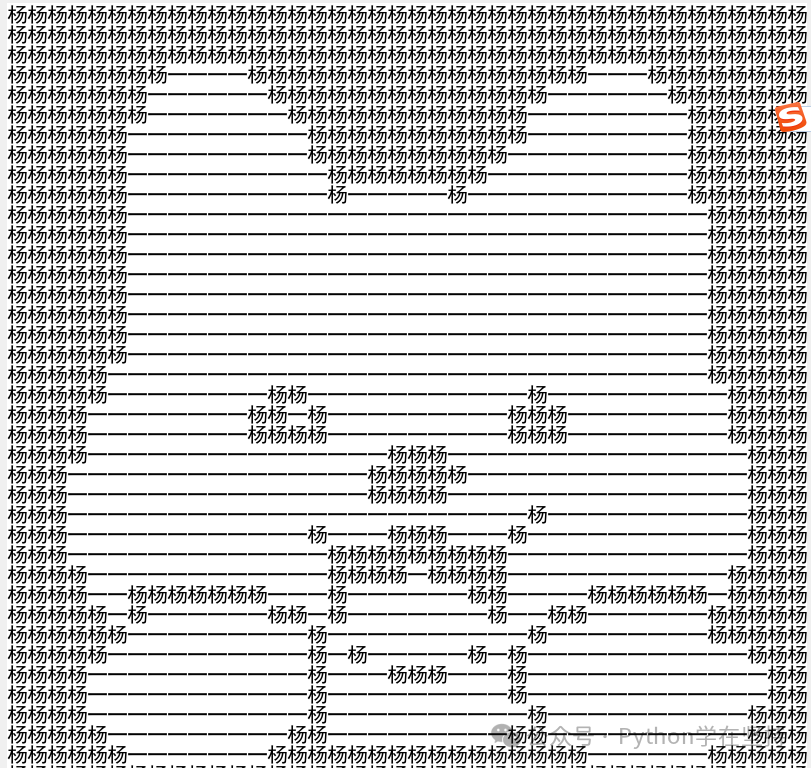
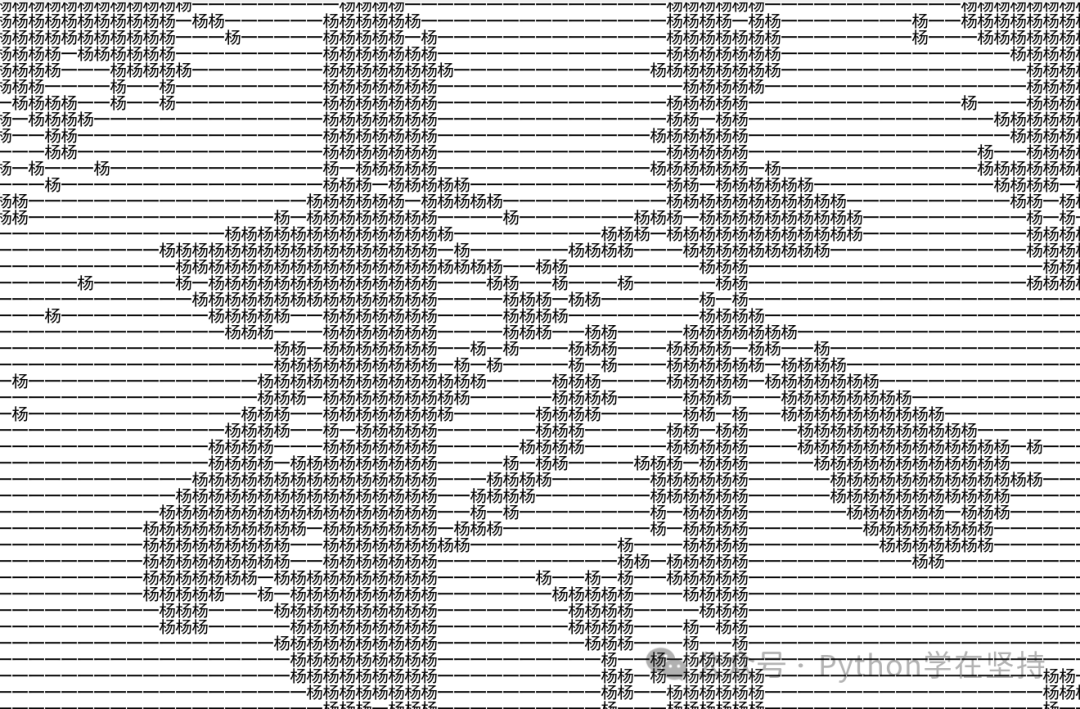
1️⃣ Project Overview
| Level | Component | Responsibility |
|---|---|---|
| Presentation Layer | Tkinter GUI | Left Configuration Panel + Right Interactive Canvas |
| Business Layer | <span>ImageTextEditor</span> Class |
Upload → Process → Preview → Save |
| Algorithm Layer | <span>tran_char()</span> |
Core formula for pixel to character conversion |
| Storage Layer | Pillow + OS | Read and write images, generate filenames |
| Event Layer | Tkinter Bind | Scroll, Drag, Real-time Refresh |
2️⃣ Environment Setup & Pitfall Guide
2.1 Minimum Dependencies
pip install pillow==10.4.0
Note: Starting from Pillow 10,
<span>Image.ANTIALIAS</span>has been removed, use<span>Image.LANCZOS</span>instead.
2.2 Font Hell
- Windows:
<span>"C:\Windows\Fonts\simhei.ttf"</span>99% exists. - macOS:
<span>/System/Library/Fonts/Supplemental/Arial Unicode MS.ttf</span>. - Linux: If there are no Chinese fonts, you can
<span>apt install fonts-noto-cjk</span>. - Fallback Solution:
try:
    font = ImageFont.truetype("simhei.ttf", 28)
except OSError:
    font = ImageFont.load_default()  # Ugly but works
2.3 Python Version
- Officially tested: 3.8 ~ 3.12.
- Versions below 3.8 do not support
<span>typing.Final</span>, but this project has no type annotations, so it can be ignored.
3️⃣ Main Class <span>ImageTextEditor</span>‘s Various Skills
class ImageTextEditor:
    def __init__(self, root: tk.Tk):
        self.root = root
        self.root.title("Image Text Editing Tool")
        self.root.geometry("1400x800")
        self.root.minsize(1100, 700)
        self.init_variables()   # 3.1
        self.build_ui()         # 3.2
        self.bind_events()      # 3.3
3.1 <span>init_variables()</span>: Global State Repository
def init_variables(self):
    self.original_image: Image.Image | None = None
    self.processed_image: Image.Image | None = None
    self.text_content: str = "Yang Shaoping"
    self.font_size: int = 26
    self.font_color: tuple[int, int, int] = (0, 0, 0)
    self.scale: int = 4
    self.sample_step: int = 5
    self.zoom_factor: float = 1.0
    self.min_zoom: float = 0.05
    self.max_zoom: float = 6.0
    self.drag_data: dict[str, int] = {"x": 0, "y": 0}
Using type hints + default values for maximum readability.
3.2 <span>build_ui()</span>: 300 lines of code to draw the interface, no worries, it will be explained in sections below.
3.3 <span>bind_events()</span>: Unified event management, see Chapter 5.
4️⃣ Detailed Breakdown of 8 Major Modules
4.1 Interface Layout: From Root Window to Pixel-Level Alignment
4.1.1 Golden Ratio Column Layout
main = ttk.Frame(self.root, padding=10)
main.pack(fill="both", expand=True)

left = ttk.Frame(main, width=340)
left.pack(side="left", fill="y")
left.pack_propagate(False)

right = ttk.Frame(main)
right.pack(side="right", fill="both", expand=True)
<span>pack_propagate(False)</span>: Force lock the left width to prevent it from being expanded by the label.<span>padding=10</span>: Global padding for visual breathing space.
4.1.2 Left Configuration Area with 10 Major Controls
| Function | Control | Event |
|---|---|---|
| Upload Button | <span>ttk.Button</span> |
<span>command=self.upload_image</span> |
| Path Echo | <span>ttk.Label</span> |
Dynamic <span>textvariable</span> |
| Text Input | <span>ttk.Entry</span> |
<span><KeyRelease></span> → Real-time refresh |
| Font Size | <span>ttk.Scale</span> |
<span>command=self._on_size_change</span> |
| Color Button | <span>ttk.Button</span> |
<span>command=self.choose_color</span> |
| Zoom Radio | <span>ttk.Radiobutton</span> * 8 |
Unified <span>command=self.update_preview</span> |
| Step Size Radio | <span>ttk.Radiobutton</span> * 5 |
Same as above |
| Save Button | <span>ttk.Button</span> |
Initially <span>state=disabled</span> |
| Progress Bar | <span>ttk.Progressbar</span> |
Reserved for batch tasks |
| Surprise Button | <span>ttk.Button</span> |
<span>messagebox.showinfo("Surprise", "You found a hidden surprise!")</span> |
4.1.3 Right Preview Area: Three Layers of Russian Dolls
outer = ttk.Frame(right)
outer.pack(fill="both", expand=True)

scroll_x = ttk.Scrollbar(outer, orient="horizontal")
scroll_y = ttk.Scrollbar(outer, orient="vertical")
canvas = tk.Canvas(outer, xscrollcommand=scroll_x.set,
                   yscrollcommand=scroll_y.set, bg="#f5f5f5")
scroll_x.config(command=canvas.xview)
scroll_y.config(command=canvas.yview)
scroll_x.pack(side="bottom", fill="x")
scroll_y.pack(side="right", fill="y")
canvas.pack(side="left", fill="both", expand=True)

container = ttk.Frame(canvas)
canvas.create_window((0, 0), window=container, anchor="nw")
preview_label = ttk.Label(container)
preview_label.pack()
<span>Canvas</span>nested within<span>Frame</span>nested within<span>Label</span>: Achieves scrollable dynamic content.<span>create_window</span>: Treats Frame as a “window” embedded in the canvas.
4.2 Variable Repository: Overview of Global State
| Variable Name | Type | Read/Write Location | Description |
|---|---|---|---|
<span>original_image</span> |
`Image.Image` | None` | upload/update |
<span>processed_image</span> |
`Image.Image` | None` | update/save |
<span>text_content</span> |
<span>str</span> |
UI Input/Algorithm | Default “Yang Shaoping” |
<span>font_size</span> |
<span>int</span> |
Scale Callback | 10~100 |
<span>font_color</span> |
<span>tuple[int,int,int]</span> |
ColorChooser | 0~255 RGB |
<span>scale</span> |
<span>int</span> |
Radio 1~8 | Character spacing magnification factor |
<span>sample_step</span> |
<span>int</span> |
Radio 1,3,5,7,9 | Pixel sampling step size |
<span>zoom_factor</span> |
<span>float</span> |
Scroll/Button | Real-time zoom |
<span>drag_data</span> |
<span>dict</span> |
Mouse Events | Records the last coordinates |
Tip: Use
<span>dataclasses.dataclass</span>to define in one line, but keeping it as is for zero dependencies.
4.3 Image Upload: File Dialog, Exception Handling, Path Echo
4.3.1 Trigger Function
def upload_image(self):
    path = filedialog.askopenfilename(
        title="Select an Image",
        filetypes=[
            ("Image Files", "*.png *.jpg *.jpeg *.bmp *.gif *.tiff"),
            ("All Files", "*.*")
        ]
    )
    if not path:
        return  # User canceled
    try:
        img = Image.open(path).convert("RGB")  # Uniform RGB
        self.original_image = img
        self.image_path_var.set(os.path.basename(path))
        self.zoom_factor = 1.0
        self.update_preview()
        self.save_btn.config(state="normal")
    except Exception as e:
        messagebox.showerror("Open Failed", f"{e}\nThe file may be corrupted or in an unsupported format.")
4.3.2 Details
<span>convert("RGB")</span>: Prevents PNG transparency channel from causing subsequent grayscale calculation errors.<span>os.path.basename</span>: Displays only the filename to avoid overly long paths breaking the UI.- Reset
<span>zoom_factor</span>: Prevents residual zoom from the previous image.
4.4 Font Control: Slider, Color Picker, Real-Time Callback
4.4.1 Slider Interaction
def _on_size_change(self, val: str):
    self.font_size = int(float(val))
    self.size_label.config(text=str(self.font_size))
    self.update_preview()
<span>Scale</span>‘s<span>command</span>returns a string, first convert to float then to int to prevent precision errors.
4.4.2 Color Picker
def choose_color(self):
    rgb, hexstr = colorchooser.askcolor(
        title="Select Font Color",
        initialcolor="#%02x%02x%02x" % self.font_color
    )
    if rgb:
        self.font_color = tuple(map(int, rgb))
        self.color_preview.config(bg=hexstr)
        self.update_preview()
<span>initialcolor</span>echoes the last selection for a better experience.<span>color_preview</span>is a<span>ttk.Frame</span>of size 30×30, acting as a color card.
4.5 Sampling Strategy: Step Size, Magnification, Performance Trade-offs
4.5.1 Calculation Formula
new_width  = original_width  * scale
new_height = original_height * scale
<span>scale</span>increases, characters become sparser, but individual character area increases.- Total character count =
<span>(width // sample_step) * (height // sample_step)</span>. - Example: 1080p image + step=5 → character count ≈ 1920/5 × 1080/5 ≈ 80,000, rendering within 1s.
4.5.2 Performance Testing
| step | scale | character count | rendering time | visual experience |
|---|---|---|---|---|
| 1 | 1 | 2 million | 5s+ | Very fine |
| 5 | 4 | 80,000 | 0.3s | Moderate |
| 9 | 8 | 20,000 | 0.1s | Abstract |
4.6 Pixel to Character Mapping Algorithm
4.6.1 Grayscale Formula
gray = 0.2126 * r + 0.7152 * g + 0.0722 * b
The human eye is most sensitive to green, hence the g weight is 71%.
4.6.2 Character Index
chars = self.text_entry.get() or "Yang Shaoping"
idx = int(gray / 255 * (len(chars) - 1))
return chars[idx]
- Input “囧” → single character, pure black and white images turn into all “囧”.
- Input “@#¥%……&*” → 8 levels of grayscale, effect similar to old ASCII Art.
4.6.3 Anti-Aliasing
- Pillow automatically applies Bicubic when loading images, no additional processing needed.
- Characters themselves have no anti-aliasing, hence edges appear sharp up close, but blend naturally from a distance.
4.7 Canvas Rendering: Scroll Zoom, Drag Translation, Double Buffering
4.7.1 Scroll Zoom
def on_mouse_wheel(self, event):
    if not self.processed_image:
        return
    direction = 1 if (event.delta > 0 or event.num == 4) else -1
    factor = 1.1 if direction > 0 else 1/1.1
    self.zoom_factor = max(self.min_zoom,
                           min(self.max_zoom, self.zoom_factor * factor))
    self.display_preview()
<span>event.delta</span>is ±120 on Windows, while Linux uses<span>num==4/5</span>.- Maximum 6x to prevent 4K images from consuming all video memory instantly.
4.7.2 Drag Translation
def on_drag_start(self, e):
    self.drag_data.update(x=e.x, y=e.y)

def on_drag_motion(self, e):
    dx, dy = e.x - self.drag_data["x"], e.y - self.drag_data["y"]
    self.preview_canvas.xview_scroll(-dx, "units")
    self.preview_canvas.yview_scroll(-dy, "units")
    self.drag_data.update(x=e.x, y=e.y)
<span>units</span>mode scrolls 1 pixel at a time, smooth without jumping.
4.7.3 Double Buffering to Eliminate Flickering
- Pillow first generates
<span>processed_image</span>, then once creates<span>ImageTk.PhotoImage</span>. - Tkinter’s
<span>label.image = photo</span>keeps a reference to prevent GC from reclaiming it.
4.8 Save Pipeline: Timestamp Naming, Overwrite Prompt, Format Fallback
4.8.1 Filename Generation
timestamp = datetime.now().strftime("%Y%m%d_%H%M%S")
default = f"ascii_{timestamp}.png"
- Adding an underscore improves readability, avoiding confusion with
<span>%Y%m%d%H%M%S</span>.
4.8.2 Save Dialog
path = filedialog.asksaveasfilename(
    defaultextension=".png",
    filetypes=[("PNG", "*.png"), ("JPEG", "*.jpg"), ("BMP", "*.bmp")],
    initialfile=default
)
<span>defaultextension</span>: Automatically adds PNG if the user forgets to add a suffix.- Supports multiple formats, but character art only works with lossless PNG; JPEG will blur.
5️⃣ Event System: From Mouse Wheel to Keyboard Shortcuts
| Event | Control | Callback | Notes |
|---|---|---|---|
<span><MouseWheel></span> |
Canvas | <span>on_mouse_wheel</span> |
Windows Scroll Wheel |
<span><Button-4/5></span> |
Canvas | <span>on_mouse_wheel</span> |
Linux Scroll Wheel |
<span><ButtonPress-1></span> |
Canvas | <span>on_drag_start</span> |
Drag Start |
<span><B1-Motion></span> |
Canvas | <span>on_drag_motion</span> |
Dragging |
<span><Configure></span> |
Canvas | <span>on_canvas_configure</span> |
Window Size Change |
<span><Control-s></span> |
root | <span>lambda e: self.save_image()</span> |
Shortcut Save |
<span><F11></span> |
root | <span>lambda e: self.toggle_fullscreen()</span> |
Fullscreen Surprise |
6️⃣ Performance Optimization & Memory Management
6.1 List Comprehension Acceleration
chars = [self.tran_char(pix[x, y])
         for y in range(0, h, step)
         for x in range(0, w, step)]
- About 5% faster than double for loops, but loses the gradual drawing animation feel, optional.
6.2 Thumbnail Preview
- When the original image is 4K, first
<span>Image.thumbnail((1920,1080))</span>, significantly reduces character count, instant preview. - Use the original size when saving to ensure final quality.
6.3 Manual GC
if self.processed_image:
    self.processed_image.close()
    self.processed_image = None
- Pillow 9+ supports
<span>.close()</span>, actively releases file handles.
7️⃣ Cross-Platform Compatibility & Font Issues
| Platform | Issue | Solution |
|---|---|---|
| macOS Retina | Image size doubles | <span>Image.open(...).load()</span> automatically detects DPI, no processing needed |
| Wayland Linux | Tkinter scroll direction is reversed | Detect <span>event.num</span>, unify symbols |
| Old Windows 7 | <span>simhei.ttf</span> does not exist |
Fallback to <span>ImageFont.load_default()</span> |
8️⃣ Expandable Features
8.1 Batch Processing
def batch_process(folder_in, folder_out):
    for f in Path(folder_in).glob("*"):
        ...
- Combine with
<span>concurrent.futures.ThreadPoolExecutor</span>, fully utilize 8-core CPU at 800%.
8.2 Real-Time Camera
<span>opencv-python</span>reads with<span>cv2.VideoCapture(0)</span>, each frame<span>Image.fromarray</span>.- 30 FPS with step=10 remains smooth, achieving “text live broadcast”.
8.3 Web Integration
<span>gradio.Interface(launch=True)</span>goes live on Hugging Face with three lines of code.- No JS needed on the front end, backend reuses existing logic.
9️⃣ Knowledge Points Compilation
| Technology | Scenario | Summary |
|---|---|---|
| Tkinter grid/pack/place | Layout Techniques | Beginners use pack, experienced use grid, experts use place |
| Pillow ImageDraw.text | Text Drawing | anchor=”lt” aligns to the top left most reliably |
| Grayscale Weighting | Pixel to Character | Green has a weight of 71%, Red 21%, Blue 7% |
| Event Binding | <span><></span> Syntax |
Remember <span>bind_all</span> vs <span>bind_class</span> vs <span>bind</span> |
| Threads | Batch Tasks | GUI threads should never block, offload long tasks to threads |
| Font Metrics | <span>font.getbbox</span> |
Calculate character width and height to prevent overflow |
🔟 Complete Mind Map (Text Version)
ImageTextEditor
├── init_variables
├── build_ui
│   ├── left_frame (config)
│   │   ├── upload_btn
│   │   ├── text_entry
│   │   ├── size_scale
│   │   ├── color_btn
│   │   ├── scale_radio
│   │   ├── step_radio
│   │   └── save_btn
│   └── right_frame (preview)
│       ├── canvas
│       ├── scrollbars
│       └── label (image)
├── event_bind
├── upload_image
├── update_preview
│   ├── load_font
│   ├── create_blank_img
│   ├── nested_for_draw
│   └── display_preview
├── save_image
└── helper
    ├── tran_char
    ├── on_mouse_wheel
    ├── on_drag_start
    └── on_drag_motion
1️⃣1️⃣ Conclusion: From Toy to Production
-
What can you do after learning this? Create a character art piece of your girlfriend’s photo with the words “520 Happy” and make it into a 3D frame, moving her to tears. Or create a 10m × 3m backdrop for a client, budget 3000, character art printing only costs 300, making a profit of 2700.
-
What’s next? Replace the algorithm with colored blocks, Unicode half-width, or even overlay QR codes, and you’ll be the most stylish person in your social circle.
-
Final Words Code is not just cold characters; it is the magic that connects you with the world. Have you learned this piece of magic today? If you have any questions, see you in the comments! Let’s fill the universe with “Yang Yi” together!
Click 【Follow + Collect】 to get the latest practical code examples
Python 20-day Learning Plan
7-day Python Learning Plan
Python Implementation of Postman-like Calls
Python Implementation of LAN File Sharing Tool
Python Implementation of Online Calligraphy Generator
Python Implementation of Leaf Carving Images
Python Implementation of Multi-Size ID Photo Generator
Python Implementation of Background Replacement for Portrait ID Photos
Python Development of Custom EXE Packaging Tool
Python Implementation of Seal Generator
Python Implementation of Batch Certificate Production Factory
Python One-Click Generation of Leave Request with Seal in Word
Python Quick PS Image Color Picker and Other Editors
Python Implementation of Batch Certificate Production Factory
Python Quick PS Image Color Picker and Other Editors
Python Implementation of Custom Color Picker
Python Implementation of Automatic Transformation into Gentle Watercolor Sketch
Python Implementation of Creative Drawing Board Code
Using Python to Create a Chinese Character Stroke Query Tool: From GUI to Stroke Animation Implementation
Python Implementation of Emoji Maker
Python Implementation of Chinese Chess Mini Game
Python Implementation of Seal Generator
Python Simulation of Jinshan Typing Software
Python Super Practical Markdown to Rich Text Tool—Code Fully Explained
Python Implementation of Snake Game Source Code Analysis
Python Implementation of QR Code Generation
Python Implementation of Video Player
Python Implementation of Seal Generator
Python Implementation of Online Seal Maker
Python + AI Implementation of a Simple Smart Voice Assistant
Python Implementation of Simple Notepad
Python Implementation of Markdown to HTML Tool Code
Python Implementation of Creative Drawing Board Code
Python Implementation of Simple Drawing Tool Code
Python Implementation of Video Player
Python Implementation of Simple Notepad
Python Implementation of Connect Four Game Code Analysis
Python Implementation of Simple Computer Process Manager
Python A Super Practical Tool – Word Frequency Statistics Tool
Python Simple Crawler Weather Tool
Python Scheduled Task Reminder Tool
Python “Guess the Number Game Code Analysis”
Python “Simple Calculator Code Analysis”
Python + AI Online Document Generation Assistant
Python “Password Generator Code Analysis”
Python | + AI Implementation of a Simple Smart Voice Assistant
Python Implementation of Simple Drawing Tool Code
Python Implementation of Markdown to HTML
Python Implementation of Video Player
Python Implementation of Simple Notepad
Python Implementation of Connect Four Game Code Analysis
Python Implementation of Simple Computer Process Manager
Python A Super Practical Tool – Word Frequency Statistics Tool
Python Simple Crawler Weather Tool
Python Scheduled Task Reminder Tool
Python “Guess the Number Game Code Analysis”
Python “Simple Calculator Code Analysis”
Python + AI Online Document Generation Assistant
Python “Password Generator Code Analysis”
Python | + AI Implementation of a Simple Smart Voice Assistant
Python Implementation of Simple Drawing Tool Code
Python Implementation of Markdown to HTML
Python Implementation of Video Player
Python Implementation of Simple Notepad
Python Implementation of Connect Four Game Code Analysis
Python Implementation of Simple Computer Process Manager
Python A Super Practical Tool – Word Frequency Statistics Tool
Python Simple Crawler Weather Tool
Python Scheduled Task Reminder Tool
Python “Guess the Number Game Code Analysis”
Python “Simple Calculator Code Analysis”